Knox Manage 26.06 release notes (new console)
Last updated June 17th, 2026
New
New device management types
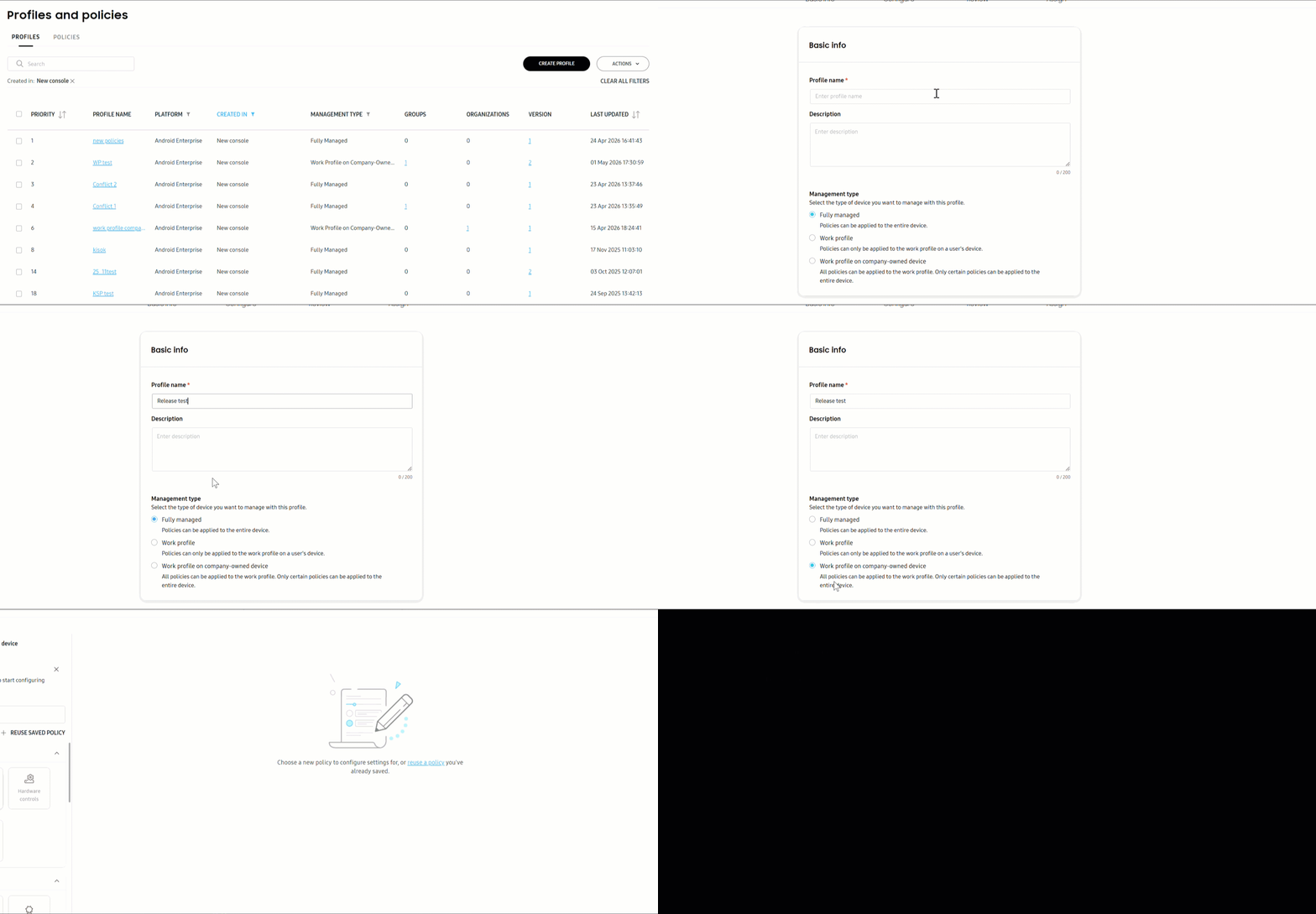
Previously, the new console allowed you to enroll and manage fully managed devices only. Now you can manage two additional device management types: work profile on personally-owned device, and work profile on company-owned device.
Similar to the original console, the work profile type lets you control business apps and data in the work profile on personal devices. The work profile on company-owned device type allows you some management capabilities over the device’s personal area, while also controlling business apps and data in the work profile. To learn more, see Enroll a device.
Set device management type for profiles
When you create a profile, you must select a device management type: fully managed, work profile, or work profile on company-owned device. This new workflow means that profiles can only manage devices from one management type. If a profile is assigned to a group or organization containing multiple management types, its settings are only applied to the devices it can manage. The policies available in each profile differ depending on the selected management type. See Create a profile and policies.
Support for organization management
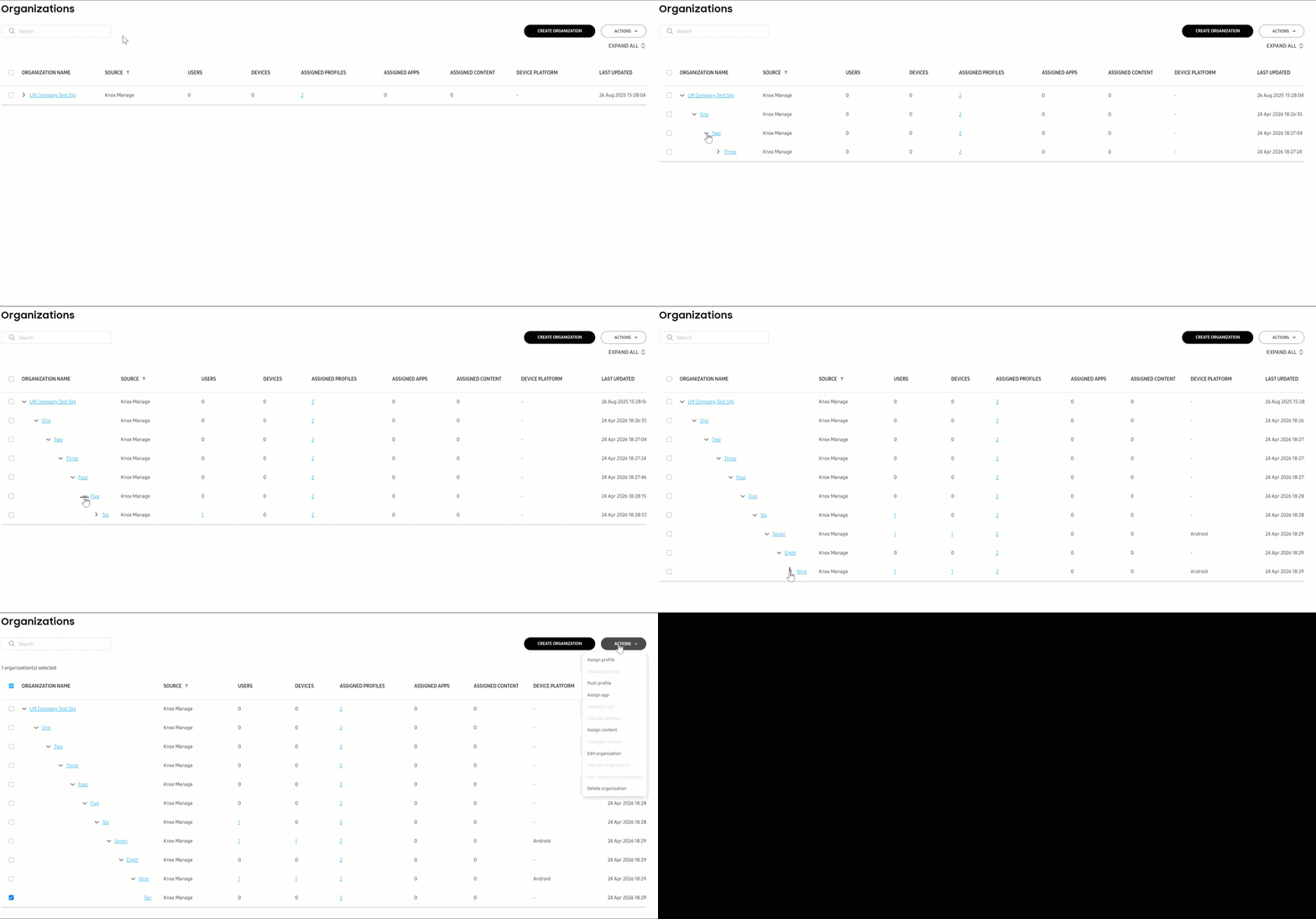
The new console now supports organization management. Similar to their purpose in the original console, organizations provide another way to organize and manage users besides groups. You can manually create and manage organizations, or sync them from On-premises Active Directory (AD). Organizations sync between the consoles, meaning you can manage organizations created in the original console from the new console.
Under organizations, you can create or sync sub-organizations. For instance, if you have an organization named “Human resources”, you could have various sub-organizations within it for each team, such as “Talent acquisition” and “Payroll”. Then within “Talent acquisition”, you can have different sub-organizations such as “Recruiters” or “Coordinators”, and so on. Each sub-organization can inherit the profiles and settings of its parent organization, or you can set up new ones for it.
From the root organization, the organization created with your tenant which is the parent of all other organizations, you can add up to ten levels of sub-organizations. So, in the above example, if you created “Human resources” under the root organization, it would be level one, while “Payroll” would be level two, and “Recruiters” would be level three.
Reports
Create custom reports
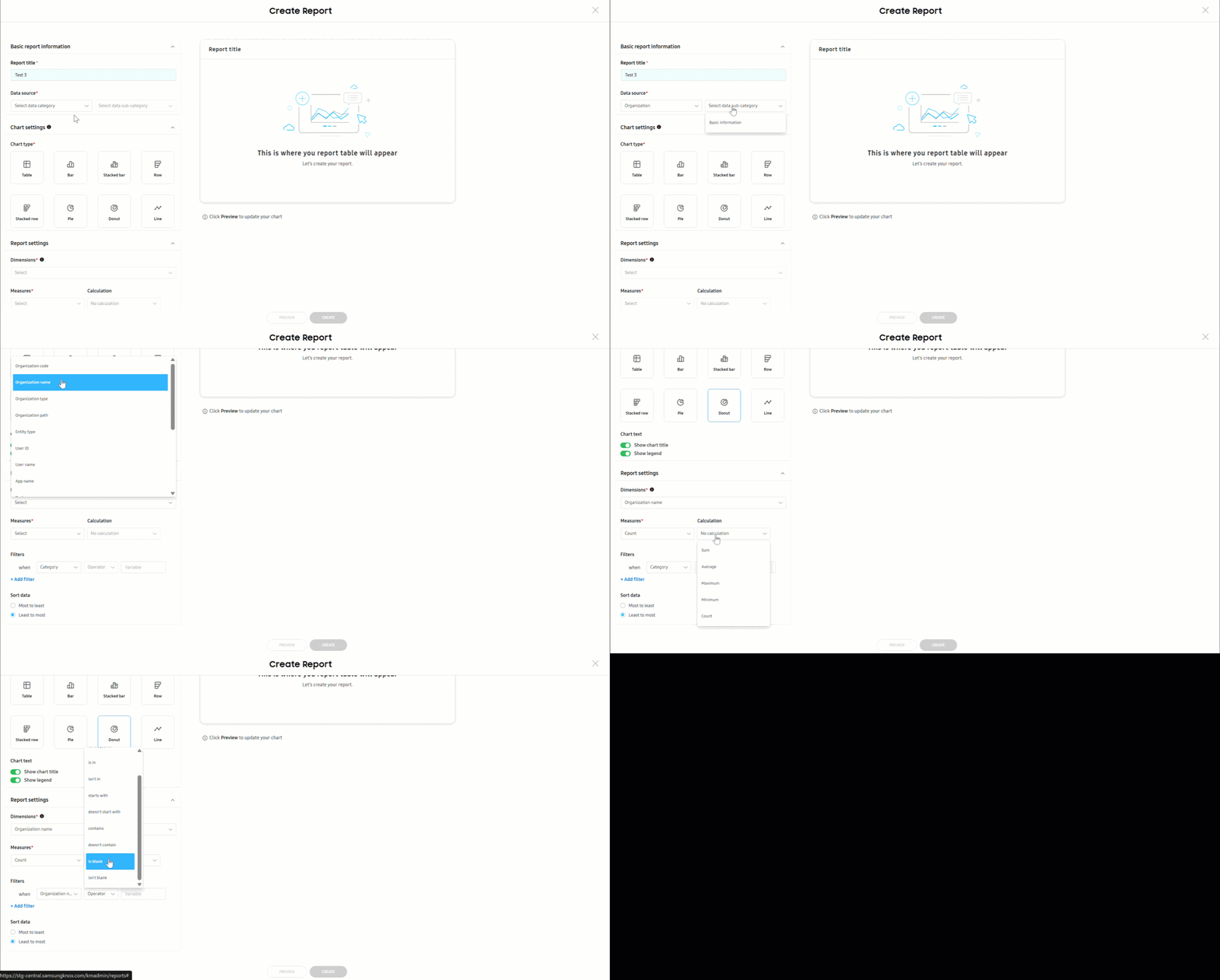
As of this release, the new console allows you to create custom reports to track your data. Report creation starts with a data source, such as apps or devices, which is then further distilled into specific insights and quantities based on your preferences. With eight chart designs to choose from, you can visualize your data in relevant and impactful ways.
Prebuilt reports
In addition to custom reports, the new console now supports prebuilt reports. Similar to the original console, prebuilt reports show specific data sets through preconfigured insights, quantities, and charts. You can also duplicate prebuilt reports to create customizable copies.
Send reports
You can now schedule custom or prebuilt reports to email to you and your sub-admins on a daily, weekly, or monthly basis. Each email links to a downloadable XLSX file of the report with data from the past day, week, or month, helping you better track the data that matters most to you.
New event management
The new console now supports rules, which are configurations that trigger specific actions on devices based on predefined criteria, such as a SIM card change or schedule. While similar to event profiles in the original console, rules do more than just push profiles to devices. They also perform the following actions on devices when predefined conditions are met: Remove all managed apps, Lock devices, Reboot devices, and Send push notification to devices.
Rules eliminate the need to continuously apply actions or policy settings. This conditional application makes them ideal for scenarios where you need devices to behave differently in specific situations. For example, you can use the Geofence condition to apply a rule, such as locking the device, if a device leaves a specific geographical radius. To learn more, see Create rules.
New sub-admin management
Previously, although you invited Knox Manage sub-admins through Knox Admin Portal, you had to set their permissions in the original console. With this release, sub-admin permissions are managed separately between the consoles.
For the new console, you now set permissions and roles from the Administrators & Roles page in the Knox Admin Portal. By default, all existing sub-admins are given View only access of the new console. Their permissions must be manually reset to what you previously configured. See Add or modify an admin to learn more.
Manage directory group sync status
On the Groups page, you can now enable or disable the syncing of a directory group by clicking the name of a directory group > (More actions icon). If the directory group’s sync status is enabled, you can edit the group’s Sync target. To learn more, see Add and manage directory groups.
Microsoft User Security Identifier support for Certificate Authority (CA) templates
During the process of adding a template on the Certificates page, you can now choose to enable Microsoft User Security Identifier if your Certificate Authority (CA) type is NDES or ADCS. To learn more, see Manage certificate templates.
New console default for new tenants
For Knox Manage tenants created after 26.06, the Knox Manage new console is displayed on sign in instead of the original console.
New policy settings
With this release, the following Android Enterprise policy settings are added to the new console.
To find a specific setting, go to Profiles and policies > select a profile > Edit profile and start typing the setting name in the Search policy settings field.
| Policy setting | Description |
|---|---|
| Expand status bar | Allows the device user to expand the status bar. |
| Power off | Allows the device user to power off the device. |
| Block use of certain hardware keys | Allows you to block select hardware keys, such as Camera or Task manager. |
| Boot animation | Configures an animation to play when the device boots up. |
| Shutdown animation | Configures an animation to play when the device shuts down. |
| Multi-factor authentication | Enables two-step verification for device users to unlock their devices. |
| Block components from running in certain apps | Blocks a component, such as an activity, receiver, service, or provider, from running on a selected app. |
| 5G network slicing | Enables 5G network slicing, which lets you allocate a single 5G connection as multiple distinct virtual connections. |
| Wi-Fi setting | Allows the device user to change the Wi-Fi settings. |
| Wi-Fi (SSID) | Creates a SSID allowlist and blocklist. |
Enhancements to the Knox Manage agent’s interface and navigation
With this release, the interface of the Knox Manage agent is redesigned for easier navigation. Device users can now access all of its functions, such as content and settings, from the agent’s home screen.
New troubleshooting options also provide the agent with added functionality. For instance, Debug mode collects additional data to send to IT admins once users reproduce issues on their devices. Additionally, if users experience issues during enrollment, a notification now displays on their device’s screen. Users can tap it to launch the Knox Manage agent early in the enrollment process to access its troubleshooting functions.
Introducing extended reality (XR) devices
As of 26.06, Knox Manage now supports extended reality (XR) devices. XR devices can be enrolled as fully managed devices through the token or QR code methods. For this release, XR device management is limited to specific features and Android Enterprise policies, but more features are planned for the future. See Supported features to learn more.
Updates
Update to Samsung Cloud Connector (SCC) client and server version
Previously, the Samsung Cloud Connector (SCC) client version was 25.11 (2.8.1), matching the server version of 25.11. With the 26.06 release, the SCC client and server versions have been updated to 26.06.
With these updates, various prerequisites to install the client have also been updated, including the minimum supported version for the Java Development Kit (JDK), as well as limitations for SCC server 26.06 access for certain older versions of the SCC client. See Prerequisites for installing SCC and Install the SCC client to learn more.
Updated permission to switch between consoles
Previously, super admins could access the Knox Manage settings from their profile icon > Settings, and switch between the new and original consoles. With this release, only the super admin who created the Knox Manage tenant can access these settings — GENERAL SETTINGS, DEFAULT SUPPORT INFORMATION, ANDROID ENTERPRISE, and USER EMAIL TEMPLATES — and switch between consoles.
Update to device search behavior
Previously, you could search for a device in Knox Manage by partially entering an IMEI. Starting with 26.06, the IMEI partial search functionality is no longer available for additional security. However, you can continue to search for a device with its full IMEI.
Improved identity provider log information
Previously, on the IDENTITY PROVIDER tab of the Activity logs page, you could see a connection, user, group, or organization’s SYNC RESULT or EVENT. Now, you can view additional details of the sync result or event depending on whether it was successful or unsuccessful.
If successful, you can view details such as the change log. If unsuccessful, you can view an error log. To learn more, see Review activity logs.
Change to authentication token validity period
For increased security, the maximum token validity period for API clients has been set to 1 hour (3600 seconds).
Updated XLSX import size limit
Previously, there was no maximum import size limit for XLSX files in Knox Manage. For increased import speed and security, the maximum import size has been changed to 10 MB.
Update to supported Android version
Previously, the Knox Manage agent on a device supported Android 11 or higher. With the 26.06 release, the Knox Manage agent now supports Android 12 or higher.
Deprecations
Notice of end to SCC server access for SCC client version 2.3.1 or earlier on JDK version 1.8.0_261 or higher
Due to enhanced security protocols, if your SCC client version is 2.3.1 or earlier on JDK version 1.8.0_261 or higher, you won’t be able to access SCC server 26.06. For security and system stability, we strongly recommend using SCC client version 26.06. See Prerequisites for installing SCC and Install the SCC client to learn more.
Pre-notice of deprecation of older SCC client versions
SCC client versions 2.5.2 and lower are scheduled to be deprecated in 2H 2027. To learn about how to update to the newest version of the SCC client, see Run and manage the SCC client.
Back to release notesOn this page
Is this page helpful?