Delete content
Last updated April 7th, 2026
You can manually delete content from your Knox Manage library. Downloaded content on devices is deleted automatically under certain conditions.
Delete content from the library
To manually delete content from your Knox Manage library:
-
Go to Library > Content.
-
Select the content that you want to delete.
-
Click ACTIONS > Delete content from library.
- Alternatively, click the content name > ( ) (More actions icon) > Delete content.
-
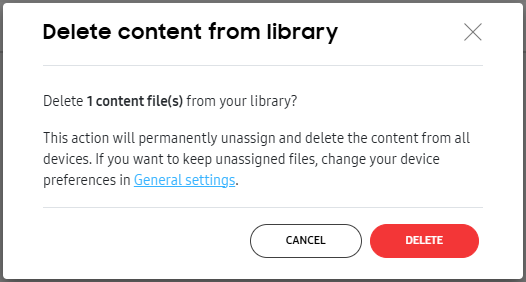
On the Delete content from library dialog that opens, click DELETE. The content is deleted from your Knox Manage library.
Delete content from your device
Downloaded content is automatically deleted from devices under any one of the following circumstances, since the content is no longer associated with its assigned location:
- The user account is assigned to a different group.
- The device is assigned to a different group.
- The device is removed from the group or user that the content is assigned to.
Deleting a content file from the library won’t remove on-device copies, even if you unassign the content from the target devices. You must enable the Delete content from device when unassigned setting if you want unassigned files to be automatically deleted. See Configure general settings for more information.
On this page
Is this page helpful?