Add and manage directory groups
Last updated June 17th, 2026
A directory group is a group that syncs with your organization’s existing directory services, such as Active Directory (AD) or your Identity Provider (IdP). After you connect to a third-party identity provider, adding a directory group automatically imports user or device information from those external systems. This lets you leverage your current organizational structure instead of having to manually create and maintain groups within Knox Manage.
Add a directory group
To add a directory group to Knox Manage:
-
Go to Groups.
-
Click ACTIONS > Add groups from directory.
-
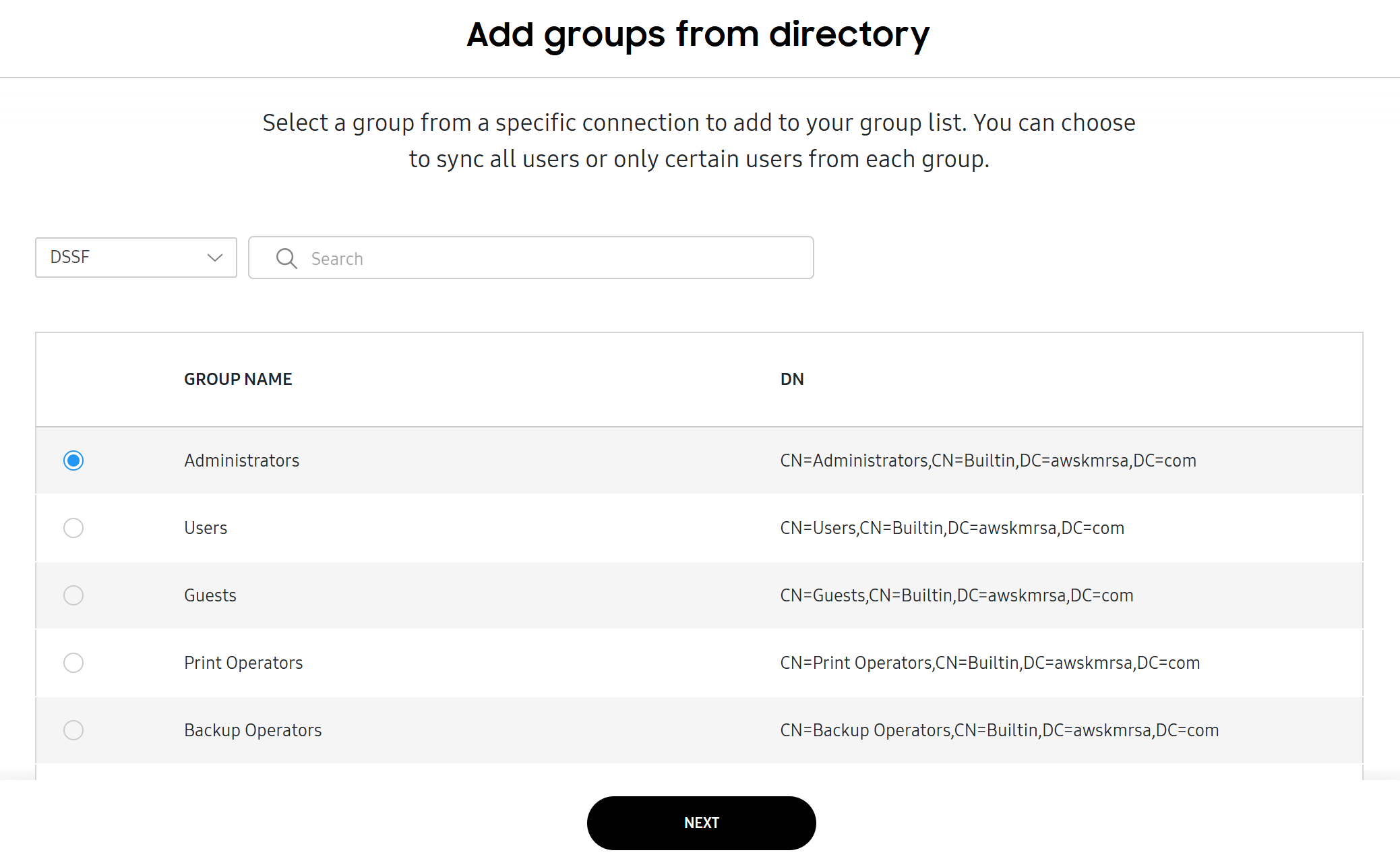
Select a specific connection from the top left drop-down, then choose a group to add to Knox Manage.
-
Click NEXT.
-
Choose your Sync target and Additional settings options, then click NEXT.
The directory group is added to your Groups list.
Edit a directory group
You can edit a directory group to change its name or manage its settings.
-
Go to Groups.
-
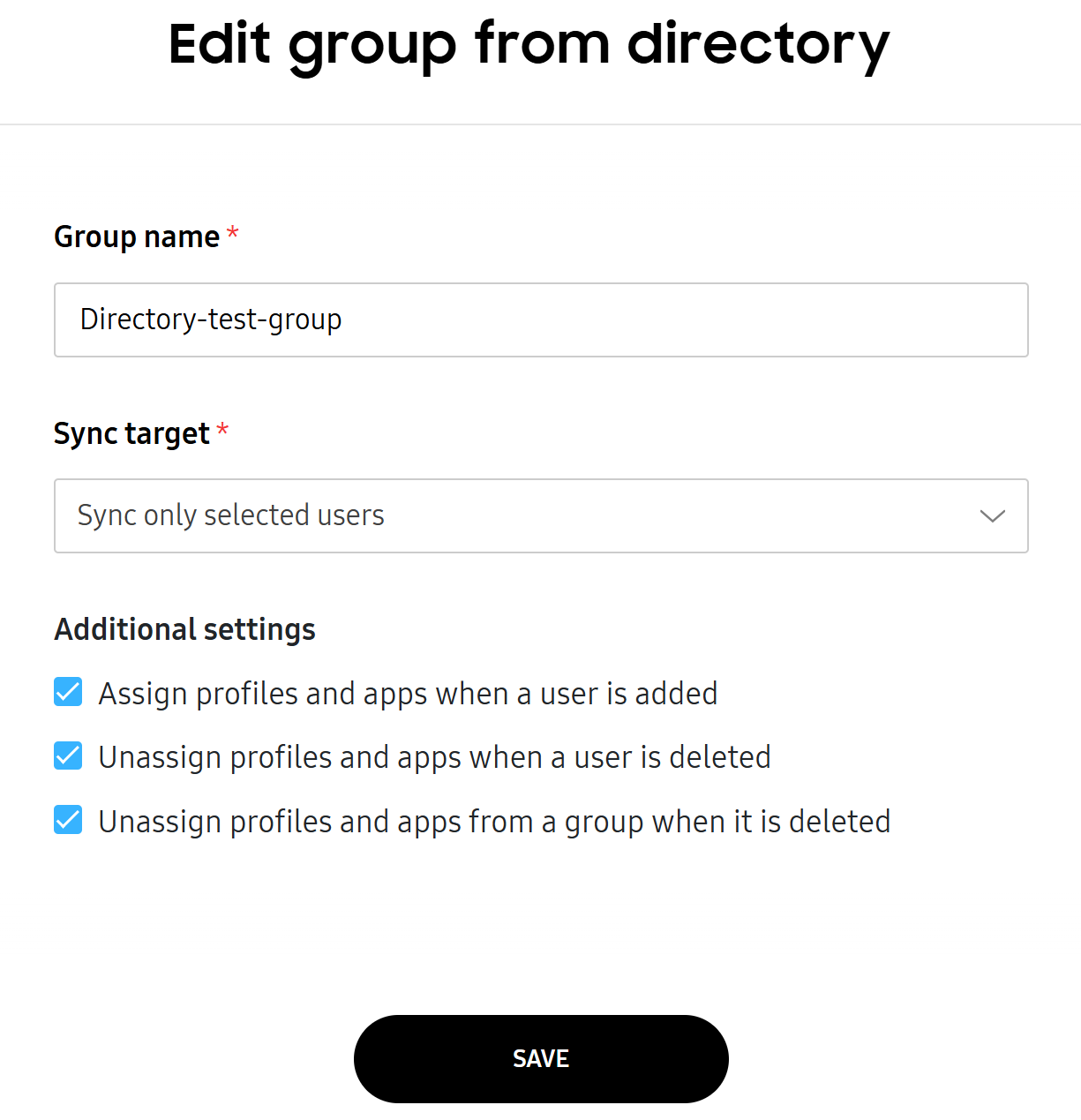
Select the directory group you’d like to edit. Then, click ACTIONS > Edit group. The Edit group from directory page opens.
Alternatively, click the name of the directory group that you want to edit. On the sliding details panel that displays, click EDIT GROUP. The Edit group from directory page opens.
-
Edit the details as required.
-
Click SAVE.
Manage sync settings for a directory group
You can view and manage the sync status and settings of a directory type group as follows:
-
On the Groups page, click the name of the directory group you want to view or manage. The group details panel opens.
-
You can view the sync status to the right of the Sync status heading. To manage the group’s sync status, click (More actions icon).
-
Select one of the following:
- Sync directory group — Immediately syncs between Knox Manage and your connected directory.
- Enable sync — Includes the selected group in future sync processes with the directory.
- Disable sync — Excludes the selected group from future sync processes with the directory. Changes in your directory server, such as group membership changes, won’t be reflected in Knox Manage.
On this page
Is this page helpful?