Unenroll and delete devices
Last updated October 8th, 2026
On this tab
When you unenroll a device from Knox Manage, the device is unregistered from the server and its license seat becomes available for another device to use. Once unenrolled, devices are factory reset, and can be deleted from your device list.
Unenroll devices
To unenroll a device:
-
Go to the Devices page.
-
Select one or more devices that you want to unenroll. To unenroll multiple devices at once, the devices must have the same management type.
-
Click ACTIONS > Unenroll device. Alternatively, click the name of a device to open its device details then click (More actions icon) > Unenroll device.
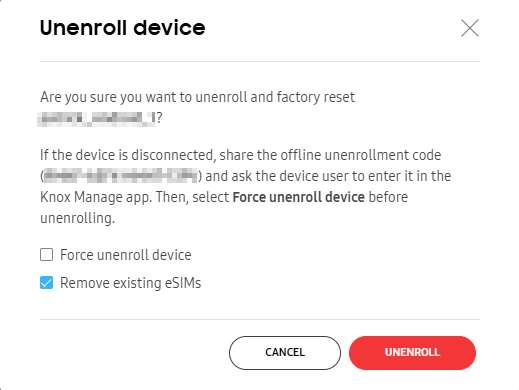
The Unenroll device dialog opens.
-
Select from the following options to specify additional actions to perform while unenrolling:
- Force unenroll device — Unenrolls the device if it’s offline and disconnected from your network. You can also select this option if you previously reset the device without unenrolling it. This ensures that the license seat is freed once the device is online again and receives the command to unenroll. If the device cannot reconnect to your network, see the section below on disconnected devices.
- Remove existing eSIMs — Removes existing eSIMs from the device. To reuse the eSIM, you’ll need to activate it through the carrier again. Removing existing eSIMs is only available for a device that hasn’t been factory reset or unenrolled from Knox Manage since the eSIM was installed.
-
Click UNENROLL to confirm your intent to unenroll the device from Knox Manage.
The device is unenrolled from Knox Manage.
Unenroll disconnected devices
To unenroll a device that is disconnected from your network and can’t communicate with the Knox Manage server:
-
Go to the Devices page and select the disconnected device that you want to unenroll.
-
Copy the Offline Unenrollment Code for the device to send to the device user later.
If a device is deleted from Knox Manage, click ACTIONS > View device deletion log. Search for the device you want to find. The UNENROLLMENT CODE appears in its details.
-
Click Force Unenroll.
-
Instruct the device user to enter the Offline Unenrollment Code on Offline Unenrollment screen in the Knox Manage agent. Device users can find this screen by navigating to Settings > Offline Unenrollment on their device.
The device unenrolls.
Bulk unenroll devices from a group
You can unenroll all of a group’s devices at once.
To unenroll all the devices in a single group:
-
Go to Groups.
-
Select the group you want to unenroll devices from, then click Unenroll device(s). The Unenroll device(s) confirmation dialog opens.
-
Click CONFIRM to unenroll the group’s devices.
The group’s devices are unenrolled.
Delete devices
Once you unenroll a device, you can delete it from the device list.
To delete a device:
-
On the Devices page, select one or more already Unenrolled devices that you want to delete.
-
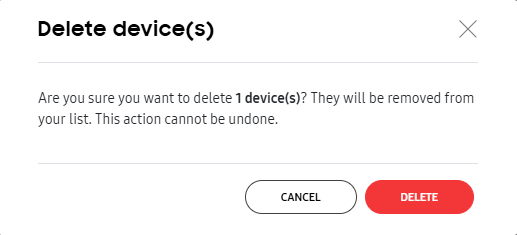
Click ACTIONS > Delete device. The Delete device dialog opens.
-
Click DELETE to confirm the deletion.
The device is deleted.
View deleted devices
To view details of previously deleted devices, such as the device’s name, IMEI and serial number, click ACTIONS > View device deletion log. The log also displays the unlock, unenrollment, and exit kiosk codes of each deleted device.
This document was updated for the Knox cloud services 26.10 UAT.
On this tab
When you unenroll a device from Knox Manage, the device is unregistered from the server and its license seat becomes available for another device to use. Once unenrolled, devices are factory reset, and can be deleted from your device list.
Unenroll devices
To unenroll a device:
-
Go to the Devices page.
-
Select one or more devices that you want to unenroll. To unenroll multiple devices at once, the devices must have the same management type.
-
Click ACTIONS > Unenroll device. Alternatively, click the name of a device to open its device details then click (More actions icon) > Unenroll device.
The Unenroll device dialog opens.
-
Select from the following options to specify additional actions to perform while unenrolling:
- Force unenroll device — Unenrolls the device if it’s offline and disconnected from your network. You can also select this option if you previously reset the device without unenrolling it. This ensures that the license seat is freed once the device is online again and receives the command to unenroll. If the device cannot reconnect to your network, see the section below on disconnected devices.
- Remove existing eSIMs — Removes existing eSIMs from the device. To reuse the eSIM, you’ll need to activate it through the carrier again. Removing existing eSIMs is only available for a device that hasn’t been factory reset or unenrolled from Knox Manage since the eSIM was installed.
- Remove work profile only without resetting device — Removes the work profile from the device without performing a factory reset. This option is only available for work profile on company-owned devices.
-
Click UNENROLL to confirm your intent to unenroll the device from Knox Manage.
The device is unenrolled from Knox Manage.
Unenroll disconnected devices
To unenroll a device that is disconnected from your network and can’t communicate with the Knox Manage server:
-
Go to the Devices page and select the disconnected device that you want to unenroll.
-
Copy the Offline Unenrollment Code for the device to send to the device user later.
If a device is deleted from Knox Manage, click ACTIONS > View device deletion log. Search for the device you want to find. The UNENROLLMENT CODE appears in its details.
-
Click Force Unenroll.
-
Instruct the device user to enter the Offline Unenrollment Code on Offline Unenrollment screen in the Knox Manage agent. Device users can find this screen by navigating to Settings > Offline Unenrollment on their device.
The device unenrolls.
Bulk unenroll devices from a group
You can unenroll all of a group’s devices at once.
To unenroll all the devices in a single group:
-
Go to Groups.
-
Select the group you want to unenroll devices from, then click Unenroll device(s). The Unenroll device(s) confirmation dialog opens.
-
If the group contains devices with different management types, select which management type to unenroll:
-
Fully managed devices — Unenrolls fully managed devices. These devices are factory reset during unenrollment. You can also select Remove existing eSIMs.
-
Work profile devices — Unenrolls work profile devices. The work profile is removed from the device.
-
Work profile on company-owned devices — Unenrolls work profile on company-owned devices. You can also select Remove existing eSIMs and Remove work profile only without resetting device.
-
-
Click CONFIRM to unenroll the group’s devices.
The group’s devices are unenrolled.
Delete devices
Once you unenroll a device, you can delete it from the device list.
To delete a device:
-
On the Devices page, select one or more already Unenrolled devices that you want to delete.
-
Click ACTIONS > Delete device. The Delete device dialog opens.
-
Click DELETE to confirm the deletion.
The device is deleted.
View deleted devices
To view details of previously deleted devices, such as the device’s name, IMEI and serial number, click ACTIONS > View device deletion log. The log also displays the unlock, unenrollment, and exit kiosk codes of each deleted device.
Is this page helpful?