Configure Google Workspace authentication
Last updated October 21st, 2026
Once you configure the Android Enterprise environment, you can integrate your Knox Manage tenant with Google Workspace. This integration allows you to sync directory resources, such as users and groups, from your Google Admin Console. Once integrated, users can use their Managed Google Domain Accounts to enroll Android Enterprise or Android Management API (AMAPI) devices as fully managed devices or work profile on company-owned devices.
Google authentication is supported when devices are enrolled in Knox Manage using a QR code sent with the enrollment guide.
Prerequisites
To sync your tenant with Google Workspace, you must meet the following prerequisites:
Managed Google Domain account
You must have registered your Android Enterprise environment with a Managed Google Domain account, not a personal one.
You can check what account you’re registered with by going to Setting > Android > Android Enterprise. Your account type displays beside Enterprise Type.
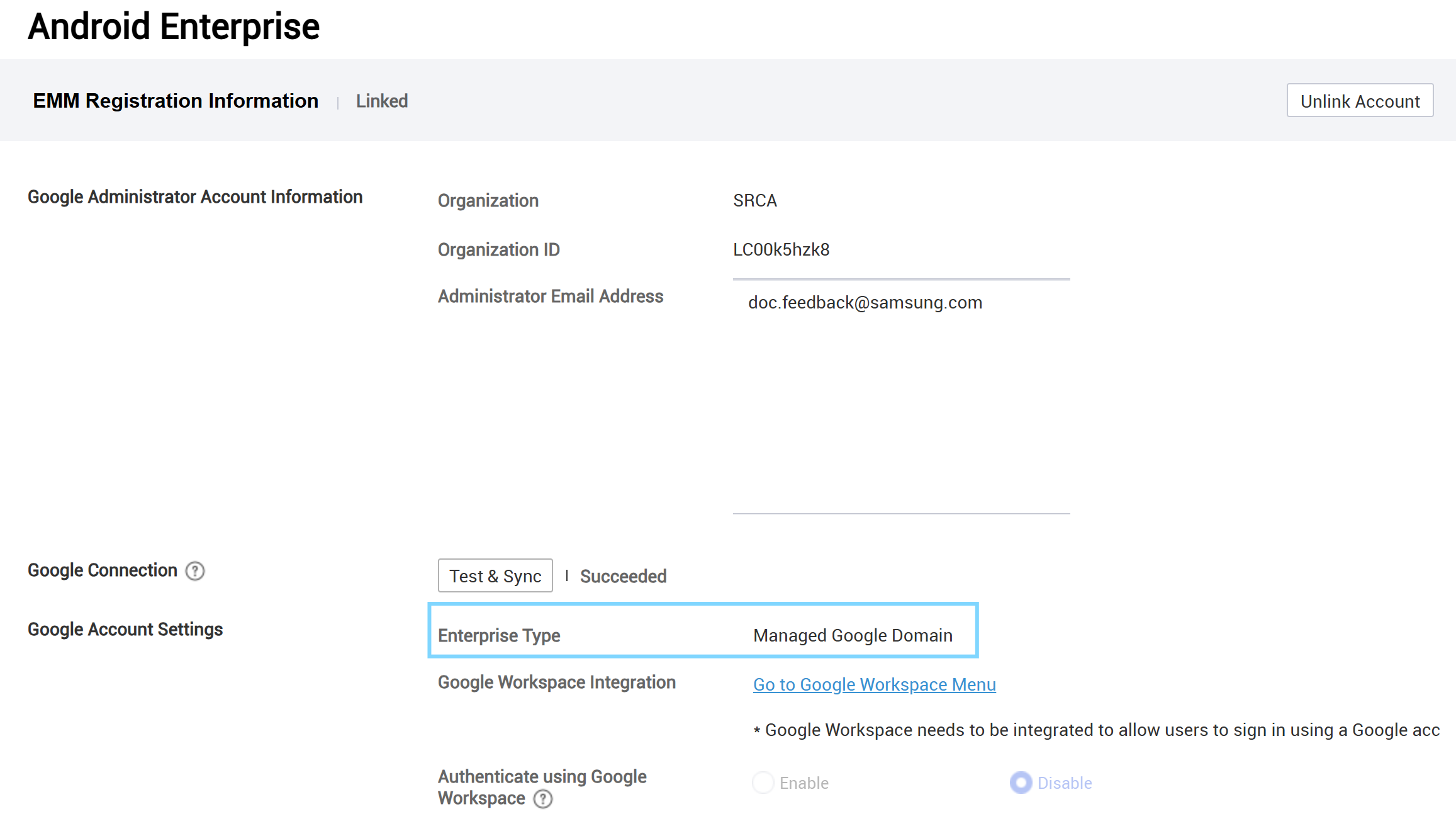
If the Enterprise Type isn’t Managed Google Domain, then you must upgrade your account.
Chrome OS settings
If you are set up for Chromebook management in your tenant, you must unlink your Chrome OS settings. See Manage Chromebooks for more information.
Upgrade your account to a managed Google domain
Existing Managed Google Play accounts can be upgraded to a managed Google domain account without re-enrolling devices. Once you upgrade to a managed Google domain account, you cannot undo it. See Upgrade to managed Google domain to learn more about how upgrading impacts your Google account.
Before upgrading, complete the following steps:
- Sync all accounts you plan to upgrade with Knox Manage. Each synced user account must have an email address, or the upgrade cannot proceed.
- Assign apps, policies, and content to the accounts in advance.
If the resources assigned to the managed Google domain account differ from those assigned to the previous managed Google Play account, the resources assigned to the managed Google domain account are assigned.
To upgrade to a managed Google domain:
- In Knox Manage, go to Setting > Android > Android Enterprise.
- Click Upgrade beside Organization. You are redirected to sign-into your managed Google account or to create a new admin account. Follow the instructions on screen. See Upgrade to managed Google domain to learn more about this process.
- Once verified, click Upgrade.
- After upgrading, choose whether to Enable device users to sign-in with your managed Google account, or Skip. You must also configure this setting in Knox Manage before device users can authenticate with their Google accounts.
After upgrading, the Enterprise type on the Android Enterprise page updates to Managed Google Domain.
Connect to Google Workspace
To connect to Google Workspace:
-
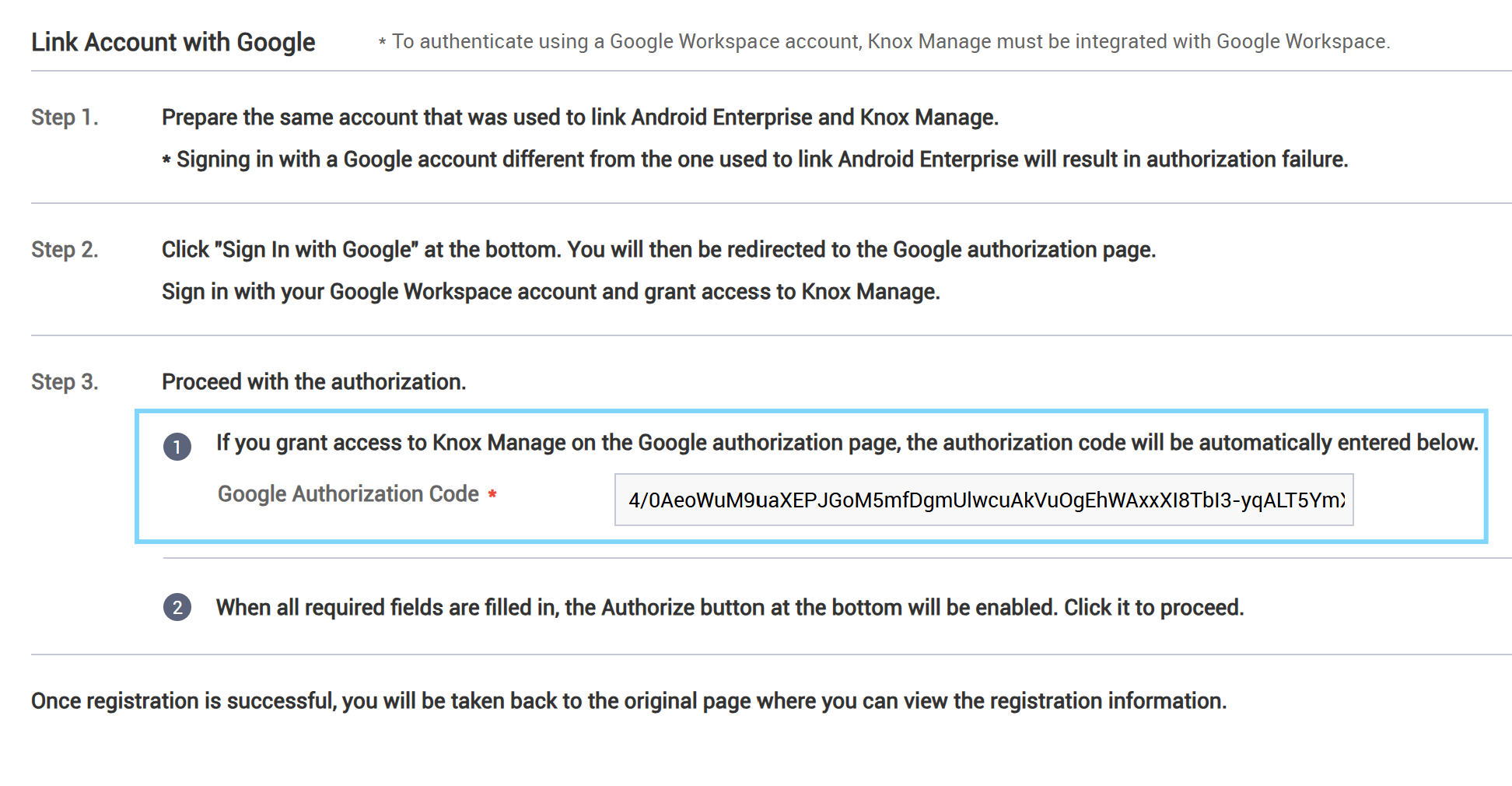
Go to Setting > Android > Google Workspace. The Link Account with Google page opens.
-
Click Sign in with Google at the bottom of the page. You’re redirected to Google to sign in to the Managed Google Domain account you registered your Android Enterprise environment with.
-
Once you sign in to your Google account, you’re prompted to grant Knox Manage access to your Google account. To ensure that Knox Manage can sync properly, provide access to the following resources:
- Group subscriptions
- Organization units
- Groups
- Users
-
Click Continue.
-
You’re directed back to the Link Account with Google page in Knox Manage. The Google Authorization Code is automatically filled. Click Authorize at the bottom of the screen.
-
Click Authorize. Your account is linked.
-
The Google Workspace page opens. To enable synchronization between Google Workspace and Knox Manage, you must validate the connection. Beside Connection between Knox Manage and Google, click Test Connection.
Directory resources from Google Workspace can now sync with Knox Manage.
Manage Google Workspace connection
Once your tenant is integrated with Google Workspace, you can manage your connection from Knox Manage on the Google Workspace page. The following sections are available: Server Settings and Google Workspace Sync Settings.
At the top of the page, the following details are displayed:
- Domain — Your Knox Manage domain.
- Google Workspace Email — Your Managed Google Domain email.
- Google Workspace Sync Interval — The frequency, in days, that Google Workspace syncs with your tenant. You can set this under Sync Start Time.
Server Settings
The following information displays in the Server Settings section.
- Connection between Knox Manage and Google — Validates that the connection between your tenant and Google Workspace is successful, enabling synchronization. Click Test Connection.
- Sync Google Workspace — Syncs resources from Google Workspace.
Google Workspace Sync Settings
The following information displays in the Google Workspace Sync Settings section.
- Sync Start Time — Set the frequency, in days, that Google Workspace automatically syncs with your tenant.
- Apply Auto Profile for User — Applies a profile to a user’s device only when their organization’s details change in Google Workspace.
- Apply or Unassign Auto Profile/App for Group — Specifies when to push a profile or app to a group and its members.
- When adding a user from group, profiles and apps will be applied to the user — Associated profiles and apps are assigned to users when they’re added to a group.
- When deleting a user from group, profiles and apps will be unassigned from the user — Associated profiles and apps are unassigned from users when they’re removed from a group.
- When deleting a group, profiles and apps will be unassigned from the group — Associated profiles and apps are unassigned from group members when the group is deleted.
Sync behavior
The following behaviors apply to all resources synced from Google Workspace:
- Resources can’t be synchronized individually, and must be synced all at once.
- If resources are deleted in Google Workspace, then they’re also deleted in Knox Manage.
Users
The following behaviors apply to all users synced from Google Workspace:
- If a Google Workspace user has the same email as an existing Knox Manage user, they replace the Knox Manage user.
- If a Google Workspace user doesn’t have the same email as an existing Knox Manage user, a new user is added to Knox Manage and their User ID will consist of the section of their email address before the
@domain. If this User ID overlaps with an existing User ID, three digits are added onto the end, such aslucymak001. - Updates to users in Google Workspace are reflected in Knox Manage.
Groups
- Google Workspace updates to groups are always reflected in Knox Manage.
Organizations
- If a Google Workspace organization has the same Organization code as an existing Knox Manage organization, they replace the Knox Manage organization.
- Google Workspace updates to organizations are always reflected in Knox Manage.
Enroll devices with their Managed Google accounts
Device enrollment with a Managed Google account is available when devices are enrolled through a QR code sent with the enrollment guide. See Enroll a single device and Send the enrollment guide to learn more.
Before users can enroll devices with their Managed Google accounts, you must configure a few more settings depending on whether you manage Android Enterprise devices or AMAPI devices.
For Android Enterprise devices:
- Go to Setting > Android > Android Enterprise.
- Beside Authenticate using Google Workspace, click Enable.
If you don’t click Enable, device users can’t sign in with their Google accounts, but your resources will continue to sync from Google Workspace to Knox Manage.
- Beside Allow User to Skip, select one of the following options:
- Allow user to skip — Allows users to sign in to devices with their Knox Manage credentials instead of their Google accounts.
- Force user to sign-in — Forces users to sign in to devices with their Google accounts.
- Only Allow Certain Users to Sign In — Only users specified by the QR codes can sign in with their Google accounts.
- If you recently updated your Google account to a managed Google domain, you can request users to make the switch to sign-in with their Google accounts. Go to Devices and select a device. Click Device Command > Knox Manage > Upgrade to managed Google account.
Optionally, you can also navigate to Groups and select a group, then click Device Command. Select one of the Android Enterprise options, then go to Knox Manage > Upgrade to managed Google account.
A notification appears on the user’s device, which the user taps to initiate the sign-in process. If a managed Google account is already signed in on the device, the upgrade is automatically processed once the device user taps the notification.
Users can now enroll Android devices with their Google credentials.
On devices where Google Mobile Services (GMS) is set to a version between 26.10 to 26.19, users can tap Skip, when asked to sign in with their Google account, and sign in with their Knox Manage credentials instead. To fix this issue, update the GMS version to 26.20 or later.
For AMAPI devices:
-
In the Google Admin Console, navigate to Third-party integrations.
-
Click Manage EMM providers. Beside the entry for Knox Manage, enable Authenticate Using Google.
If you don’t enable Authenticate Using Google, device users can’t sign in with their Google accounts, but your resources will continue to sync from Google Workspace to Knox Manage.
-
If you recently updated your Google account to a managed Google domain, you can request users to make the switch to sign-in with their Google accounts in the work profile of their devices. Go to Profiles and click a profile associated with your AMAPI devices. On the Profile Details page, select Modify Policy, then set the Upgrade to Managed Google Account policy to Enable. Additionally, you can set the following sub-settings:
- Take Actions if User Account Is Not Upgraded — Set the Lock work profile + Factory reset action if the user doesn’t upgrade their account in the period specified below.
- Set Days before Work Profile Lock (days) — Sets the period (in days) before the work profile on a device is locked if the user doesn’t upgrade their account.
- Set Days before Factory Reset (days) — Sets the period (in days) before the device is factory reset if the user doesn’t upgrade their account.
A notification appears on the user’s device, which the user taps to initiate the sign-in process.
- Take Actions if User Account Is Not Upgraded — Set the Lock work profile + Factory reset action if the user doesn’t upgrade their account in the period specified below.
Users can now enroll AMAPI devices with their Google credentials.
Disconnect from Google Workspace
You can unlink your Google Workspace account from your Knox Manage tenant. When you unlink your account, any users, groups, and organizations that are synced from Google Workspace are removed from Knox Manage.
Before you unlink your account, you must first unenroll all Android Enterprise and AMAPI devices enrolled with a Managed Google Account. See Unenroll and delete devices to learn more.
If a user synced from Google Workspace has a device enrolled that isn’t Android Enterprise or AMAPI, then the user is not removed from your tenant when you unlink your account. Instead, their Source changes from Directory to Knox Manage, and their status changes to Inactive.
To unlink your Google Workspace account:
- Go to Setting > Android > Google Workspace.
- At the top of the page, click Unlink Account. The Unlink Account dialog appears.
- Confirm your intention by clicking OK.
On this page
Is this page helpful?