About the consoles
Last updated June 17th, 2026
Knox Manage has two consoles for you to choose from depending on your priorities and workflows: the new console and the original console. This page outlines some of the key differences between them.
Brief overview
About the new console
With an improved interface from the original console, the new console lets you can quickly complete successive tasks between multiple services from a single location, the Knox Admin Portal. The new console is easy to use, helps you manage your devices efficiently, and supports most essential features from the original console. Additionally, as development continues, more features and platforms will be added to it.
About the original console
The original console is the original interface for Knox Manage. It’s a separate web console from the Knox Admin Portal, and does not offer the same unified experience as the new console.
While it currently offers more features and platforms than the new console, development for the original console will eventually be phased out.
Comparison between the consoles
This section describes what changed from the original console to the new console.
Device types and platforms
The consoles support the below device platforms and management modes.
| Features | Original console | New console |
|---|---|---|
| Device platforms |
|
|
| Management types |
|
|
Integration with the Knox Admin Portal
The original console is isolated from the Knox Admin Portal, which allows central management of all Knox services. When used alongside other Knox services, this decentralized approach can lead to extra time spent on similar tasks. For example, you must manage your Knox Manage license in the original console, and your Knox E-FOTA license in the Knox Admin Portal.
The new console is integrated into the Knox Admin Portal, and offers a single-pane-of-glass experience. With this centralized workflow, shared procedures like license management for Knox Manage and Knox E-FOTA can be performed on the same page with fewer clicks, leading to increased productivity for your IT admins.
Interface
The interface of the new console prioritizes simplicity and efficiency. It delivers the essential information for the task at hand and removes as many visual distractions as possible. It seeks to eliminate redundancy between pages and cut down on the number of clicks needed to complete a task. For example, all app activity falls under the umbrella of your app library — a single place to manage all apps. Whereas the interface of the original console prioritizes designated pages for each action and feature. For example, system apps and regular apps are managed on different pages.
Profiles and policies
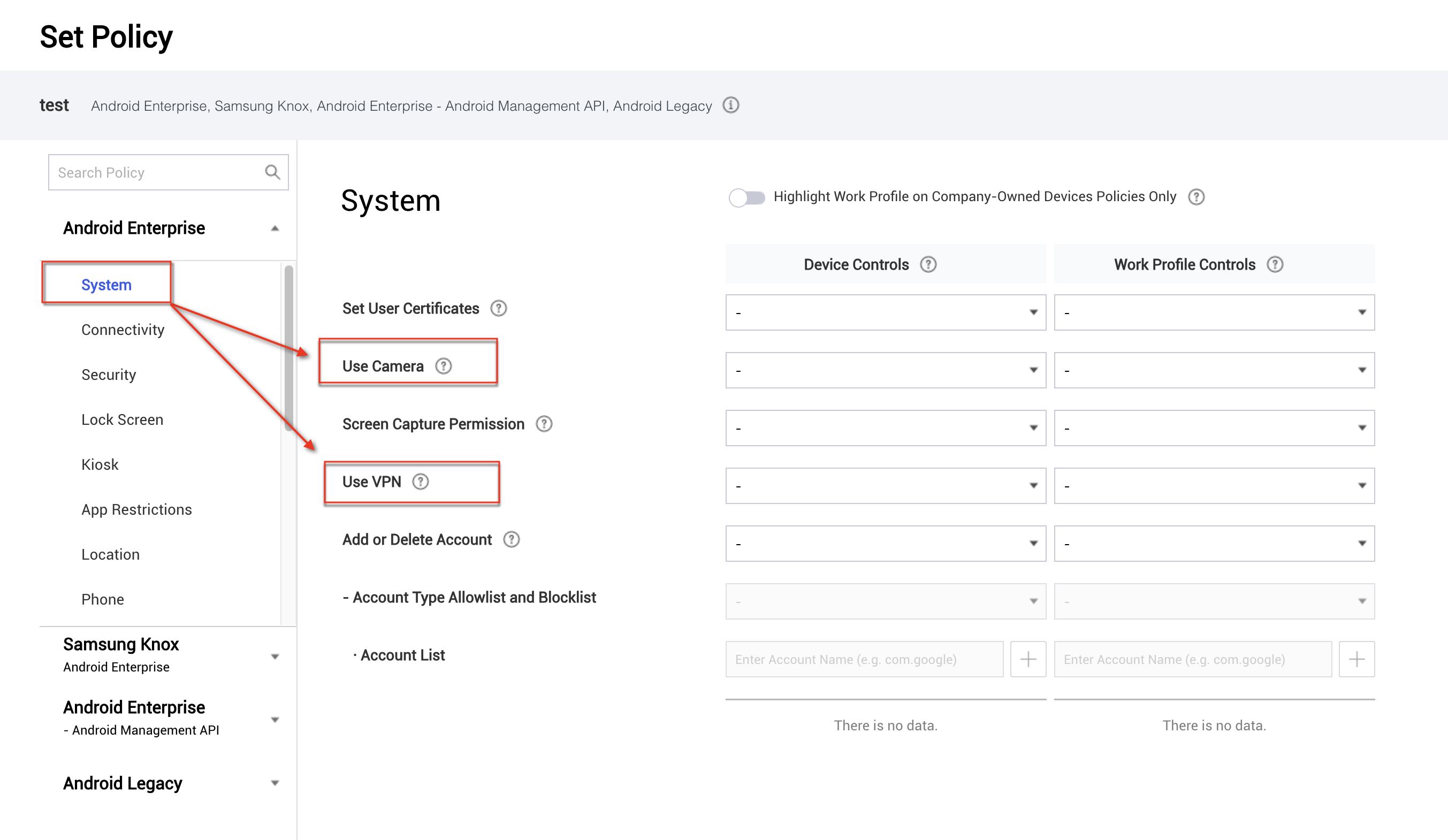
In the original console, profiles consist of policies and settings that can be pushed to devices to change their behavior. Each policy, and any of its sub-policies, are treated as a unified payload despite the larger categories they belong to. For example, there are two Android policies — Camera and Use VPN — that belong to the System category.
As far as the console is concerned, both of these policies are members of the larger, undifferentiated collection of settings that are pushed to a device, and have as much relation to each other as they do to a policy in the Location category. Any further properties belonging to these policies are called sub-policies, regardless of how deeply-nested they are.
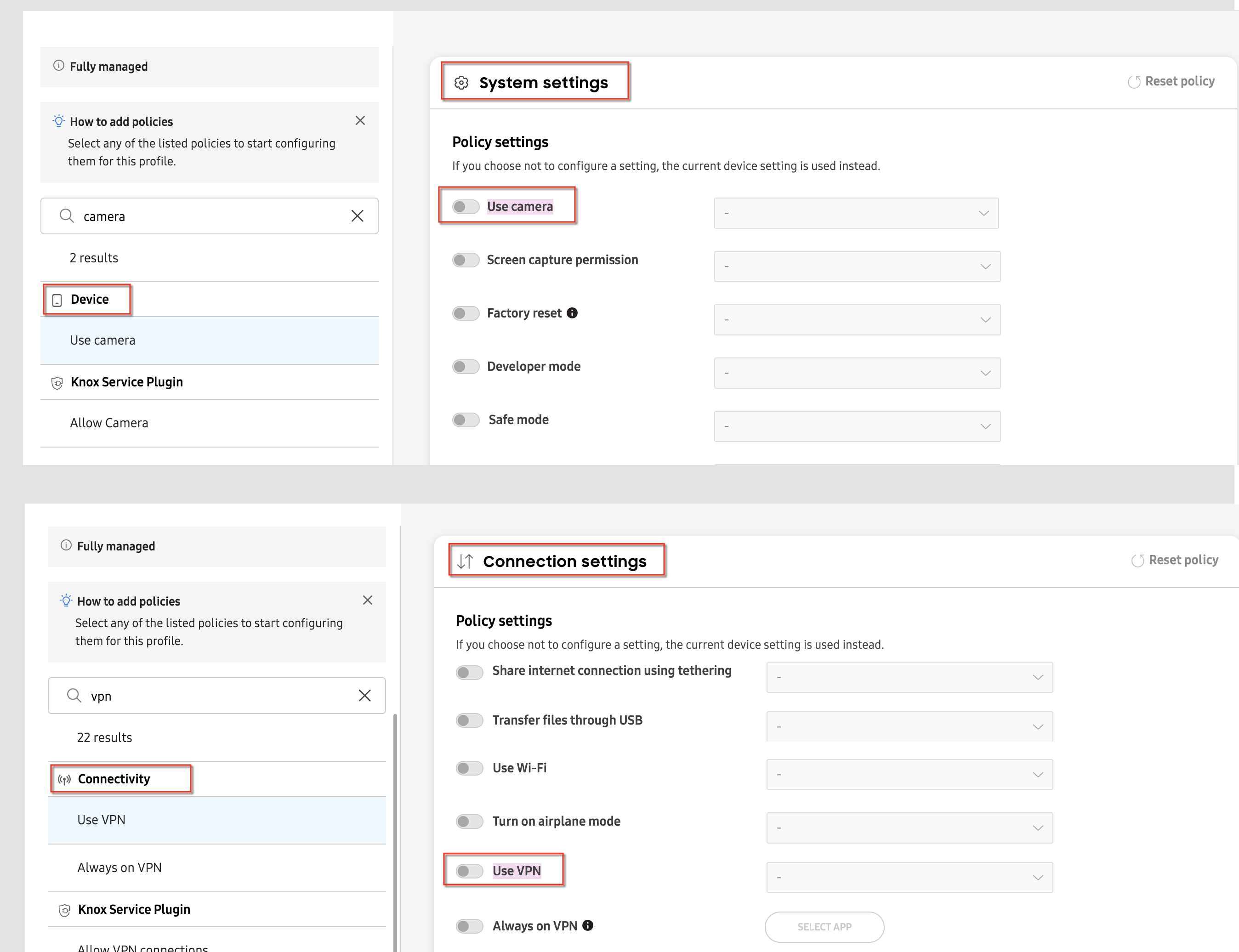
In the new console, policies and their related terminology have changed. The different categories of policies, like System and Location, are instead the policies themselves, and the settings belonging to them, which were previously called individual policies, are now tightly tied together and organized more intuitively. Therefore, within the console, Camera is a setting belonging to the Device policy, and Use VPN is a setting that belongs to the Connectivity policy.
See the table below for more details on how the terminology has changed.
| Term | Nearest terms in the original console | Meaning in the new console |
|---|---|---|
| Profile | Profile | The parent entity that consists of policies and settings that can be pushed to devices to alter their behavior. |
| Policy | Category | A bundle of settings belonging to a specific category. This difference is a departure from the classical understanding of policies, but this way of clustering settings with a similar purpose should significantly reduce the complexity and administrative burden of managing profiles of all sizes. |
| Setting |
Policy Sub-policy |
A property that alters behavior of the device by hooking into the management API of its OS. Previously, many customers reported confusion about the differences between a policy drawer, policy, and sub-policy. Rather than needlessly spending design resources on questions of taxonomy of that nature, simply referring to any individual property as a setting greatly simplifies the understanding of how policies are structured. |
Reusable policy presets
One advantage of the new console is the added functionality to manage policies much easier and faster.
With the new console, you can create policy presets to use across multiple profiles. It works like this:
- When you create or edit a profile, you can load a policy preset that you previously configured to automatically use its saved settings.
- You can update the preset at any time, and any profiles that use it automatically receive its latest settings.
For example:
Your office has an isolated Wi-Fi network and you maintain separate profiles for different departments. Each department’s Wi-Fi access point password is pre-configured into their respective department profiles. One day, the Wi-Fi password is changed across the entire organization, requiring that each department’s devices are updated with the new password to continue working.
In the original console, you would’ve had to individually edit each department’s profile, one by one, to make this simple change. However with the new console, you can save the Wi-Fi settings as a shared policy preset. All you need to do is add the new password to the preset, and every profile that uses it automatically adopts the new password.
Logs
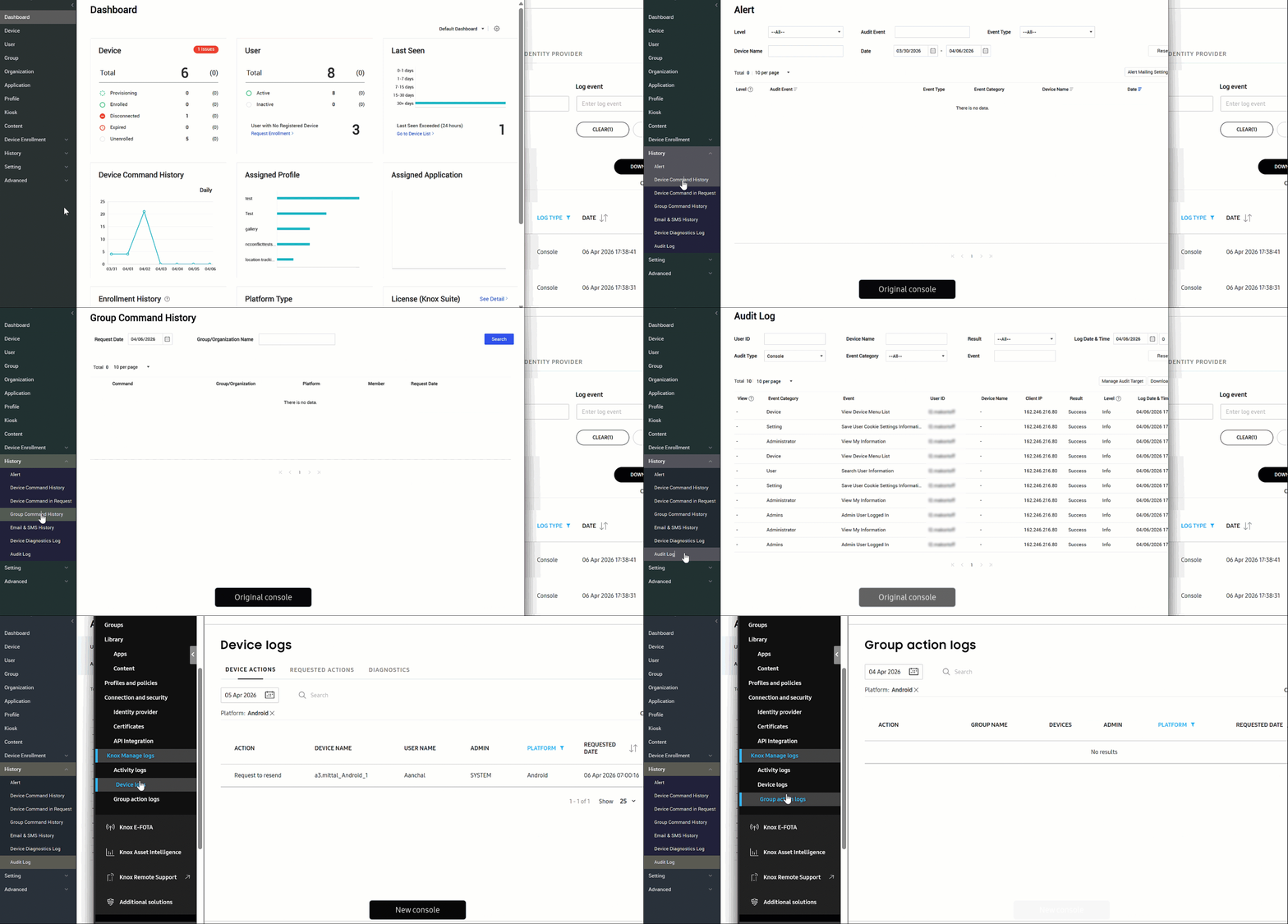
In the original console, the history of your devices and admin activity are featured across multiple pages under the History tab. To view the history of a specific event or action, such as device diagnostics or device commands, you must go to the corresponding page.
The new console simplifies this workflow by consolidating comparable logs on the same page. As a result, the amount of log related pages is reduced from seven to three.
On this page
Is this page helpful?