Send device commands
Last updated October 8th, 2026
On this tab
You can send device commands to an enrolled device to control it remotely, such as locking its screen. Depending on your use case, you can also send device commands to an entire group, instead of a single device. See Perform group actions to learn more.
To send device commands, go to the Devices page and select a device. Then click ACTIONS > Perform action on device to see a list of all available device commands.
If you wish to send device commands to multiple devices simultaneously, devices must all be the same management type.
You can add your most used actions to the FAVORITES tab for easy access. Just click (Save icon) beside any action to save it to FAVORITES.
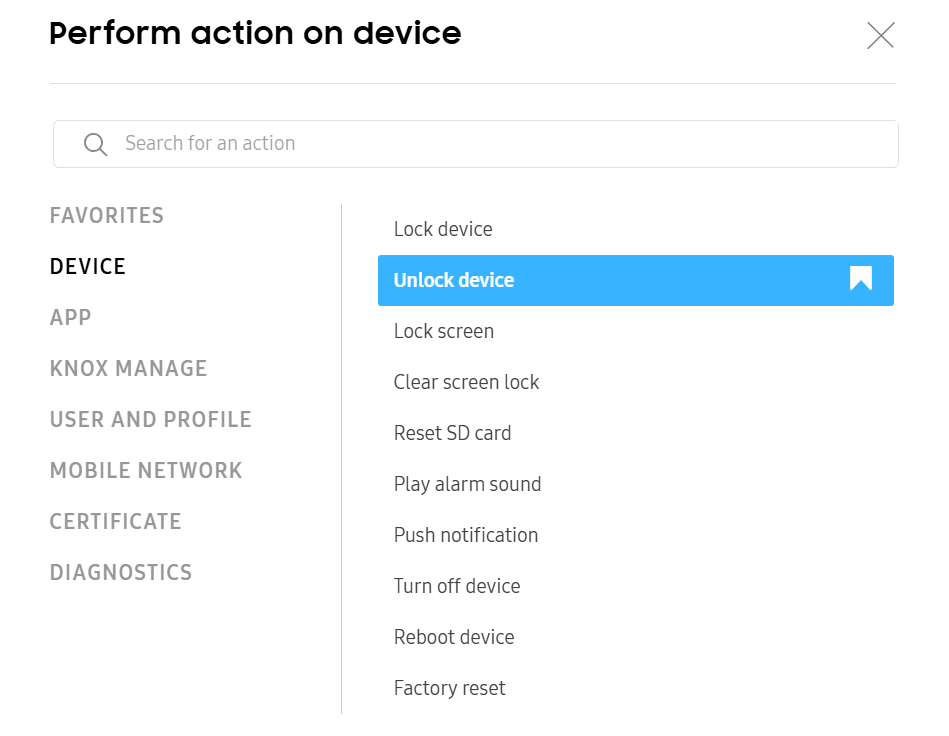
Device
| Device command | Description | Supported system |
|---|---|---|
| Lock device |
Locks the device. You can enter a reason for locking the device and a phone number to contact when the device is lost. The information you provide when sending a lock device command shows on the screen of the locked device. The following characters aren't supported in the lock screen message: \, ", [, and ]. |
Android 12 or later Fully managed |
| Unlock device |
Unlocks a locked device. Alternatively, you can share the unlock code with the device user, who can enter it on the device's screen and unlock it. The unlock code can be found by clicking a device name > SECURITY > DEVICE AND SCREEN LOCK. You can use the Clear Screen Lock device command to remove the password from a device that's locked due to the device user entering an incorrect password too many times or forgetting the password. |
Android 12 or later Fully managed |
| Lock screen | Locks the device screen. If the device's screen is password-locked, then the user needs to enter the password to access the device again. |
Android 12 or later Fully managed |
| Clear screen lock |
Clears the password, PIN, or pattern lock, including biometric lock methods, and resets the lock on the device. The Clear Screen Lock device command is not supported for password policies set through the Knox Service Plugin. |
Android 12 or later Fully managed |
| Reset SD card |
Initializes the external SD card of the device. For devices with the External SD Card policy is set to Disallowed in the profile, you can't reset the SD card using the device command, because the policy takes a higher priority than the device command. |
Android 12 or later Fully managed |
| Lock work profile |
Disallows access to the work profile side of the device. |
Android 12 or later Work profile Work profile on company-owned device |
| Clear work profile password |
Clears the password of the work profile. |
Android 12 or later Work profile Work profile on company-owned device |
| Play alarm sound | Sounds an alarm on the device until the device user takes action. On a non-kiosk device, the alarm is accompanied by a push notification from the Knox Manage agent. On a kiosk, it's accompanied by a popup. The alarm sounds regardless of the device's mute and vibration settings. |
Android 12 or later Fully managed Work profile Work profile on company-owned device |
| Push notification | Pushes and applies the latest profile and app information to the device. |
Android 12 or later Fully managed Work profile Work profile on company-owned device |
| Turn off device |
Turns off the device. |
Android 12 or later Fully managed |
| Reboot device | Reboots the device. |
Android 12 or later Fully managed |
| Factory reset |
Performs a factory reset on the device and changes the device status to Unenrolled. Initialize SD Card when factory reset — Select to initialize the SD card during the factory reset. Deactivate Factory Reset Protection — This option is only available when the profile is applied with the Factory Reset Protection policy or when you send the command to multiple devices. Click the check box to perform a factory reset without the Factory Reset Protection policy. |
Android 12 or later Fully managed |
App
| Device command | Description | Supported system |
|---|---|---|
| Run app |
Runs an app on the device. The app installation allowlist and blocklist policies take precedence over this command. If an app is explicitly allowed, then this command can't uninstall it. |
Android 12 or later Fully managed Work profile Work profile on company-owned device |
| Uninstall app |
Deletes an app from the device. The app installation allowlist and blocklist policies take precedence over this command. If an app is explicitly allowed, then this command can't uninstall it. |
Android 12 or later Fully managed Work profile Work profile on company-owned device |
| Install or update in-house app |
Installs or updates an in-house app that you select from a list of available in-house apps. |
Android 12 or later Fully managed Work profile Work profile on company-owned device |
| Sync installed app list | Synchronizes the device's app list. |
Android 12 or later Fully managed Work profile Work profile on company-owned device |
| Delete app data | Delete an app's data from the device. |
Android 12 or later Fully managed Work profile Work profile on company-owned device |
| Play Integrity (SafetyNet Attestation) | Initiates an integrity check of the device, which evaluates the integrity of the hardware and software on the device. The specifics of the evaluation depend on the device's Android version. The result of the evaluation can be found in the device details. |
Android 12 or later Fully managed Work profile Work profile on company-owned device |
| Register Managed Google Play Account |
Assigns the Managed Google Play Account associated with your tenant to the device. Use this command if the Managed Google Play Account wasn't registered on the device during enrollment. |
Android 12 or later Fully managed Work profile Work profile on company-owned device |
Knox Manage
| Device command | Description | Supported system |
|---|---|---|
| Push profile |
Sends all currently-assigned profiles to the device. |
Android 12 or later Fully managed Work profile Work profile on company-owned device |
| Update Knox Manage agent |
Updates the Knox Manage agent on the device to the latest version version, if available. The agent information registered on the Knox Manage server is sent to the device. The device then selects the appropriate agent to request installation files from. |
Android 12 or later Fully managed Work profile Work profile on company-owned device |
| Lock Knox Manage agent |
Locks the Knox Manage agent. When the agent is locked, the device user must enter the agent's password that was configured during enrollment. |
Android 12 or later Fully managed Work profile Work profile on company-owned device |
| Unlock Knox Manage agent | Unlocks the Knox Manage agent. |
Android 12 or later Fully managed Work profile Work profile on company-owned device |
| Reset Push Token |
Creates and registers a new Firebase Cloud Messaging (FCM) token for the Knox Manage agent on the device. Use this command in scenarios where the device can't receive push notifications, which typically occurs when the token changed on the Knox Manage server and the device was unable to sync it. |
Android 12 or later Fully managed Work profile Work profile on company-owned device |
| Sync device information | Updates the inventory and app information on the device. |
Android 12 or later Fully managed Work profile Work profile on company-owned device |
User and Profile
| Device command | Description | Supported system |
|---|---|---|
| Exit Kiosk mode | Exits Kiosk mode without unenrolling the device. You can find the status of the kiosk in the device details sliding panel. |
Android 12 or later Fully managed |
| Update user information | Updates the device user information, such as the user activation status/username/user settings (Knox Browser website URL information, bookmark information) and license information.
If the user is signed out from the enrolled device, you can send this device command to enable the user to sign in to Knox Manage automatically. |
Android 12 or later Fully managed Work profile Work profile on company-owned device |
Mobile network
| Device command | Description | Supported system |
|---|---|---|
| Reset Data Usage |
Resets the device's inventory information for all network and Wi-Fi traffic. |
Android 12 or later Fully managed |
| Reset number of calls | Resets the number of calls and number of missed calls from the Android device's inventory information. |
Android 12 or later Fully managed Work profile Work profile on company-owned device |
| Lock SIM pin |
Places a lock on the SIM card's PIN to prevent the use of the SIM card on another device. To lock a SIM PIN, enter the current SIM PIN and then enter a new PIN. If the locked SIM card is registered to another device, the device is locked and the user must enter the new PIN to unlock it. |
Android 12 or later Fully managed Work profile Work profile on company-owned device |
| Unlock SIM pin |
Removes the lock placed on a SIM card's PIN. To unlock a SIM PIN, enter the current PIN that was applied through Knox Manage, and then enter the initial (default) SIM PIN. You can find the current PIN on the Device Details page > Network tab > SIM PIN Applied by Knox Manage. |
Android 12 or later Fully managed Work profile Work profile on company-owned device |
| Activate eSIM cellular plan |
Activates an eSIM for the device. You must enter the Activation code. |
Android 12 or later Fully managed Work profile Work profile on company-owned device |
| Deactivate eSIM cellular plan |
Deactivates the eSIM for the device. To use mobile data on the device after deactivating the eSIM, you must activate another SIM. |
Android 12 or later Fully managed Work profile Work profile on company-owned device |
Certificate
| Device command | Description | Supported system |
|---|---|---|
| Delete a user certificate | Select and delete a User type certificate installed by an administrator. |
Android 12 and higher Fully managed |
| Delete admin-installed certificate | Delete all the certificates installed by an administrator. |
Android 12 and higher Fully managed |
| Delete a CA certificate | Select and delete a Root type certificate installed by Knox Manage. |
Android 12 and higher Fully managed |
| Delete a work profile user certificate | Select and delete a work profile User type certificate installed by an administrator. |
Android 12 or later Work profile Work profile on company-owned device |
| Delete all work profile user certificates | Delete all certificates deployed though Knox Manage or the device user in the work profile, except for the system CA certificate built into the OS. |
Android 12 or later Work profile Work profile on company-owned device |
| Delete a work profile CA certificate | Select and delete a work profile Root type certificate installed by Knox Manage. |
Android 12 or later Work profile Work profile on company-owned device |
Diagnostics
| Device command | Description | Supported system |
|---|---|---|
| Collect bug report |
Collect the device's bug report, also known as dumpstate logs. You can view the bug report by selecting the device and clicking ACTIONS > View device log on the Devices page. |
Android 12 or later Fully managed |
| Collect audit log | Collects inventory and app information on the device. |
Android 12 or later Fully managed Work profile Work profile on company-owned device |
| Collect device diagnostics log | Gathers the log data from the device. |
Android 12 or later Fully managed Work profile Work profile on company-owned device |
| Check for Compromised OS | Detects if the device OS is compromised. |
Android 12 or later Fully managed |
This document was updated for the Knox cloud services 26.10 UAT.
On this tab
You can send device commands to an enrolled device to control it remotely, such as locking its screen. Depending on your use case, you can also send device commands to an entire group, instead of a single device. See Perform group actions to learn more.
To send device commands, go to the Devices page and select a device. Then click ACTIONS > Perform action on device to see a list of all available device commands.
If you wish to send device commands to multiple devices simultaneously, devices must all be the same management type.
You can add your most used actions to the FAVORITES tab for easy access. Just click (Save icon) beside any action to save it to FAVORITES.
Device
| Device command | Description | Supported system |
|---|---|---|
| Lock device |
Locks the device. You can enter a reason for locking the device and a phone number to contact when the device is lost. The information you provide when sending a lock device command shows on the screen of the locked device. The following characters aren't supported in the lock screen message: \, ", [, and ]. |
Android 12 or later Fully managed Fully managed (XR) |
| Unlock device |
Unlocks a locked device. Alternatively, you can share the unlock code with the device user, who can enter it on the device's screen and unlock it. The unlock code can be found by clicking a device name > SECURITY > DEVICE AND SCREEN LOCK. You can use the Clear Screen Lock device command to remove the password from a device that's locked due to the device user entering an incorrect password too many times or forgetting the password. |
Android 12 or later Fully managed Fully managed (XR) |
| Lock screen | Locks the device screen. If the device's screen is password-locked, then the user needs to enter the password to access the device again. |
Android 12 or later Fully managed Fully managed (XR) |
| Clear screen lock |
Clears the password, PIN, or pattern lock, including biometric lock methods, and resets the lock on the device. The Clear Screen Lock device command is not supported for password policies set through the Knox Service Plugin. |
Android 12 or later Fully managed Fully managed (XR) |
| Reset SD card |
Initializes the external SD card of the device. For devices with the External SD Card policy is set to Disallowed in the profile, you can't reset the SD card using the device command, because the policy takes a higher priority than the device command. |
Android 12 or later Fully managed |
| Lock work profile |
Disallows access to the work profile side of the device. |
Android 12 or later Work profile Work profile on company-owned device |
| Clear work profile password |
Clears the password of the work profile. |
Android 12 or later Work profile Work profile on company-owned device |
| Play alarm sound | Sounds an alarm on the device until the device user takes action. On a non-kiosk device, the alarm is accompanied by a push notification from the Knox Manage agent. On a kiosk, it's accompanied by a popup. The alarm sounds regardless of the device's mute and vibration settings. |
Android 12 or later Fully managed Fully managed (XR) Work profile Work profile on company-owned device |
| Push notification | Pushes and applies the latest profile and app information to the device. |
Android 12 or later Fully managed Fully managed (XR) Work profile Work profile on company-owned device |
| Turn off device |
Turns off the device. |
Android 12 or later Fully managed |
| Reboot device | Reboots the device. |
Android 12 or later Fully managed Fully managed (XR) |
| Factory reset |
Performs a factory reset on the device and changes the device status to Unenrolled.
|
Android 12 or later Fully managed Fully managed (XR) |
App
| Device command | Description | Supported system |
|---|---|---|
| Run app |
Runs an app on the device. The app installation allowlist and blocklist policies take precedence over this command. If an app is explicitly allowed, then this command can't uninstall it. |
Android 12 or later Fully managed Fully managed (XR) Work profile Work profile on company-owned device |
| Uninstall app |
Deletes an app from the device. The app installation allowlist and blocklist policies take precedence over this command. If an app is explicitly allowed, then this command can't uninstall it. |
Android 12 or later Fully managed Fully managed (XR) Work profile Work profile on company-owned device |
| Install or update in-house app |
Installs or updates an in-house app that you select from a list of available in-house apps. |
Android 12 or later Fully managed Fully managed (XR) Work profile Work profile on company-owned device |
| Sync installed app list | Synchronizes the device's app list. |
Android 12 or later Fully managed Fully managed (XR) Work profile Work profile on company-owned device |
| Delete app data | Delete an app's data from the device. |
Android 12 or later Fully managed Fully managed (XR) Work profile Work profile on company-owned device |
| Play Integrity (SafetyNet Attestation) | Initiates an integrity check of the device, which evaluates the integrity of the hardware and software on the device. The specifics of the evaluation depend on the device's Android version. The result of the evaluation can be found in the device details. |
Android 12 or later Fully managed Fully managed (XR) Work profile Work profile on company-owned device |
| Register Managed Google Play Account |
Assigns the Managed Google Play Account associated with your tenant to the device. Use this command if the Managed Google Play Account wasn't registered on the device during enrollment. |
Android 12 or later Fully managed Fully managed (XR) Work profile Work profile on company-owned device |
Knox Manage
| Device command | Description | Supported system |
|---|---|---|
| Push profile |
Sends all currently-assigned profiles to the device. |
Android 12 or later Fully managed Fully managed (XR) Work profile Work profile on company-owned device |
| Update Knox Manage agent |
Updates the Knox Manage agent on the device to the latest version version, if available. The agent information registered on the Knox Manage server is sent to the device. The device then selects the appropriate agent to request installation files from. |
Android 12 or later Fully managed Fully managed (XR) Work profile Work profile on company-owned device |
| Reset Push Token |
Creates and registers a new Firebase Cloud Messaging (FCM) token for the Knox Manage agent on the device. Use this command in scenarios where the device can't receive push notifications, which typically occurs when the token changed on the Knox Manage server and the device was unable to sync it. |
Android 12 or later Fully managed Fully managed (XR) Work profile Work profile on company-owned device |
| Sync device information | Updates the inventory and app information on the device. |
Android 12 or later Fully managed Fully managed (XR) Work profile Work profile on company-owned device |
| Reapply Samsung Knox Wi-Fi policy | Reapplies all Wi-Fi configurations defined by assigned Knox Service Plugin policies. |
Android 12 or later Fully managed Work profile Work profile on company-owned device |
User and Profile
| Device command | Description | Supported system |
|---|---|---|
| Exit Kiosk mode | Exits Kiosk mode without unenrolling the device. You can find the status of the kiosk in the device details sliding panel. |
Android 12 or later Fully managed Fully managed (XR) |
| Update user information | Updates the device user information, such as the user activation status/username/user settings (Knox Browser website URL information, bookmark information) and license information.
If the user is signed out from the enrolled device, you can send this device command to enable the user to sign in to Knox Manage automatically. |
Android 12 or later Fully managed Fully managed (XR) Work profile Work profile on company-owned device |
Mobile network
| Device command | Description | Supported system |
|---|---|---|
| Reset number of calls | Resets the number of calls and number of missed calls from the Android device's inventory information. |
Android 12 or later Fully managed Work profile Work profile on company-owned device |
| Lock SIM pin |
Places a lock on the SIM card's PIN to prevent the use of the SIM card on another device. To lock a SIM PIN, enter the current SIM PIN and then enter a new PIN. If the locked SIM card is registered to another device, the device is locked and the user must enter the new PIN to unlock it. |
Android 12 or later Fully managed Work profile Work profile on company-owned device |
| Unlock SIM pin |
Removes the lock placed on a SIM card's PIN. To unlock a SIM PIN, enter the current PIN that was applied through Knox Manage, and then enter the initial (default) SIM PIN. You can find the current PIN on the Device Details page > Network tab > SIM PIN Applied by Knox Manage. |
Android 12 or later Fully managed Work profile Work profile on company-owned device |
| Activate eSIM cellular plan |
Activates an eSIM for the device. For single device activation, enter the Activation code. For multiple devices, enter the eSIM activation URL and have device users manually enter the activation code on their devices. |
Android 15 or later Fully managed Work profile Work profile on company-owned device |
| Deactivate eSIM cellular plan |
Deactivates the eSIM for the device. To use mobile data on the device after deactivating the eSIM, you must activate another SIM. For devices with multiple eSIMs, you can select which specific eSIM to deactivate. |
Android 15 or later Fully managed Work profile Work profile on company-owned device |
| Collect Embedded Identity Document (EID) information |
Collects the Embedded Identity Document (EID) information from the device. The EID is a unique identifier assigned to the eUICC (eSIM hardware) that implements eSIM functionality. For work profile on personally-owned devices, users are asked for their consent first. The collected EID information is displayed in the device sliding panel under NETWORK > MOBILE NETWORK INFORMATION > EID. |
Android 12 or later Work profile |
Certificate
| Device command | Description | Supported system |
|---|---|---|
| Delete a user certificate | Select and delete a User type certificate installed by an admin. |
Android 12 or later Fully managed Fully managed (XR) |
| Delete admin-installed certificate | Delete all the certificates installed by an admin. |
Android 12 or later Fully managed Fully managed (XR) |
| Delete a CA certificate | Select and delete a Root type certificate installed by Knox Manage. |
Android 12 or later Fully managed Fully managed (XR) |
| Delete a work profile user certificate | Select and delete a work profile User type certificate installed by an admin. |
Android 12 or later Work profile Work profile on company-owned device |
| Delete all work profile user certificates | Delete all certificates deployed though Knox Manage or the device user in the work profile, except for the system CA certificate built into the OS. |
Android 12 or later Work profile Work profile on company-owned device |
| Delete a work profile CA certificate | Select and delete a work profile Root type certificate installed by Knox Manage. |
Android 12 or later Work profile Work profile on company-owned device |
Diagnostics
| Device command | Description | Supported system |
|---|---|---|
| Collect bug report |
Collect the device's bug report, also known as dumpstate logs. You can view the bug report by selecting the device and clicking ACTIONS > View device log on the Devices page. |
Android 12 or later Fully managed Fully managed (XR) |
| Collect audit log | Collects inventory and app information on the device. |
Android 12 or later Fully managed Fully managed (XR) Work profile Work profile on company-owned device |
| Collect device diagnostics log | Gathers the log data from the device. |
Android 12 or later Fully managed Fully managed (XR) Work profile Work profile on company-owned device |
Is this page helpful?