Create, duplicate, and delete groups
Last updated October 8th, 2026
On this tab
Groups are organizational containers that allow you to efficiently categorize and manage collections of users or devices. On the Groups page you can create a group, duplicate an existing group to quickly create a new group with similar configurations, or delete a group that is no longer needed.
Create groups
You can create a group directly on the Groups page in the Knox Admin Portal. Alternatively, you can add a group by synchronizing information from an existing Identity Provider (IdP), like Active Directory (AD), to Knox Manage.
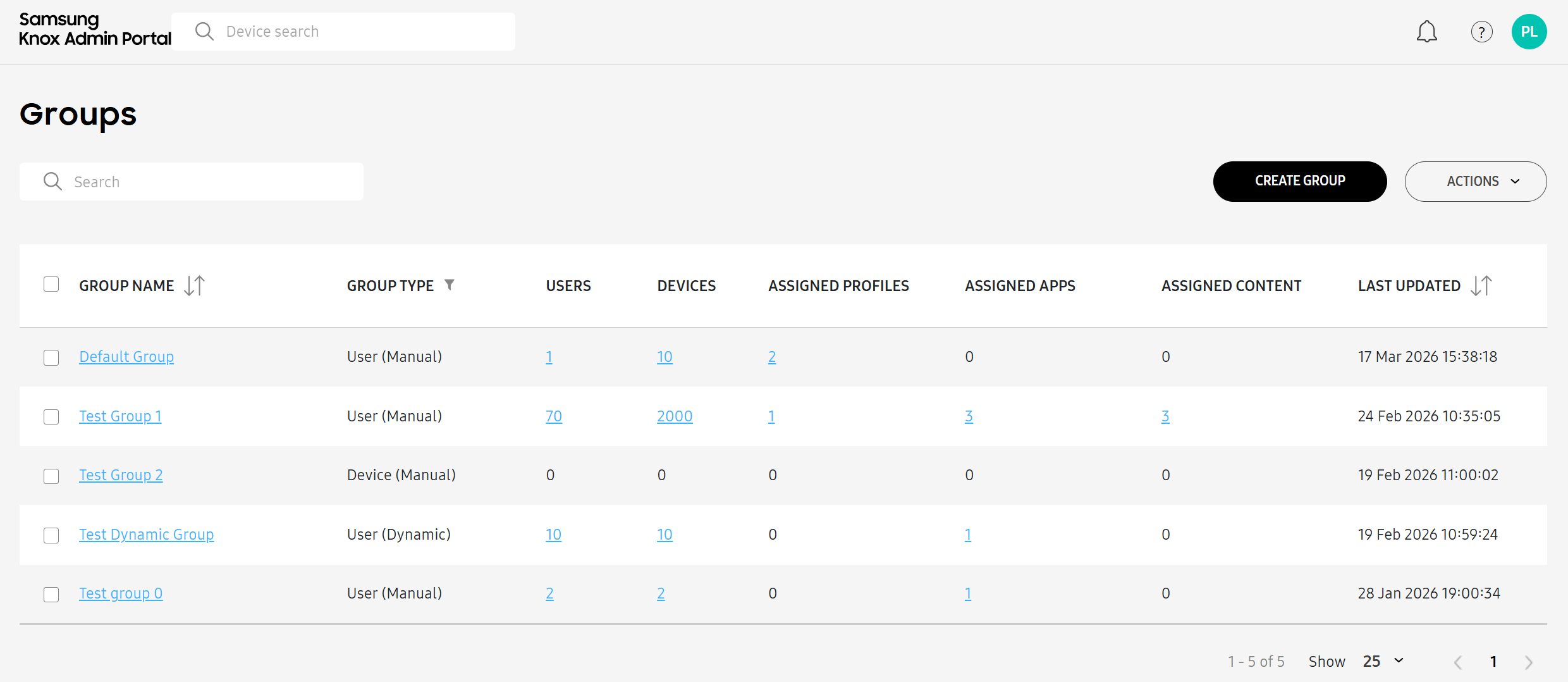
Instructions for creating a group from the Admin Portal differ depending on the membership type you select:
- Manual: A static group you must manually add members.
- Dynamic: A group where members are automatically added or removed based on pre-set criteria (up to 100 groups per tenant).
Create a new manual group
To create a group where you must manually add members:
-
Go to Groups.
-
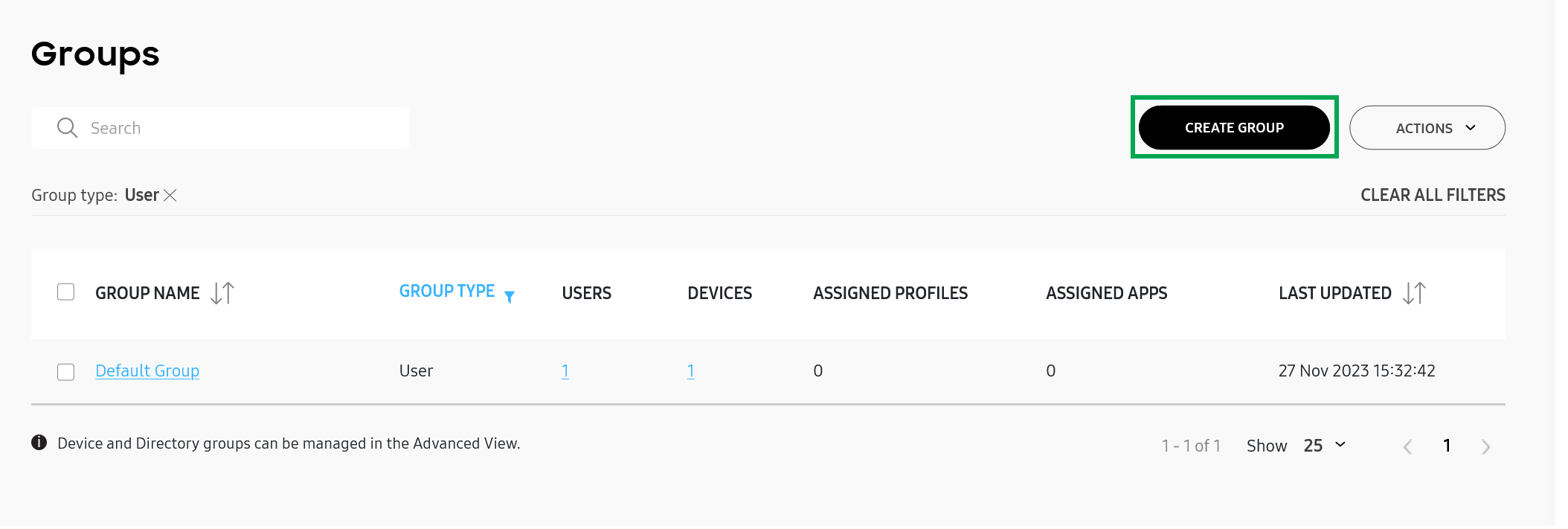
Click CREATE GROUP. The Create group page opens.
-
Enter a Group name.
-
Select if your group holds users or devices.
-
Under Membership type, select Manual. Then, click NEXT.
-
Select one or more users or devices to add to the new group.
-
Click CREATE.
Your new group displays in the group list, where the GROUP TYPE column indicates both the group type and the membership type.
Create a new dynamic group
To create a group where members are automatically added or removed based on pre-set criteria (up to 100 groups per tenant):
-
Go to Groups.
-
Click CREATE GROUP. The Create group page opens.
-
Enter a Group name.
-
Select if your group holds users or devices.
-
Under Membership type, select Dynamic. Then, click NEXT.
-
Click ADD CONDITION to define a new condition. You must define at least one condition, and up to five.
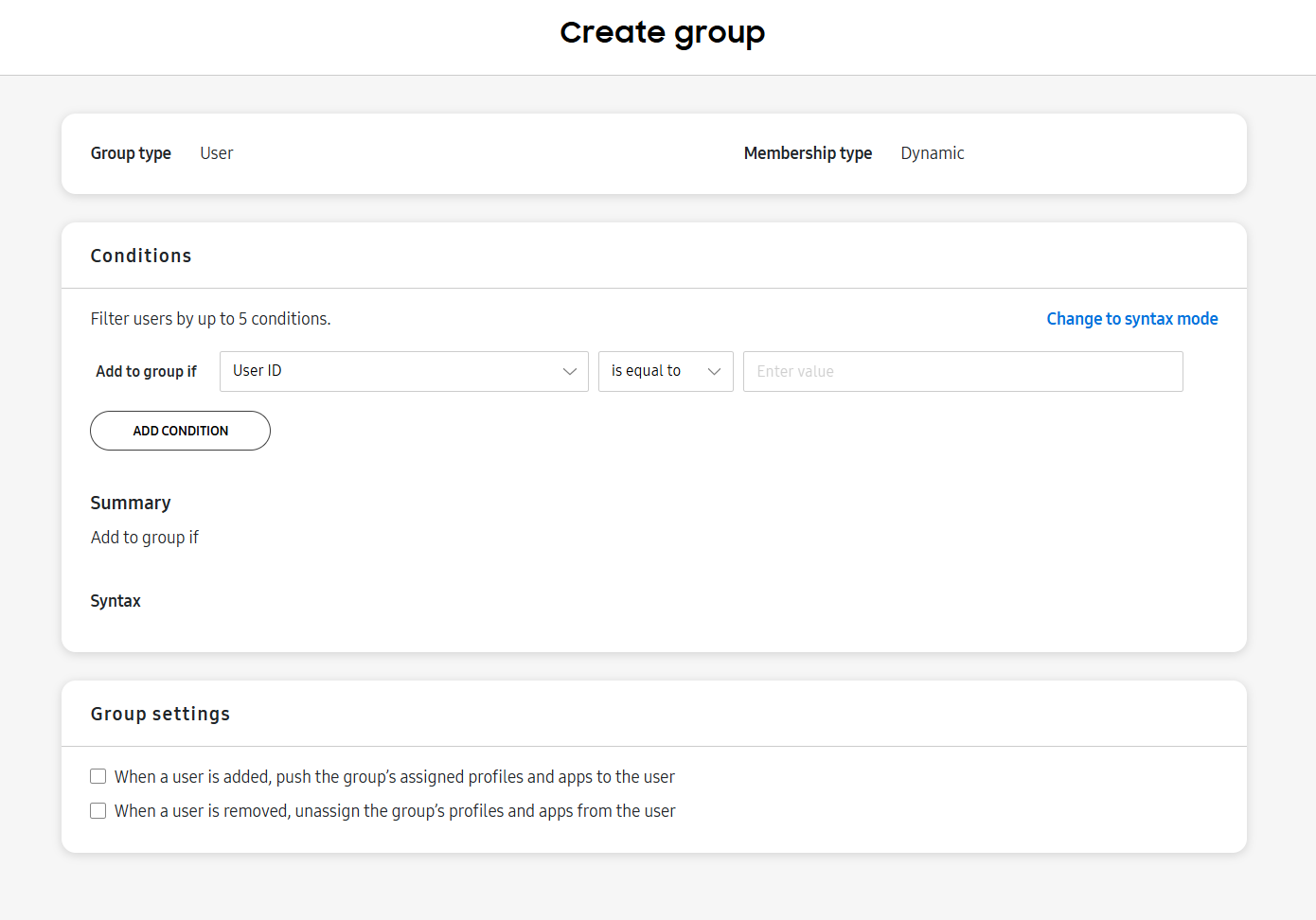
You can click Change to syntax mode to define as many conditions as you’d like using MVFLEX Expression Language (MVEL), up to a maximum of 1000 characters. Click Learn more about defining conditions to view a summary of syntax rules on the page. For an in-depth guide on using MVEL in Knox Manage, see Dynamic group syntax.
-
In the Group settings section, you can select to push the group’s assigned profiles and apps to a newly-added user or device. You can also select to unassign a group’s profiles and apps when a user or device is removed.
- You can click PREVIEW GROUP MEMBERS or PREVIEW DEVICES to test if selected users or devices will be added into the group. Select up to 25 users or devices, then click VERIFY.
-
Click CREATE. A notification with a progress bar displays.
- Click SHOW ALL NOTIFICATIONS to see details of the group creation process.
- Click CANCEL CREATING GROUP to cancel the group creation process.
When the group is successfully created, a confirmation notification displays where you can take various actions, such as assigning a profile or app.
Duplicate a group
Duplicating a group allows you to quickly create new groups with similar configurations, policies, and settings. This saves time by avoiding the need to manually recreate all group parameters, while ensuring consistency across similar organizational units.
Duplicate a manual group
To duplicate a manual group:
-
Go to Groups.
-
Select a manual group, then click ACTIONS > Duplicate group.
-
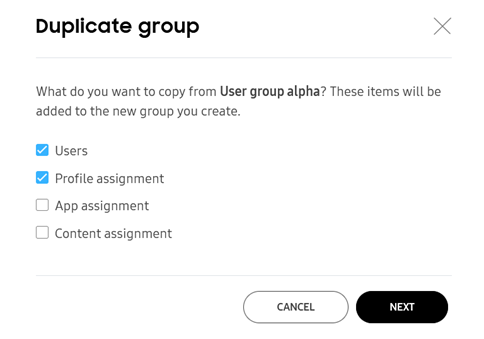
Select the information that you want to copy to the duplicate group.
-
Click NEXT. The Create group page opens.
-
Edit the Group name, Group type, and Membership type.
You can edit group members after duplicating the group. If you’re duplicating a User (Manual) group, you can also edit group members on the Create group - Select users page immediately after the Create group page.
-
Click CREATE.
Your duplicate group displays in the group list. The Group successfully added notification appears, prompting you to assign a profile or an app to your group.

Duplicate a dynamic group
To duplicate a dynamic group:
-
Go to Groups.
-
Select a dynamic group, then click ACTIONS > Duplicate group.
-
Choose between duplicating your group as a dynamic or manual group, and the information that you want to copy to the duplicate group.
-
Click NEXT. The Create group page opens.
-
Edit the Group name, Group type, and Membership type.
If you’re duplicating your User (Dynamic) group as a User (Manual) group, you can also edit group members on the Create group - Select users page immediately after the Create group page. Otherwise, you can edit group members after you duplicate your dynamic group as a manual group.
-
Click CREATE AND EDIT CONDITIONS.
-
Edit the conditions as necessary, then click SAVE.
Delete a group
Deleting a group allows you to remove organizational structures that are no longer necessary. This action automatically unassigns all associated profiles, apps, and content from users’ devices, while keeping the users themselves active, helping maintain a clean and up-to-date management environment.
To delete a group:
-
Go to Groups.
-
Select one or more groups to delete.
-
Click ACTIONS > Delete group(s).
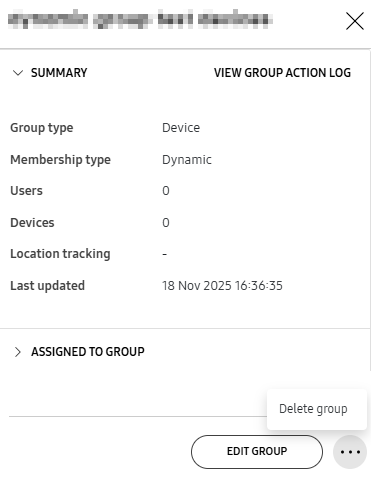
Alternatively, you can delete a group by clicking the group name to open the sliding panel > (More actions icon) > Delete group.
This document was updated for the Knox cloud services 26.10 UAT.
On this tab
Groups are organizational containers that allow you to efficiently categorize and manage collections of users or devices. On the Groups page you can create a group, duplicate an existing group to quickly create a new group with similar configurations, or delete a group that is no longer needed.
Create groups
You can create a group directly on the Groups page in the Knox Admin Portal. Alternatively, you can add a group by synchronizing information from an existing Identity Provider (IdP), like Active Directory (AD), to Knox Manage.
Instructions for creating a group from the Admin Portal differ depending on the membership type you select:
- Manual: A static group you must manually add members.
- Dynamic: A group where members are automatically added or removed based on pre-set criteria (up to 100 groups per tenant).
Create a new manual group
To create a group where you must manually add members:
-
Go to Groups.
-
Click CREATE GROUP. The Create group page opens.
-
Enter a Group name.
-
Select if your group holds users or devices.
-
Under Membership type, select Manual. Then, click NEXT.
-
(Optional) Select one or more users or devices to add to the new group.
-
Click CREATE.
Your new group displays in the group list.
Create a new dynamic group
To create a group where members are automatically added or removed based on pre-set criteria (up to 100 groups per tenant):
-
Go to Groups.
-
Click CREATE GROUP. The Create group page opens.
-
Enter a Group name.
-
Select if your group holds users or devices.
-
Under Membership type, select Dynamic. Then, click NEXT.
-
Define the conditions that mark the user or device as a part of the group. Conditions are combined using either the AND or OR logic operators. Click ADD CONDITION to add another condition, or click (Remove icon) to remove one. You can add up to five conditions per group.
For each entry, select a logical operator, a condition, an operator, such as is equal to or isn’t equal to, and a value. Conditions vary depending on whether the group is a user or device group.
You can click Change to syntax mode to define as many conditions as you’d like using MVFLEX Expression Language (MVEL), up to a maximum of 1000 characters. Click Learn more about defining conditions to view a summary of syntax rules on the page. For an in-depth guide on using MVEL in Knox Manage, see Dynamic group syntax.
The following conditions are available for user groups. Many of these conditions, such as Employee number or Department, can be set for users in the original console. See Modify the details of a user account to learn more.
Conditions Description User ID Marks users as part of the group based on the selected operator and their user ID, the unique identifier for the user's account. Enter a value. User Name Marks users as part of the group based on the selected operator and their user name. Enter a value. First Name Marks users as part of the group based on the selected operator and their first name. Enter a value. Middle Name Marks users as part of the group based on the selected operator and their middle name. Enter a value. Last Name Marks users as part of the group based on the selected operator and their last name. Enter a value. Display Name Marks users as part of the group based on the selected operator and their display name. Enter a value. Employee number Marks users as part of the group based on the selected operator and their employee number. Enter a value. Department Marks users as part of the group based on the selected operator and the department the user belongs to. Enter a value. Administrator DN Marks users as part of the group based on the selected operator and the Distinguished Name (DN) of the administrator who manages the them. Enter a value. Email Marks users as part of the group based on the selected operator and the user's email address. Enter a value. Email User Name Marks users as part of the group based on the selected operator and the user name portion of the user's email address. Enter a value. Phone number Marks users as part of the group based on the selected operator and the user's phone number. Enter a value. Primary phone number Marks users as part of the group based on the selected operator and the user's primary phone number. Enter a value. User Principal Name (UPN) Marks users as part of the group based on the selected operator and their User Principal Name (UPN), the sign-in name consisting of their user account name and a domain, like an email address. Enter a value. Distinguished Name (DN) Marks users as part of the group based on the selected operator and the user's Distinguished Name (DN), the unique identifier used to locate the user in an LDAP or Active Directory. Enter a value. Globally Unique Identifier (GUID) Marks users as part of the group based on the selected operator and the user's Globally Unique Identifier (GUID). Enter a value. Organization Code Marks users as part of the group based on the selected operator and the code assigned to the organization they belong to. Enter a value. Position Code Marks users as part of the group based on the selected operator and their position code. Enter a value. Work Location Code Marks users as part of the group based on the selected operator and their work location code. Enter a value. Security Level Code Marks users as part of the group based on the selected operator and the code assigned to the user's security level. Enter a value. User-Defined 1 Marks users as part of the group based on the selected operator and their User-Defined 1 value. Enter a value. User-Defined 2 Marks users as part of the group based on the selected operator and their User-Defined 2 value. Enter a value. User-Defined 3 Marks users as part of the group based on the selected operator and their User-Defined 3 value. Enter a value. Organization Name Marks users as part of the group based on the selected operator and the name of the user's organization. Enter a value. Position Marks users as part of the group based on the selected operator and the user's job position or title. Enter a value. Work Location Marks users as part of the group based on the selected operator and the user's work location. Enter a value. Security Level Name Marks users as part of the group based on the selected operator and the name of the security level assigned to the user. Enter a value. User Tags Marks users as part of the group based on the selected operator and any user tags assigned to them. Enter a value. Status Marks users as part of the group based on the selected operator and the user account's status. Select either Enabled or Disabled. Source Marks users as part of the group based on the selected operator and the source the user account was created from. Select Knox Manage or Directory. Created Marks users as part of the group based on the selected operator and the date the user account was created. Enter or select a date. The following conditions are available for device groups:
Condition Description Device Name Marks devices as part of the group based on the selected operator and the device's name. Enter a value. Device Tags Marks devices as part of the group based on the selected operator and any tags assigned to it. Enter a value. Device nickname Marks devices as part of the group based on the selected operator and the nickname assigned to the device. Enter a value. Enrollment type Marks devices as part of the group based on the selected operator and the method it was enrolled. Select Knox Mobile Enrollment or Zero-touch enrollment. Firmware version Marks devices as part of the group based on the selected operator and their firmware version. Enter the version number of the firmware. ICCID information Marks devices as part of the group based on the selected operator and the Integrated Circuit Card Identification (ICCID) on the device's SIM, a unique identifier which helps it identity itself when connecting to networks. Enter a value. IMEI Marks devices as part of the group based on the selected operator and the device's International Mobile Equipment Identity (IMEI). Enter a value. Secondary IMEI Marks devices as part of the group based on the selected operator and the device's secondary International Mobile Equipment Identity (IMEI), used to identify the second SIM slot on dual-SIM devices. Enter a value. IMSI Marks devices as part of the group based on the selected operator and their International Mobile Subscriber Identity (IMSI), the unique code to identify the device users on a cellular network. Enter a value. Lock status Marks devices as part of the group based on the selected operator and the device's lock status. Select Locked or Unlocked. MAC address Marks devices as part of the group based on the selected operator and the device's MAC address, the unique alphanumeric sequence connected to the hardware component which identifies the device when it connects to a network. Enter a value. Management type Marks devices as part of the group based on the selected operator and its management type. Select Fully managed device ,Work profile only, or Work profile on company-owned device. Mobile number Marks devices as part of the group based on the selected operator and the mobile number associated with the device. Enter a value. Device model Marks devices as part of the group based on their device model and the selected operator. Enter a device model name or model code. OS version Marks devices as part of the group based on the selected operator and the version of the operating system installed on the device. Enter a value. Platform Marks devices as part of the group based on the selected operator and the device's platform. Select Android. Serial number Marks devices as part of the group based on the selected operator and the device's serial number. Enter a value. Status Marks devices as part of the group based on the selected operator and the device's status. Select one of the following:
- Provisioning
- Enrolled
- Disconnected
- Expired
- Unenrolled
Last updated status Marks devices as part of the group based on the selected operator and the date and time the device's status was last updated. Select a date. Shared device type Marks devices as part of the group based on the selected operator and whether the device is set up as a shared device. Select Non-shared, Shared, or Shared (Temporary). Control type Marks devices as part of the group based on the selected operator and the control type applied to the device. Select a type AMAPI or KMDPC. -
In the Group settings section, you have the option to select one or both of the following checkboxes: When a user or device is added, push the group’s assigned profiles and apps to the user or device and When a user or device is removed, unassign the group’s profiles and apps from the user or device.
-
You can click PREVIEW GROUP MEMBERS or PREVIEW DEVICES to test if selected users or devices will be added into the group based on the conditions you set. Select up to 25 users or devices, then click VERIFY.
- Click SHOW ALL NOTIFICATIONS to see details of the group creation process.
- Click CANCEL CREATING GROUP to cancel the group creation process.
It may take a few minutes before your dynamic group is created. To ensure efficient console performance, if a group is being created, you can’t create another dynamic group. While a dynamic group is being created, the information circle icon appears beside its name in the group table. When the group is successfully created, a confirmation notification displays where you can take various actions, such as assigning a profile or app.
Duplicate a group
Duplicating a group allows you to quickly create new groups with similar configurations, policies, and settings. This saves time by avoiding the need to manually recreate all group parameters, while ensuring consistency across similar organizational units.
Duplicate a manual group
To duplicate a manual group:
-
Go to Groups.
-
Select a manual group, then click ACTIONS > Duplicate group.
-
Select the information that you want to copy to the duplicate group.
-
Click NEXT. The Create group page opens.
-
Edit the Group name, Group type, and Membership type.
Depending on the group’s type, you can either edit users or devices belonging to the group. If you’re duplicating a user group, you can also edit group members on the Create group - Select users page immediately after the Create group page.
-
Click CREATE.
Your duplicate group displays in the group list. The Group successfully added notification appears, prompting you to assign a profile or an app to your group.
Duplicate a dynamic group
To duplicate a dynamic group:
-
Go to Groups.
-
Select a dynamic group, then click ACTIONS > Duplicate group.
-
Choose between duplicating your group as a dynamic or manual group, and the information that you want to copy to the duplicate group.
-
Click NEXT. The Create group page opens.
-
Edit the Group name, Group type, and Membership type.
If you’re duplicating your User (Dynamic) group as a User (Manual) group, you can also edit group members on the Create group - Select users page immediately after the Create group page. Otherwise, you can edit group members after you duplicate your dynamic group as a manual group.
-
Click CREATE AND EDIT CONDITIONS.
-
Edit the conditions as necessary, then click SAVE.
Delete a group
Deleting a group allows you to remove organizational structures that are no longer necessary. This action automatically unassigns all associated profiles, apps, and content from users’ devices, while keeping the users themselves active, helping maintain a clean and up-to-date management environment.
To delete a group:
-
Go to Groups.
-
Select one or more groups to delete.
-
Click ACTIONS > Delete group(s).
-
On the Delete group(s) confirmation dialog that appears, click DELETE.
Alternatively, you can delete a group by clicking the group name to open the sliding panel > (More actions icon) > Delete group.
Is this page helpful?