View and edit a profile
Last updated October 8th, 2026
On this tab
Once you create a profile, you can view or edit its details from the PROFILES tab on the Profiles and policies page. You can also manage profile assignments, such as which groups profiles are assigned to.
View profiles
In the profile table, you can view information on the profiles you’ve created.
| Column | Description |
|---|---|
| PRIORITY |
The priority value assigned to the profile. A profile's priority determines the order in which policies are applied. If a group is assigned to profiles with conflicting policies, the policy settings from the profile with the higher priority are applied. The profile with the highest priority is assigned a value of 1. To manage profile priority:
|
| PROFILE NAME | Click on a profile's name to open the Profile details page that opens, which displays information such as its configured policies. |
| PLATFORM | The device platform associated with the profile. Android Enterprise profiles display by default. Although you can filter by other platforms, you can manage only Android Enterprise profiles in the new console. |
| CREATED IN | The console where the profile was created. Although you can view profiles created in the original console, you can't manage them in the new console. |
| MANAGEMENT TYPE | The profile's management type: Fully Managed ,Work Profile, or Work Profile on Company-Owned Device. |
| GROUPS | The number of groups the profile is assigned to. Click the number to see a list of all assigned groups. |
| ORGANIZATIONS | The number of organizations the profile is assigned to. Click the number to see a list of all assigned organizations. |
| VERSION | The version number of the profile. Click the number to see a list of all previous versions and comments. |
| LAST UPDATED | The date and time when the profile was last updated. |
Edit a profile
Once created, you can continue to edit a profile’s policies.
To edit a profile:
-
Go to Profiles and policies. Then, you can either:
-
Select a profile and click ACTIONS > Edit profile.
-
Click a profile’s name, and on the Profile details page that opens, click EDIT PROFILE.
The Edit profile page opens.
-
-
You can add new policies or edit ones you configured previously. To edit an existing policy, you can:
- Click Reset to return the policy settings to their default state.
- Click DUPLICATE POLICY to make changes to the current configuration.
If you edit any policy settings that belong to a policy preset, the settings for only that specific profile are updated. To update the policy preset for all the profiles it’s applied to, you must edit the preset directly. See View and edit policies to learn more.
-
Proceed through to the Review screen, then review your changes. If you need to make any more changes, click Edit to return to the Edit profile page.
-
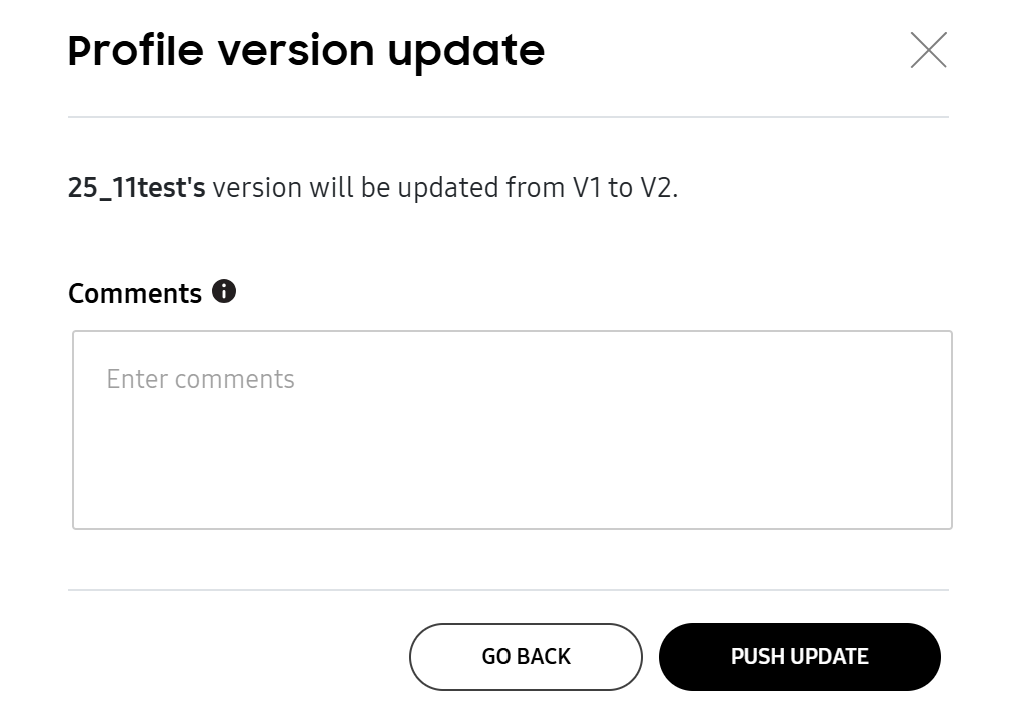
Click SAVE ONLY or SAVE AND PUSH UPDATE to immediately apply your changes. The Profile version update dialog opens.
-
(Optional) Enter a comment describing the new profile update.
-
Click PUSH UPDATE.
After pushing the updated profile, the version number increments by one on the Profiles and policies page.
Manage profile assignment
Besides viewing and editing profiles, you can manage how and where your profiles are assigned from the ACTIONS drop-down. Select a profile, click ACTIONS, then select an action from the list below:
-
Assign profile — Assigns the profile to additional groups or organizations. On the Assign profile page that opens, select the groups or organizations to assign the profile to. Then click ASSIGN ONLY or ASSIGN AND PUSH PROFILE to assign and sync it.
If a group has (Info icon) icon beside it, then the assigned policy settings conflict with ones already applied to that group. Click Review policies to see which policy settings conflict.
-
Unassign profile — Unassigns the profile from selected groups or organizations. When a profile is unassigned, its policies no longer apply to any of the associated devices in the group or organization. On the page that opens, select the group or groups you want to unassign the profile from. Then click UNASSIGN.
-
Push profile — Pushes the profile’s latest updates to its assigned groups and devices. On the Push profile(s) dialog, click CONFIRM.
-
Manage profile priority — Update the profile priority. To learn more, see View profiles.
-
Duplicate profile — Creates a copy of the profile that you can edit. You’re directed to the Create profile page. Continue through the steps to create the new profile.
-
Delete profile — Deletes a profile that isn’t assigned to any groups. See Delete profiles for more information.
This document was updated for the Knox cloud services 26.10 UAT.
Once you create a profile, you can view or edit its details from the PROFILES tab on the Profiles and policies page. You can also manage profile assignments, such as which groups profiles are assigned to, and automatic updates.
View profiles
In the profile table, you can view information on the profiles you’ve created.
| Column | Description |
|---|---|
| PRIORITY |
The priority value assigned to the profile. A profile's priority determines the order in which policies are applied. If a group is assigned to profiles with conflicting policies, the policy settings from the profile with the higher priority are applied. The profile with the highest priority is assigned a value of 1. To manage profile priority:
|
| PROFILE NAME | Click on a profile's name to open the Profile details page that opens, which displays information such as its configured policies. |
| PLATFORM | The device platform associated with the profile. Android Enterprise profiles display by default. Although you can filter by other platforms, you can manage only Android Enterprise profiles in the new console. |
| CREATED IN | The console where the profile was created. Although you can view profiles created in the original console, you can't manage them in the new console. |
| MANAGEMENT TYPE | The profile's management type: Fully Managed ,Work Profile, or Work Profile on Company-Owned Device. |
| GROUPS | The number of groups the profile is assigned to. Click the number to see a list of all assigned groups. |
| ORGANIZATIONS | The number of organizations the profile is assigned to. Click the number to see a list of all assigned organizations. |
| VERSION | The version number of the profile. Click the number to see a list of all previous versions and comments. |
| LAST UPDATED | The date and time when the profile was last updated. |
Edit a profile
Once created, you can continue to edit a profile’s policies.
To edit a profile:
-
Go to Profiles and policies. Then, you can either:
-
Select a profile and click ACTIONS > Edit profile.
-
Click a profile’s name, and on the Profile details page that opens, click EDIT PROFILE.
The Edit profile page opens.
-
-
You can add new policies or edit ones you configured previously. To edit an existing policy, you can:
- Click Reset to return the policy settings to their default state.
- Click DUPLICATE POLICY to make changes to the current configuration.
If you edit any policy settings that belong to a policy preset, the settings for only that specific profile are updated. To update the policy preset for all the profiles it’s applied to, you must edit the preset directly. See View and edit policies to learn more.
-
Proceed through to the Review screen, then review your changes. If you need to make any more changes, click Edit to return to the Edit profile page.
-
Click SAVE ONLY or SAVE AND PUSH UPDATE to immediately apply your changes. The Profile version update dialog opens.
-
(Optional) Enter a comment describing the new profile update.
-
Click PUSH UPDATE.
After pushing the updated profile, the version number increments by one on the Profiles and policies page.
Manage profile assignment
Besides viewing and editing profiles, you can manage how and where your profiles are assigned from the ACTIONS drop-down. Select a profile, click ACTIONS, then select an action from the list below:
-
Assign profile — Assigns the profile to additional groups or organizations. On the Assign profile page that opens, select the groups or organizations to assign the profile to. Then click ASSIGN ONLY or ASSIGN AND PUSH PROFILE to assign and sync it.
If a group has (Info icon) icon beside it, then the assigned policy settings conflict with ones already applied to that group. Click Review policies to see which policy settings conflict.
-
Unassign profile — Unassigns the profile from selected groups or organizations. When a profile is unassigned, its policies no longer apply to any of the associated devices in the group or organization. On the page that opens, select the group or groups you want to unassign the profile from. Then click UNASSIGN.
-
Push profile — Pushes the profile’s latest updates to its assigned groups and devices. On the Push profile(s) dialog, click CONFIRM.
-
Manage profile priority — Update the profile priority. To learn more, see View profiles.
-
Duplicate profile — Creates a copy of the profile that you can edit. You’re directed to the Create profile page. Continue through the steps to create the new profile.
-
Delete profile — Deletes a profile that isn’t assigned to any groups. See Delete profiles for more information.
Set up automatic profile updates
To avoid pushing profile updates every time you change a profile or the groups or organizations it’s assigned to, you can set up automatic profile updates. Once configured, profiles will automatically update following the schedule you set.
To set up automatic profile updates:
- Go to Settings > AUTOMATIC PROFILE UPDATES.
- Specify who you want to Update profiles for: All groups and organizations or Selected groups and organizations. If you select the latter, you can set multiple schedules for different groups and organizations. In total, you can set up to 20 schedules.
- Under Set schedule for updates, configure the following settings:
- Day(s) of the week — Select the day or days that the profiles are pushed to devices each week.
- Start time — Select which time the updates are pushed to devices each week.
- Timezone — Select a timezone.
- Select groups or organizations to push updates to — If you chose Selected groups and organizations for step two, then select the groups and organizations to assign the schedule to.
- Click SAVE.
Is this page helpful?