View or edit content
Last updated June 17th, 2026
After you’ve added content, you can view its details, such as the date it was last updated and how many groups it’s assigned to. Additionally, you can edit its details, such as its content name and download path, as well as the file itself if you want to update it.
View content
To view the details of a content file:
- Go to Library > Content.
- Click the name of a content file under the CONTENT NAME column.
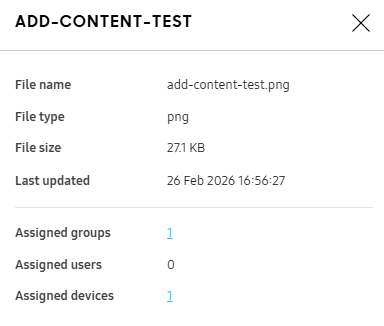
- On the content details panel that opens, view further details of the file.
-
Click the number link next to Assigned groups, Assigned organizations, Assigned users, or Assigned devices to view a page containing a list of groups, organizations, users, or devices that the content is assigned to.
-
Edit content
To edit the details of a content file:
-
Go to Library > Content.
-
Click the name of a content file under the CONTENT NAME column. The content details panel opens.
-
Click EDIT CONTENT. The Edit content page opens.
- Alternatively, select a content file, then click ACTIONS > Edit content.
-
You can upload a new file to update the content file. You can also modify the content name, and the default download path, if required:
- You must specify one of the media directories, such as Documents, Download, Pictures, Movies, or Music.
-
Click PUSH UPDATE.
The updated content is pushed to the assigned group, organization, or user.
On this page
Is this page helpful?