Manage existing connections
Last updated June 17th, 2026
Once you’ve added identity server directory connections, you can view and manage them from the Identity provider page.
View connections
From the search bar, you can search for a particular connection by its connection name.
| Column | Description |
|---|---|
| CONNECTION NAME | The name of the connection. Click the name to view additional details about the connection on the sliding panel. Here, you can trigger a sync with that connection, edit connection configurations, or delete the connection. See View details for more information. |
| CONNECTION TYPE |
The identity server directory associated with the connection. You can filter connections by On-premise AD and MS Entra ID. To manage connections that are not On-premise AD and MS Entra ID, you must use the original console. Available options:
|
| SYNC STATUS |
The sync status of the connection. The three possible sync statuses are:
|
| USER SYNC TARGET |
Users targeted to sync with this connection. Click on the number to view a list of all users synced for this connection. On the page that opens, you can click a USER NAME to open the details for the associated user. You can also complete the following actions on users from the ACTIONS drop-down:
|
| GROUP SYNC TARGET |
Groups targeted to sync with this connection. Click on the number to view a list of all groups synced for this connection. On the page that opens, you can click a GROUP NAME to open its details. You can also complete the following actions on groups from the ACTIONS drop-down:
|
| AUTOMATIC SYNCS | Type of automatic sync configured for this connection. |
| LAST UPDATED | The date and time that the connection was last updated, either by scheduled sync or admin modification. |
From the ACTIONS drop-down, you can perform the following actions on selected connections.
- Sync connection — Manually syncs the connection with Knox Manage.
- Edit server connection — Edit the details of the server connection, such as when it’s scheduled to sync.
- Edit sync targets — Edit the sync targets, such as the Base DN starting point, Filter, and mapping information.
- Verify connection – Checks the connection with the selected directory.
- Delete connection(s) — Deletes the connection from Knox Manage.
- Manage sync conflicts — Occurs when a target can’t sync from your identity server directory to Knox Manage. See manage sync conflicts to learn more.
View details
To view the details of a connection:
- Go to the Identity provider page.
- Click the name of the connection you want to view.
- The sliding panel opens.
At the top of the sliding panel, the connection’s status is displayed. The rest of the sliding panel is split into the following sections:
- SERVER
- USER CONNECTION
- GROUP CONNECTION
Read the sections below to learn more about the information included in each category.
MS Entra ID connections will not display fields and data related to the on-prem AD connections, such as Encryption type.
Server
The SUMMARY section provides an overview of the connection’s standing in your Knox Manage tenant.
- Connection type — The identity server directory associated with the connection.
- IP/Host — The IP or Host address.
- Encryption type — The encryption type used to communicate with the AD server.
- Auth type — The authentication type used to establish a connection with the AD server.
- User ID — The administrator information of the identity server directory.
- User sync target — The users targeted for sync with this connection. Click on the number to view a list of all users synced for this connection.
- Group sync target — Groups targeted for sync with this connection. Click on the number to view a list of all groups synced for this connection.
- Automatic syncs — Displays how frequently connections are synced if automatic scheduling is enabled.
- Last synced — The date and time when the connection was last synced, either manually or by automatic schedule.
- Last updated — The date and time when the connection was last updated, either by scheduled sync or IT admin modification.
User connection
The USER CONNECTION section provides an overview of how users are connected from the identity server directory to Knox Manage.
- Base DN starting point — The Base DN starting point where your AD server searches for users.
- Filter — The filter string set to specify LDAP data items.
- Sync target — The method used to select users for syncing, either Select individually or All users.
- Additional settings — Displays any additional settings that were configured for the connection.
- Mapping information — Displays any mapping information configured for the connection.
Group connection
The GROUP CONNECTION section provides an overview of how groups are connected from the identity server directory to Knox Manage.
- Base DN starting point — The Base DN starting point where your AD server searches for groups.
- Filter — The filter string set to specify LDAP data items.
- Sync target — The method used to select groups for syncing, either Select individually or All groups.
- Additional settings — Displays any additional settings that were configured for the connection.
- Mapping information — Displays any mapping information configured for the connection.
At the bottom of the details sliding panel, you can click EDIT SYNC TARGETS to edit the connection. Additionally, click (More actions icon) to perform the following actions on the connection: Sync connection, Edit server connection, Verify connection, and Delete connection.
Organization connection
The ORGANIZATION CONNECTION section provides an overview of how organizations are connected from the directory server to Knox Manage.
- Base DN starting point — The Base DN starting point where your AD server searches for organizations.
- Filter — The filter string set to specify LDAP data items.
- Sync target — The method used to select organizations for syncing, either Select individually or All organizations.
- Additional settings — Displays any additional settings that were configured for the connection.
- Mapping information — Displays any mapping information configured for the connection.
At the bottom of the connection details panel, you can click EDIT SYNC TARGETS to edit the connection. Additionally, click (More actions icon) to perform the following actions on the connection: Sync connection, Edit server connection, Verify connection, and Delete connection.
Manage sync conflicts
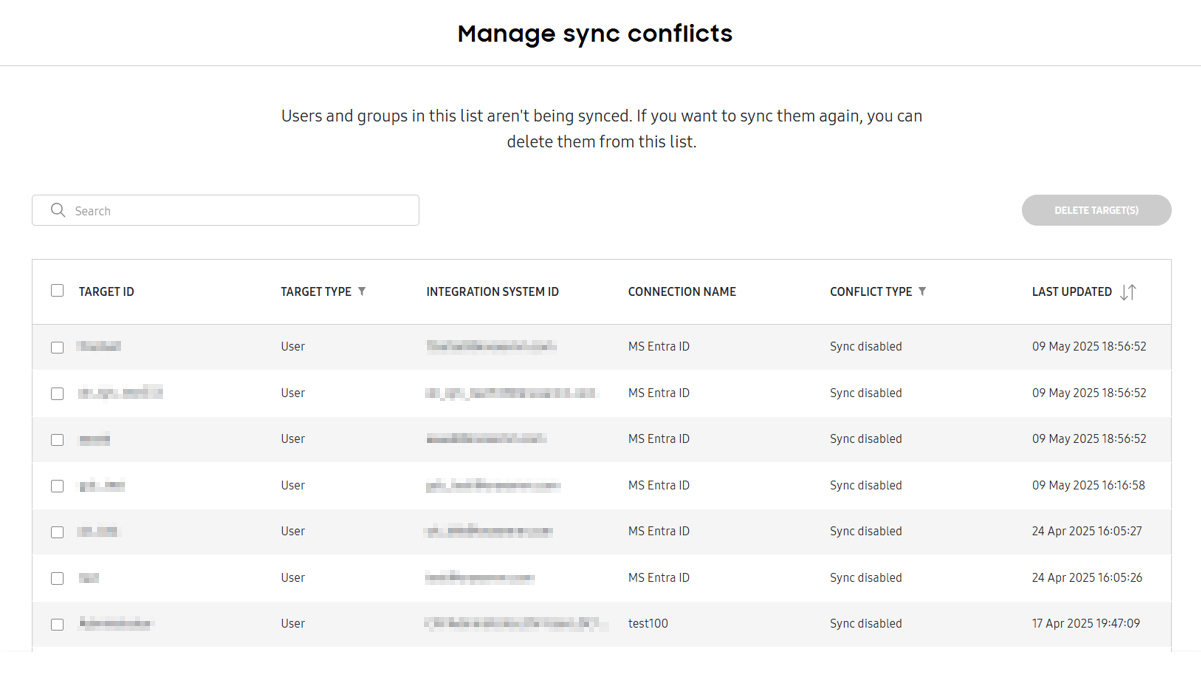
Sync conflicts occur when a target can’t sync from your identity server directory to Knox Manage. Sync conflicts can occur for a variety of reasons.
There are five types of sync conflicts:
- Deleted from Knox Manage — The synced user or group was deleted in Knox Manage.
- Deleted from directory — Targets were deleted from the directory server and, therefore, also deleted from Knox Manage.
- Sync disabled — The sync status of the target has been set to Sync disabled.
- Deleted from directory group — The user in a synced group in Knox Manage was deleted because they’ve been excluded from the directory server’s group.
- Incorrect organization mapping – The sync target doesn’t align with the structure of the organization in Knox Manage.
To fix sync conflicts, you can delete impacted targets from the list of sync conflicts. Deleted targets are automatically re-added to the list of sync targets for the relevant connection if you resolved the reason for the sync conflict. They re-sync when you manually sync them, or when automatic sync is next scheduled.
To delete a sync conflict:
- Go to Connection and security > Identity provider.
- Click ACTIONS > Manage sync conflicts.
- Select the targets that you want to delete.
- Click DELETE TARGET(S). On the pop-up, click DELETE. The targets are deleted from the list of sync conflicts.
On this page
Is this page helpful?