Manage prebuilt reports
Last updated June 17th, 2026
In addition to custom reports, the new console provides prebuilt reports, which are reports configured to show specific data sets through preconfigured charts. To view prebuilt reports, go to the Reports page, then click the PREBUILT REPORTS tab.
You can view prebuilt reports created in the original console in the new console, and vice versa. However, the following limitations apply:
- When viewed in the new console, reports from the original console don’t display the Not marked field.
- The following filters are not compatible across the two consoles:
- New console: The Operator is set to a range when Filters is set to a date format such as Registration date.
- Original console: The Condition Type is set to Variable when Filters is set to Date format.
Prebuilt reports can’t be edited or deleted, but from the ACTIONS drop-down, you can:
-
Duplicate report — Duplicates the report, which creates a copy you can edit. When you edit or duplicate a report, to refresh your view, you must click Preview again.
-
Schedule report — Schedules the report to be automatically emailed to IT admins.
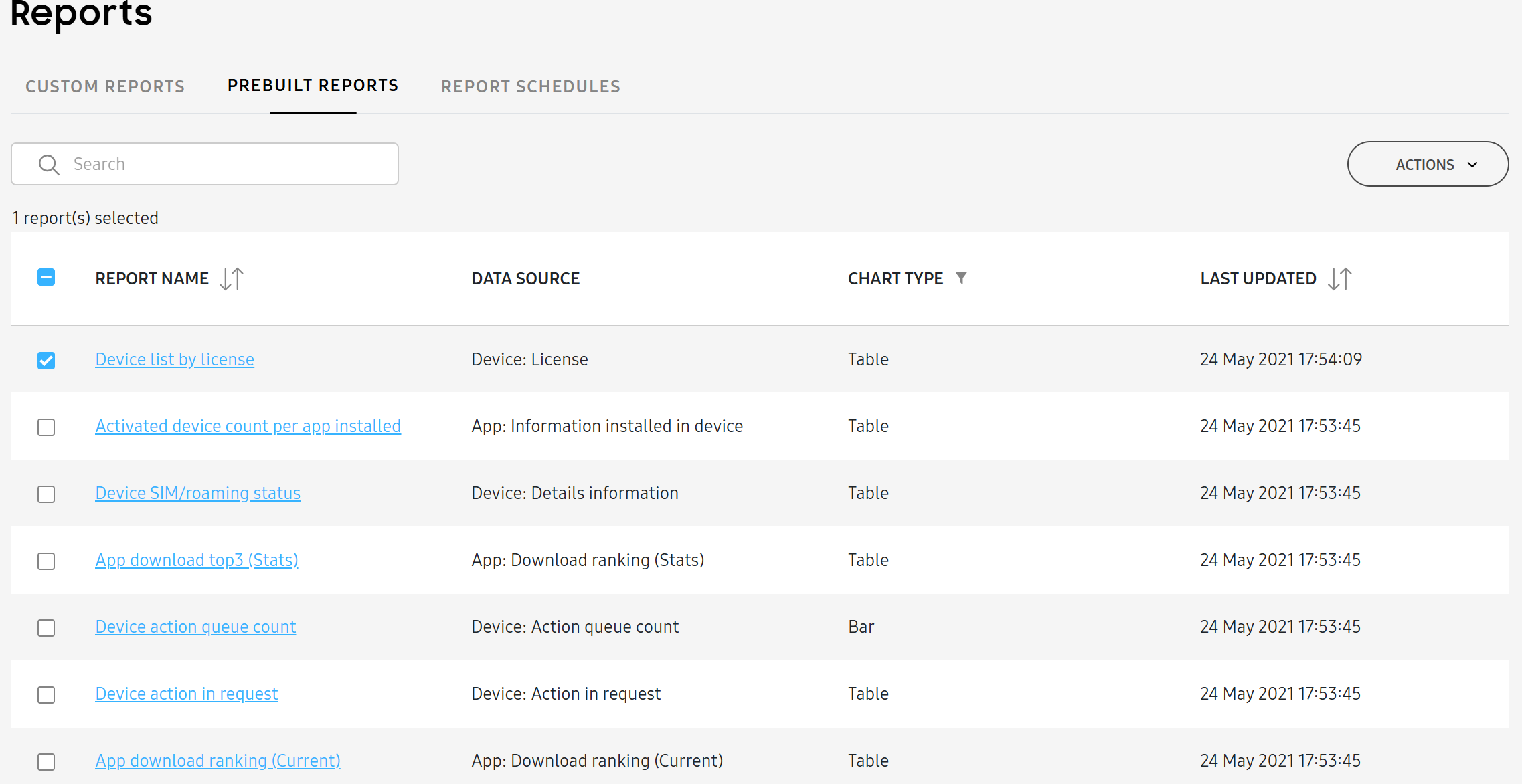
Click a report’s name to open its details panel. The details panel displays a preview of the report and specifies what Dimension, Measure, and Filters were selected. At the bottom, you can also DUPLICATE REPORT or click (More actions ison) to schedule the report or export it. Click (Full screen icon) to expand the report into full screen. On the full screen report, you can DOWNLOAD AS XLSX or DOWNLOAD AS PNG.
The following prebuilt reports are available:
| REPORT NAME | DATA SOURCE |
|---|---|
| Activated device count per app installed | Displays the number of devices on which an app is installed. |
| App download ranking (Current) | Displays the current ranking by app downloads. |
| App download ranking (Stats) | Displays the app download rankings of the previous day. |
| App download top3 (Current) | Displays the three most downloaded apps up to the current date. |
| App download top3 (Stats) | Displays the three most downloaded apps of the previous day. |
| Apps installed on device | Displays the number of apps installed per device. |
| Device SIM/roaming status | Displays the detailed information about the SIM card and roaming status of devices. |
| Device action in request | Displays the target device information of the device actions in queue. |
| Device action queue count | Displays the number of the device actions in queue per device. |
| Device count by group | Displays the number of devices by group. |
| Device count by manufacturer | Displays the number of enrolled devices by device manufacturer. |
| Device count by platform | Displays the number of enrolled devices by OS. |
| Device count by status | Displays the number of enrolled devices by status. |
| Device count by version | Displays the number of enrolled devices by mobile OS and their version. |
| Device inventory | Displays the inventory of the enrolled devices. |
| Device list by license | Displays the device information by licenses. |
| Device security status | Displays the security information by device. |
| New registered apps | Displays the apps newly added within the week. |
| New registered users (c) | Displays the daily number of newly added users in a bar chart. |
| New registered users | Displays the newly added users. |
| New user weekly | Displays the users newly added within the week. |
| User count by group | Displays the number of users by group. |
Is this page helpful?