Configure Android Enterprise settings
Last updated October 8th, 2026
On this tab
Once you register Knox Manage on the Google Admin Console, you can configure additional Android Enterprise settings for your tenant.
Click your profile icon then click Settings. Then, navigate to the KNOX MANAGE section and click ANDROID ENTERPRISE. You can configure your Android Enterprise settings on the following tabs:
- Account
- App settings
- Block enrollment
Only the super admin who created the tenant can view this page.
Account
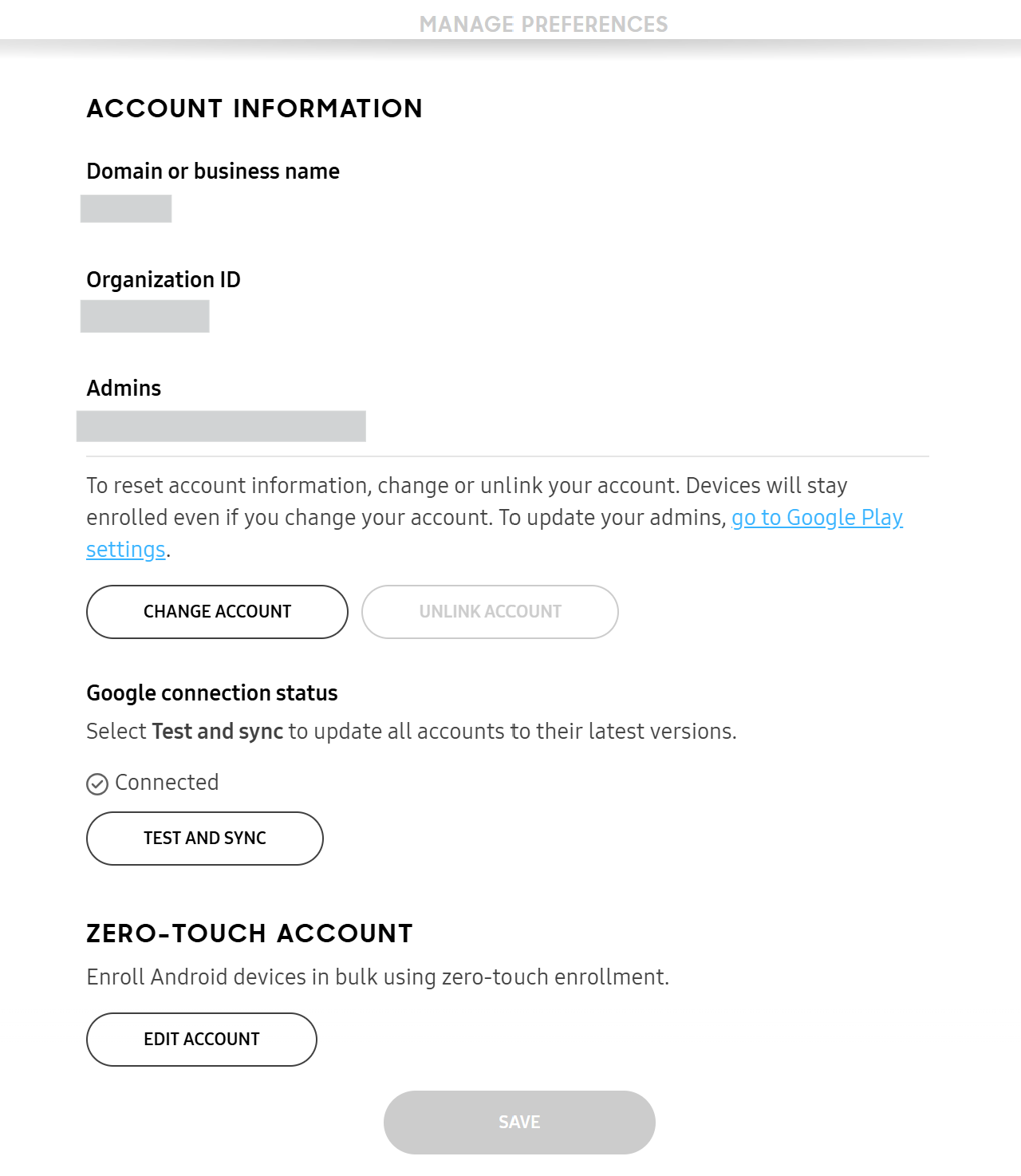
You can view and manage details about your Android Enterprise account on the Account tab.
The details you can view include your domain or business name, organization ID, and the Google account email associated with your Android Enterprise account.
Change or unlink your account
You can change or unlink your Android Enterprise account from Knox Manage. Your devices stay enrolled in Knox Manage even if you change or unlink your account. You can also update your admins on Google Play settings.
Google connection status
Click TEST AND SYNC to get the latest Android Enterprise account information. Perform a sync after updating admins on Google Play settings to ensure Knox Manage has the latest admin account information.
Zero-touch account
Set up ZERO-TOUCH ACCOUNT to provision Android devices with zero-touch enrollment.
App settings
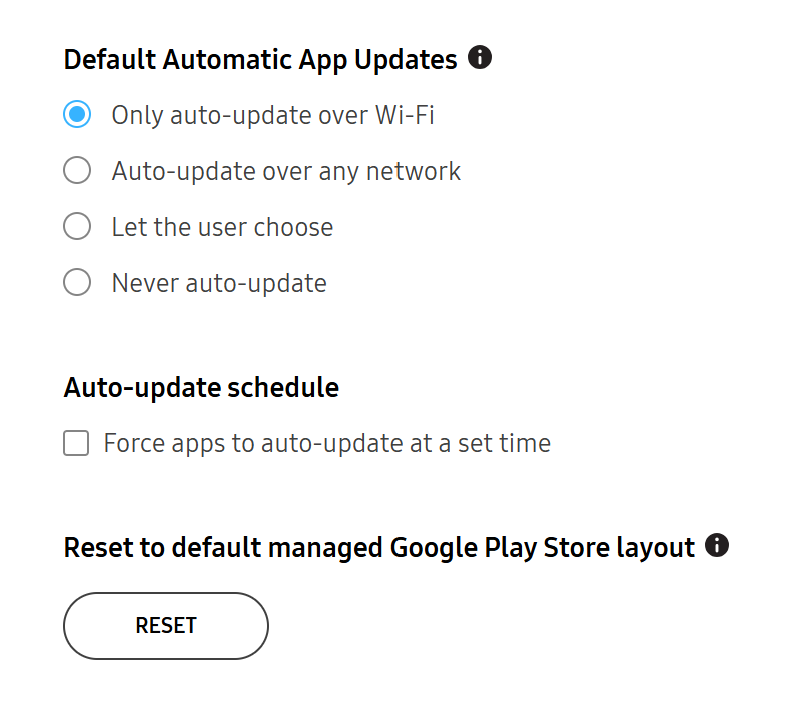
On the App settings tab, configure settings for app updates and Google Play Store layout:
Default Automatic App Updates
Choose how apps auto-update once they’re assigned to groups. You can set apps to only update over Wi-Fi, use any network for updates, let the device user choose how apps update, or never auto-update apps.
Auto-update schedule
Force apps to update at a specific time and for a certain duration. Set the Start time and Duration.
Reset to default managed Google Play Store layout
Click RESET to reset the managed Google Play Store layout on your devices.
Block enrollment
On the Block enrollment tab, you can set rules for which devices can enroll to Knox Manage. On the dropdown, select one of the following options to restrict device enrollment:
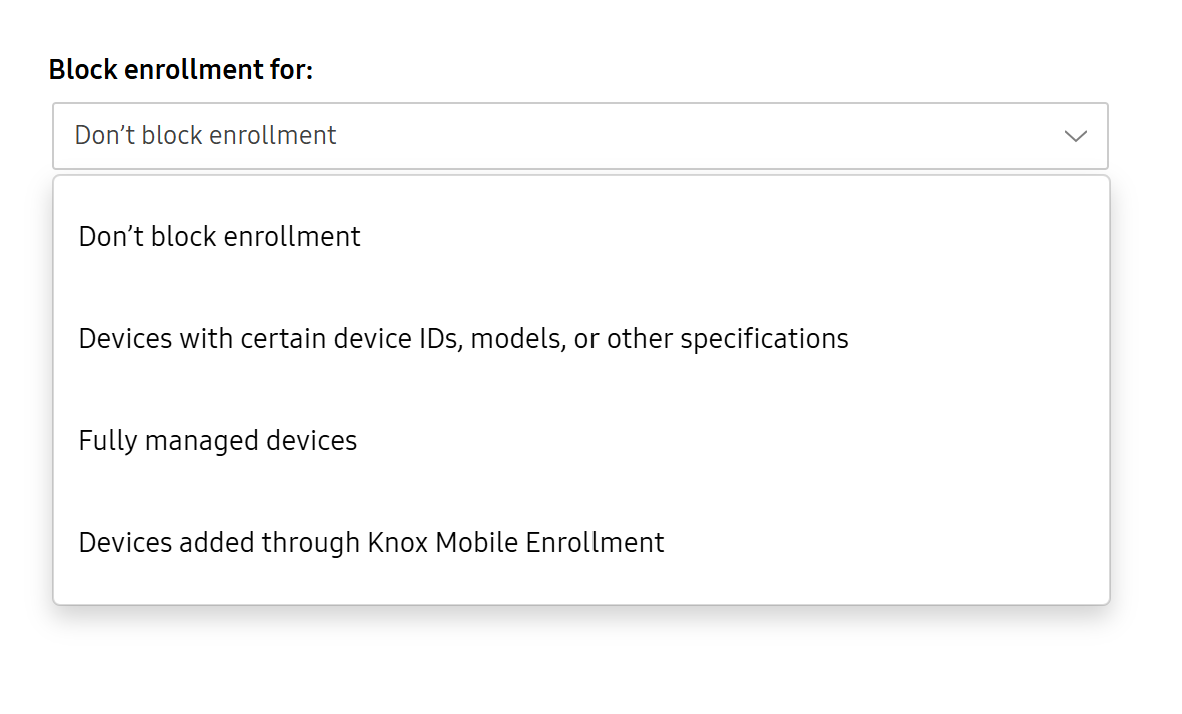
- Don’t block enrollment — Allows devices to enroll with no restrictions.
- Devices with certain device IDs, models, or other specifications — Specifies which device IDs, models, or OS versions can enroll to Knox Manage. The Set device specifications page opens automatically if you click this option. Click ADD to set your specifications, then click DONE.
- Fully managed devices — Specifies groups that can only enroll fully-managed devices. The Set groups page opens automatically if you click this option. Click ADD to set your groups, then click DONE.
- Devices added through Knox Mobile Enrollment — Enrolls devices through Knox Mobile Enrollment only.
This document was updated for the Knox cloud services 26.10 UAT.
On this tab
Once you register Knox Manage on the Google Admin Console, you can configure additional Android Enterprise settings for your tenant.
Click your profile icon, then click Settings. Then, navigate to the KNOX MANAGE section and click ANDROID ENTERPRISE. You can configure your Android Enterprise settings on the following tabs:
- Account
- App settings
- Block enrollment
- Userless enrollment tokens
Only the super admin who created the tenant can view this page.
Account
You can view and manage details about your Android Enterprise account on the Account tab.
The details you can view include your domain or business name, organization ID, enterprise type, and the Google account email associated with your Android Enterprise account.
Change or unlink your account
You can change or unlink your Android Enterprise account from Knox Manage. Your devices stay enrolled in Knox Manage even if you change or unlink your account.
Google connection status
Click TEST AND SYNC to get the latest Android Enterprise account information. Perform a sync after updating admins on Google Play settings to ensure Knox Manage has the latest admin account information.
Google Workspace connection
The status of your Google Workspace integration. One of the following statuses is displayed:
-
Not available — You didn’t set up Android Enterprise with a Managed Google Domain account, or your tenant is set up for Chromebook management.
-
Incomplete — You set up Android Enterprise with a Managed Google Domain account, but you haven’t connected to Google Workspace. Click CONNECT to connect your tenant to Google Workspace. See Configure Google Workspace authentication to learn more.
-
Completed — Google Workspace is connected.
If you have the Completed status, you can also configure the Sign in and authenticate account field, which allows users to enroll and sign in to their devices with their Google account.
Zero-touch account
Set up ZERO-TOUCH ACCOUNT to provision Android devices with zero-touch enrollment.
App settings
On the App settings tab, configure settings for app updates and Google Play Store layout:
Default Automatic App Updates
Choose how apps auto-update once they’re assigned to groups. You can set apps to only update over Wi-Fi, use any network for updates, let the device user choose how apps update, or never auto-update apps.
Auto-update schedule
Force apps to update at a specific time and for a certain duration. Set the Start time and Duration.
Reset to default managed Google Play Store layout
Click RESET to reset the managed Google Play Store layout on your devices.
Block enrollment
On the Block enrollment tab, you can set rules for which devices can enroll to Knox Manage. From the dropdown, select one of the following options to restrict device enrollment:
- Don’t block enrollment — Allows devices to enroll with no restrictions.
- Devices with certain device IDs, models, or other specifications — Specifies which device IDs, models, or OS versions can enroll to Knox Manage. The Set device specifications page opens automatically if you click this option. Click ADD to set your specifications, then click DONE.
- Fully managed devices — Specifies groups that can only enroll fully managed devices. The Set groups page opens automatically if you click this option. Click ADD to set your groups, then click DONE.
- Devices added through Knox Mobile Enrollment — Enrolls devices through Knox Mobile Enrollment only.
Userless enrollment tokens
Devices enrolled with userless enrollment tokens don’t have an assigned user. See enroll devices with a userless enrollment token to learn more.
Is this page helpful?