Build multi-app kiosks
Last updated October 8th, 2026
On this tab
A multi-app kiosk offers controlled access to a selection of apps that you curate. In Knox Manage new console, multi-app kiosks are configured from the Profiles and policies page.
Prerequisites
To start building a multi-app kiosk, you must first create a profile, following the workflow up to the Configure screen.
If you already have a profile with a multi-app kiosk policy, you can edit the profile, following the workflow up to the Configure screen.
On the Configure screen:
-
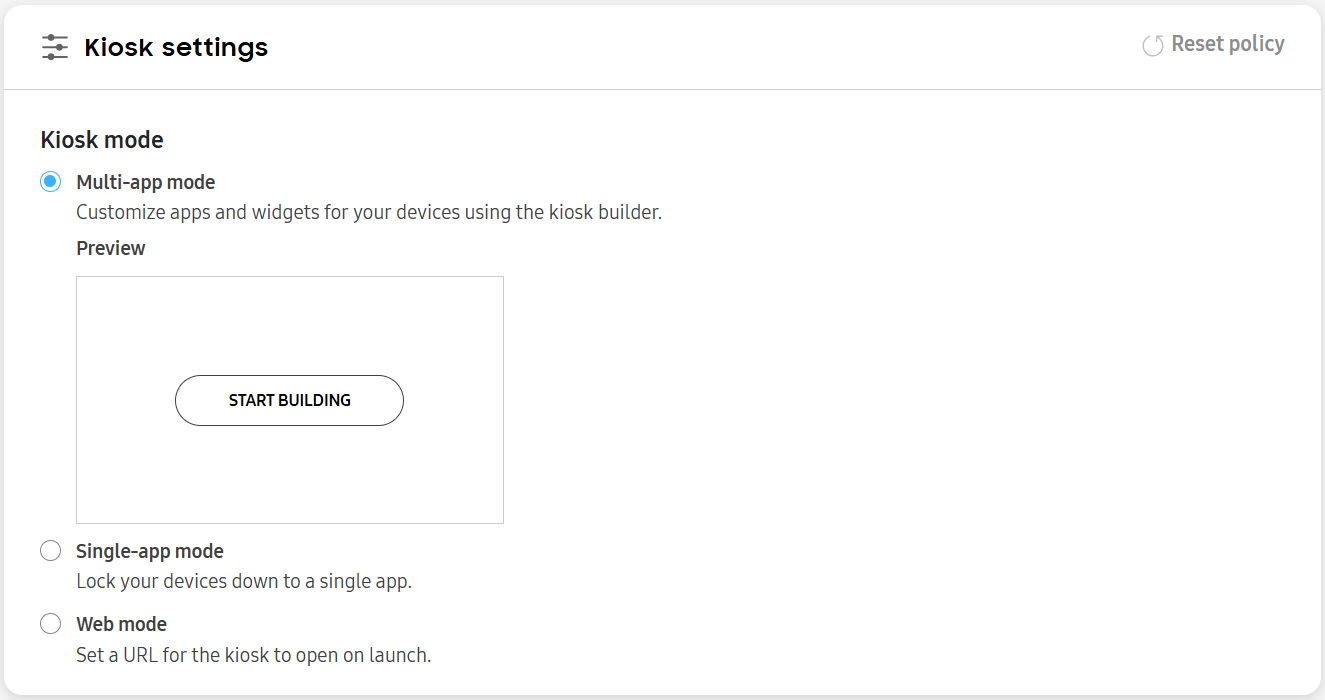
Click the Kiosk settings policy.
-
Select Multi-app mode.
-
Click START BUILDING.
Choose apps to add
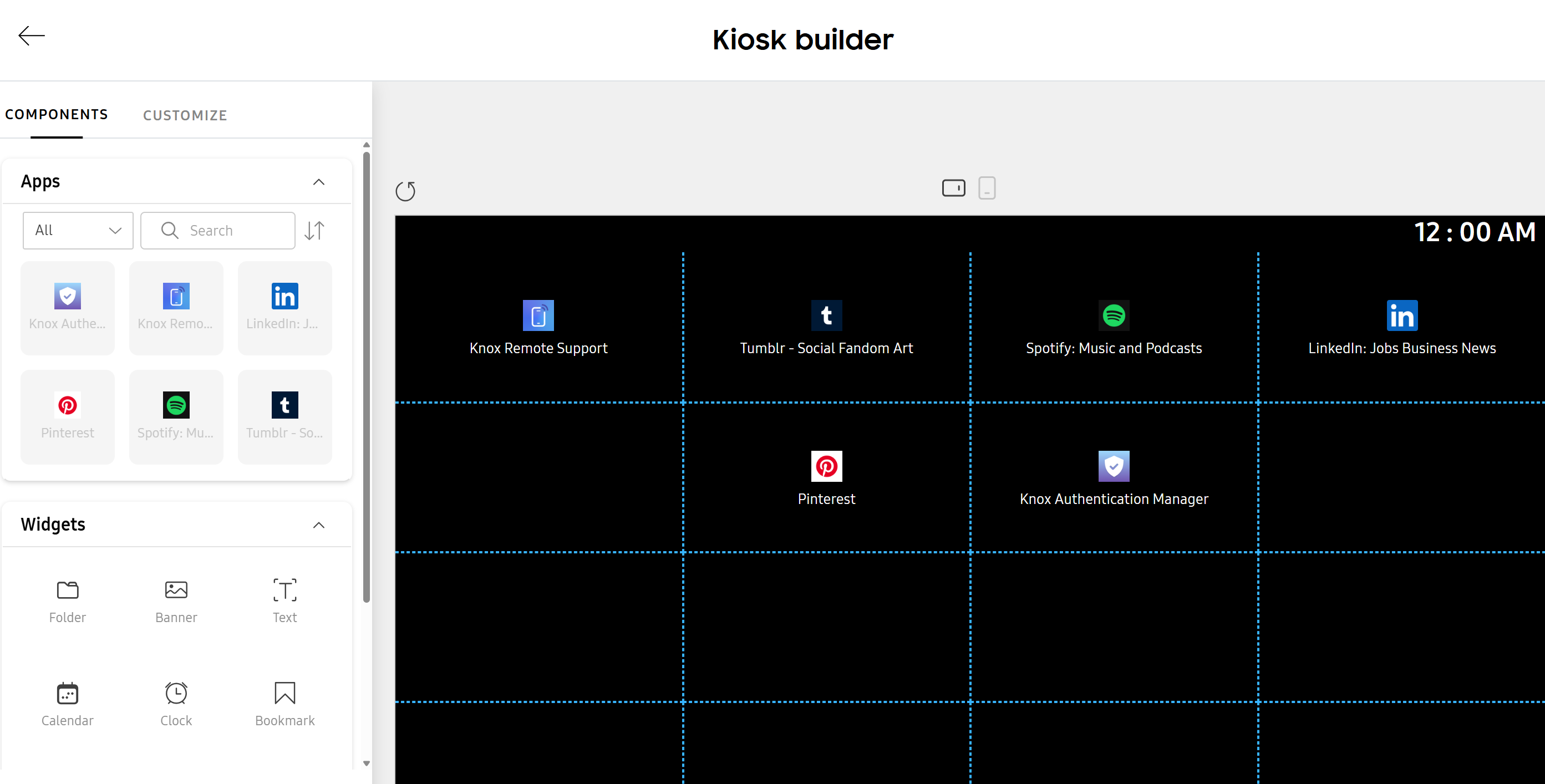
The Kiosk builder opens on the Components tab, with the Preview screen on the right. The Components tab lets you browse Apps and Widgets, while the Preview screen lets you preview your kiosk as you’re building it. You can click the landscape or portrait icon above the preview screen to see the kiosk in your selected screen orientation.
To choose apps to add:
-
In Components > Apps:
- Use the dropdown list to see All, Public, In-house, or System apps.
Alternatively, use the search bar to find an app by name.
On the SYSTEM APPS tab, click ADD SYSTEM APP to add a system app to the list. For all other apps, you must add them to your tenant’s app list first. For more information on how to add apps, see Add apps.
-
Drag and drop the apps onto the Preview screen to add them to your kiosk. To remove an app, hover over it, then click (Delete icon).
Configure widgets
The following widgets are available:
-
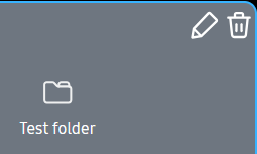
Folder — Lets you organize apps into directories. You can drag and drop up to 12 apps into a folder.
To remove an app from a folder, hover over the folder with your mouse, and select the pencil icon. On the Folder panel that opens on the right, click the X beside the app’s name.
-
Banner — Lets you add a banner to your kiosk.
-
Text — Lets you add text to the kiosk.
-
Calendar — Lets you add a calendar to the kiosk.
-
Clock — Lets you add a clock screen to the kiosk.
-
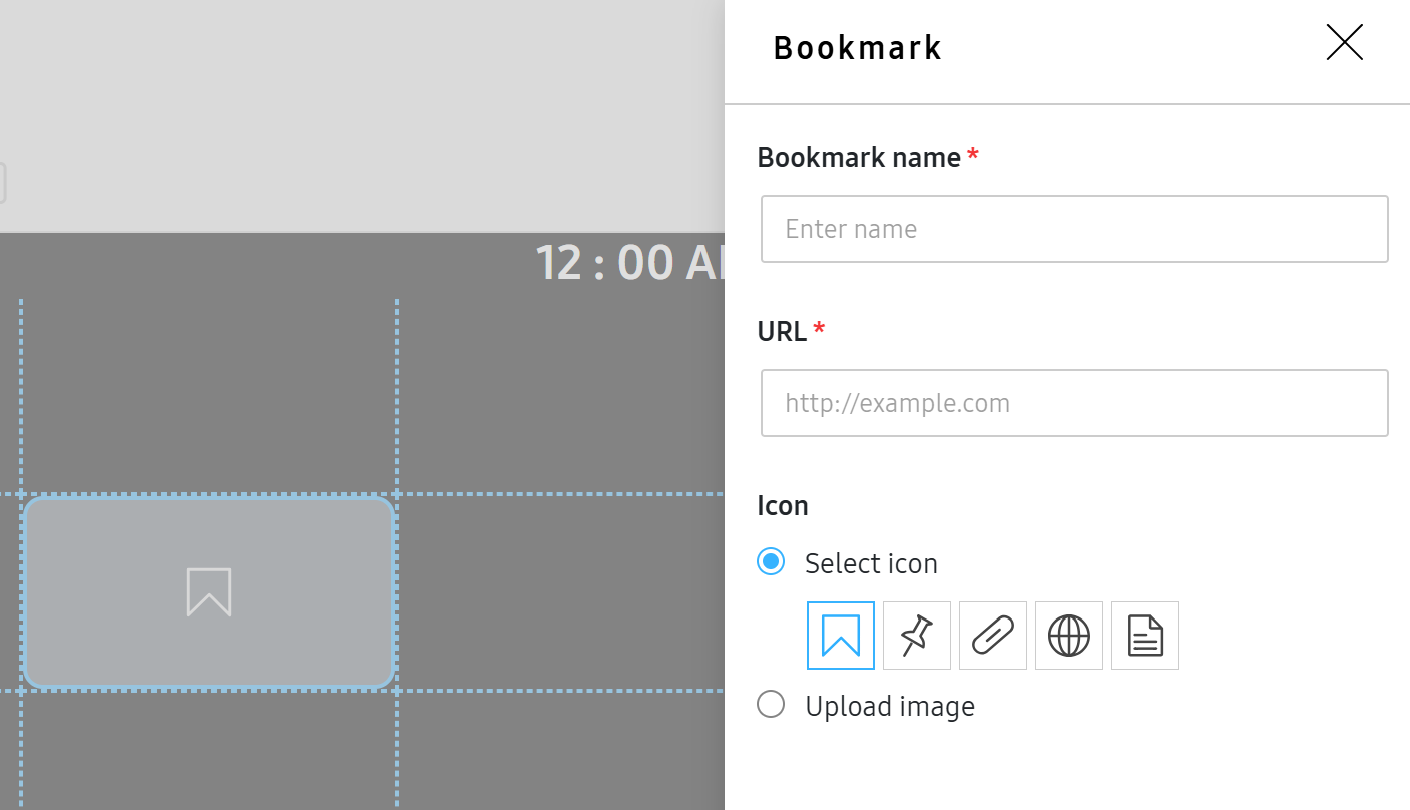
Bookmark — Lets you add a bookmark to your kiosk.
-
Dialer — Lets you add a number pad to your kiosk for making calls.
-
Content — Lets you share all the content files you’ve added to the kiosk’s profile.
For fully managed devices running Android 11 or later, you must add viewer apps for corresponding content types.
-
Contact — Lets you add contact information to the kiosk.
-
Knox Browser — Lets you add the Knox Browser to the kiosk for secure web browsing. Knox Browser is only available for accounts with a Knox Suite license. You must configure the Knox Browser setting in the Browser policy before users can use it in the kiosk.
Certain widgets require you to configure related details when you add them to the kiosk. Configuration options are widget-specific. For example, the Bookmark widget lets you customize the bookmark icon, name, and URL. Once you make the necessary changes, click SAVE.
Customize kiosk details
The Customize tab lets you customize kiosk details, such as the layout, wallpaper, app styles, and much more. The following settings are available:
Layout
- Orientation and grid — Sets the screen orientation for the Kiosk Launcher as Landscape, Portrait, or Auto Rotate. This setting doesn’t apply to the kiosk’s screen or to on-screen apps.
- Transition effect — Sets the screen transition effect for kiosk pages. Available effects are Slide (default), Card, Box, Bulldoze, and Corner.
- Allow last page to loop to first — Allows kiosk users to return to the first page after viewing the last page in the kiosk (disallowed by default).
- Indicator color — Lets you apply an accent color for icons and page indicators.
Images
- Wallpaper images — Lets you select background wallpaper images for the kiosk. You can add up to 5 images. You can also set landscape and portrait wallpaper images separately.
- Keep original wallpaper size — Sets the wallpaper to its original size.
- Shuffle wallpapers — The kiosk shuffles between the wallpapers you set every time the user turns the device on.
- Margin Color — Lets you set the margin or background color of the kiosk. If your wallpaper doesn’t fill the kiosk screen, the margin color displays behind it.
- Logo image — Lets you set a small logo image at the top of the kiosk screen.
Status bar
- Add and customize — Lets you enable and customize the Status Bar, Logo, or both.
- Bar color — Lets you specify the status bar color.
- Text color — Lets you specify the text color.
App styles
-
App icon size — Lets you resize icons by a specific percentage to optimize how much visual space they occupy (defaults to 70% of icon size, maximum 100%).
-
App name text — Lets you hide the icon text (shows by default) and specify a text color.
If not hidden, the icon text may not fit on the screen due to icon size, grid, and device resolution.
- Include drop shadow — Lets you apply a shadow effect to the app name text.
-
Allow rearranging apps — Allows kiosk users to rearrange icons on their devices (disabled by default).
Save your kiosk
Click SAVE KIOSK. The Create policy page appears, showing a mini-preview of your kiosk.
- To edit the saved kiosk, click EDIT.
- To reset the saved kiosk, click RESET.
This document was updated for the Knox cloud services 26.10 UAT.
On this tab
A multi-app kiosk offers controlled access to a selection of apps that you curate. In Knox Manage new console, multi-app kiosks are configured from the Profiles and policies page.
Prerequisites
To start building a multi-app kiosk, you must first create a profile, following the workflow up to the Configure screen.
If you already have a profile with a multi-app kiosk policy, you can edit the profile, following the workflow up to the Configure screen.
On the Configure screen:
-
Click the Kiosk settings policy.
-
Select Multi-app mode.
-
Click START BUILDING.
Choose apps to add
The Kiosk builder opens on the Components tab, with the Preview screen on the right. The Components tab lets you browse Apps and Widgets, while the Preview screen lets you preview your kiosk as you’re building it. You can click the landscape or portrait icon above the preview screen to see the kiosk in your selected screen orientation.
To choose apps to add:
-
In Components > Apps:
- Use the dropdown list to see All, Public, In-house, or System apps.
Alternatively, use the search bar to find an app by name.
On the SYSTEM APPS tab, click ADD SYSTEM APP to add a system app to the list. For all other apps, you must add them to your tenant’s app list first. For more information on how to add apps, see Add apps.
-
Drag and drop the apps onto the Preview screen to add them to your kiosk. To remove an app, hover over it, then click (Delete icon).
Configure widgets
The following widgets are available:
-
Folder — Lets you organize apps into directories. You can drag and drop up to 12 apps into a folder.
To remove an app from a folder, hover over the folder with your mouse, and select the pencil icon. On the Folder panel that opens on the right, click the X beside the app’s name.
-
Banner — Lets you add a banner to your kiosk.
-
Text — Lets you add text to the kiosk.
-
Calendar — Lets you add a calendar to the kiosk.
-
Clock — Lets you add a clock screen to the kiosk.
-
Bookmark — Lets you add a bookmark to your kiosk.
-
Dialer — Lets you add a number pad to your kiosk for making calls.
-
Content — Lets you share all the content files you’ve added to the kiosk’s profile.
For fully managed devices running Android 11 or later, you must add viewer apps for corresponding content types.
-
Contact — Lets you add contact information to the kiosk.
-
Knox Browser — Lets you add the Knox Browser to the kiosk for secure web browsing. Knox Browser is only available for accounts with a Knox Suite license. You must configure the Knox Browser setting in the Browser policy before users can use it in the kiosk.
-
Clear App Data — Lets the device user delete the cache and data for apps. Set the Allow users to clear cache and data policy to enable this feature for device users.
Certain widgets require you to configure related details when you add them to the kiosk. Configuration options are widget-specific. For example, the Bookmark widget lets you customize the bookmark icon, name, and URL. Once you make the necessary changes, click SAVE.
Customize kiosk details
The Customize tab lets you customize kiosk details, such as the layout, wallpaper, app styles, and much more. The following settings are available:
Layout
- Orientation and grid — Sets the screen orientation for the Kiosk Launcher as Landscape, Portrait, or Auto Rotate. This setting doesn’t apply to the kiosk’s screen or to on-screen apps.
- Transition effect — Sets the screen transition effect for kiosk pages. Available effects are Slide (default), Card, Box, Bulldoze, and Corner.
- Allow last page to loop to first — Allows kiosk users to return to the first page after viewing the last page in the kiosk (disallowed by default).
- Indicator color — Lets you apply an accent color for icons and page indicators.
Images
- Wallpaper images — Lets you select background wallpaper images for the kiosk. You can add up to 5 images. You can also set landscape and portrait wallpaper images separately.
- Keep original wallpaper size — Sets the wallpaper to its original size.
- Shuffle wallpapers — The kiosk shuffles between the wallpapers you set every time the user turns the device on.
- Margin Color — Lets you set the margin or background color of the kiosk. If your wallpaper doesn’t fill the kiosk screen, the margin color displays behind it.
- Logo image — Lets you set a small logo image at the top of the kiosk screen.
Status bar
- Add and customize — Lets you enable and customize the Status Bar, Logo, or both.
- Bar color — Lets you specify the status bar color.
- Text color — Lets you specify the text color.
App styles
-
App icon size — Lets you resize icons by a specific percentage to optimize how much visual space they occupy (defaults to 70% of icon size, maximum 100%).
-
App name text — Lets you hide the icon text (shows by default) and specify a text color.
If not hidden, the icon text may not fit on the screen due to icon size, grid, and device resolution.
- Include drop shadow — Lets you apply a shadow effect to the app name text.
-
Allow rearranging apps — Allows kiosk users to rearrange icons on their devices (disabled by default).
Save your kiosk
Click SAVE KIOSK. The Create policy page appears, showing a mini-preview of your kiosk.
- To edit the saved kiosk, click EDIT.
- To reset the saved kiosk, click RESET.
Is this page helpful?