View or edit apps
Last updated October 8th, 2026
On this tab
After you’ve added an app, you can view and edit its details to maintain the apps that you’re deploying.
View an app
On the Apps page, you can see information of the app at a glance, such as the PACKAGE NAME, VERSION, and SOURCE.
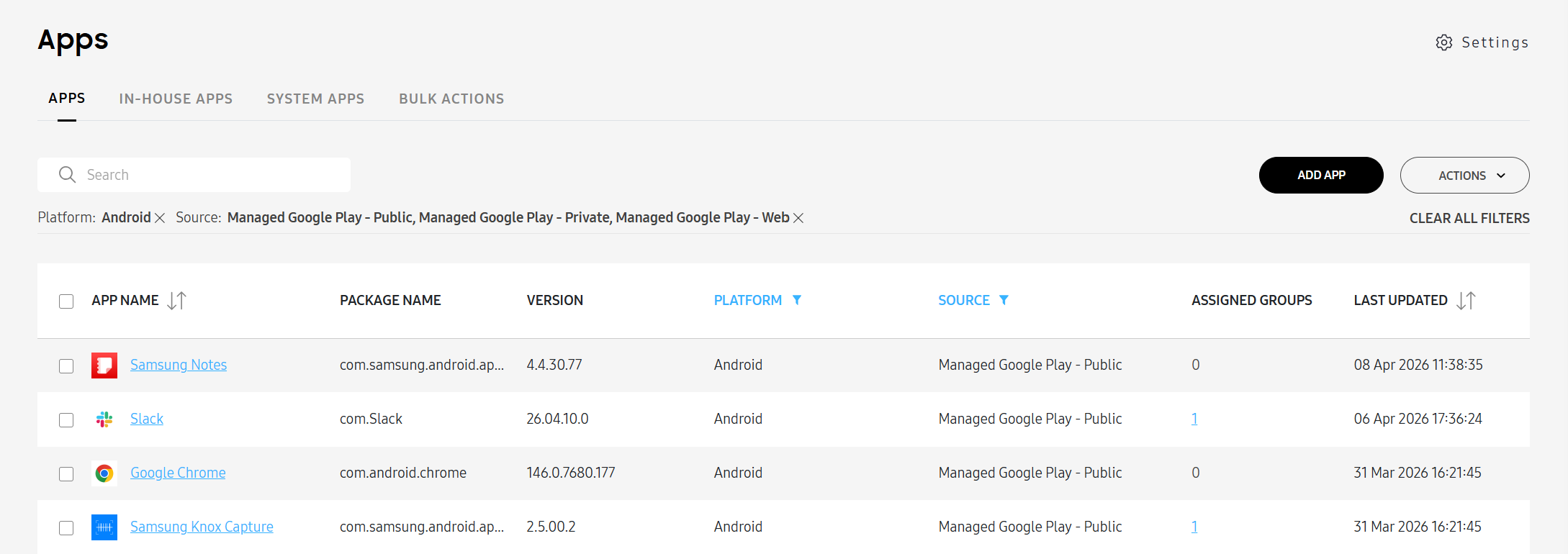
For in-house apps, you can click on the version under the VERSION column header to see the version history list, which shows comments and the date the app was last updated. For macOS in-house apps, the type of app (like DMG or PKG) displays under the PACKAGE NAME column.
To see more detailed information, click the name of the app under the APP NAME column. The sliding panel opens.
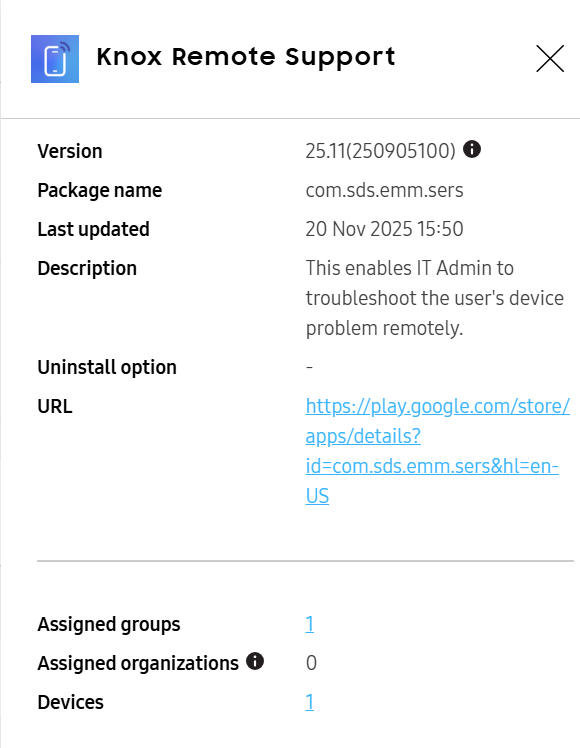
Here, you can:
- Click the link next to URL to open the app on Google Play.
- Click the number next to Assigned groups or Assigned organizations. A page opens displaying a list of groups or organizations that the app is assigned to. Depending on the type of app, the actions you can take may vary.
- For Managed Google Play and in-house apps, you can click the group or organization name link to open the selected group or organization on the Groups or Organizations page. Additionally, you can select a group or organization, then click the ACTIONS menu to Unassign app, Edit app settings, or Export managed configuration.
- Click the number next to Devices to see details of the selected category. The actions available vary depending on the type of app you selected.
- For apps from Managed Google Play, you can click the link of the app to open the Devices page. Additionally, you can select an app, then click the ACTIONS menu to Uninstall app.
- For in-house apps, you can click the link of the app to open the Devices page. Additionally, you can select an app, then click the ACTIONS menu to Install app, Uninstall app, or Push app.
Edit an app
You can edit apps in two ways depending on what aspect of an app you want to edit.
To edit an app’s name, description, or uninstall option, you must edit the app from the Apps page.
-
Go to Library > Apps.
-
Select the app, then click ACTIONS > Edit app. The Edit app page opens.
Alternatively, you can click the name of an app under the APP NAME column. On the sliding panel that opens, click EDIT APP. The Edit app page opens.
-
Modify the information as necessary, then click SAVE.
To edit the installation, update, and run settings of an app that’s already assigned, you must edit the app from the Apps, Groups, or Organizations page.
Edit an app from the Apps page
-
Go to Library > Apps.
-
On the row of the app that you want to edit, click the link under the ASSIGNED GROUPS or ASSIGNED ORGANIZATION column. The App’s assigned groups or App’s assigned organizations page opens.
-
Select the group or organization that you want to edit the app settings of.
The entire selected group or organization will be impacted by the changes you make to your selected app.
-
Modify the information as necessary, then click SAVE.
Edit an app from the Groups or Organizations page
-
Go to Groups or Organizations.
-
Select a group or organization with the assigned app that you want to edit.
-
Click ACTIONS > Edit app settings. The Select page of the Edit app settings process opens.
-
Select one or more apps, then click NEXT. The Configure page of the Edit app settings process opens.
Alternatively, click the number of apps under the ASSIGNED APPS column on the Groups or Organizations page. Select one or more apps, then click ACTION > Edit app settings.
If you’re editing multiple apps and at least one of them previously had a scheduled installation start time, the earliest Start date and time among all the apps being edited is applied to all the apps being edited.
-
Modify the information as necessary, then click NEXT. The Review page of the Edit app settings process opens.
-
Review your changes, then click PUSH UPDATE.
Your updates are now applied to the app.
Edit private or web apps
You can edit information about Managed Google Play private and web apps, if required.
To edit a private or web app’s information:
-
Go to Library > Apps.
-
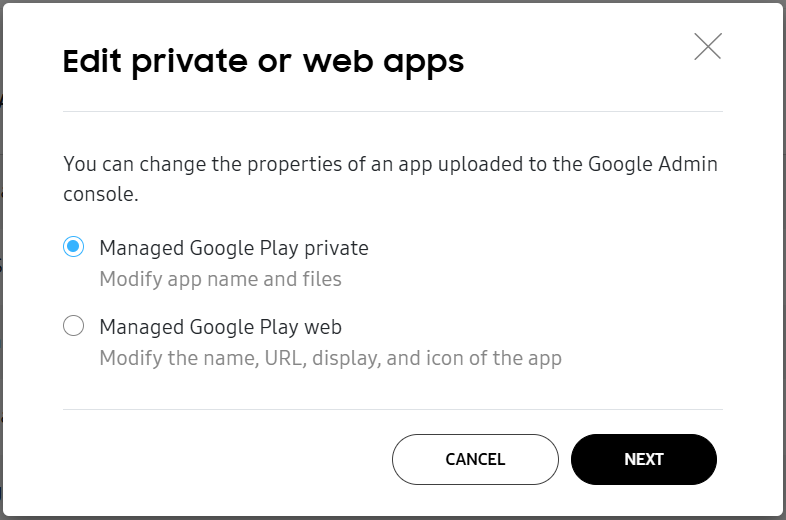
Click ACTIONS > Edit private or web apps. The Edit private or web apps dialog displays.
-
Select the app type:
- Managed Google Play private
- Managed Google Play web
-
Click Next. The Managed Google Play page opens.
-
Select the app and modify its information as necessary.
This document was updated for the Knox cloud services 26.10 UAT.
On this tab
After you’ve added an app, you can view and edit its details to maintain the apps that you’re deploying.
View an app
On the Apps page, you can see information of the app at a glance, such as the PACKAGE NAME, VERSION, and SOURCE.
For in-house apps, you can click on the version under the VERSION column header to see the version history list, which shows comments and the date the app was last updated. For macOS in-house apps, the type of app (like DMG or PKG) displays under the PACKAGE NAME column.
To see more detailed information, click the name of the app under the APP NAME column. The sliding panel opens.
Here, you can:
- Click the link next to URL to open the app on Google Play.
- Click the number next to Assigned groups or Assigned organizations. A page opens displaying a list of groups or organizations that the app is assigned to. Depending on the type of app, the actions you can take may vary.
- For Managed Google Play and in-house apps, you can click the group or organization name link to open the selected group or organization on the Groups or Organizations page. Additionally, you can select a group or organization, then click the ACTIONS menu to Unassign app, Edit app settings, or Export managed configuration.
- Click the number next to Devices to see details of the selected category. The actions available vary depending on the type of app you selected.
- For apps from Managed Google Play, you can click the link of the app to open the Devices page. Additionally, you can select an app, then click the ACTIONS menu to Uninstall app.
- For in-house apps, you can click the link of the app to open the Devices page. Additionally, you can select an app, then click the ACTIONS menu to Install app, Uninstall app, or Push app.
Edit an app
You can edit apps in two ways depending on what aspect of an app you want to edit.
To edit an app’s name, description, or uninstall option, you must edit the app from the Apps page.
-
Go to Library > Apps.
-
Select the app, then click ACTIONS > Edit app. The Edit app page opens.
Alternatively, you can click the name of an app under the APP NAME column. On the sliding panel that opens, click EDIT APP. The Edit app page opens.
-
Modify the information as necessary, then click SAVE.
The uninstall option is disabled by default for the Samsung One UI Home app because this app is required for Samsung devices to function properly.
To edit the installation, update, and run settings of an app that’s already assigned, you must edit the app from the Apps, Groups, or Organizations page.
Edit an app from the Apps page
-
Go to Library > Apps.
-
On the row of the app that you want to edit, click the link under the ASSIGNED GROUPS or ASSIGNED ORGANIZATION column. The App’s assigned groups or App’s assigned organizations page opens.
-
Select the group or organization that you want to edit the app settings of.
The entire selected group or organization will be impacted by the changes you make to your selected app.
-
Modify the information as necessary, then click SAVE.
Edit an app from the Groups or Organizations page
-
Go to Groups or Organizations.
-
Select a group or organization with the assigned app that you want to edit.
-
Click ACTIONS > Edit app settings. The Select page of the Edit app settings process opens.
-
Select one or more apps, then click NEXT. The Configure page of the Edit app settings process opens.
Alternatively, click the number of apps under the ASSIGNED APPS column on the Groups or Organizations page. Select one or more apps, then click ACTION > Edit app settings.
If you’re editing multiple apps and at least one of them previously had a scheduled installation start time, the earliest Start date and time among all the apps being edited is applied to all the apps being edited.
-
Modify the information as necessary, then click NEXT. The Review page of the Edit app settings process opens.
-
Review your changes, then click PUSH UPDATE.
Your updates are now applied to the app.
Edit private or web apps
You can edit information about Managed Google Play private and web apps, if required.
To edit a private or web app’s information:
-
Go to Library > Apps.
-
Click ACTIONS > Edit private or web apps. The Edit private or web apps dialog displays.
-
Select the app type:
- Managed Google Play private
- Managed Google Play web
-
Click Next. The Managed Google Play page opens.
-
Select the app and modify its information as necessary.
Is this page helpful?