Send user emails from templates
Last updated April 10th, 2026
You can create custom email templates, allowing you to streamline communication and ensure consistent messaging across your users.
Create an email template
Before you can send an email, you must first create an email template:
-
On the Knox Admin Portal, click your profile icon > Settings.
-
Under the KNOX MANAGE section, click USER EMAIL TEMPLATES. The Knox Manage: User email templates page opens.
-
Click CREATE TEMPLATE to create a new email template.
-
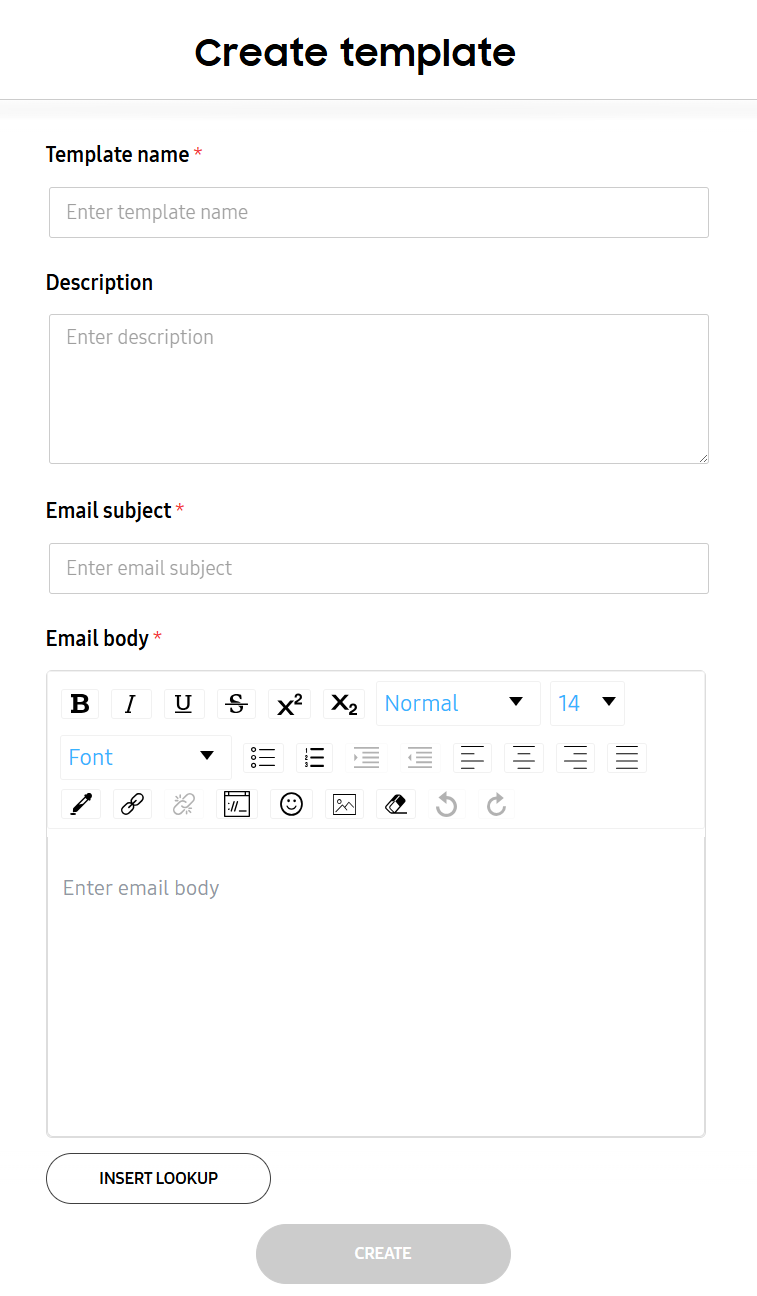
On the Create template page that opens, enter a Template name, Email subject, and Email body. Optionally, you can also add a Description.
To include information that’s specific to the receiver, click INSERT LOOKUP to insert lookup items in the email body.
-
Click CREATE.
Your email template is created.
Send an email to users
To send an email to a user:
-
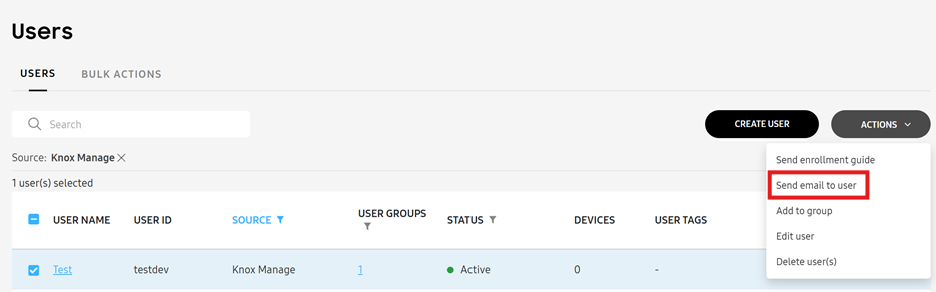
On the Users page, select the users that you want to send the email to.
-
Click ACTIONS > Send email to user.
-
Select an email template to use, then click SEND.
On this page
Is this page helpful?