Customize the dashboard
Last updated October 8th, 2026
The new console dashboard displays a general overview of your enrolled devices, user groups, apps, and profiles. Tiles display status summaries for relevant data using simple and colorful graphs. Each admin can customize the information they see on their dashboard by selecting which tiles they want to display. Click (View details icon) on a tile to go to its the corresponding page in the console.
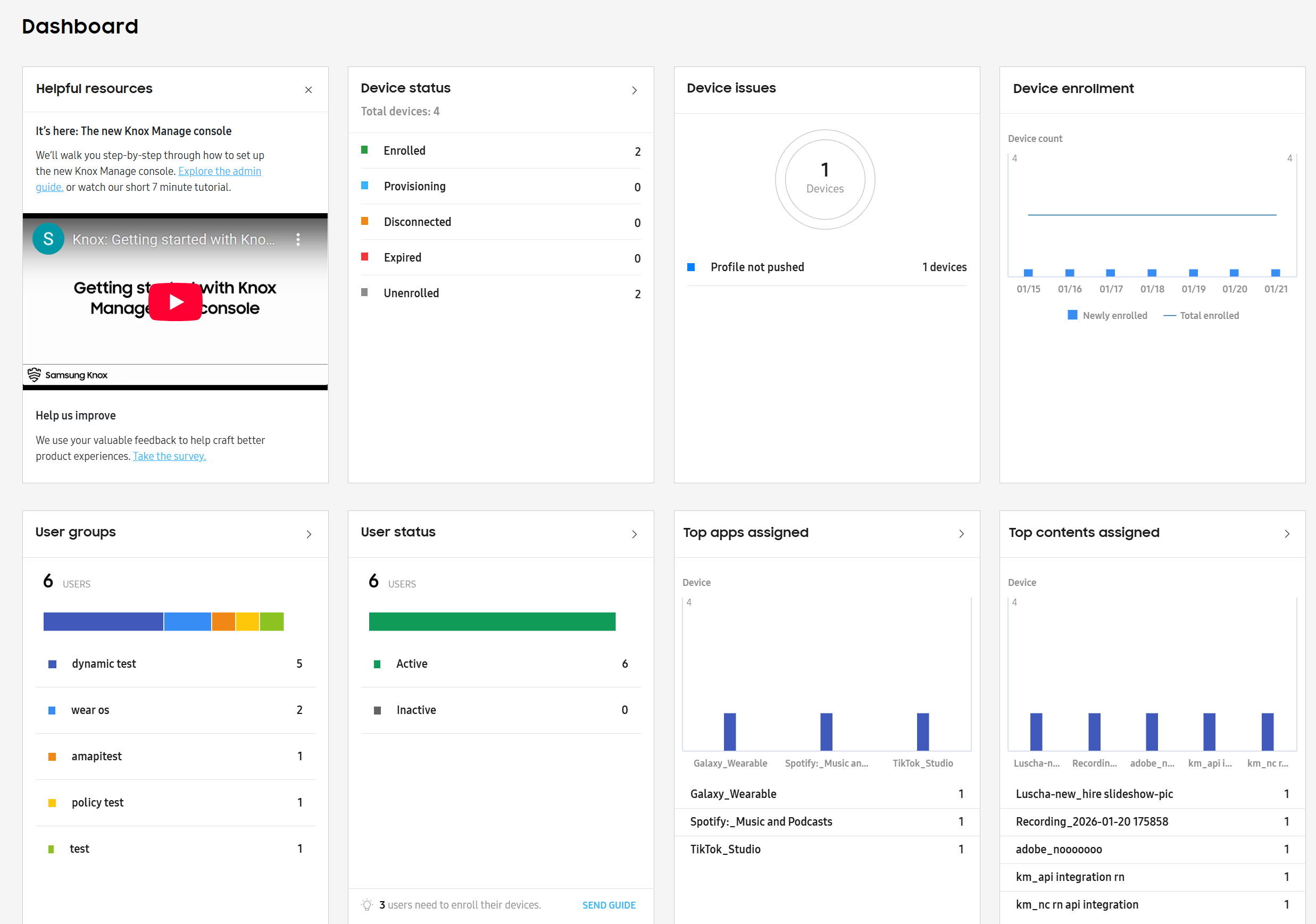
Sub-admins can see all of the data displayed on the dashboard tiles regardless of if they have permission to view that data in the console. For example, sub-admins can enable and view the tile for Top apps assigned, even if they don’t have permission to view or edit the Apps page.
To select which tiles display on the dashboard:
-
Go to the Dashboard page.
-
Click Customize.

The Customize dashboard screen opens.
-
Toggle the tiles that you want to show or hide. The tiles that you can configure are the following:
-
Device status — Displays how many devices there are with each of the following statuses:
- Provisioning — The devices are in the process of being registered in the Knox Manage server. Once the process is complete, the status changes to Enrolled.
- Enrolled — The device is communicating with the Knox Manage server. That is, the Knox Manage agent is reporting to the server regularly and when triggered by an event.
- Disconnected — The device is disconnected from the Knox Manage server. The Knox Manage agent has not reported to the server for longer than the configured keepalive settings.
- Expired — The license registered on the device has expired. With this status, the device only responds to select device commands, such as for updating or upgrading the license.
- Unenrolled — The device is not enrolled and is not under Knox Manage control.
This tile is always in view on your dashboard and can’t be hidden.
-
Device issues — Shows the six device issues most common in your tenant. For instance, if you updated a profile, but didn’t push it to devices. The available issues are:
- Profile not pushed
- Screen lock not compliant
- Compromised OS
- Compromised in-house apps
- Knox attestation
- SafetyNet Attestation
- Play Integrity
- Lost mode
- Work profile not installed
- Knox workspace Locked
- MGP account not registered
- KM agent not registered
-
Device enrollment — Shows the status of device enrollment over the past week.
-
User groups — Displays the five groups with the most users, including the number of users in each one. This tile also displays the number of users, if there any, not assigned to a group. Click ASSIGN to see a list of applicable users.
-
User status — Shows the number of users with the Active or Inactive status.
-
Top apps assigned — Displays the five apps assigned to the most devices.
-
Top contents assigned — Displays the five content files that are assigned on the most devices.
-
Top profiles assigned — Displays the five profiles that are assigned on the most devices.
-
Device actions — Displays the number of devices which had actions performed on them.
-
Device location map — Displays the location of devices on a map. You can find a device by searching for their name, IMEI, serial number, or user ID. For this tile to display relevant data, you must enable location tracking on a device.
To enable location tracking, create or edit a profile, enable the Location settings and Allow collection of location data settings, and then assign the profile to a group containing an enrolled device.
-
Latest directory sync — Displays the latest directory sync events, including the number of updates per each event. The following events are displayed:
- Added
- Edited
- Deleted
- Ignored
- Error
-
Welcome tour — Displays the Welcome tour, which guides you through the key components of the new console.
-
Get started — Displays the Get started tutorial, which guides you through using Knox Manage for the first time with tracked progress.
-
Helpful resources — Links to the Knox Manage documentation, relevant training videos, and a product survey.
- Click SAVE. The dashboard updates, showing the tiles you selected.
This document was updated for the Knox cloud services 26.10 UAT.
The new console dashboard displays a general overview of your enrolled devices, user groups, apps, and profiles. Tiles display status summaries for relevant data using simple and colorful graphs. Each admin can customize the information they see on their dashboard by selecting which tiles they want to display. Click (View details icon) on a tile to go to its the corresponding page in the console.
Sub-admins can see all of the data displayed on the dashboard tiles regardless of if they have permission to view that data in the console. For example, sub-admins can enable and view the tile for Top apps assigned, even if they don’t have permission to view or edit the Apps page.
To select which tiles display on the dashboard:
-
Go to the Dashboard page.
-
Click Customize.
The Customize dashboard screen opens.
-
Toggle the tiles that you want to show or hide. The tiles that you can configure are the following:
-
Device status — Displays how many devices there are with each of the following statuses:
- Provisioning — The devices are in the process of being registered in the Knox Manage server. Once the process is complete, the status changes to Enrolled.
- Enrolled — The device is communicating with the Knox Manage server. That is, the Knox Manage agent is reporting to the server regularly and when triggered by an event.
- Disconnected — The device is disconnected from the Knox Manage server. The Knox Manage agent has not reported to the server for longer than the configured keepalive settings.
- Expired — The license registered on the device has expired. With this status, the device only responds to select device commands, such as for updating or upgrading the license.
- Unenrolled — The device is not enrolled and is not under Knox Manage control.
This tile is always in view on your dashboard and can’t be hidden.
-
Device issues — Shows the six device issues most common in your tenant. For instance, if you updated a profile, but didn’t push it to devices. The available issues are:
- Profile not pushed
- Screen lock not compliant
- Compromised OS
- Compromised in-house apps
- Knox attestation
- SafetyNet Attestation
- Play Integrity
- Lost mode
- Work profile not installed
- Knox workspace Locked
- MGP account not registered
- KM agent not registered
-
Device enrollment — Shows the status of device enrollment over the past week.
-
User groups — Displays the five groups with the most users, including the number of users in each one. This tile also displays the number of users, if there any, not assigned to a group. Click ASSIGN to see a list of applicable users.
-
User status — Shows the number of users with the Active or Inactive status.
-
Users by organizations — Displays the number of active users broken down by organization. Click on an organization name to go to the Organizations page. Click on the user count number to view the list of users assigned to that organization.
-
Top apps assigned — Displays the five apps assigned to the most devices.
-
Top contents assigned — Displays the five content files that are assigned on the most devices.
-
Top profiles assigned — Displays the five profiles that are assigned on the most devices.
-
Device actions — Displays the number of devices which had actions performed on them.
-
Device location map — Displays the location of devices on a map. You can find a device by searching for their name, IMEI, serial number, or user ID. For this tile to display relevant data, you must enable location tracking on a device.
To enable location tracking, create or edit a profile, enable the Location settings and Allow collection of location data settings, and then assign the profile to a group containing an enrolled device.
-
Latest directory sync — Displays the latest directory sync events, including the number of updates per each event. The following events are displayed:
- Added
- Edited
- Deleted
- Ignored
- Error
-
Welcome tour — Displays the Welcome tour, which guides you through the key components of the new console.
-
Get started — Displays the Get started tutorial, which guides you through using Knox Manage for the first time with tracked progress.
-
Helpful resources — Links to the Knox Manage documentation, relevant training videos, and a product survey.
- Click SAVE. The dashboard updates, showing the tiles you selected.
Is this page helpful?