Create an organization
Last updated June 17th, 2026
Organizations allow you to sort and categorize users in your tenant, similar to groups. The primary difference with organizations is their hierarchical structure. You can create sub-organizations within organizations, allowing you to better replicate your company’s hierarchy.
You can manually create an organization, or sync one from On-premises Active Directory (AD). To sync an organization from your AD server, see Configure third party providers.
Organizations sync between the consoles, allowing you to manage organizations created in one console from the other console.
By default, a root organization is created when you create your tenant. The root organization contains, or is the parent of, all other organizations that you manually create. It can’t be deleted.
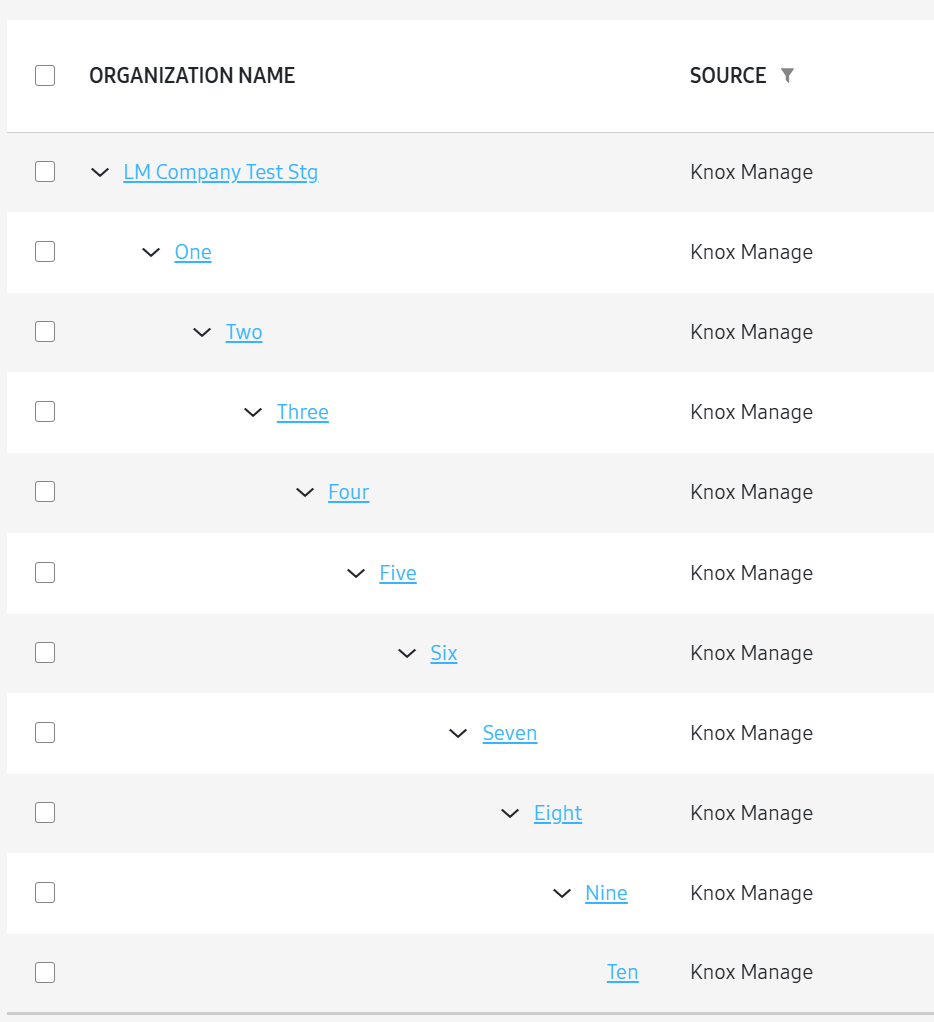
Under the root organization, you can create sub-organizations up to ten levels deep. For example, if you create a sub-organization under the root organization, that sub-organization is level one. If you create a sub-organization under that sub-organization, then it’s level two.
If a sub-organization was created in the original console prior to 26.06 or is synced from your AD server, this limitation doesn’t apply.
Create an organization
To create an organization:
-
Go to the Organizations page and click CREATE ORGANIZATION.
-
Enter the following information, then click NEXT.
- Parent organization — Click SELECT. On the page that opens, select a parent organization, then click SELECT. If you haven’t created an organization yet, this defaults to the root organization.
- Inheritable profile — The profile or profiles that are inherited from the parent organization. If there are profiles to inherit, they display automatically once you select a parent organization and can’t be removed during this process. Once an organization is created, you can replace the inheritable profiles by assigning a new profile.
- Code — Enter a unique organization code. Once created, the code can’t be edited. It can be used to bulk add users. See Manage users for more information.
- Name — Enter a name for the organization.
-
On the page that opens, select a user or users to add to the organization. Then click CREATE.
The organization is created.
On this page
Is this page helpful?