Build a web mode kiosk
Last updated April 29th, 2026
A web mode kiosk offers a full-screen web browser that starts on a webpage that you choose. In the Knox Manage new console, web mode kiosks are configured from the Profiles and policies page.
Prerequisites
To start building a web mode kiosk, you must first create a profile, following the workflow up to the Configure screen.
If you already have a profile with a web mode kiosk policy, you can edit the profile, following the workflow up to the Configure screen.
On the Configure screen:
- Click the Kiosk settings policy.
- Select Web mode.
Specify the default URL
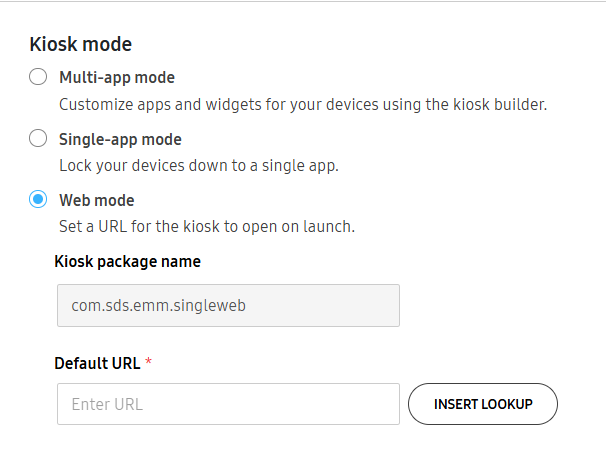
You must set a URL for the kiosk to open on launch.
-
Kiosk package name — This value is fixed at
com.sds.emm.singleweband can’t be changed. -
Default URL — Enter the URL of the default web page that should open when Kiosk Browser is launched.
Click Lookup to browse and select available lookup items to include in the URL.
Configure policy settings
You can configure these additional policy settings:
Basic settings
-
Session timeout — Controls if the kiosk session terminates following user inactivity for a specific number of seconds. If this setting is selected, the default timeout period is 1800 seconds. Cookies and other session information are automatically deleted, and Kiosk Browser redirects to the default URL.
- Screen saver — Set a screen saver to display when the device is charging or the session times out.
- Images — Upload up to 10 images (maximum 5 MB per image) to display for the screensaver. PNG, JPG, JPEG, and non-animated GIF file formats are supported.
- Video — Upload a video (maximum 50 MB) to display for the screensaver. MP4 and MKV file formats are supported.
- Screen saver — Set a screen saver to display when the device is charging or the session times out.
-
Hide info icon — Hides the info icon (i) on the interface. Tapping the info icon (i) opens options for the user to leave Kiosk mode or view the license.
If the info icon is hidden and the device isn’t connected to a network, Kiosk mode can’t be exited.
-
Exit Kiosk mode attempt limit — Prevents exiting Kiosk mode following a maximum number of invalid attempts. If this setting is selected, the default maximum is five attempts.
- Take action if attempts are exceeded — Set a delay of 10 minutes or 30 minutes to prevent a user from re-entering the Exit kiosk code after they exceed the attempt limit.
-
Automatic app updates — Controls whether apps can automatically update.
-
File uploads — Allows the device user to upload files through the Kiosk Browser.
-
Copy text — Allows the device user to copy text in the Kiosk Browser.
-
Run JavaScript (default on) — Controls whether the Kiosk Browser can run JavaScript on web pages.
Utility settings
Allow the following system elements to be displayed, or actions to be performed.
- System status bar — Enables the system status bar.
- Notification bar — Enables notifications. Selecting this will also enable the Home button setting.
- Power off (default on) — Enables the power menu to turn off the device.
- Home button — Enables the home button.
- Recent apps — Enables the recent app button (also known as the Recents button).
- Keyguard (default on) — Allows your Lock screen policy to apply to the device. If deselected, the device won’t be protected by a lock screen, and the device user can access the device without first unlocking it.
Advanced settings
- Delete Kiosk app when policy is removed
- Turn screen on when plugged in
- AC charger
- USB charger
- Wireless charger
- Use HTTP Proxy
- IP/domain
- port
On this page
Is this page helpful?