Assign apps
Last updated October 8th, 2026
After you’ve added an app, you can assign it to a group. Assigning an app distributes the selected app to your target groups’ enrolled devices with specified installation settings, such as automatic or manual installation.
Assign an app
To assign one or more apps to groups:
-
Go to Library > Apps.
-
Select the apps that you want to assign.
-
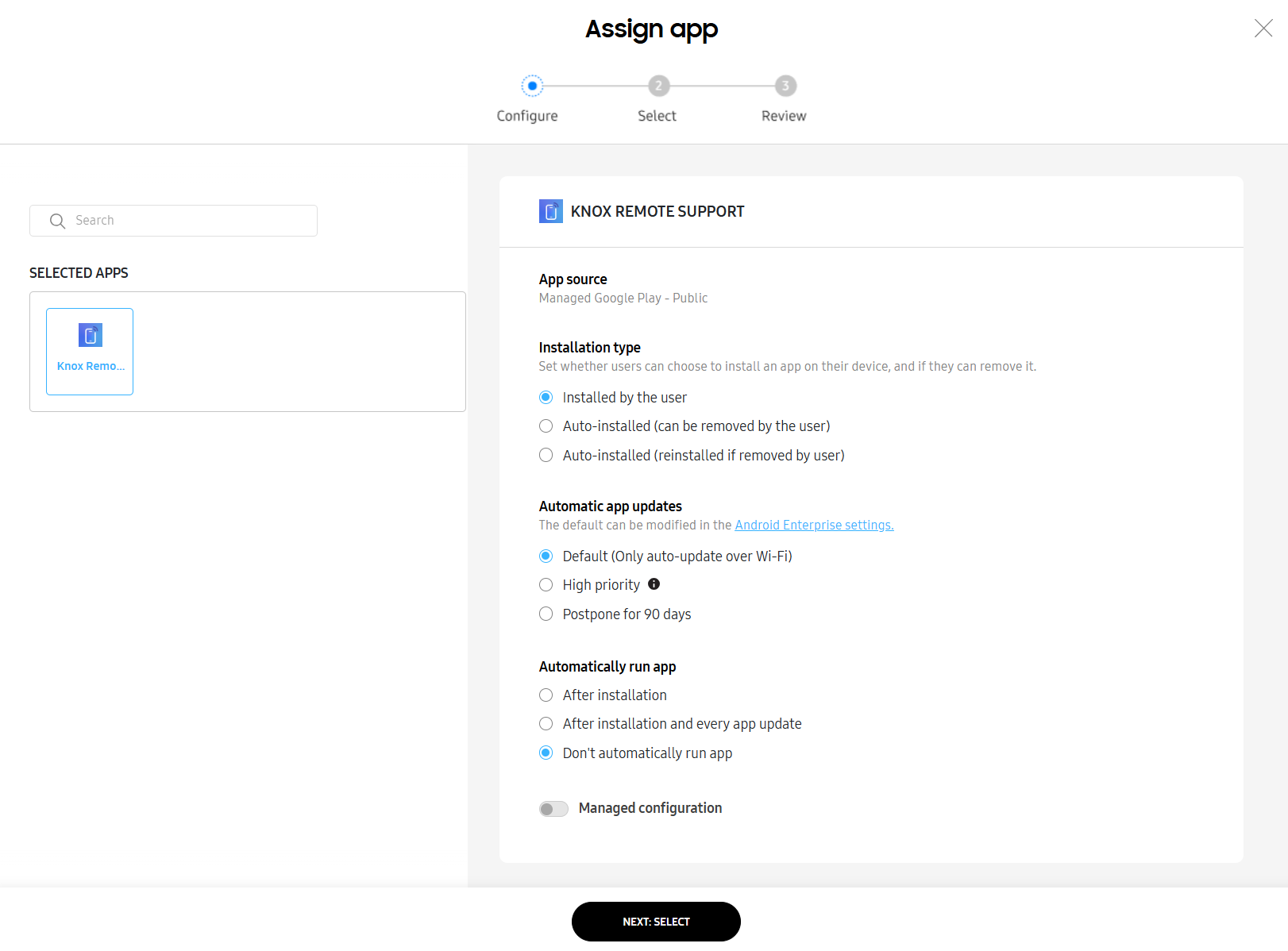
Click ACTIONS > Assign app(s). The Configure page of the Assign app process opens.
-
Select an Installation type from the following options:
- Installed by the user
- Auto-installed (can be removed by the user)
- Auto-installed (reinstalled if removed by the user)
-
Select Automatic app updates from the following options:
- Only auto-update over Wi-Fi
- High priority
- Postpone for 90 days
To change the default value for automatic app updates, click the Android Enterprise settings link. To learn how to access Android Enterprise settings at any time, see Set up Android Enterprise.
-
(Optional) If you selected multiple apps, under SELECTED APPS you can click Configure settings for all apps to apply Installation type and Automatic app updates values across all selected apps. Values set in bulk can still be individually configured afterwards.
- (Optional) If you selected Auto-installed under Installation type, you can click Schedule installation start time to set a time for installing all apps set for auto-installation. Otherwise, apps are installed on the target devices immediately.
-
Select a setting for Automatically run app from:
- After installation
- After installation and every app update
- Don’t automatically run app
-
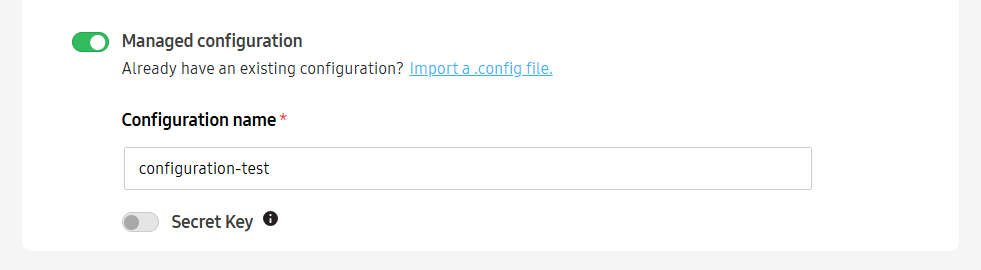
(Optional) Enable Managed configuration and add a Configuration name. Then, toggle on available configurations as needed, which are parameters that the app developer provides for you to customize the app’s experience. You can also click Import a .config file to upload a config file for this app assignment.
Available configurations vary between apps.
-
Click NEXT: SELECT. The Select page opens.
-
Select one or more groups or organizations to assign the apps to.
-
Click NEXT: REVIEW. The Review page opens.
-
Review the target groups, organizations, and app details shown. Then, click ASSIGN to apply the app settings.
Your apps are assigned to the selected groups or organizations.
This document was updated for the Knox cloud services 26.10 UAT.
After you’ve added an app, you can assign it to a group. Assigning an app distributes the selected app to your target groups’ enrolled devices with specified installation settings, such as automatic or manual installation.
Assign an app
To assign one or more apps to groups:
-
Go to Library > Apps.
-
Select the apps that you want to assign.
-
Click ACTIONS > Assign app(s). The Configure page of the Assign app process opens.
-
Select an Installation type from the following options:
- Installed by the user
- Auto-installed (can be removed by the user)
- Auto-installed (reinstalled if removed by the user)
-
Select Automatic app updates from the following options:
- Only auto-update over Wi-Fi
- High priority
- Postpone for 90 days
To change the default value for automatic app updates, click the Android Enterprise settings link. To learn how to access Android Enterprise settings at any time, see Set up Android Enterprise.
-
(Optional) If you selected multiple apps, under SELECTED APPS you can click Configure settings for all apps to apply Installation type and Automatic app updates values across all selected apps. Values set in bulk can still be individually configured afterwards.
- (Optional) If you selected Auto-installed under Installation type, you can click Schedule installation start time to set a time for installing all apps set for auto-installation. Otherwise, apps are installed on the target devices immediately. When a schedule is set, the scheduled date and time is displayed under the button.
-
Select a setting for Automatically run app from:
- After installation
- After installation and every app update
- Don’t automatically run app
-
(Optional) Enable Managed configuration and add a Configuration name. Then, toggle on available configurations as needed, which are parameters that the app developer provides for you to customize the app’s experience. You can also click Import a .config file to upload a config file for this app assignment.
Available configurations vary between apps.
-
Click NEXT: SELECT. The Select page opens.
-
Select one or more groups or organizations to assign the apps to.
-
Click NEXT: REVIEW. The Review page opens.
-
Review the target groups, organizations, and app details shown. Then, click ASSIGN to apply the app settings.
Your apps are assigned to the selected groups or organizations.
Is this page helpful?