Add apps
Last updated April 8th, 2026
Knox Manage enables you to add, manage, and deploy apps to multiple devices at once, eliminating the need for manual configuration of individual devices. Before you can assign and install apps on your devices, you must first add apps to your tenant by selecting preexisting apps from Managed Google Play, uploading your own in-house apps, or adding system apps.
Add an app from Managed Google Play
Managed Google Play is the enterprise version of Google Play that contains a curated list of approved apps. You can browse and add Managed Google Play apps to your Knox Manage console through the app library, located on the Add app page.
There are three different types of apps on Managed Google Play to choose from:
- Public apps are apps sourced from the public-facing, consumer Google Play Store. These apps are the same as those available to the general public.
- Private apps are apps sourced from app packages or APKs that you upload to Managed Google Play for internal use in your company.
- Web apps are apps hosted on web pages. These apps are built, deployed, and run entirely using web technologies rather than lower-level native OS code, but can be made to look and feel like native apps.
To add apps from Managed Google Play to the Knox Manage console:
-
Go to Library > Apps.
-
Click ADD APP. The Add app page opens.
-
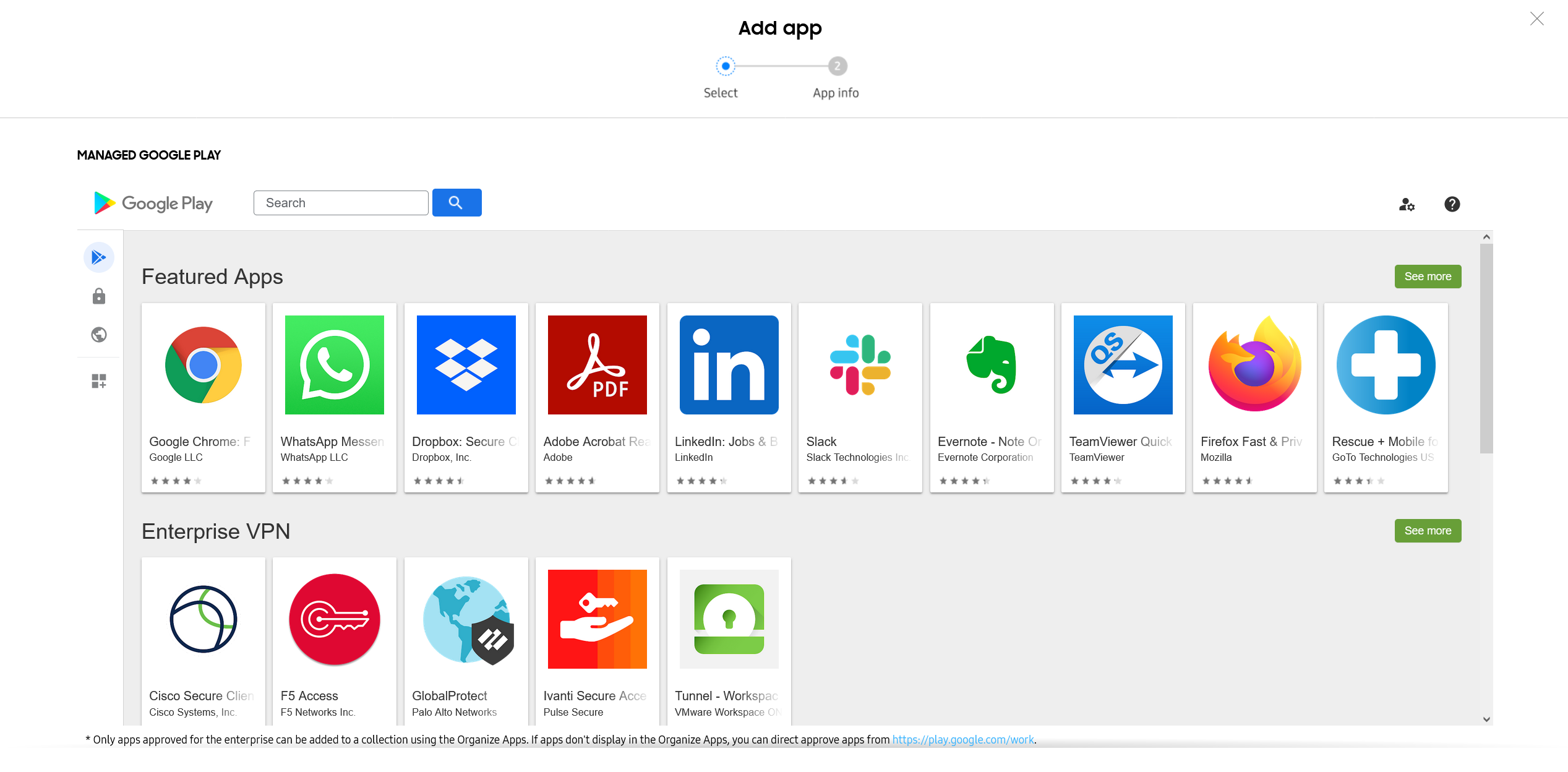
Browse and select the app you want to add from Managed Google Play. The Managed Google Play page for the app opens.
-
Click Select to open the Add app dialog.
-
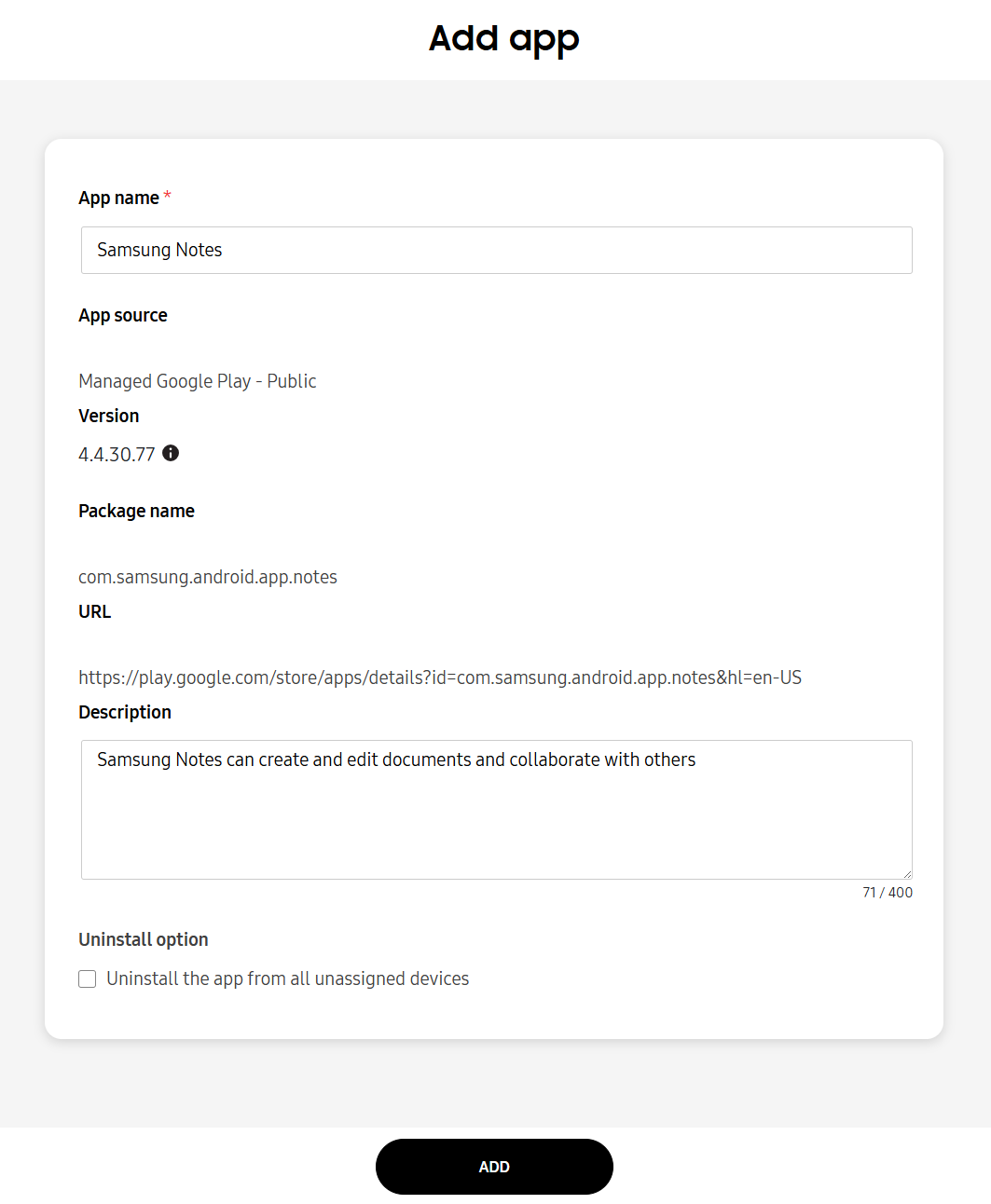
Review the app details shown.
-
(Optional) You can edit the App name or Description.
Any changes in the app’s Name or Description only apply to the Apps page of the Knox Manage console, not on the device. The console also removes special characters, such as ampersands (&), semicolons (;), as well as greater-than (>) and less-than (<) signs, from app names.
-
(Optional) Under Uninstall option, select Uninstall the app from all unassigned devices if you do not want to keep the app installed even if you unassign it in the future.
-
-
Click ADD. The App added notification appears, prompting you to assign the app to a group.

Add an in-house app
You can upload an in-house app to Knox Manage to use your custom or internal apps on your devices.
To do this:
-
Go to Library > Apps.
-
On the IN-HOUSE APPS tab, click ADD IN-HOUSE APP.
-
Select your app under App file. Then, enter an App name.
The app file must be in APK format.
-
(Optional) You can give your app a description, as well as select Uninstall the app from all unassigned devices if you want to uninstall the app from unassigned devices.
-
Click ADD.
Add a system app
System apps are the apps that come preinstalled on the device. These apps can be controlled using profile settings. You can add system apps individually or in bulk.
To add an individual system app:
- Go to Library > Apps.
- On the SYSTEM APPS tab, click ADD SYSTEM APP. The Add system app page opens.
- Enter the Application name and Package name.
- Click ADD.
To add system apps in bulk:
-
Go to Library > Apps.
-
Click the BULK ACTIONS tab.
-
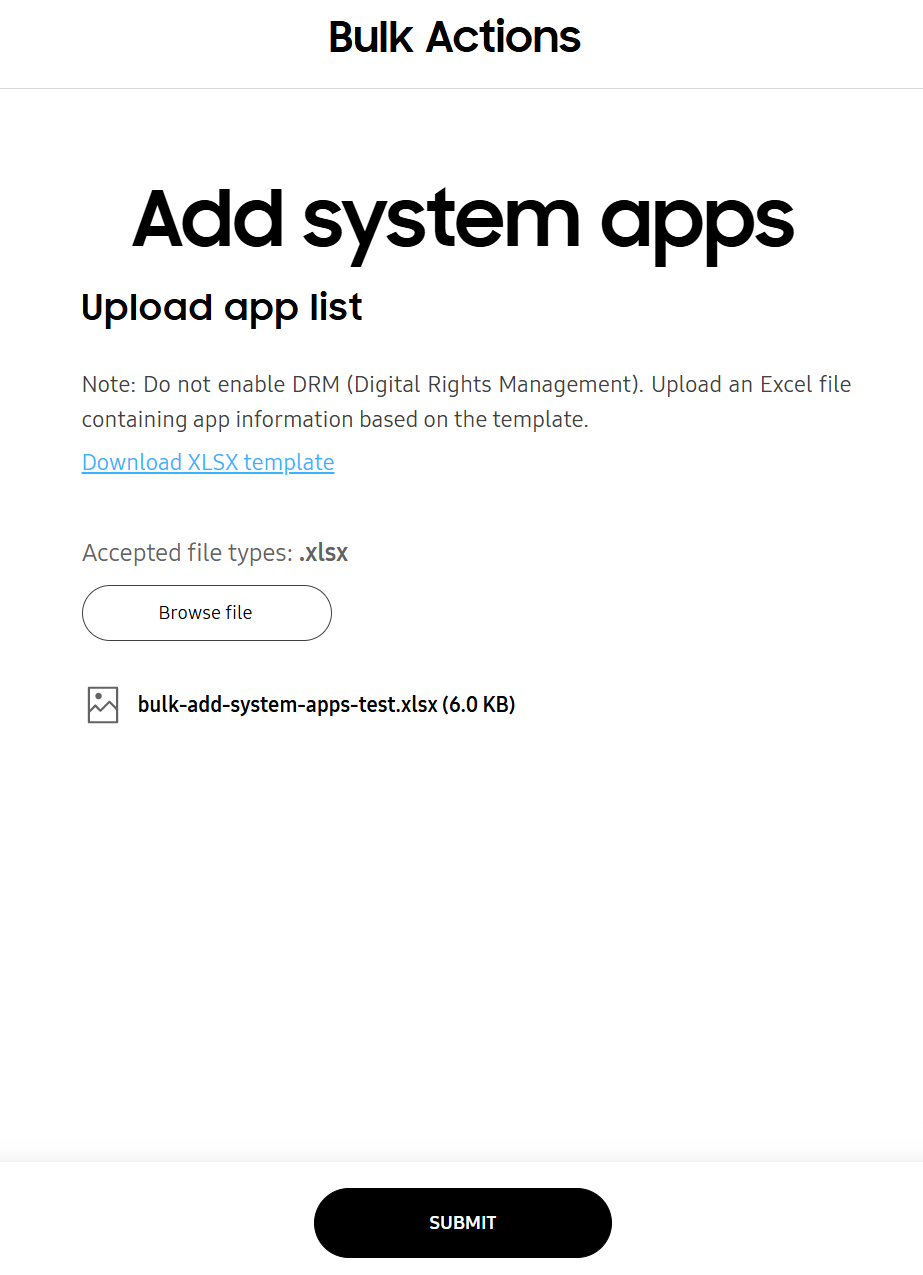
Click ADD SYSTEM APPS. The Bulk Actions - Add system apps page opens.
-
Click Browse file and upload your XLSX file.
To ensure that your XLSX is properly formatted, you can also download an XLSX file that contains instructions and the required column headers by clicking Download XLSX template.
-
Click SUBMIT. The system apps you specified on the XLSX are added to the list of apps on the SYSTEM APPS tab.
On this page
Is this page helpful?