Configure Knox Manage as a compliance partner for Microsoft Intune
Last updated October 21st, 2026
You can configure the Knox Manage new console as a compliance partner for Microsoft Intune to enforce Conditional Access policies through Microsoft Entra ID on Android devices enrolled in Knox Manage. Microsoft’s Conditional Access is a policy-based access control feature in Microsoft Entra ID that grants or denies access to company resources based on pre-configured conditions.
When Knox Manage is configured as a compliance partner for Microsoft Intune, device compliance status is evaluated against Knox Manage compliance rules, then synced to Microsoft Entra ID through Intune. Conditional Access then uses this status as one of its pre-conditions to grant or deny access to resources. This lets companies enforce device security requirements before users can access Microsoft 365 and other Microsoft Entra ID-protected apps.
Setting up this integration requires:
- Admin-side configuration in Microsoft Intune, Microsoft Entra ID, and Knox Manage
- Corresponding actions by device users in the Knox Manage agent
For more information about how compliance partners function in Microsoft Intune, see Third-party device compliance partners support in Microsoft Intune.
Prerequisites
Before you begin, ensure you meet the following requirements.
Licensing requirements
You must have the following Microsoft licenses:
- Microsoft Intune Plan 1 or later
- Microsoft Entra ID P1 or later
If you have one of the following license bundles, you don’t need to purchase Microsoft Intune or Microsoft Entra ID licenses separately:
- Microsoft 365 Business Premium, E1, E3, F1, or F3
- Enterprise Mobility + Security E3, E5
Admin role and permission requirements
To complete the setup, you, and collaborators in your company, need accounts on each platform below with the following admin roles:
- Microsoft Intune — Intune Administrator or Global Administrator role, to add Knox Manage as a compliance partner.
- Microsoft Entra ID — Conditional Access Administrator or Security Administrator role, to create Conditional Access policies.
- Knox Manage — A super admin account, or an admin account with permissions to manage identity providers and rules.
Supported devices
Conditional access integration is supported on Android Enterprise fully managed devices, work profile devices, and work profile on company-owned devices. Devices must be enrolled with Knox Manage 26.10 or later.
Network and firewall requirements
Ensure the following destinations are accessible from your network:
| Destination | Port | Purpose |
|---|---|---|
| login.microsoftonline.com | 443 | User authentication |
| graph.microsoft.com | 443 | Microsoft Graph API |
| *.manage.microsoft.com | 443 | Intune service |
| *.samsungknox.com | 443 | Knox Manage cloud |
Connect Microsoft Entra ID as an identity provider
Microsoft Entra ID must be connected to your Knox Manage tenant as an identity provider (IdP). IdPs sync and verify authentication information between Knox Manage and third-party enterprise directories, enabling device users to enroll and sign in with their enterprise credentials. To connect Microsoft Entra ID as an IdP, see Configure third party providers.
Install Microsoft Authenticator
Microsoft Authenticator must be installed on devices to allow device users to sign in with their Microsoft enterprise credentials. The Knox Manage team recommends that when you assign it to devices, you set the Installation type to Auto-installed (reinstalled if removed by user) so that the app is installed automatically.
Required policies
Before device users can register their devices, you must configure the following policies in Knox Manage:
- (Required) App allowlist and blocklist — Add Microsoft Authenticator to the Block certain apps from being uninstalled list to prevent device users from uninstalling it. If Microsoft Authenticator is uninstalled, Conditional Access fails.
- (Recommended) User and profile — Configure the following settings to prevent users from deleting the Microsoft account from their device settings:
- Add or delete account — Set to Allow.
- Account type allowlist and blocklist — Set to Blocklist.
- Account types — Enter the Microsoft account in the following format:
com.microsoft.workaccount.
Step one: Add Knox Manage as a compliance partner in Microsoft Intune
First, you must add Knox Manage as a compliance partner in Microsoft Intune.
- In the Microsoft Intune admin center, navigate to Tenant administration > Connectors and tokens > Partner compliance management.
- Click Add compliance partner.
- Select Samsung Knox Manage as the compliance partner.
- Select Android as the platform.
- Assign a user group or groups, then review your configuration and click Create.
Confirm that the assigned groups contain the device users whose devices are managed by Knox Manage as Conditional Access only applies to users in these groups.
- You’re directed back to the Partner compliance management page where Knox Manage should now be listed as a compliance partner. Ensure that the Partner status for your tenant is Active and that the Last successful sync appears under Android.
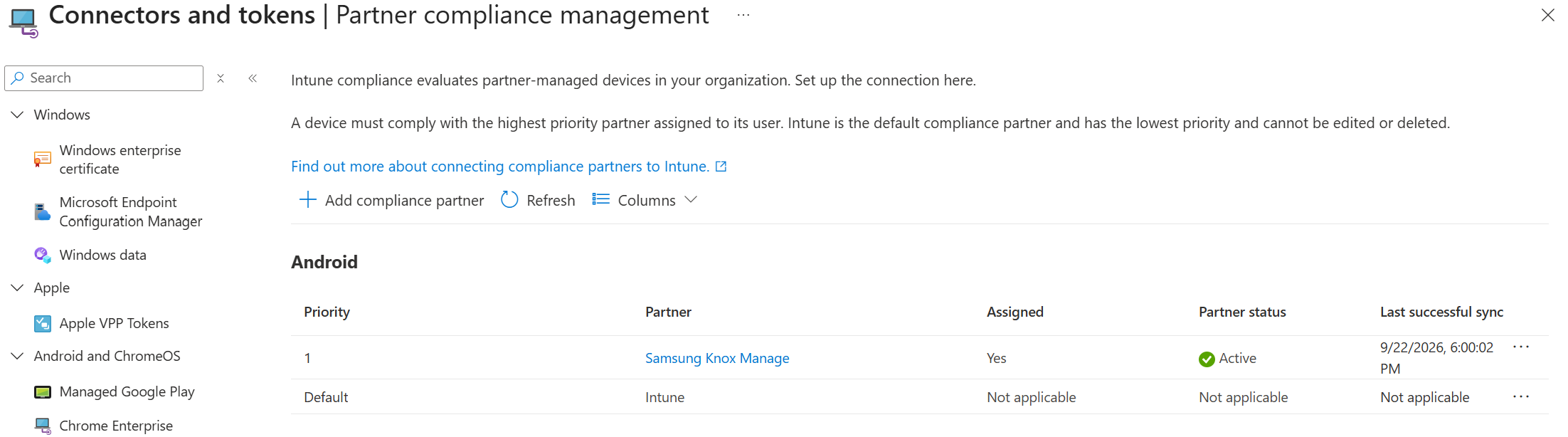
If the Last successful sync doesn’t appear, wait a few minutes and refresh the page. If the Partner status remains Inactive, verify that Conditional Access is enabled in the Knox Manage console, then save and sync the connection again.
Step two: Create a Conditional Access policy in Microsoft Entra ID
Next, you must create a Conditional Access policy in Microsoft Entra ID. Conditional Access policies grant or block device user access to company resources based on whether users meet pre-configured conditions. For more information on Conditional Access policies, see Build a Conditional Access policy.
-
In the Microsoft Entra admin center, go to Entra ID > Conditional Access > Policies.
-
Select New policy, and enter a name for the policy.
-
Configure the following settings:
- (Recommended) Users or workload identities — Specify the users or groups to which the policy applies. Under Include, select All users to apply the policy organization-wide, or select specific users and groups for a limited deployment.
For an initial deployment, consider applying the policy to a pilot group first. Emergency access accounts should also be excluded to prevent administrative lockout.
- (Recommended) Target resources — Specify the resources protected by the policy. Under Resources (formerly cloud apps) > Include, select All resources (formerly All cloud apps) to apply the compliance requirement broadly, or select specific apps based on your organization’s access-control requirements.
- (Required) Grant — Permit access to selected resources only when a device is compliant. Under Grant access, select Require device to be marked as compliant, and then click Select.
- (Recommended) Users or workload identities — Specify the users or groups to which the policy applies. Under Include, select All users to apply the policy organization-wide, or select specific users and groups for a limited deployment.
-
Under Enable policy, select Report-only, then click Create.
The Conditional Access policy is now configured to enforce access based on device compliance status.
Step three: Configure Microsoft Conditional Access in Knox Manage
Now you must configure Conditional Access for your Microsoft Entra ID connection in the Knox Manage new console:
- In the Knox Manage console, navigate to Identity provider.
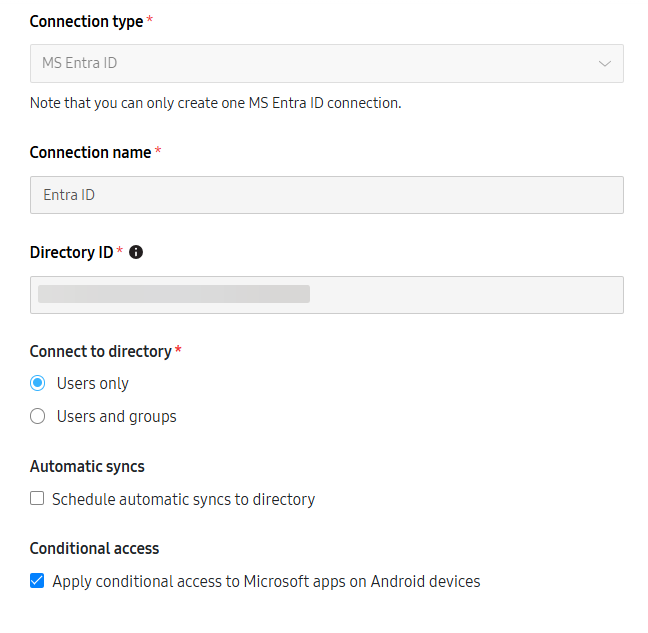
- Select the existing Microsoft Entra ID connection, then click ACTIONS > Edit server connection.
- Under Conditional access, select Apply conditional access to Microsoft apps on Android devices.
- Click SAVE AND SYNC CHANGES.
- When prompted, sign in with your Microsoft administrator account and accept the requested compliance permissions. Knox Manage can’t report device compliance status to Microsoft Intune until these permissions are granted.
Step four: Create and assign a compliance rule in Knox Manage
Next, create a compliance rule. In general, rules trigger specific actions on a device once predefined conditions are met, while compliance rules determine whether devices meet your company’s compliance requirements.
A device’s compliance is reevaluated whenever its properties change, including automatic attribute refreshes (roughly every four hours), or when a rule is modified. Devices can have one of the following compliance statuses:
- Compliant — The device doesn’t violate any of the compliance conditions assigned to it.
- Non-compliant — The device violates at least one of the compliance conditions assigned to it.
- Not assigned — No compliance rules are assigned to the device. The compliance status of these devices isn’t reported to Microsoft Entra ID.
Compliance results usually sync with Microsoft Entra ID within 10–30 seconds if the device is online. When a device is Non-compliant, Microsoft 365 apps are then blocked on the device.
To learn how to create and assign a compliance rule, see Create rules.
When you assign compliance rules, be sure to select directory groups that are synced from Microsoft Entra ID, so that Conditional Access can apply to associated device users.
Step five: Register the device with Microsoft Entra ID
Device users must register their devices with Microsoft Entra ID through the Knox Manage agent for Conditional Access to apply.
Device users must register with the same Microsoft Entra ID account that was synced to Knox Manage and used for enrollment. Accounts that aren’t synced from Microsoft Entra ID can’t complete registration or compliance evaluation.
To register a device with Microsoft Entra ID as a device user:
- On the device, open the Knox Manage agent and go to Settings.
- Under Microsoft Conditional Access, tap Register device to Microsoft Entra ID.
- On the Microsoft sign-in page, enter your Microsoft enterprise account and password and click Sign in. The Microsoft Authenticator app opens.
- Enter your enterprise account and password again. If your organization requires two-step verification, complete the additional verification steps, then click Register to register the device with Microsoft Entra ID.
- Return to the Knox Manage agent Settings page and verify the registration under Register device to Microsoft Entra ID:
- Status — Displays the status of the device’s registration: either Managed or Pending.
- Account — Displays the device user’s registered Microsoft Entra ID account.
- Last synced — Displays the date and time that the device last synchronized with Microsoft Entra ID.
Step six: Check the device compliance status
Device compliance can be checked in the Knox Manage console, as well as in the agent.
To check a device’s compliance status in the console:
- In the Knox Manage console, go to the Devices page.
- Check the Compliance status column for each device. The column displays one of the following values:
- Compliant
- Non-compliant
- Not assigned
Compliance status is not a default column. To display it, click Customize Table and select Compliance status.
You can also manually trigger a compliance status check for a device. Select a device, then click ACTIONS and select Check compliance status from the drop-down.
To check a device’s compliance status in the agent, device users must:
- Open the Knox Manage agent.
- Under Compliance, check the compliance status.
To verify that the compliance status from Knox Manage is reflected in Microsoft Entra ID:
- In the Microsoft Entra ID admin center, navigate to Devices > All devices.
- Locate your device and check the Compliant column. The value displays as Compliant or Non-compliant.
Troubleshooting device errors
When a device is marked non-compliant or has other issues, device users may experience the following errors when they try to access a Microsoft 365 app:
- Device is not registered with Microsoft Entra ID — If Knox Manage version 26.10 is installed and the device is enrolled but not registered with Microsoft Entra ID, the user gets a
not registerednotification when accessing a Microsoft 365 app. Selecting Continue opens the Knox Manage agent, and tapping Go to Knox Manage agent leads to the Microsoft Entra ID registration screen. - Knox Manage agent is not installed or is outdated — If the agent is uninstalled or older than version 26.10, the device user is redirected to the Knox Manage enrollment guide page instead of the app. Clicking Register device sends them to the Google Play Store to install the agent.
- Device is unenrolled from Knox Manage — If the device was previously enrolled but later unenrolled, the user sees a
Device not yet enrollednotice when accessing a Microsoft 365 app. They’re then redirected to the Knox Manage agent authentication screen. - Device is non-compliant — If the device is enrolled, registered with Microsoft Entra ID, and marked non-compliant, the user receives a compliance violation notice and clicks Check compliance. After signing in, they’re taken to the compliance policy detail screen, where they can view the issues and either resolve them or contact an IT admin.
Besides a failed attempt to access a Microsoft 365 app, the following issues may occur:
- Status uploaded but not reported due to a temporary issue — In the Knox Manage device list, select the device and click Check compliance status to report the status again.
- Status reported but not reflected in Microsoft Intune — Confirm that the device user is registered in Microsoft Entra ID and has a valid Intune license assigned.
- Device registration fails in the Knox Manage agent — Verify that Microsoft Authenticator is installed on the device and that the device user’s account is synced from Microsoft Entra ID to Knox Manage.
- Partner status displays as Inactive in Microsoft Intune — In the Knox Manage console, verify that Apply conditional access to Microsoft apps on Android devices is selected for the Microsoft Entra ID connection, then click SAVE AND SYNC CHANGES to sync again.
Disconnect a device from Microsoft Conditional Access
You can disconnect a device from Microsoft Entra ID when:
- The conditions for Microsoft Conditional Access settings are disconnected in either console.
- The Microsoft work account is deleted from the device settings.
- The Knox Manage authentication history is deleted from the Microsoft Authenticator app.
A disconnected device remains in the device list on the Microsoft Entra ID server. If the device user wants to reconnect the device to Microsoft Entra ID and apply Microsoft Conditional Access again, they can register the device again from Knox Manage agent settings. This creates a duplicate entry for the same device in the Microsoft Entra ID device list with a different device ID. If you don’t want duplicate device entries in Microsoft Entra ID, delete disconnected devices directly from the Microsoft Entra ID device list.
On this page
Is this page helpful?