Enable Knox Manage Technical Support
Last updated April 29th, 2026
Categories:
Environment
- Knox Manage original console
Overview
The Technical Support option in Knox Manage lets the Samsung Knox team access and control your Knox Manage tenant, in order to help you troubleshoot console-related issues. By default, this option is disabled.
How do I enable Technical Support in Knox Manage?
To enable Technical Support, follow the steps below:
- Sign in to Knox Manage with your super admin account.
- Select the Support icon in the top menu bar, next to your tenant ID, then click Technical Support.
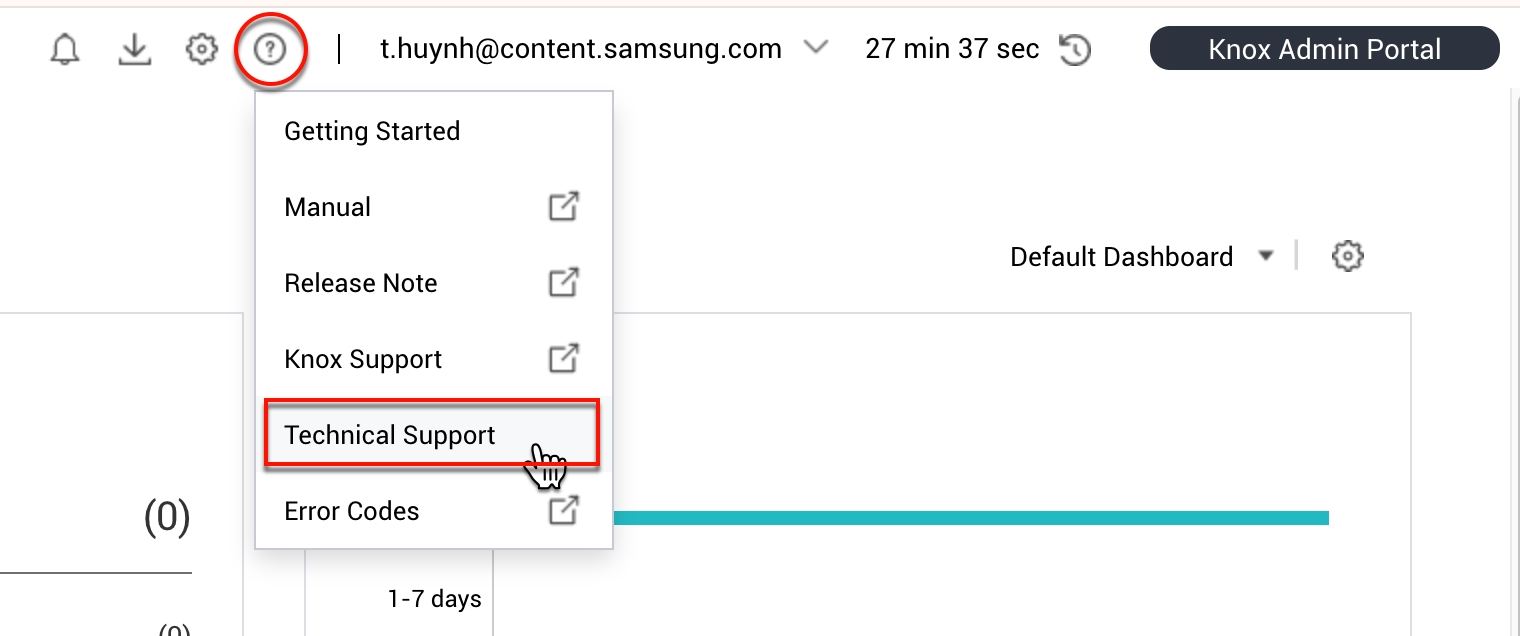
- Select the Activate Technical Support.
- Set the Access Period. This is the date range that you want to allow Samsung technical support to access your console.
- Select Save, then click OK.
Once you’ve enabled the Technical Support feature, provide the Samsung technical support team with your tenant ID, so they can remotely connect to your console. This can be found after the @ symbol in your username.
How to provide super admin privileges to Technical Support
By default, Samsung Technical Support gets read-only access when you grant them access to your console. If you also want to grant them super admin permissions, do the following:
- On the left navigation pane, navigate to Settings > Administrator.
- In the Administrator Name column, click Technical Support, then click Modify.
- Select Super in the Role field, then click Save.
Troubleshooting Technical Support access
In some cases, Samsung technical support members may not be able to access your Knox Manage console even when Technical Support has been properly enabled. If this occurs, check the status of the Technical Support admin:
-
On the left navigation pane, navigate to Settings > Administrator.
-
Check if the Administrator ID samsung.support’s Status is set to Inactive.
-
If the status shows as Inactive, reset it to Active:
- Select the Administrator ID samsung.support.
- Click Change Status. The Change Status dialog box opens.
- On the Change Status dialog box, click OK.
After activating the samsung.support Administrator ID, the technical support member will be able to access Knox Manage.
On this page
Is this page helpful?