Get started with Knox Guard
Last updated January 28th, 2026
Knox Guard is a cloud-based service which enables you to protect your devices and enterprise assets from fraud and theft.
With Knox Guard, you can remotely manage, message, and if necessary, lock Samsung devices to reduce your organization’s financial risk, black market sales of devices, and overdue subscriber payments.
Prerequisites
Before proceeding, we recommend you have the following:
- Samsung devices running an appropriate Knox version. For the most up-to-date list of devices that Knox Guard supports, see Devices secured by Knox.
- A Samsung account representative to streamline the approval and set-up process. If you don’t have an account representative, you can contact a sales expert through the Samsung Knox website.
Step 1: Sign up for a Knox Guard account
To use Knox Guard, you must have:
- A Samsung account for Business
- A Samsung Knox account
- Approval to use Knox Guard
You can apply for Knox Guard approval during the Samsung Knox registration process. When selecting the Knox product you’d like to try, click I want to try Samsung Knox services > Knox Guard.
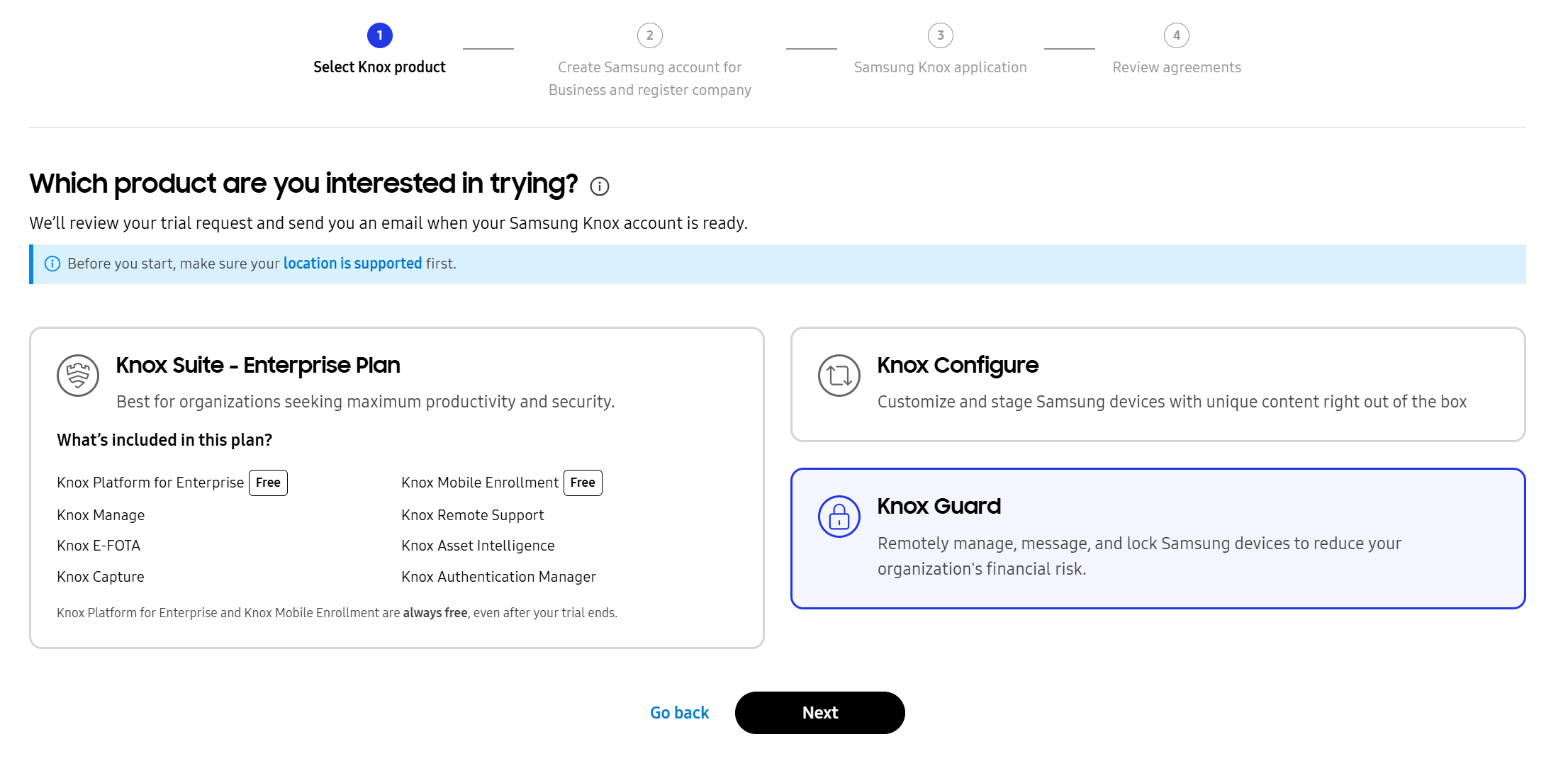
For detailed information on the application process, see Create a Samsung Knox account.
Select a Knox Guard domain
Each Knox Guard account is associated with a tenant domain (also simply referred to as domains).
A domain is defined by its mandatory, optional, and recommended features, tailored to its specific use case. Depending on security needs, some domains may grant access to specialized features, such as Hardened Security mode. Regardless, basic Knox Guard features are available to all domains.
When you register for a Knox Guard account, you’ll be asked to select a domain. To help determine which domain best suits your business needs, see Tenant domains.
Once you select a domain, it can’t be changed.
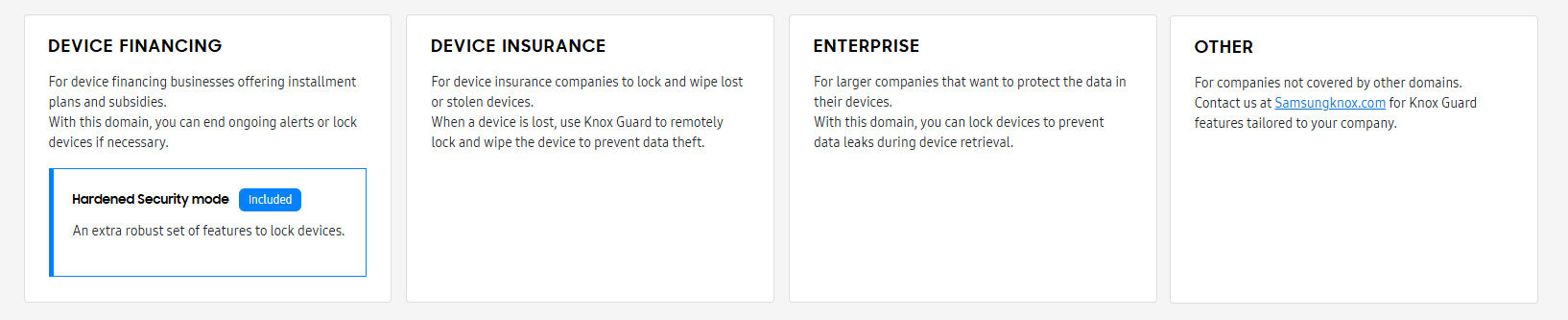
Once you select a domain, your Samsung Knox application is submitted for review. You can work with your account representative to receive approval.
Note that if you select the Device Financing domain, you may also want to consider which tenant type best suits your business needs.
Device Financing tenant types
If you selected the Device Financing domain, depending on your business model, you may require different policies to best match your operations. There are two types of financing tenants in Knox Guard, suitable for different use cases:
- Normal — Users pay to use a device. In the event of an overdue payment or a misplaced device, you can remotely lock the device. In addition, you can configure custom lock screen messages instructing device users on how to unlock their device.
- PAYG (Pay-as-you-go) — Users pay a subscription fee to use the device. Devices can be unlocked when the fee is paid, and relocked once the user’s device use time runs out.
Each tenant type has different policies that can be applied to devices. Your account representative can help you identify which tenant type best suits your use case.
Once a tenant type is chosen during the approval process, it can’t be changed.
Step 2: Access the Knox Guard console
Once you have a Knox Guard account, you can access the Knox Guard console through a direct link, or through the Knox Admin Portal.
-
Sign into the Knox Guard console directly:
-
Access through the Knox Admin Portal: If you use any other Knox cloud services along with Knox Guard, you can access Knox Guard through the Knox Admin Portal. Conversely, you can access the Knox Admin Portal from the Knox Guard console, as shown below.
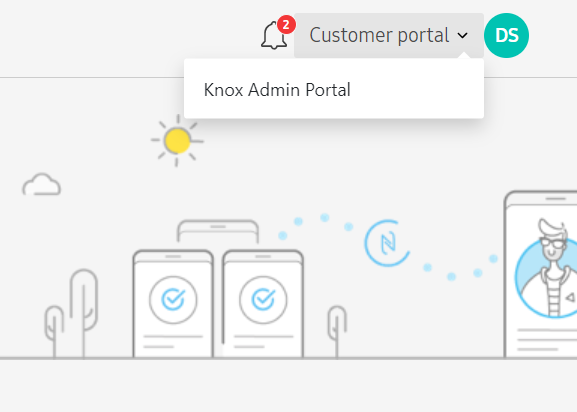
To access the Knox Guard console, your local network must be configured with ports 443 and 80 open.
Once you sign in to the Knox Guard console, the Dashboard displays device and license status information. For more information, see Dashboard.
Step 3: Obtain a license
To use Knox Guard, a license is required. Knox Guard offers both free trial licenses and paid commercial licenses to suit your needs. There are two ways you can obtain a license — you can either generate a trial license in the console, or purchase a commercial license.
- You can generate a license on the Licenses page. Trial licenses are only valid for three months and can only be applied to 30 devices.
- When you’re ready to purchase a commercial license, we recommend you contact the Samsung Knox sales team. You can also directly contact a reseller in your country. There are three types of commercial licenses:
- Commercial license — A commercial license has a one year activation period and devices remain active for three years. The number of seats is predetermined during the purchasing process.
- Post-paid license — Similar to a commercial license, a post-paid license has a one year activation period and devices remain active for three years. However, the number of seats in a post-paid license is unlimited. Payment occurs at a later date and you’re charged based on the number of seats used.
- Knox Guard Advanced license — Knox Guard Advanced provides additional management capabilities on top of all of Knox Guard’s standard features, allowing you to have greater control over your devices. Advanced licenses are available in trial, commercial, and post-paid formats.
For more information, see Manage licenses.
Step 4: Upload devices to your account
Next, upload your devices to the Knox Guard console:
- Devices purchased through a Samsung-approved reseller are directly uploaded to your console. You can manage your resellers on the Resellers page. Once devices are uploaded, you must accept them on the Devices page.
- Upload your own devices to Knox Guard using a CSV file. Devices you upload are automatically approved. For more information, see Upload devices.
Accepted devices are automatically assigned a Knox Guard license. If you don’t have enough license seats, or have yet to add a license, devices can’t be accepted. For more information, see Manage licenses.
Step 5: Use Knox Guard
You can manage and apply policies to devices once they are uploaded to Knox Guard:
- View the management and license status for all devices on the Dashboard.
- View and manage your devices on the Devices page.
- Lock or restrict a device effectively using Knox Guard’s diverse Policies.
- Generate, view, and manage your licenses on the Licenses page.
- Manage your admins and roles on the Administrators and roles page.
- View the Activity log to assess Knox Guard events — including information such as when they occurred, admins involved, event category, action type, and description.
You now know how to launch and use Knox Guard. For more information on how to use the console, review our how-to guides or watch the how-to video. If you require assistance, you can reach out to the support team by submitting a support ticket in the Knox Admin Portal.
On this page
Is this page helpful?