Apply or remove overdue payment wallpaper
Last updated November 19th, 2025
To use this feature, you need a Knox Guard Advanced license.
To encourage users to fulfill outstanding payments, you can use the Overdue payment wallpaper policy to display a warning wallpaper on a device’s home and lock screens. Device users can’t edit this wallpaper until wallpaper restrictions are removed.
To configure the wallpaper that displays, use the tenant-wide Overdue payment wallpaper policy.
Apply overdue payment wallpaper
To apply wallpaper restrictions:
-
On the Devices page, select one or more devices.
-
Click ACTIONS > Apply overdue payment wallpaper.
-
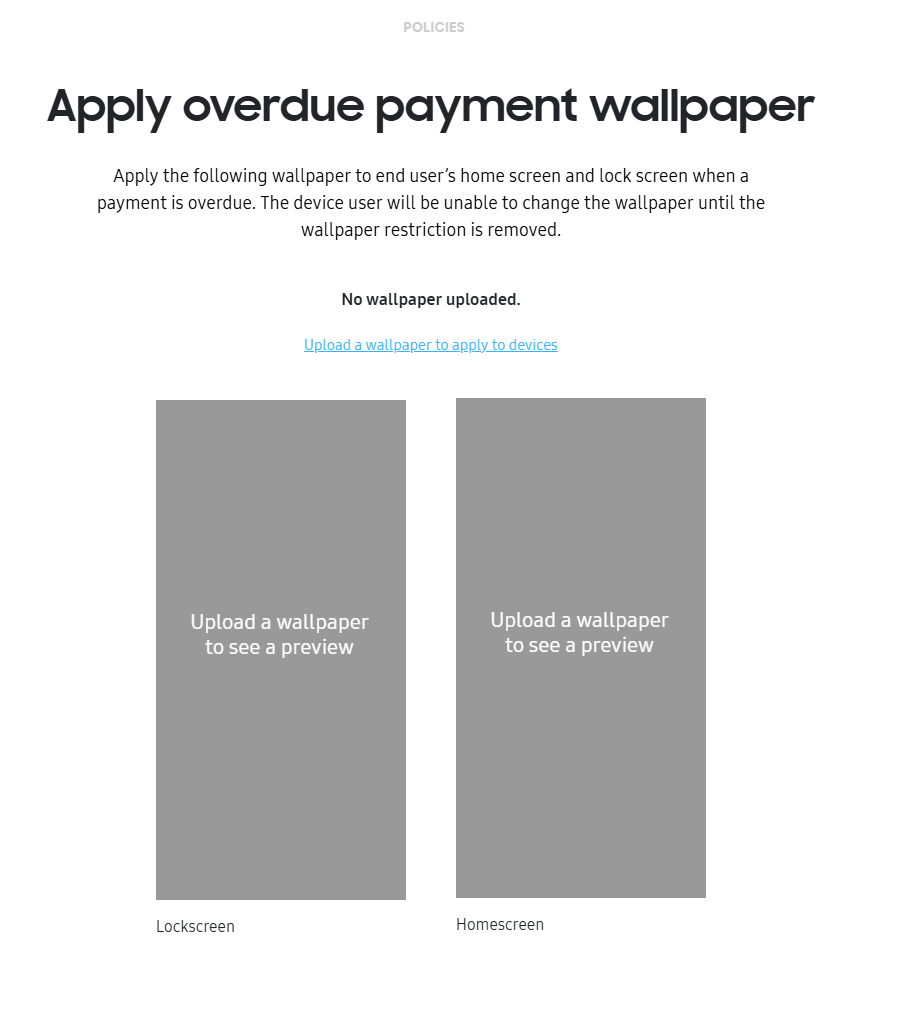
Preview your wallpaper configuration. If needed, you can click the link to upload a wallpaper to apply to devices. Images must be less than 5 MB and in PNG format.
-
If you’re satisfied with the preview, click APPLY.
Remove overdue payment wallpaper
Once you apply wallpaper restrictions to a device, device users won’t be able to edit their wallpaper until the restrictions are removed.
To remove wallpaper restrictions:
-
On the Devices page, select one or more devices.
-
Click ACTIONS > Remove overdue payment wallpaper.
-
Click REMOVE.
Apply or remove overdue payment wallpaper in bulk
You can select devices in bulk by entering their IMEIs or serial numbers into a standardized template. The maximum number of devices you can select in one action is 10,000.
To apply or remove wallpaper restrictions in bulk:
-
Select BULK ACTIONS in the bottom of the left navigation pane. To download a standard template, click Download CSV template.
For more information on how to create a properly formatted CSV file for bulk device acceptance, select Instructions for all bulk actions from the bottom left-hand side of the Bulk actions screen.
-
Under ADVANCED CONTROLS, click MANAGE OVERDUE WALLPAPER RESTRICTION.
-
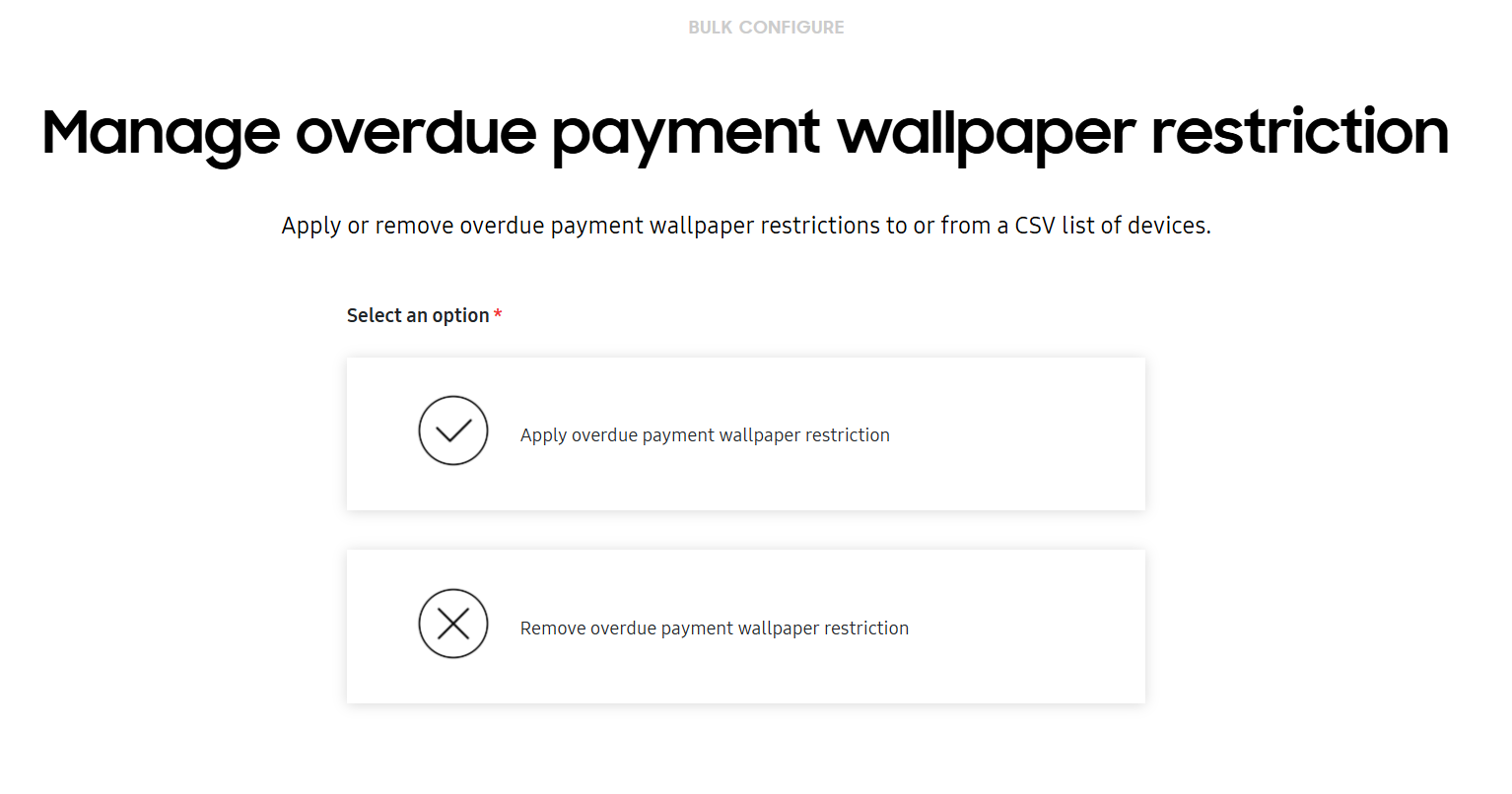
On the Manage overdue wallpaper restriction page, select one of the following and upload your CSV file containing the device IDs.
-
Apply overdue wallpaper restriction: Preview your wallpaper configuration and click Apply.
-
Remove overdue wallpaper restriction: Click Remove.
-
On this page
Is this page helpful?