Device statuses
Last updated July 7th, 2026
The Device statuses tile provides a centralized view of your fleet’s device enrollment health, enabling quick identification of pending approvals, failed enrollments, and expired licenses. This insight reduces troubleshooting times and ensures timely resolution of enrollment issues that could impact device deployment and security compliance.
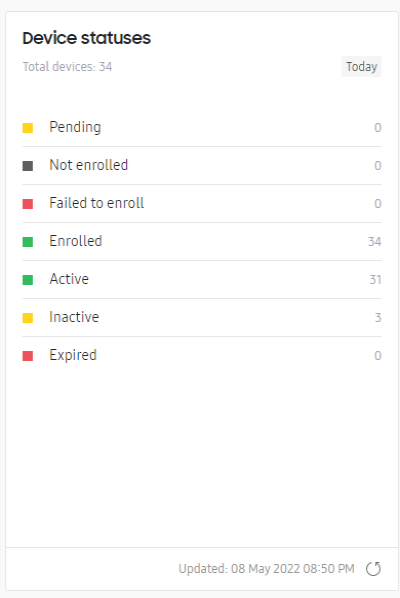
This tile is always available on the main dashboard, and can’t be removed from the dashboard’s Settings > Customize menu. Additionally, this insight does not have an expanded details or drill-down view.
The following statuses are shown in this tile:
- Pending — Reseller-uploaded devices awaiting your approval. Approve uploads by going to the Knox Admin Portal Devices page’s Uploads tab. See Manage uploads to learn more.
- Not enrolled — Devices uploaded to the console but not yet enrolled in the Knox Asset Intelligence server. See Enroll devices to learn more.
- Failed to enroll — Devices that encountered an error during enrollment. Check whether the license is valid and whether the device supports the required Knox version. You can check the detailed reason for failure by going to the Devices page and selecting ACTIONS > View device log. If you’re still experiencing enrollment issues, Submit a support ticket.
- Enrolled — All devices enrolled in Knox Asset Intelligence.
- Active — Enrolled devices that are working as expected.
- Inactive — Enrolled devices that have not communicated with the Knox Asset Intelligence server for seven or more consecutive days. This status indicates devices that are powered off or not connected to a mobile network.
- Expired — The license associated with the device has expired, and the device is not reporting any data.
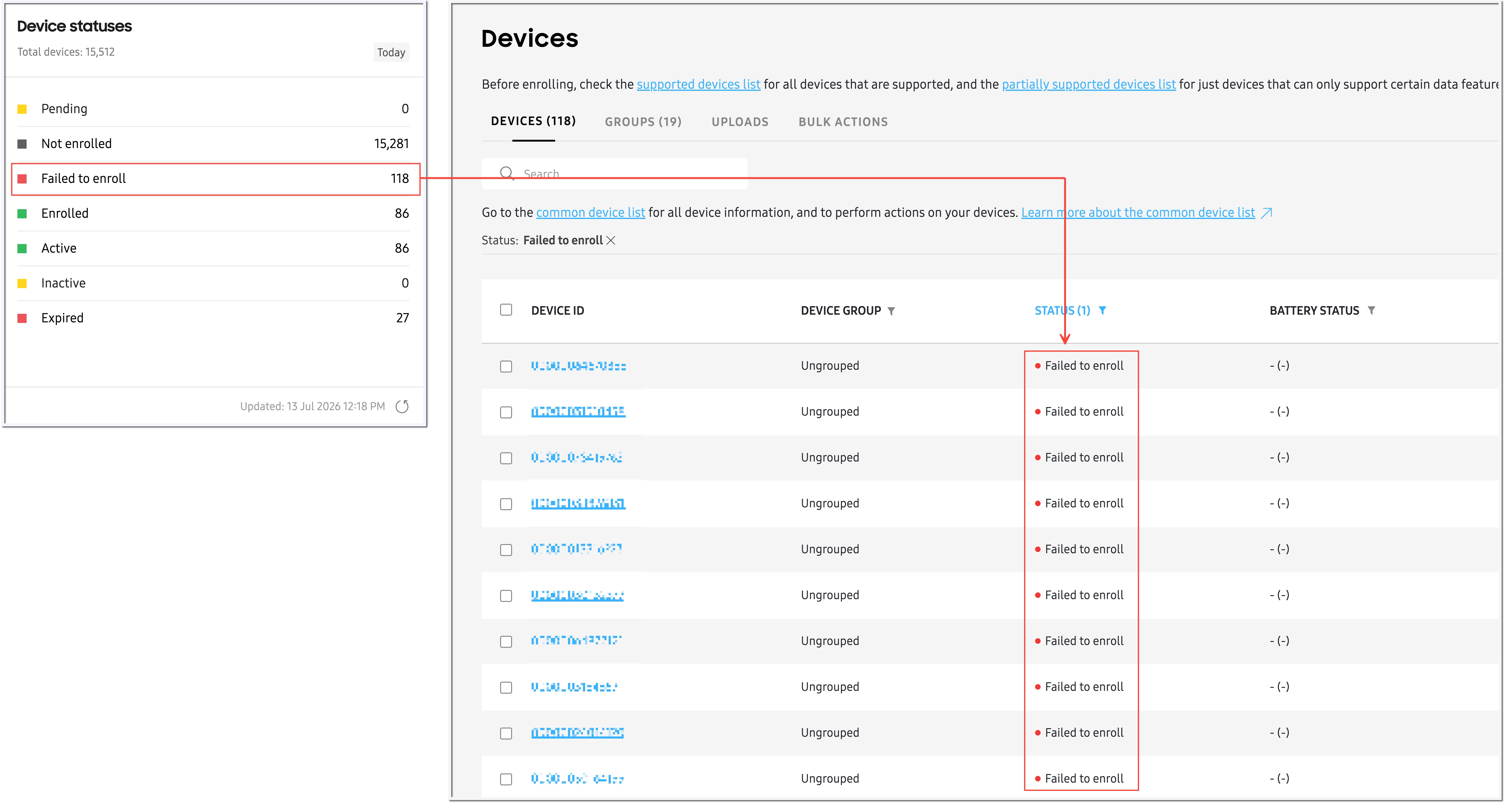
You can click any status to view a corresponding list of devices on the Devices page.
Is this page helpful?