Assign devices to profile
Last updated May 18th, 2026
Once a profile is created in Knox Configure, it must be associated with your devices for the configurations to take effect. There are two main methods of associating a profile with your device:
- You can assign devices to your profile from the Profiles page.
- You can assign a profile to your devices from the Devices page
This page describes how to assign devices to your profile from the Profiles page. See Assign profile to devices for the other method.
This procedure only applies to assigning Setup or Dynamic edition profiles to devices. You can’t assign Accessory edition profiles.
Assign devices
To assign devices to your Setup or Dynamic edition profile, do the following:
-
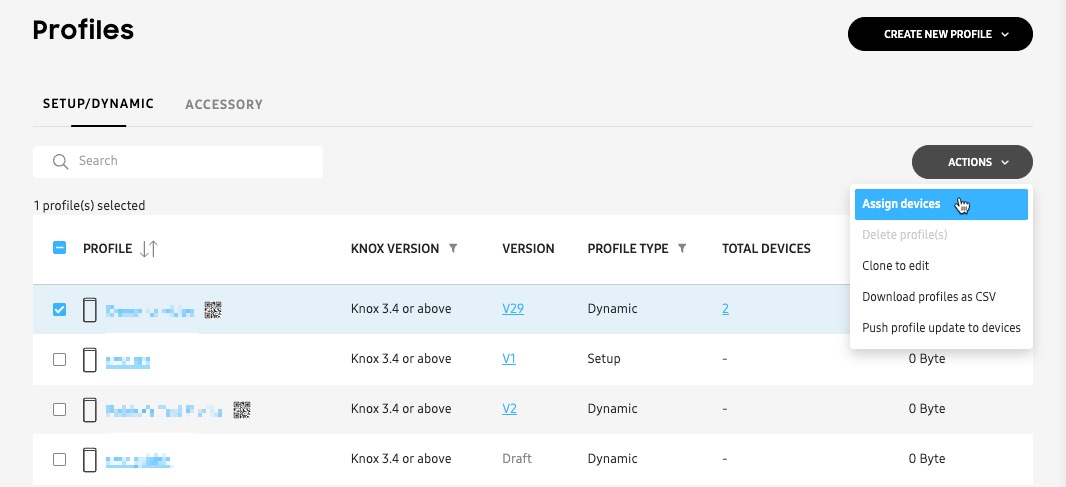
On the Profiles page > SETUP/DYNAMIC tab, select the profile you want to assign.
-
Click ACTIONS in the top right corner, then click Assign devices.
-
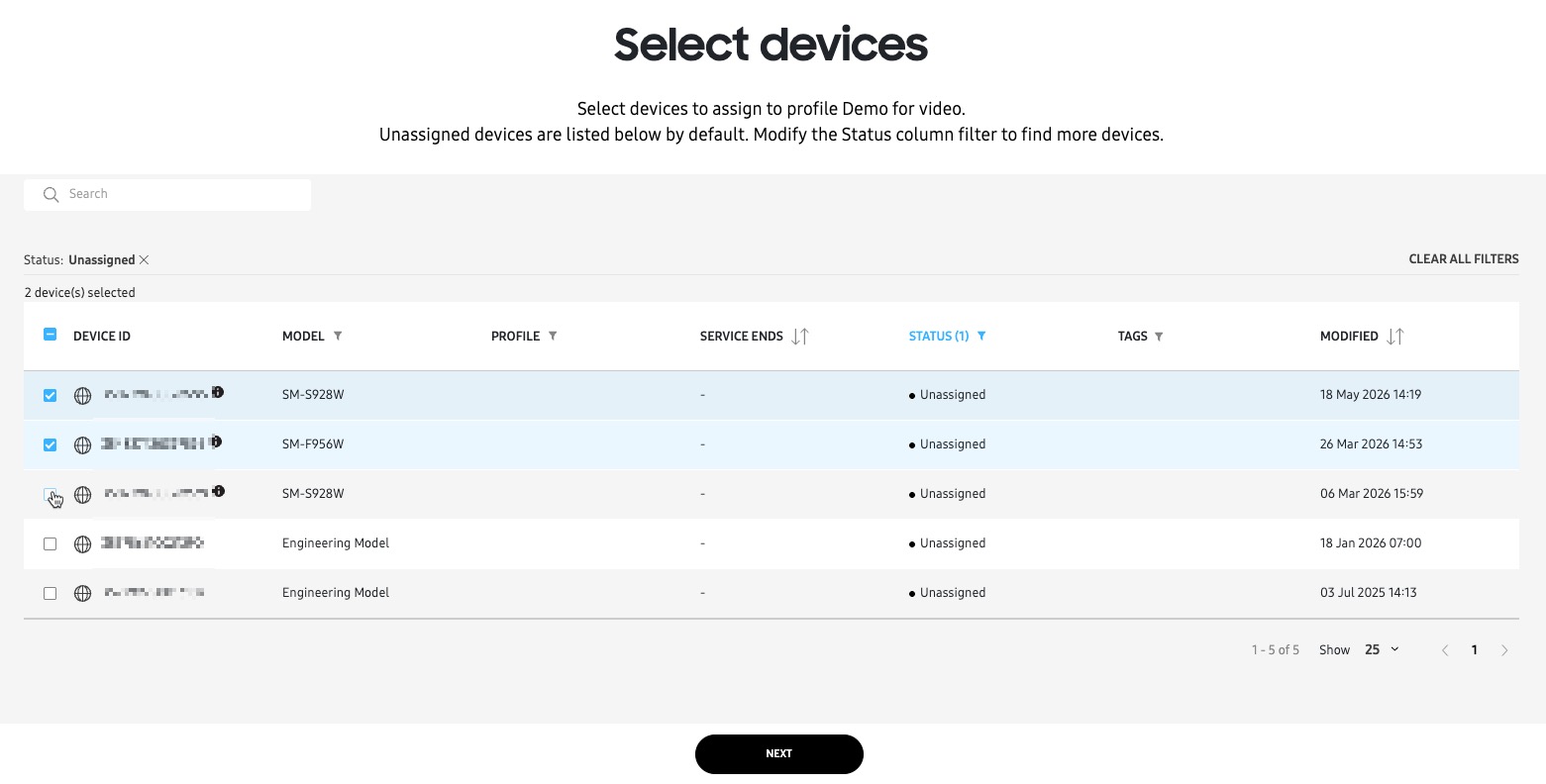
On the Select devices page, select one or more devices, then click NEXT.
-
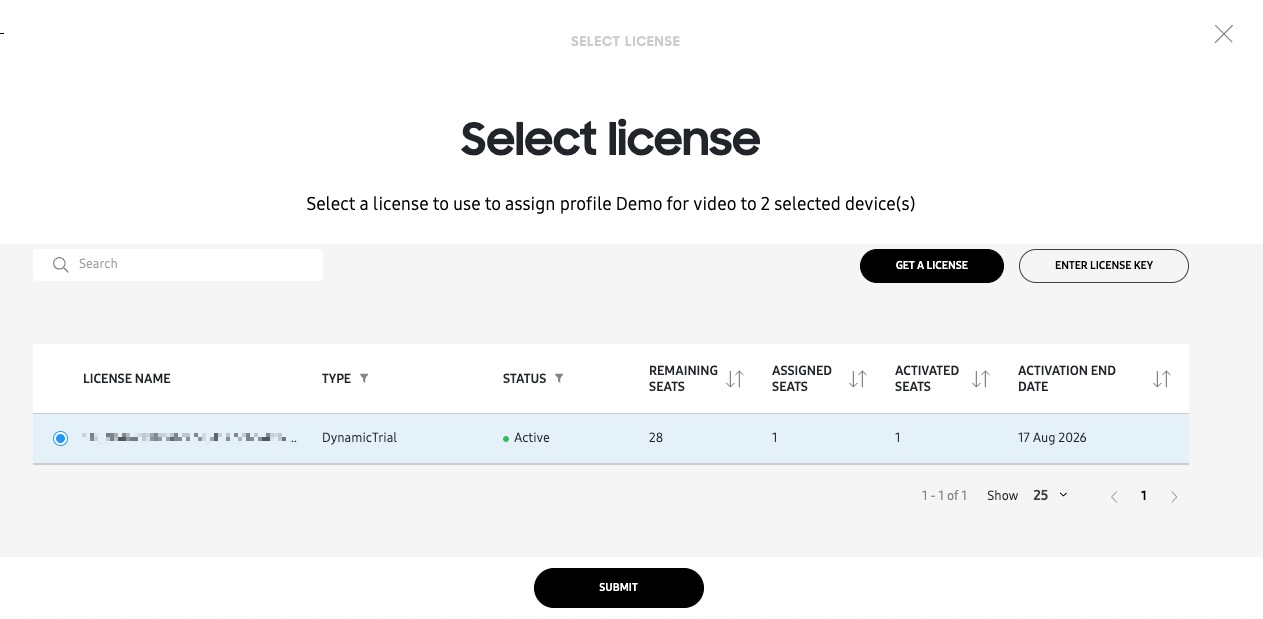
Next, select your Knox Configure license.
-
If you don’t have a valid license key, you can click GET A LICENSE to either generate a trial or contact a reseller for a commercial license purchase.
-
If you have a commercial license key, click ENTER LICENSE KEY and provide your license details.
-
-
After selecting your license, click SUBMIT.
Change a device’s assigned profile
If you want to change a device’s assigned profile, you can perform this task from the Devices page. The process of changing a profile simply involves assigning a new profile to the device, and is explained in Change a device’s assigned profile.
Unassign devices from a profile
Similar to changing a device’s assigned profile, if you want unassign devices from a profile, you can perform this task from the Devices page. This step is explained in Unassign profile from devices.
On this page
Is this page helpful?