Perform device actions
Last updated May 27th, 2026
You can remotely perform various actions such as locking, unlocking, rebooting, and factory resetting your enterprise devices from the Knox Configure console. The following actions are available:
Lock devices
Locking prevents unauthorized users from accessing the device. When a device is locked, your company’s contact information is shown on the screen, and the user is unable to perform any task other than entering an unlock code or dialing an emergency number.
To lock one or more devices:
-
From the Devices list, select the devices you want to lock.
-
Click ACTIONS, then click Lock device(s).
-
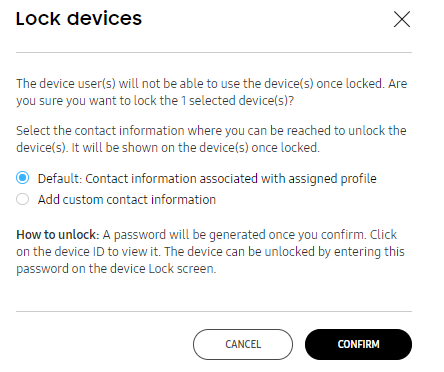
On the following pop-up window, select the type of contact information you want to display on the lock screen. The following options are available:
-
Default: Contact information associated with the assigned profile — Displays the contact information entered in the profile’s Enrollment Info tab.
-
Add custom contact information — You can provide a custom Company name, Phone, and Email that displays on the device’s lock screen.
Device users can make calls to the number displayed on the lock screen, however, they cannot use the device to send an email to address provided.
-
-
Select CONFIRM to lock the device.
Unlock devices
After devices are locked, you can unlock them in one of two ways:
Unlock with PIN (end-user action)
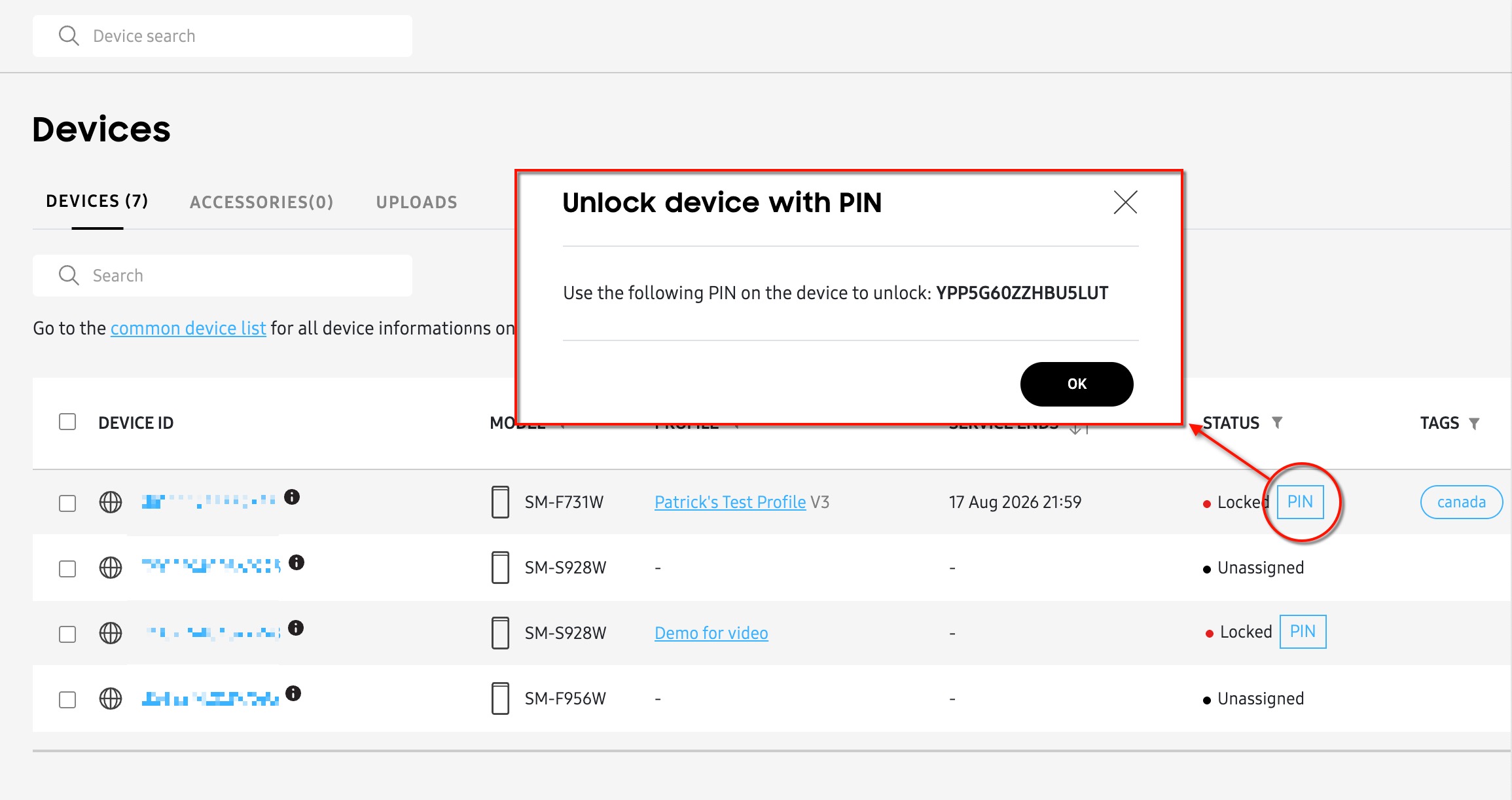
When a device is locked, you’ll see a PIN button appear next to the Locked status. Click this button to display a unique unlock code for that specific device, then instruct your end-user to enter the code on their device’s lock screen. Once entered, the device will unlock, and the status will change back to Configured.
Unlock with device action (console action)
You can unlock multiple devices at the same time by performing a device action. To do this:
- From the Devices list, select one or more devices.
- Click ACTIONS, then click Unlock device(s).
- On the confirmation window, click CONFIRM. Once unlocked, the device’s status changes to Configured.
Factory reset and eSIM deletion
Factory reset is only available for devices uploaded by an approved Knox reseller, or by a Knox MSP with reseller permissions.
You can push a command to reboot or reset a device, and delete the e-SIM data without the device user’s consent. Ensure that the device is:
- In the Configured state
- Connected to a network
If the device is not connected to a network, the factory reset command is queued until the device can receive the message. To do this:
-
In the Knox Configure console, go to the Devices page.
If you want to reboot or factory reset devices assigned to a specific profile, you can click on a profile from the Profiles page, and access its Devices list from its Profile configuration dashboard.
-
Select the DEVICE ID of the device you want to reboot or factory reset.
-
Click Actions > Factory reset and eSIM deletion.
-
Select one of the following options:
- Reboot devices(s) — The device will be reset and maintain configurations previously set by the IT admin.
- Factory reset device(s) — The device will be reset to factory standard specifications. This means that the device will have no restrictions or customization once reset and will need to be configured again.
- Factory reset and eSIM deletion — The device will be reset to factory standard specifications, and the eSIM data will be deleted from the device.
The e-SIM delete feature is only supported on devices running Android 14 or later.
-
Click CONFIRM to send the command.
On this page
Is this page helpful?