Prerequisites to enable Knox E-FOTA on Microsoft Intune
Last updated August 4th, 2026
Categories:
This content is intended for customers looking to use Knox E-FOTA on Microsoft Intune.
Environment
- Knox E-FOTA
- Microsoft Intune
Overview
This article outlines the steps required before you can use Knox E-FOTA on Microsoft Intune.
- If you have a Samsung Knox partner account, you must create a separate Samsung Knox customer account to use Knox E-FOTA on Microsoft Intune.
- Samsung Knox accounts that are fully managed by a Knox MSP can’t integrate with Microsoft Intune. To use Knox E-FOTA on Microsoft Intune, contact your Knox MSP to convert you to a jointly managed customer.
Step 1: Sign up for a Samsung Knox account
To use Knox E-FOTA, you must first sign up for a Samsung Knox account, which is linked to a Samsung account for Business. If you don’t have a Samsung account for Business, you’ll be prompted to sign up for one.
If you already have a Samsung Knox account, you can skip this step and go to Step 2: Get required licenses.
To create your Samsung Knox account:
-
Go to SamsungKnox.com.
-
In the top-right corner of the page, click GET STARTED.
-
Click I want to try Samsung Knox services and click Next.
-
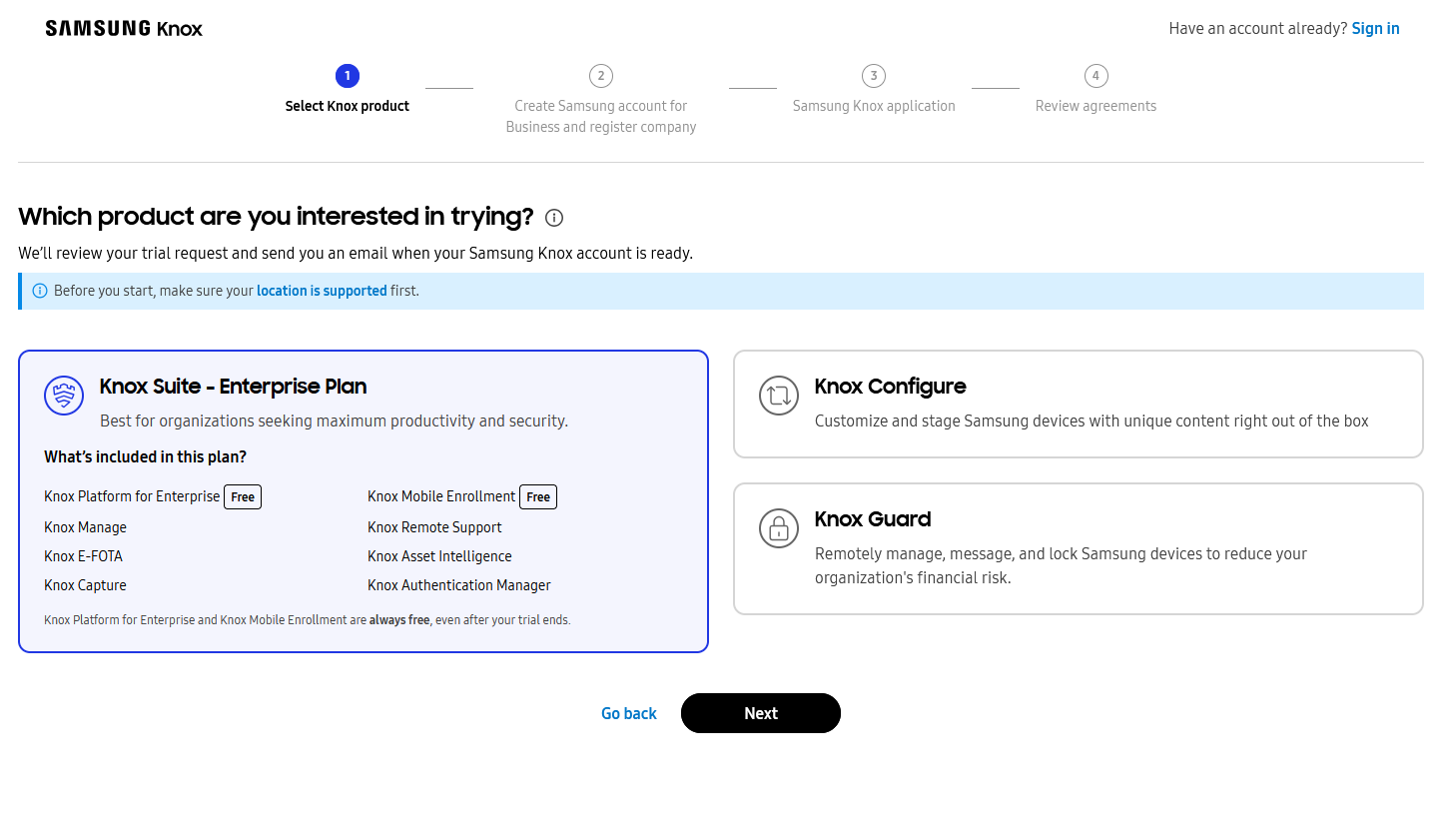
Select Knox Suite - Enterprise Plan to get a free trial of our services, then click Next.
-
Click Sign up to sign up for a Samsung account for Business.
-
Enter the information required to sign up, and register your company for Samsung account for Business. For details about this process, see how to Create a Samsung account for Business and register your company.
-
Create your Samsung Knox application. Enter your company information, or enable Use the company address from Samsung account for Business for my application to use the same company information used for your Samsung account for Business registration.
-
Review the Samsung Knox agreements, then click Agree.
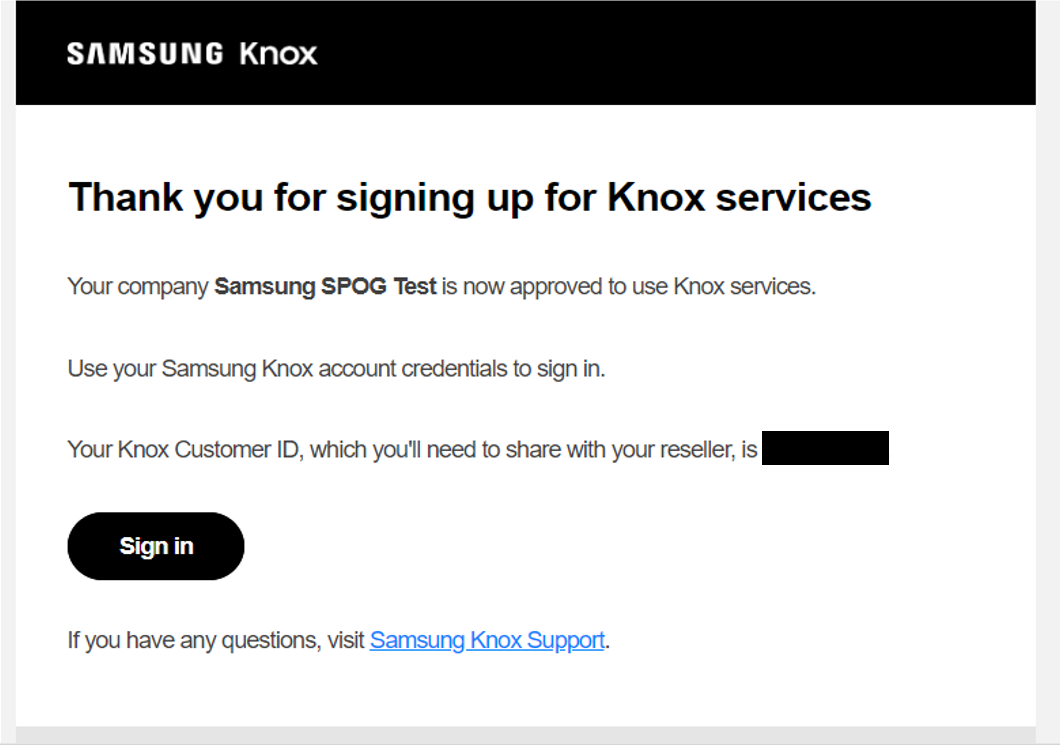
Once submitted, inform your Samsung contact to approve your account. Once approved, you’ll receive a confirmation email with your new Knox Customer ID.
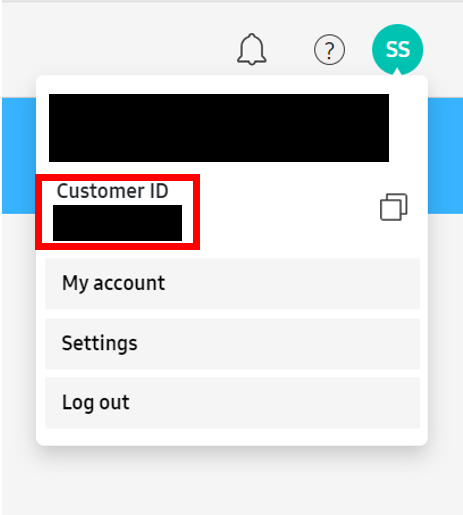
You can also find your Knox Customer ID by signing in to SamsungKnox.com and clicking your profile icon.
Step 2: Get required licenses
To use Knox E-FOTA, you need a Knox Suite - Enterprise Plan license. You can get a free trial when you sign up for Samsung Knox, which allows you to explore our services for 90 days with up to 30 devices. To continue using Knox E-FOTA, see how you can get a commercial license.
You also need at least a Microsoft 365 E3 plan to use this service on Microsoft Intune.
Step 3: Accept privacy policy for your device users
When Knox E-FOTA is installed and run for the first time on your devices, it prompts the device user to read and accept the terms and conditions and the privacy policy. You can configure Knox E-FOTA to skip this step so it can set up on your devices without device user interaction. To do this:
- Sign in to the Knox Admin Portal and click your account icon on the top right, then click Settings.
- Under KNOX E-FOTA click PRIVACY POLICY SETTINGS.
- Check Skip Knox E-FOTA Terms & Conditions and Privacy Policy, and click SAVE.
Step 4: Connect Microsoft Intune to Knox E-FOTA
To connect Microsoft Intune to Knox E-FOTA:
-
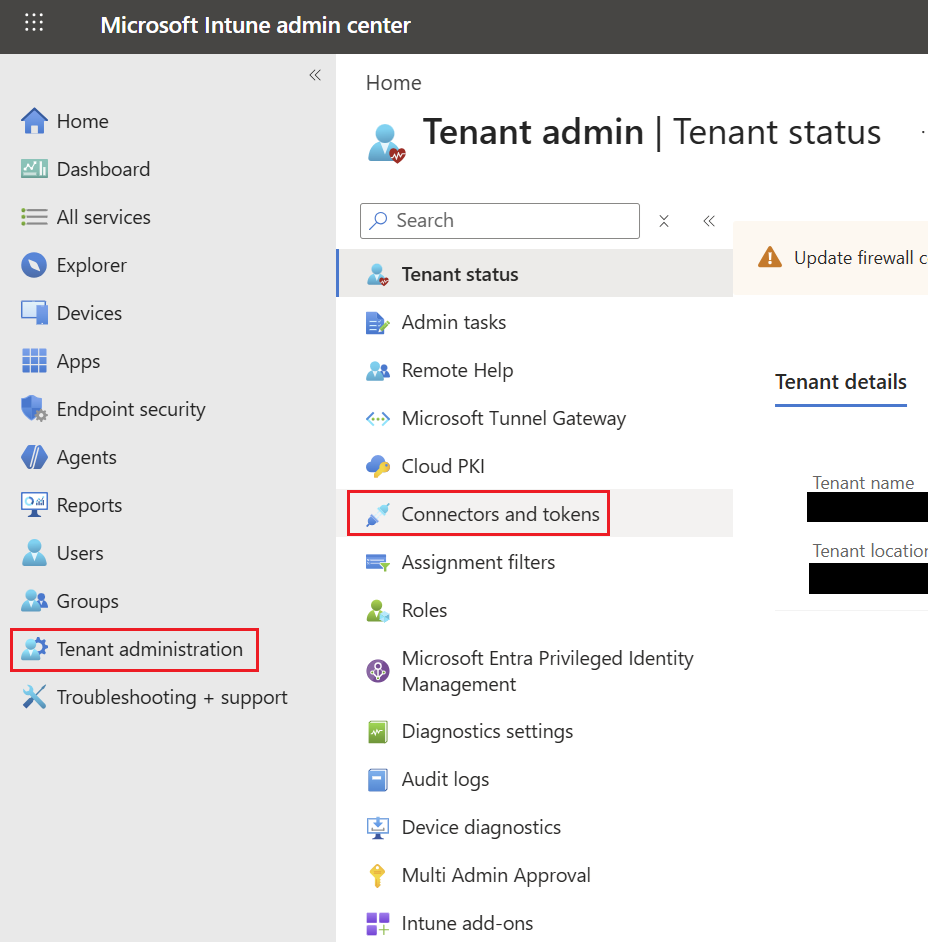
Sign in to the Microsoft Intune admin center.
-
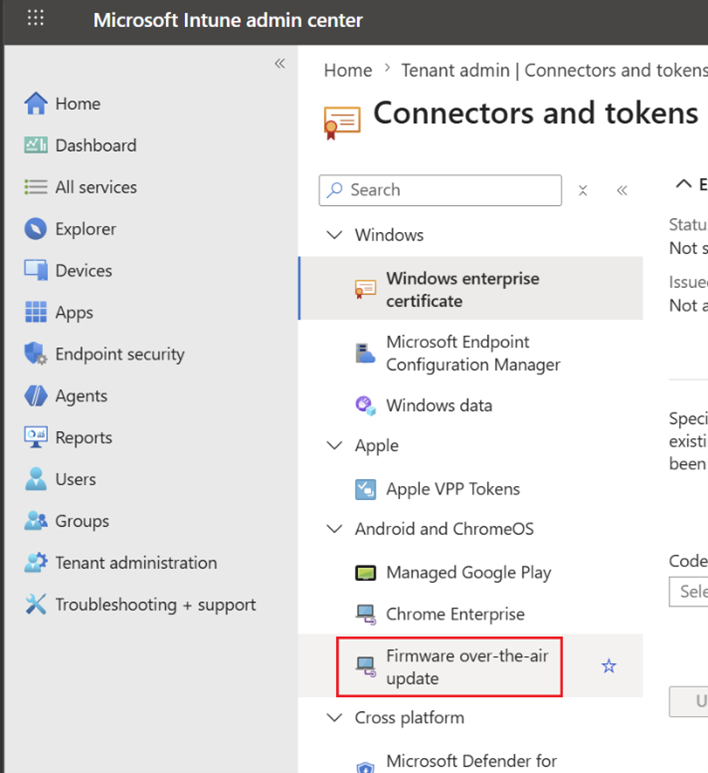
On the left navigation menu, go to Tenant administration > Connectors and tokens.
-
On the Connectors and tokens menu, go to Firmware over-the-air update.
-
Select Samsung on the list of OEMs.
-
Click Connect.
-
In the pop-up window, sign in to your Samsung Knox account. You must sign in as the super admin of your Samsung Knox account.
-
On the Access requested page, review the access permissions you’re granting for Microsoft Intune, then click Allow.
-
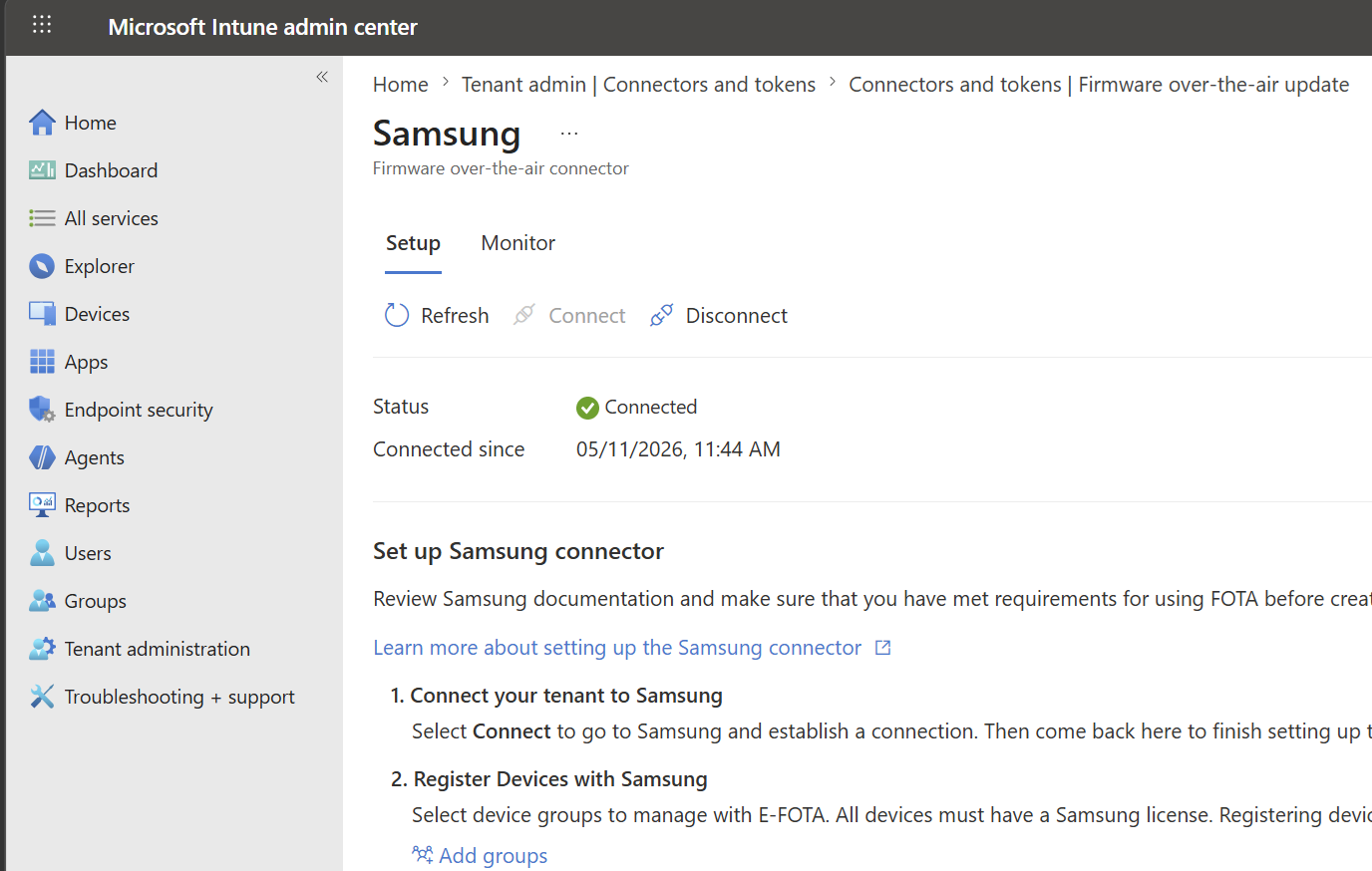
The Samsung Firmware over-the-air connector status shows that you’re Connected.
- Connecting Knox E-FOTA on Microsoft Intune automatically disables the EMM groups feature in your Knox Admin Portal.
- Devices that were previously added to Knox E-FOTA from an EMM group sync need to be added again in Microsoft Intune by registering the device group with Samsung.
- Microsoft Intune only displays campaigns (Android FOTA deployments) created from its own console. When you assign a deployment to your device group, it overwrites any existing campaigns assigned to those devices.
Next step
See also
On this page
Is this page helpful?