User onboarding flow
Last updated August 28th, 2026
This page describes what happens after you invite a user. The exact onboarding flow varies by user type (General User or Classroom User; see Manage users). As an admin, you can share this page with invited users to help them complete their onboarding.
Onboarding for general users
The following subsections cover the onboarding flow for general users — that is, users who have a General User account and have a Super Admin or Group Admin role. Typically, these users include IT admins and other non-teaching staff.
Teachers also have a General User account, but they usually only need to access the Knox Classroom dashboard, not the Samsung Account for Education portal. For access instructions, see Sign in to Knox Classroom.
Step 1: Open invitation email
Check your inbox to confirm you’ve received an invitation email. The subject line will say “Welcome to Samsung Account for Education”, and the email body will contain:
- A personal greeting mentioning your first name
- The name of the administrator who sent the invitation
- Your institution name
- Your account ID (which is your work email)
- A sign in invitation link
If you haven’t received an invitation email, ask your Samsung Account for Education administrator to invite you.
Step 2: Sign in for onboarding
- Click the Sign in link in your invitation email.
- The Samsung Account for Education portal opens in your browser, showing the Privacy notice page. Click Continue.
If the link has expired, you’ll see an Activation link expired page in step 2. Contact your administrator to resend the email.
Step 3: Review account information
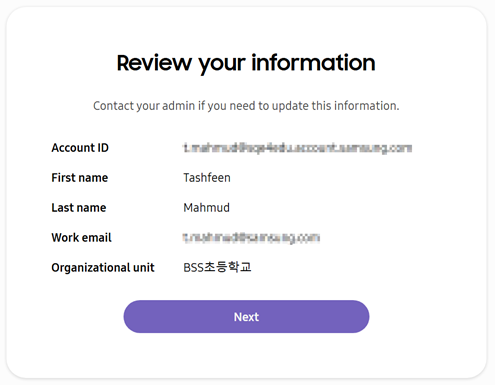
- Verify details on the Review your information page – if any changes are needed, contact your administrator:
| Field | Description |
|---|---|
| Account ID | Your unique account identifier (auto-set to the same value as your Work email). |
| First name | Your first name. |
| Last name | Your last name. |
| Work email | Your institutional email address. |
| Organizational unit | The organizational unit you are assigned to. |
- Select Next.
If you’re a user in Korea, you’ll see an additional Collection and use of personal information screen requiring explicit agreement.
Step 4: Set your account password
- On the Set your password page, enter a secure password value in Password and confirm the value using Confirm password.
- Click Next.
Step 5: Set up two-step verification
If your organizational unit requires two-step verification, you must set it up before accessing the portal. Otherwise, the steps in this section are optional.
- (Optional) On the Two-step verification page, click Change phone number if needed.
- Click Send code to receive a verification code via SMS. The code expires in three minutes, after which you’ll need to request a new code.
- Enter the code in the Verification code field.
- (Optional) Check Skip two-step verification on this device next time to skip verification in your next session.
- Click Verify.
Step 6: Sign in as a user
The Account set up page appears, confirming that you’ve completed the onboarding process.
- Click Sign in to access the Samsung Account for Education portal.
- The portal opens. Enter your Account ID and Password.
- (Optional) Select Remember my ID to cache your account credentials locally.
- Click Sign in to access your portal dashboard.
Onboarding for student users
Students typically use Classroom User accounts. A Classroom User account can be shared by students in a class, and a student may use more than one Classroom User account when enrolled in multiple classes. Unlike general users:
- Student users do not receive invitation emails. An administrator with the Super Admin role must create a Classroom User account for a class, then share the sign-in credentials with students who are in that class.
- After onboarding, classroom users cannot access the Samsung Account for Education portal directly.
- Two-step verification is not applicable to Classroom User accounts, because they do not require students’ email addresses.
To onboard your Classroom User students, they must change their initial auto-generated password. To do so, ask your students to:
- Go to Samsung Account for Education, then click Sign in.
- Enter the credentials they received from their teacher or administrator.
- Enter a new password and confirm. The page refreshes to acknowledge the password change.
Where to go next
- For admins: Proceed to manage users, groups, permissions, or organizational units, depending on your own role.
On this page
Is this page helpful?