Manage organizational units
Last updated August 28th, 2026
Organizational units allow you to create a hierarchy that reflects your educational organization’s structure. For example, you might have organizational units for each school, department, or grade level. Managing organizational units streamlines user organization and enables targeted policy enforcement. You must be an admin with the Super Admin role to manage organizational units.
Organizational units and groups are structurally completely independent of each other. Neither affects the other. Think of them as parallel tracks to organize user accounts.
Find and sort organizational units
From the Organizational units page, you can quickly locate specific organizational units and customize the view:
- To find an organizational unit, use the search bar at the top to search by name.
- To customize the columns shown, click the gear icon to show or hide columns in the organizational unit list.
- To sort or filter organizational units, click column headers to sort by that value or use the filter icon to filter results.
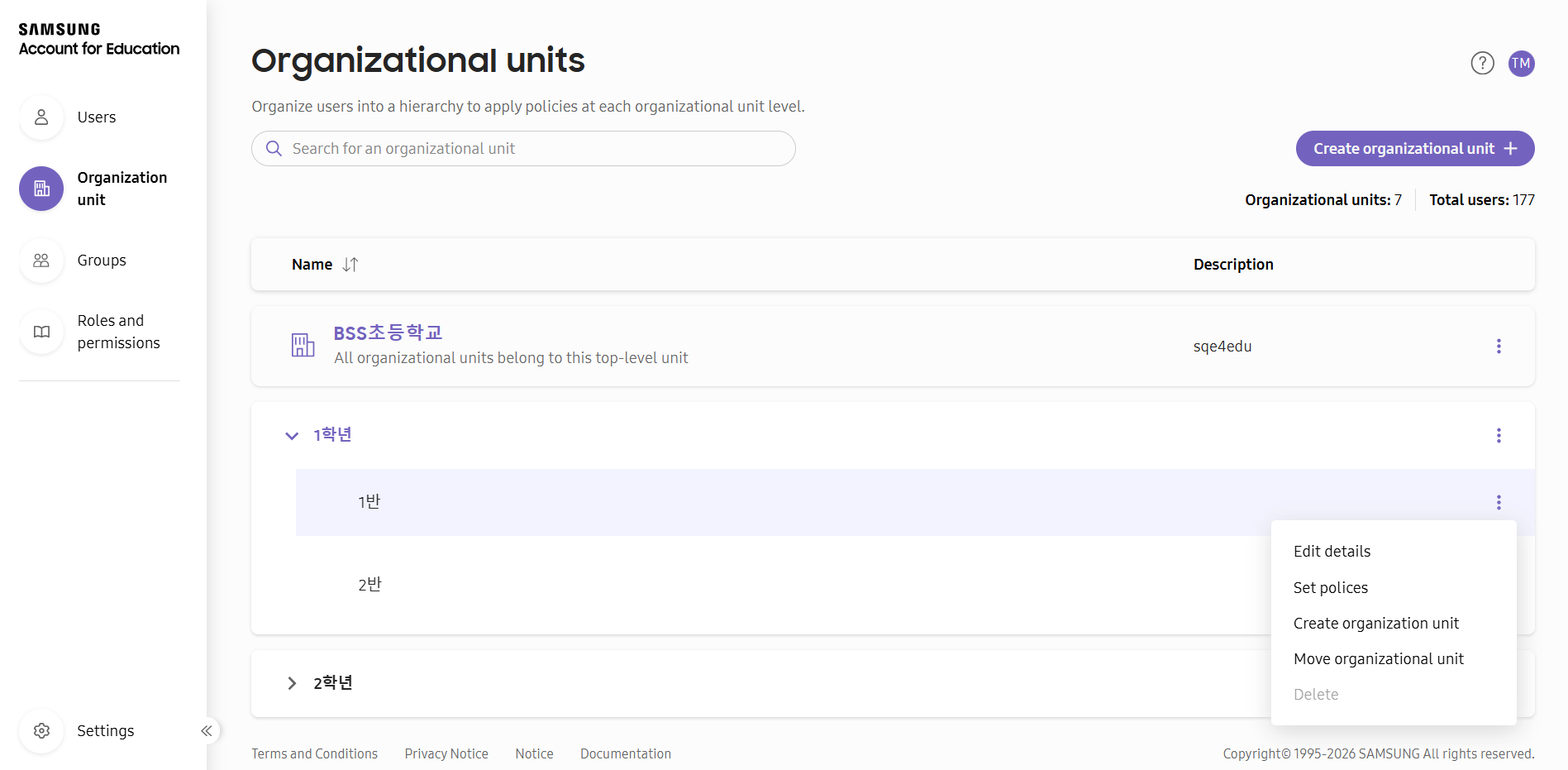
Create an organizational unit
Creating an organizational unit lets you build your educational organization’s hierarchy, such as schools, departments, or grade levels. When you create your account, your educational organization is automatically assigned as the top-level organizational unit.
Organizational units can be created directly or from a parent record.
Create directly
To create an organizational unit directly:
- Navigate to Organizational units.
- Click Create organizational unit.
- Enter the organizational unit name and optional description.
- Select a parent organizational unit (defaults to the top-level organizational unit).
- Click Create and set policies.
- Proceed to set organizational unit policies, or click Set later.
Create from a parent organizational unit
To create an organizational unit from a parent:
- Navigate to Organizational units.
- Click (More actions icon) next to the parent organizational unit.
- Select Create organizational unit.
- Enter the organizational unit name and description.
- Click Create and set policies.
- Proceed to set organizational unit policies, or click Set later.
Set organizational unit policies
Policies allow you to control the settings or behavior of the organizational unit. You can set organizational unit policies from the Set organizational unit policies page, which can be accessed while creating an organizational unit, or from Organizational units > (More actions icon) > Set policies.
- To inherit the parent organizational unit’s policies, check Inherit parent organizational unit’s policies.
- To enforce two-step verification for the organizational unit, enable Two-step verification.
Policies apply to all users in the organizational unit unless overridden by child organizational units.
Edit organizational unit details
You can edit an existing organizational unit’s details from the Edit organization unit details panel to keep organizational unit information accurate and descriptive.
- Navigate to Organizational units.
- Click (More actions icon) next to the organizational unit.
- Select Edit details to open the Edit organizational unit details panel.
- Modify the organizational unit name and/or description.
- Click Save.
Move an organizational unit
You can move an organizational unit to under a new parent to reorganize your educational organization’s hierarchy as needed.
All user accounts and child organizational units under the moved organizational unit are also moved to the new parent.
- Navigate to Organizational units.
- Click (More actions icon) next to the organizational unit.
- Select Move organizational unit.
- Search for and select the new parent organizational unit.
- Click Move.
Delete an organizational unit
You can delete an organizational unit when it’s no longer needed for your educational organization’s hierarchy. Deleting an organizational unit requires moving or removing all assigned users and child organizational units first.
Before deleting an organizational unit, you must move or remove its assigned users and child organizational units. The top-level organizational unit for your institution cannot be deleted.
- Navigate to Organizational units.
- Click (More actions icon) next to the organizational unit.
- Select Delete.
- Confirm by clicking Delete.
Where to go next
- To add users to your educational institution, see Manage users.
- To define groups, see Manage groups.
On this page
Is this page helpful?