Manage roles and permissions
Last updated August 28th, 2026
Roles allow you to control access within Samsung Account for Education, ensuring users have appropriate permissions for their responsibilities while maintaining security. You must be an admin with the Super Admin role to manage role assignments.
Roles cannot be deleted. They can only be assigned or unassigned to users and groups.
Find and organize roles
From the Roles and permissions page, you can quickly locate specific roles and customize the view:
- To find a role, use the search bar at the top to search by role name.
- To customize the columns shown, click the gear icon to show or hide columns in the role list.
- To sort or filter roles, click column headers to sort by that value or use the filter icon to filter results.
Role types
There are two kinds of roles in Samsung Account for Education:
| Type | Description |
|---|---|
| Super Admin | Superuser role with complete, system-wide access |
| Group Admin | Role with group management capabilities only |
Add members to a role
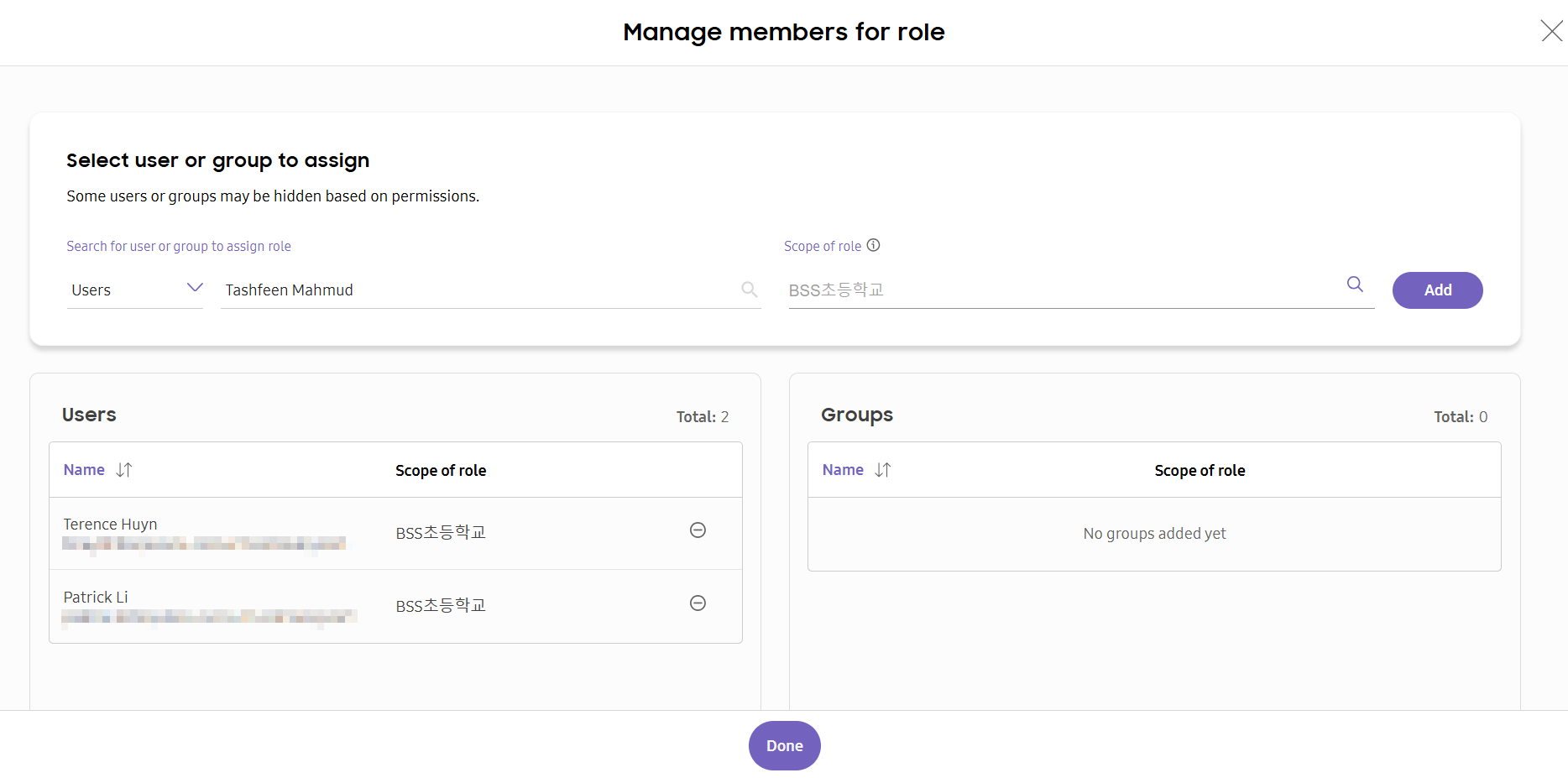
Adding members to roles grants them specific permissions and access rights within Samsung Account for Education. You can add users or groups to a role from the Manage members for role page, which is accessible from Roles and permissions > (More actions icon) > Manage users and groups.
Not all users need to have a role. For example, teachers and students do not require any special permissions.
Exercise caution when assigning roles. Role scope in Samsung Account for Education is institution-wide and cannot be limited to a specific organizational unit. If you add a group to a role, all users in that group receive the role’s permissions.
On the Manage members for role page:
- Under Select user or group to assign, choose Groups or Users to search for.
- Start typing the intended group/user name or account ID.
- Select the matching group/user and click Add.
- Click Done to open the updated role list.
Remove members from a role
You can remove users or groups from a role when they no longer need the associated permissions. Removing members from a role revokes their access without deleting the user or group accounts.
Removing a member from a role only revokes their access permissions. It does not delete the user or group.
- On the Manage members for role page, click the remove icon (remove) next to the member.
- Confirm by clicking Remove.
- Click Done to save your changes.
Where to go next
- To add more users, see Manage users.
- To add more groups, see Manage groups.
- To create your institution’s hierarchy, see Manage organizational units.
On this page
Is this page helpful?