Get started
Last updated August 28th, 2026
As a teacher, use this page to help your students set up the Knox Classroom app on their school device and sign in with the account your school provided. Before a student can join a class, the app must be set up on their device and they must sign in.
Before a student begins
Make sure your students have a school device with the Knox Classroom app installed, and Samsung Account for Education credentials from your school. If they do not have either, have them ask you or the IT administrator before continuing.
Sign in for the first time
Your students must complete these steps the first time they open the Knox Classroom app.
- Your students must allow the permissions requested by the app when prompted.
- If an update is required, students should select Update and complete the update before continuing. On Android tablets, the update opens Google Play.
- Your students must sign in with the Samsung Account for Education credentials supplied by your school.
- Your students must accept the required Collection and Use of Personal Information and Terms and Conditions. If prompted, they must agree to the use of location information to continue.
The app checks whether the student’s account can use Knox Classroom before it opens their home page. During their first use, an overview introduces screen sharing, teacher assistance, and focus controls.
If onboarding cannot continue
- If the school subscription has expired or its user limit has been reached, the student should contact you.
- If Knox Classroom cannot connect, the student should check their network connection and select Retry. If the issue persists, have them try again later.
- If a student cannot complete an agreement or sign in, they should contact you or your IT administrator.
Use the home page
After your students sign in, the home page gives them access to their classes, announcements, profile, and settings.
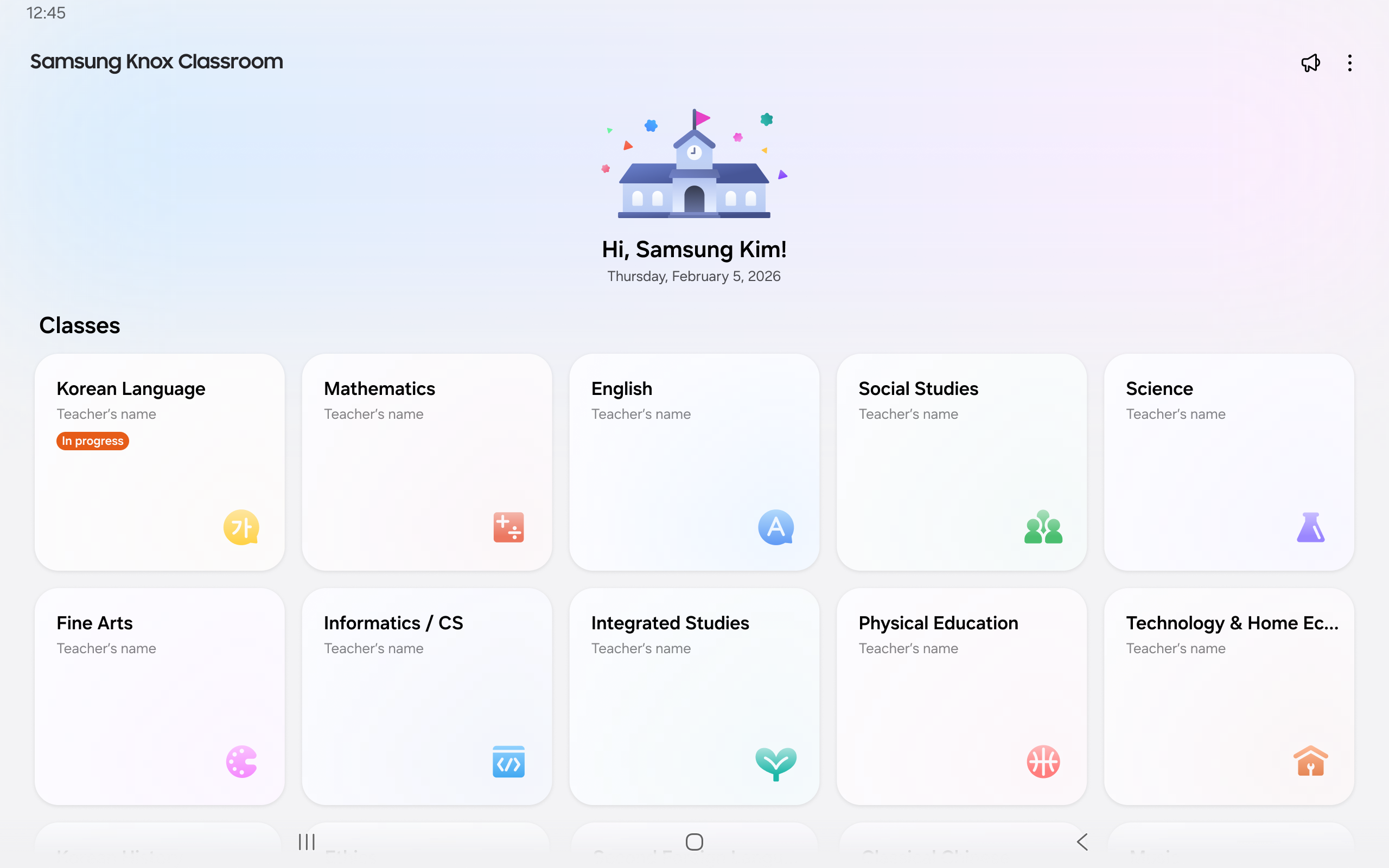
On the home page, your students can:
- Select a class card to open that class.
- Select Join new class to enter a class code from you.
- Open Announcements to view class updates. They select View more to see more announcements, or use search to find an announcement. They can also search announcements from an open class.
- Open their profile or select Settings to manage their account and app settings.
To refresh the class list and announcements, your students can pull down on the home page. They can also pull down to refresh from an open class.
Reorder classes
Your students can arrange class cards in the order that works best for them. To do so:
- Select and hold a class card.
- Drag the card to the position they want.
- Release the card.
Manage a student profile and sign out
From the home page, your students can open their profile or select Settings to view their account information and the app’s legal or about information. Your students should use the sign-out option in their profile when they are not in a class.
If a student cannot open or sign in to the app
Your students should update the app if prompted, then try again. If the app does not open, cannot sign in, or reports an access problem, contact your IT administrator with the student’s account and device details.
Where to go next
Your students can continue by joining their class.
- To join a class and use its student tools, see Join and participate in a class.
On this page
Is this page helpful?