Create and manage classes
Last updated August 28th, 2026
Use classes in Samsung Knox Classroom to organize students and run class sessions, making it easy to manage groups and start lessons with the right students.
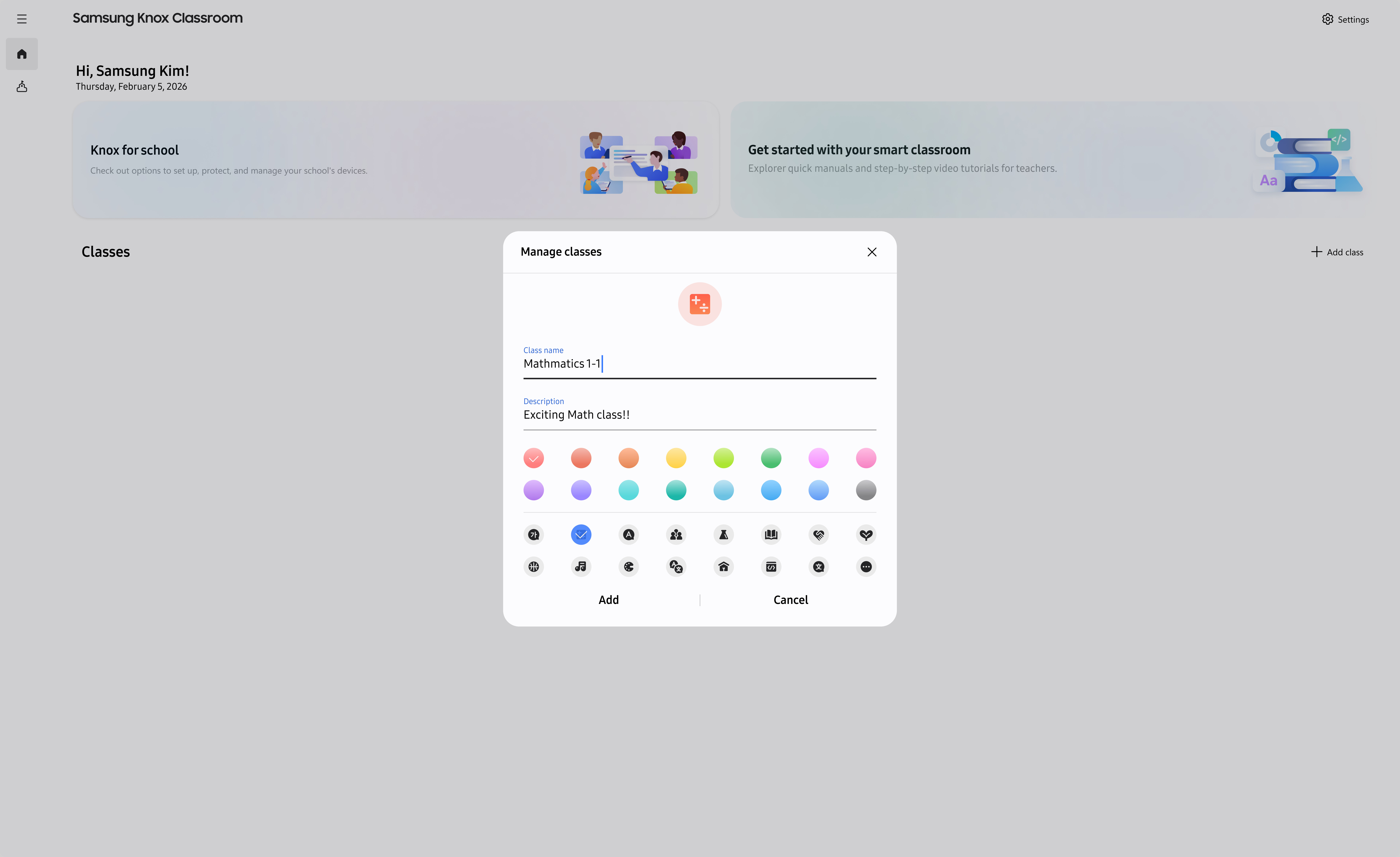
Create a class
Create a class from your dashboard.
- From the dashboard, select + Add class.
- Enter a Class name.
- Optionally, add a description and choose an icon and color.
- Select Add.
The Add button is unavailable until you enter a class name. A class name can contain up to 750 characters, and a description can contain up to 3,600 characters. If a value exceeds these limits, shorten it before you continue.
If class creation fails, try again. If the issue continues, check your network connection.
After creating a class, you can configure the session duration, which defines how long classroom activities remain active. You can also adjust the session duration when starting a live session. For details, see Start a class session.
Reorder classes
Arrange class cards to suit your workflow.
- On the dashboard, select and hold a class card.
- Drag the card to the position you want.
- Release the card.
Keep the card within the Classes area while you drag. If the change cannot be saved, the card returns to its previous position and Knox Classroom displays an error. Try again.
Pin a class
Pin a frequently used class to keep it easy to find on your dashboard. Select the pin control on the class card to pin the class. Select it again to unpin the class.
Edit a class
Update a class from its detail page to keep class information accurate, such as changing its name, description, or appearance.
- Select a class card to open the class detail page.
- Select Edit class.
- Update the class name, description, icon, or color.
- Select Save.
You cannot edit a class while a class session is in progress. If saving your changes fails, try again. If the issue continues, check your network connection.
Delete a class
Delete a class only when you no longer need its class data.
Deleting a class removes its students, groups, and announcements. This action cannot be undone.
- On the dashboard, select (More actions icon) for the class.
- Select Delete class.
- Select Delete to confirm.
You cannot delete a class while a class session is in progress. If deletion fails, try again. If the issue continues, check your network connection.
Where to go next
Continue by preparing your roster or starting the class.
- To add students to your class, see Add students to a class.
- To organize your class roster into groups, see Manage students and groups.
- To start a live class, see Start and manage a class session.
On this page
Is this page helpful?