Join and participate in a class
Last updated August 28th, 2026
As a teacher, use this page to help your students join and participate in a class. Once they have set up the app, your students can use Knox Classroom to join the class you provide and take part in its activities.
Join with a class code
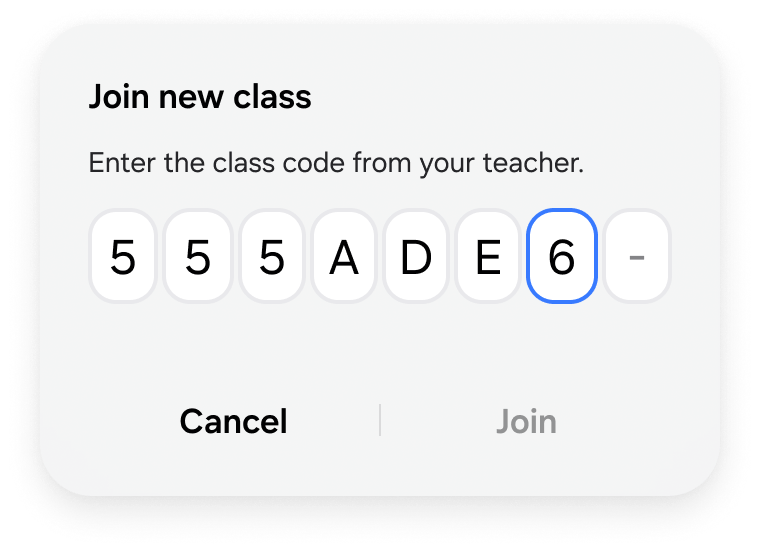
Your students must use the class code you shared with them. To do this, your students should:
- Sign in to the Knox Classroom app.
- On the home page, select Join new class.
- Enter the class code you shared.
- Select Search.
If the class is found and the student is not already enrolled, they select it to open the class. A valid class code identifies the intended class, and anyone registered in Samsung Account for Education who has the Knox Classroom app can use it to join. If the code does not work, have the student check it with you. If they still cannot join, confirm that they can sign in to the app, then contact your IT administrator.
You may use another invitation or roster process. Provide instructions to your students accordingly.
If a student cannot join with a class code
Knox Classroom displays a message when it cannot add a student to a class.
- Couldn’t find class — Have the student check the class code with you and try again.
- This class is full. Contact your teacher for help. — The student should ask you whether you can make space or give them another class code.
- You’ve already joined this class. — Have the student select the option to go to the class.
Participate during a class
During a class, your students can use the following controls when they are available in the app:
Your students can participate in only one class at a time.
- Your students can raise their hand when they need help or want to contribute. They can select Lower hand when they no longer need help.
- Your students can select Screen share to ask to share their screen.
- Your students can select Ask to leave to ask to leave the class.
When a student requests to share their screen or leave the class, the related control is unavailable while you are deciding. If you decline the request, the control becomes available again so the student can resubmit it.
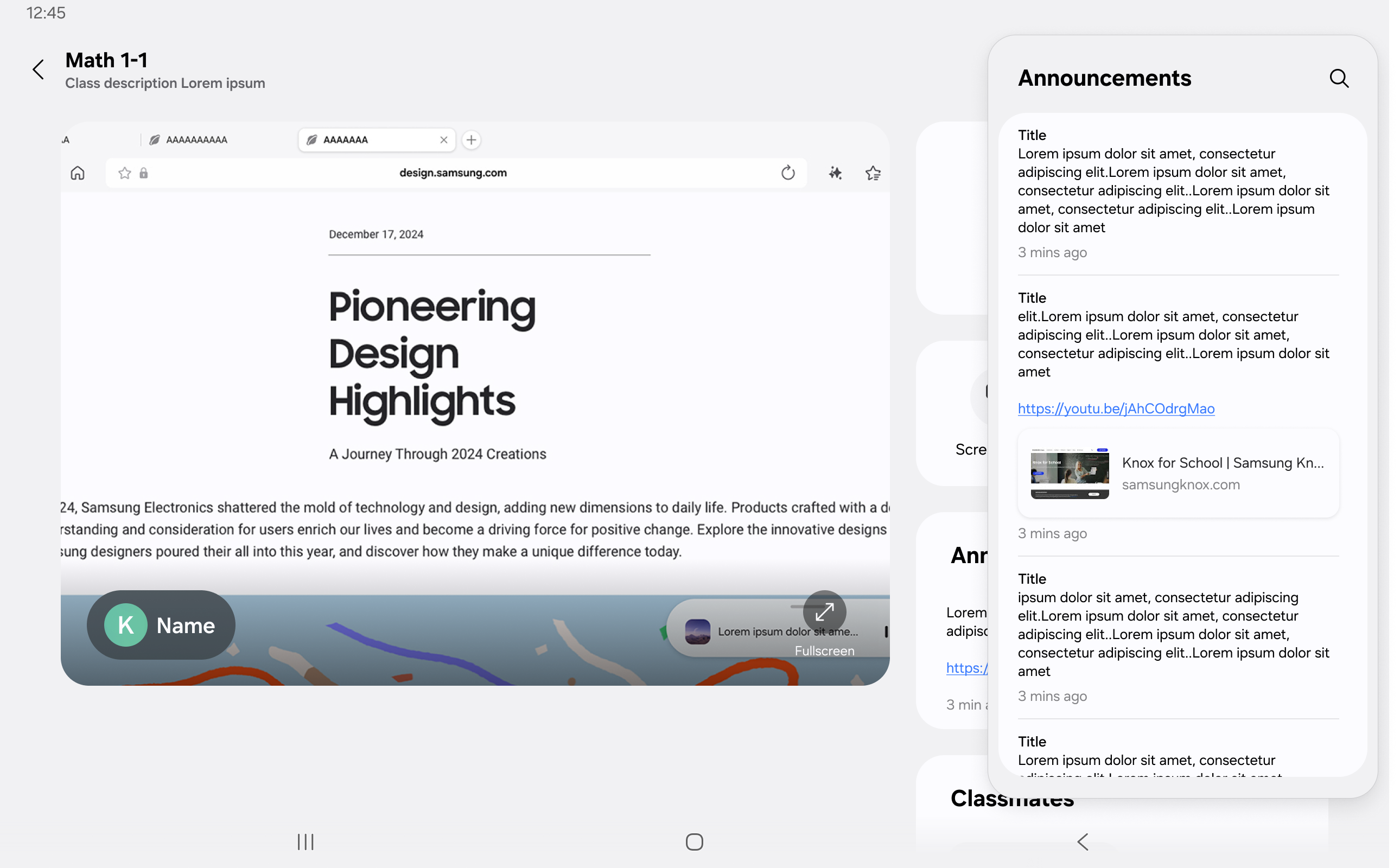
View your in-class group
If you assign in-class groups, Knox Classroom displays the group the student is assigned to in the class. Your students use this information to follow the activity instructions you provide.
Ask to leave a class
When a student needs to leave an active class, they can use the class controls.
- The student selects Ask to leave.
- In Ask to leave this class session?, the student selects Ask to send the request, or Cancel to keep participating.
- The student waits while you decide whether to approve the request.
You receive the leave request and can approve it by disconnecting the student from the session. If you decline it, Knox Classroom displays Your request to leave the class was rejected. The student can select Ask to leave again when they are ready to resubmit it.
Share your screen
Your students can request to share their screen with the class, or you can ask them to share it.
Request to share screen
- The student selects Screen share.
- In Ask to share your screen?, the student selects Ask to send the request.
- The student waits for you to approve the request.
When you approve the request, Knox Classroom displays Request approved. Sharing screen… and begins sharing the student’s screen with you, as well as to all their classmates. If you decline it, Knox Classroom displays Your request to share your screen was rejected. The student can send another request when they are ready.
Respond to a teacher screen-share request
When you ask a student to share, Knox Classroom displays Your teacher wants you to share your screen with the class. to the student. The student selects Screen share to continue. The app displays Screen sharing will start once your teacher confirms while it prepares the session.
While the student’s screen is shared, an ongoing indicator is displayed. To stop sharing, the student selects End sharing. In End screen sharing?, the student selects End to confirm or Cancel to continue sharing.
What teacher controls do
You can manage student devices during an active class. Knox Classroom displays a message on the student’s device when a control affects them.
- Your teacher locked your device. The student’s device is unavailable until you unlock it or the class ends. The lock is released automatically when the class ends.
- Your teacher muted your device or Your teacher unmuted your device.
- The app is launched when you open an app or website for the class. Students follow the activity instructions you provide.
- This app has been blocked by your teacher or This website has been blocked by your teacher appears when a student tries to open blocked content.
- Controlled by Teacher appears on the student’s device while you are remotely controlling it. Teacher control ended. appears when you stop.
If an activity does not open, have the student check that they are connected to the class. If a network interruption disconnected them, the app reconnects automatically when the connection recovers. If the activity still does not open after they reconnect, have them tell you.
When a class ends
When you end the class, Knox Classroom displays The teacher ended the class. on the student’s device. The student selects Go to Student’s Home to return to the home page. Any teacher-applied device lock is released when the class ends.
Get help
Guide your students to ask the right person for help:
- Students should ask you about class codes, class activities, session controls, or a request that needs your response.
- Students should ask the IT administrator about their account, password, app installation, sign-in, or access problems.
Try the guidance below when a student needs help with the app or a class.
- If a request remains unavailable, have the student wait for your response or ask you for help.
- If a student cannot sign in or join after checking the class code, contact your IT administrator.
- If a student needs to change or reset their school account password, contact your IT administrator.
Where to go next
Your students should return to setup steps if they need to update the app or sign in again.
- To install the app, update it, or sign in again, see Get started.
On this page
Is this page helpful?