Sign-up and institution registration
Last updated August 28th, 2026
This page covers the one-time setup process for an educational organization. By signing up for an account and then registering your educational organization for verification, you establish your verified Samsung Account for Education account, enabling you to invite users, manage settings, and unlock the full range of Samsung Account for Education features.
Sign up for an account
Signing up for Samsung Account for Education establishes your administrator account and captures your educational organization’s essential information, including organization name, type, location, and contact details. This foundational step creates your identity within the Samsung education ecosystem and prepares your educational organization for verification.
After signing up for an account, you’ll complete the second step by registering your educational organization to verify its legitimacy. Once verified, you can invite users, manage organization settings, and access the full range of Samsung Account for Education services.
Step 1: Create your account
-
Navigate to the Samsung Account for Education console and click Create an account.
-
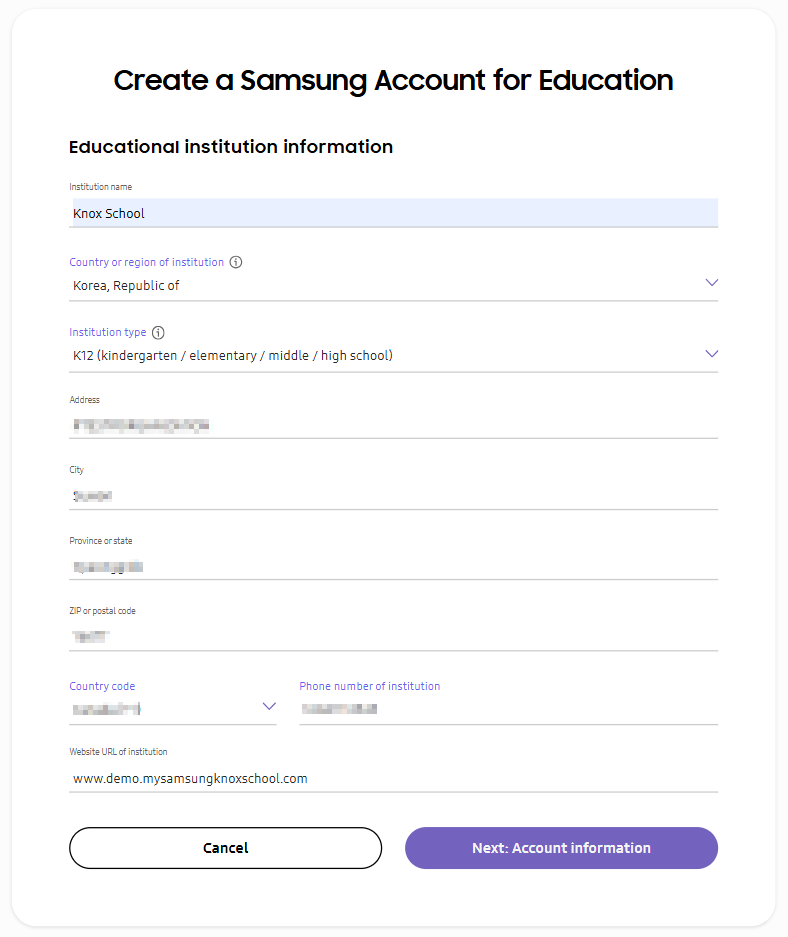
Under Educational institution information, fill in all required fields:
- Institution name — Enter the official name of your educational institution.
- Country or region of institution — Select the country or region where your educational institution is located.
- Institution type — Select one of the following options depending on the type of institution you represent:
- K12 (kindergarten / elementary / middle /high school)
- Higher education (universities, colleges, graduate schools)
- Other
- Address — Enter the full street address.
- City — Enter the city where your institution is located.
- Province or state — Enter the province or state.
- ZIP or postal code — Enter the ZIP code or postal code.
- Country code — Select the telephone country code.
- Phone number of institution — Enter the institution’s contact number.
- Website URL of institution — Enter the official website URL for your institution.
-
Click Next: Account information.
Step 2: Enter administrator details
- Under Account information, enter your personal administrator details:
- First name — Enter your first name.
- Last name — Enter your last name.
- Work email — Enter your institution’s email address (this becomes your account ID).
- Password — Create a secure password.
- Confirm password — Re-enter the password to confirm.
- Select I agree to the Privacy Notice.
- Click Next to review your default ID.
- Click Next to proceed to verify your identity.
Step 3: Verify your identity
- Under Verify your identity, click Send code. The code is sent to you email and expires after 30 minutes.
- Paste the code in the Verification code field.
- Click Verify.
If you don’t receive a verification code, or if your code has expired, click Resend code to request a new one.
If your email domain is already associated with an existing Samsung Account for Education account — which happens when another admin has already registered and verified your educational institution – you will see a Domain already registered page with two options:
| Option | When to use |
|---|---|
| Sign up anyway | Continue with your registration if you want to register as a new educational institution. May require additional verification |
| Request account | Request access to the existing domain account. This is the recommended step in most cases. Requires admin approval |
Contact Samsung support if you believe your domain was used by an unauthorized organization.
Step 4: Review and accept agreements
- Under Review agreements, select the Terms and Conditions and Data Processing Agreement checkboxes.
- Click Agree.
Step 5: Account created
A welcome email is sent to your email address. The portal displays an Account created confirmation page.
You have up to 30 days to complete institution verification. Until your institution is verified, you can sign in but cannot invite users or perform administrative actions.
Register your institution for verification
After signing up for your account, you must register your educational institution within 30 days for verification. Your registration is considered incomplete until you register your institution, and it is verified by Samsung. Your registration is considered incomplete until your institution has been verified.
This section assumes that your educational institution doesn’t exist on Samsung Account for Education yet. The steps in this section only need to be performed once, by the first person to create an account for your institution.
Submit institution registration
- From the Account created page, click Register now.
- On the Review educational institution details page, verify all information.
- Click Submit registration.
You’ll receive an email notifying you that your registration request is submitted.
Verification process
You receive an email notification when your institution is verified, typically within 3 to 5 business days. If your registration is rejected, resolve the issues in the original request and resubmit it within 15 days.
After your institution is verified and you have set up a domain:
- You can start inviting other users.
- Other admins who are signing up independently can select the Request account option while verifying their identity to be added to your domain.
If your institution is not verified within 30 days, your account will be deleted. If your registration application is rejected three times consecutively, your account will be permanently deleted.
Where to go next
- See User onboarding flow for an overview of user onboarding.
- Proceed to Configure settings to add a domain and set the default language.
On this page
Is this page helpful?