Get started
Last updated August 28th, 2026
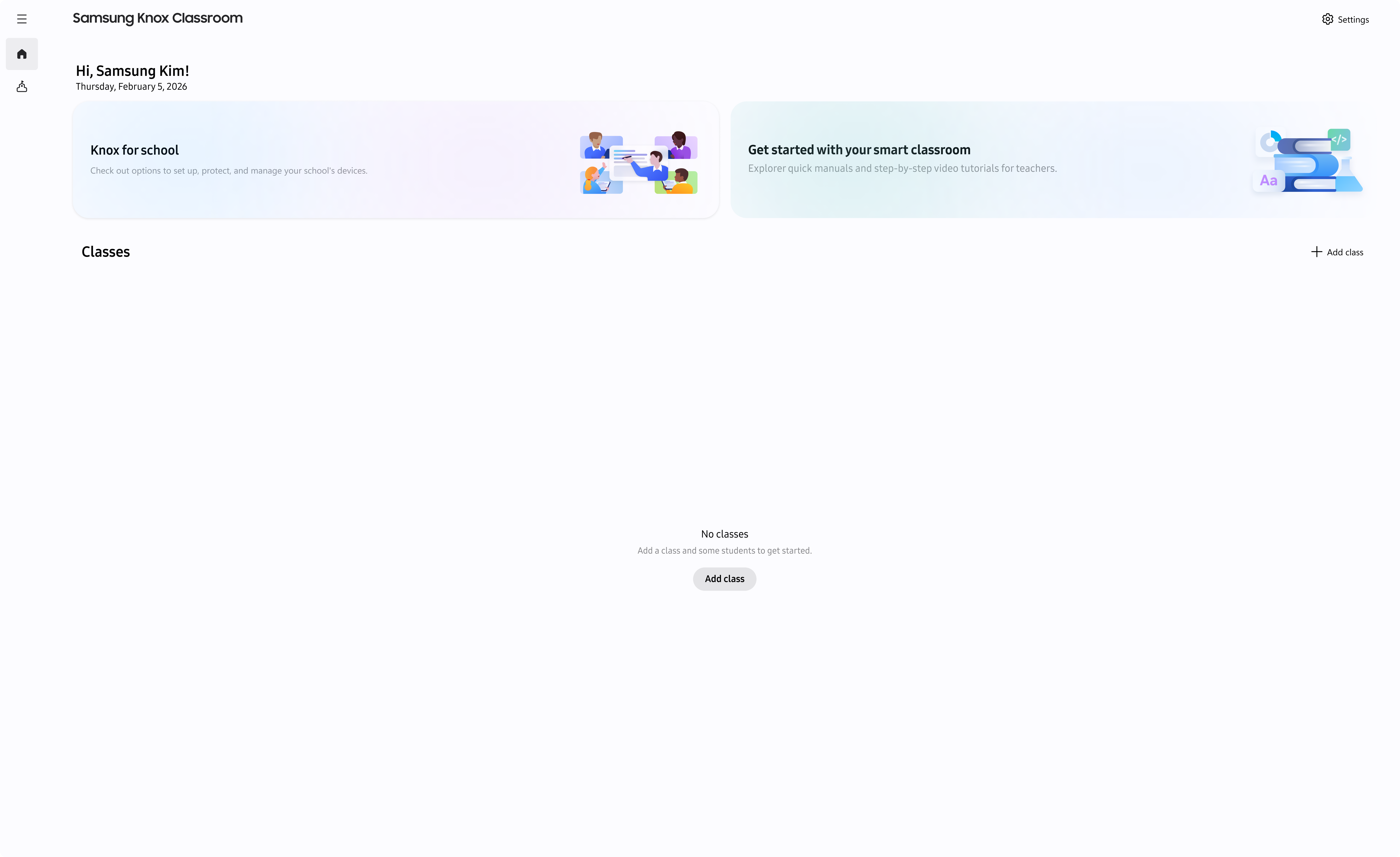
The Knox Classroom dashboard is your landing page upon signing in. It gives you a single place to create your classes, open them, and manage the settings you use while teaching.
Before you sign in
Your IT administrator must create your Samsung Account for Education account and add you to the Teacher Group before you can sign in to Knox Classroom. If you cannot sign in, ask your IT administrator to confirm your account and Teacher Group membership. For account setup details, see Manage users.
Sign in to Knox Classroom
Sign in with your Samsung Account for Education credentials to access the Knox Classroom dashboard, which contains your classes, students, and teaching tools. Only teachers can sign in to the Knox Classroom web portal. If you are not a teacher, use Samsung Account for Education instead.
Step 1: Enter your Account ID
- Navigate to the Knox Classroom dashboard in your browser.
- Enter your Account ID — this is your business or educational account ID.
- Select Next.
Step 2: Enter your password
- Enter your Password.
- Select Next to submit your credentials for verification.
Step 3: Complete two-step verification
If your organizational unit requires two-step verification, complete the following steps.
- Select Send code to receive a verification code on your registered phone number.
- Enter the 6-digit verification code sent to your phone.
- Select Verify to complete the sign-in process.
Two-step verification is configured by your IT administrator through organizational unit policies. If you cannot complete this step, contact your IT administrator. For details, see Set organizational unit policies.
Step 4: Review the feature overview
After verification, a brief overview of the application’s key features is displayed. It introduces student monitoring, remote control, device locking, and focus mode. Select Continue to open your dashboard.
If onboarding cannot continue
Before you can continue, accept any required Collection and Use of Personal Information, Terms and Conditions, and location-information agreements.
- If your school subscription has expired or the institution user limit has been reached, contact your IT administrator.
- If Knox Classroom cannot connect, try again later.
- If you sign in from another browser, Knox Classroom signs you out of the earlier browser session. Sign in again there if you need to continue.
- If you see Page not found, select Back and check that you used the correct Knox Classroom web address.
Use the dashboard
From the dashboard, you can:
- Select a class card to open that class.
- Select + Add class to create a class.
- Select Settings to manage your account settings.
If you do not have any classes, select + Add class to create your first one. The dashboard can also display information and guidance cards in addition to your class cards.
Change the display language
Set the dashboard language for the browser you are using.
- Select Settings.
- Select Language.
- Select a language, or select Match browser to use your browser language.
The language change takes effect immediately and is saved locally in the browser. If the change cannot be applied, Knox Classroom restores your previous language setting; try again.
Sign out
Sign out when you have finished using Knox Classroom on this device.
- Select Settings.
- Select Sign out.
- Review the account in the confirmation dialog, then select Sign out again to confirm.
If signing out fails, check your network connection and try again.
View legal information
Open legal documents from Settings when you need to review them.
- Select Settings.
- Under Legal links, select the document you want to view.
Where to go next
Continue by creating a class or starting a live session.
- To create a class and share its code, see Create and manage classes.
- To start monitoring and managing a live class, see Start and manage a class session.
On this page
Is this page helpful?