Register devices for coverage
Last updated October 21st, 2026
When you’re ready to protect your devices, you can register them for Samsung Care Pro coverage.
Prerequisites
Before you begin, ensure you have the following:
- Access to the Knox Admin Portal. For information on how to apply for access, see Create a Samsung Knox account.
- A Samsung Care Pro license. For more information on how to obtain a license, see Get a license.
- Eligible devices. For more information, refer to the device eligibility requirements that follow.
Device eligibility requirements
Before you register a device for coverage, confirm whether the device meets your license's eligibility requirements:
- Country: The country where you purchased the device must match the country covered by the license.
- Device type and model: The device's type (such as mobile, PC, or tablet) and model (such as Galaxy S26, Galaxy A57, or Galaxy Z Fold 8) must be covered by the license. Eligible device types and models vary by country.
-
EULA: The device's End User License Agreement (EULA) must be accepted within a set period after initial boot-up: 60 days for Samsung Care Pro - Select, or 2 years (730 days) for Samsung Care Pro - Enterprise*. Alternatively, the device must be unused (not yet turned on).
*Default period. Your license terms may specify a different acceptance period.
You can only register a device for Samsung Care Pro coverage if it meets all these requirements.
Add devices and assign a license
Registering a device for coverage is simple and only requires one step — use a bulk action to add your devices to the Knox Admin Portal and assign them a license at the same time. You can add up to 1,500 devices at once.
To add your devices:
-
Navigate to the common Devices page of the Knox Admin Portal.
-
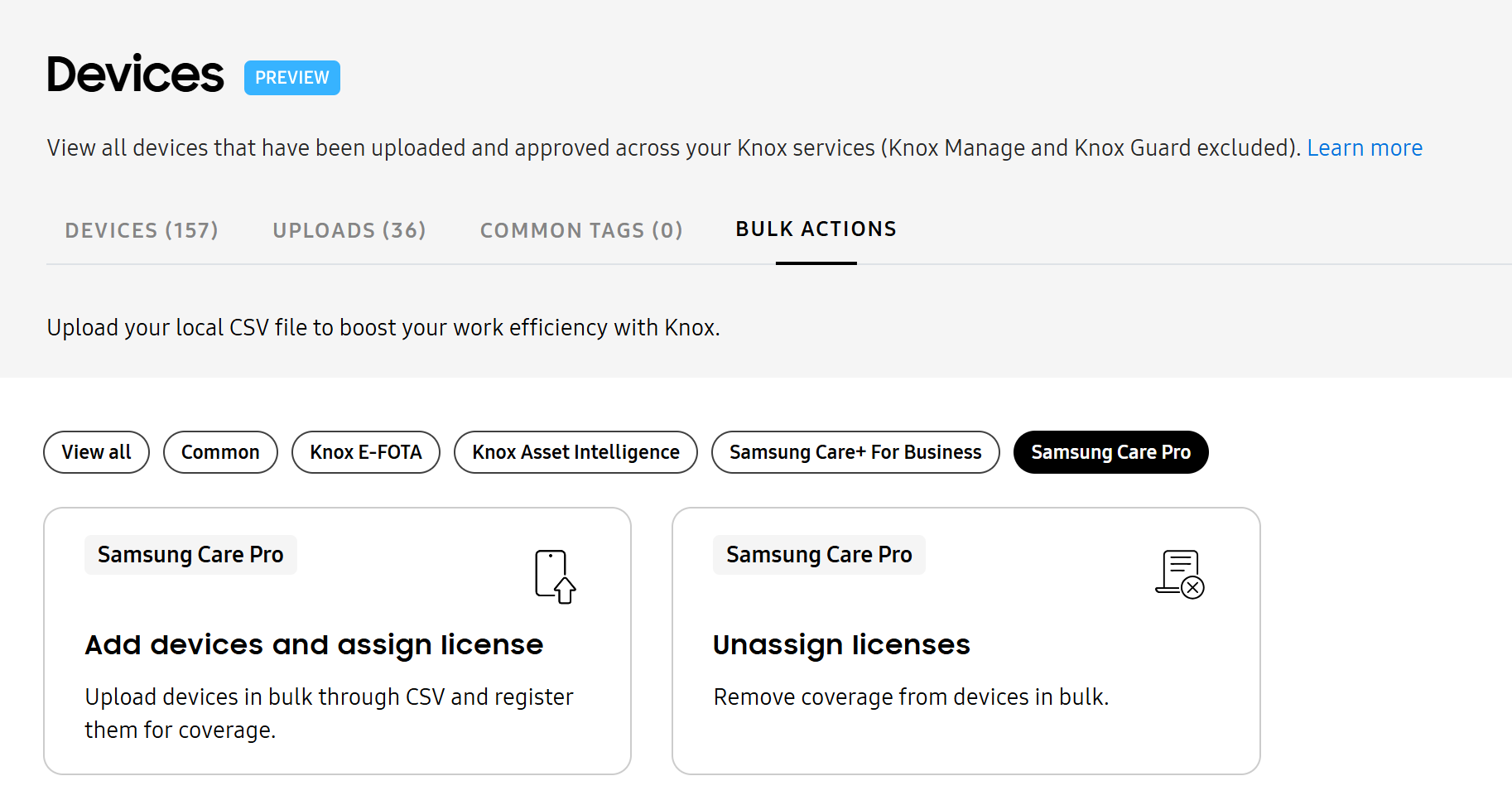
Click the BULK ACTIONS tab.
-
Click Add devices and assign license.
-
Click Browse file and upload a CSV file containing your devices.
Ensure your CSV file is formatted properly — enter only one device IMEI or serial number per line. You can optionally click Download CSV template if needed.
-
Select a license to assign to your devices. Ensure your license supports the devices you’re uploading.
-
Click Add and assign.
Your devices are added to the common device list. On the license’s Start date, Samsung Care Pro coverage activates, and the coverage officially begins. If the license hasn’t yet reached its start date, the license gets assigned, but Samsung Care Pro coverage isn’t activated.
To view a list of devices that are registered for coverage, you can sort the common device list by Samsung Care Pro.
Unassign licenses
If you accidentally assign the wrong license to a device, or the device’s coverage has expired, you can unassign the license. You can only unassign a license that isn’t currently in use. If the license’s Start date has already passed, the device is already covered by Samsung Care Pro and you won’t be able to unassign the license.
Using bulk actions, you can unassign a license from up to 1,500 devices at once.
To remove coverage from devices:
-
Navigate to the common Devices page of the Knox Admin Portal.
-
Click the BULK ACTIONS tab.
-
Click Unassign licenses.
-
Click Browse file and upload a CSV file containing your devices.
Ensure your CSV file is formatted properly — enter only one device IMEI or serial number per line. You can optionally click Download CSV template if needed.
-
Select a license to unassign from your devices. Only licenses with the Inactive status and at least one assigned seat are shown.
Delete devices
Consider removing a device from Samsung Care Pro if it’s no longer in use or registered for coverage. You can remove devices by deleting them from the common device list, either individually or through bulk actions. For more information, see Delete devices in the Knox Admin Portal admin guide.
You can’t delete a device from Samsung Care Pro if it has:
- An active Samsung Care Pro license.
- An assigned Samsung Care Pro license with a start date in the future. To delete these devices, you must first unassign the license.
- An open service request.
On this page
Is this page helpful?