Get started with Samsung Care Pro
Last updated October 21st, 2026
Samsung Care Pro provides businesses with two key service offerings, all in one integrated platform:
- Priority technical support: If you have a Samsung Care Pro license, any issue you report is fast-tracked, helping you quickly receive the support you need.
- Device repair coverage: Assign license seats to your devices to register them for coverage. If these devices are damaged or malfunctioning during the coverage period, you’ll be able to repair or, if eligible, exchange them as needed.
This tutorial shows you how to set up Samsung Care Pro, register your devices for coverage, and request service.
Prerequisites
Before proceeding with this tutorial, ensure you have the following:
- Access to the Knox Admin Portal. For information on how to apply for access, see Create a Samsung Knox account.
- Devices eligible for Samsung Care Pro coverage. This may differ depending on your specific region. For details, reach out to a Samsung representative in your area.
- A Samsung Care Pro license. For information on how to purchase a license and the types of licenses available, see About Samsung Care Pro licenses.
Step 1: Access Samsung Care Pro
Samsung Care Pro is available as part of the Knox Admin Portal. To access Samsung Care Pro, first sign in to the Knox Admin Portal.
If this is your first time signing in to the portal, you’re greeted with a welcome screen. Then, you’re prompted to select the Knox services you want to use — make sure you select Samsung Care Pro as one of your services. This ensures the console displays in the navigation pane. If you’ve previously signed in, you can adjust your Knox Admin Portal settings to show Samsung Care Pro.
Once you confirm your selection, the Knox Admin Portal shows the services you chose in the navigation pane. The navigation pane also displays the common pages shared across Knox services.
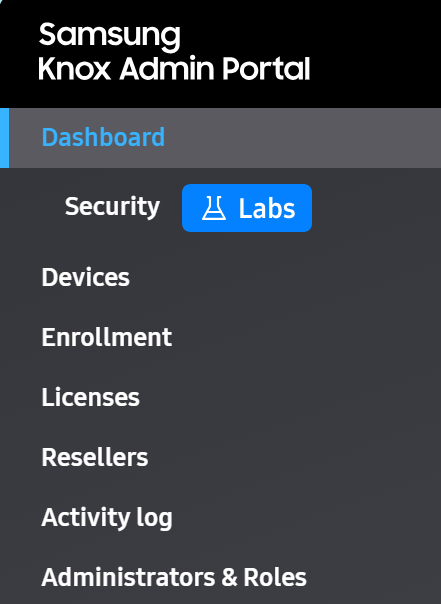
On these pages, you can perform general account management tasks, such as managing devices or licenses.
- Devices: Upload, view, and manage your devices.
- Licenses: Add, manage, and delete your Samsung Care Pro licenses.
- Activity log: Consolidates all activity log events across Knox services. Use this page to view a list of all events performed across your tenant.
- Administrators & Roles: Invite and manage admins to Samsung Care Pro, and assign them appropriate role permissions.
Below the common pages is the Samsung Care Pro console. Here, you can find Samsung Care Pro specific features, such as creating service requests or support tickets.
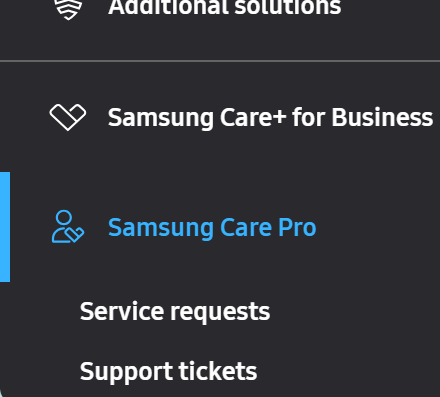
- Service requests: If your devices are damaged, submit and track all your repair or device exchange requests.
- Support tickets: Create a priority support ticket to report an issue to our support team.
Now that you’re familiar with the console, you’re ready to add a license.
Step 2: Add a license
Before you can register a device for coverage, you must have a Samsung Care Pro license with enough available license seats in your account.
To get a license, contact a Samsung sales representative or purchase one from a reseller. Samsung Care Pro is available in two tiers, Select and Enterprise, with coverage terms of 1-5 years. For more information, see About Samsung Care Pro licenses.
Once you’ve purchased a license, add it to your account using the license key you were provided:
- On the Knox Admin Portal, go to Licenses.
- Click ACTIONS > Enter license key.
- Enter a license name and your license key.
- Click ADD.
If you provided your reseller your Knox Customer ID when purchasing the license, they may be able to add the license to your account.
For more information, see View and manage licenses.
Step 3: Register devices for coverage
Once you have a valid license, you can add your devices to the Knox Admin Portal and register them for Samsung Care Pro coverage.
Before you register any devices, make sure your license has enough available license seats and confirm whether the device meets your license’s eligibility requirements:
-
Country: The country where you purchased the device must match the country covered by the license.
-
Device type and model: The device’s type (such as mobile, PC, or tablet) and model (such as Galaxy S26, Galaxy A57, or Galaxy Z Fold 8) must be covered by the license. Eligible device types and models vary by country.
-
EULA: The device’s End User License Agreement (EULA) must be accepted within a set period after initial boot-up: 60 days for Samsung Care Pro - Select, or 2 years (730 days) for Samsung Care Pro - Enterprise*. Alternatively, the device must be unused (not yet turned on).
*Default period. Your license terms may specify a different acceptance period.
You can register devices for coverage using bulk actions:
-
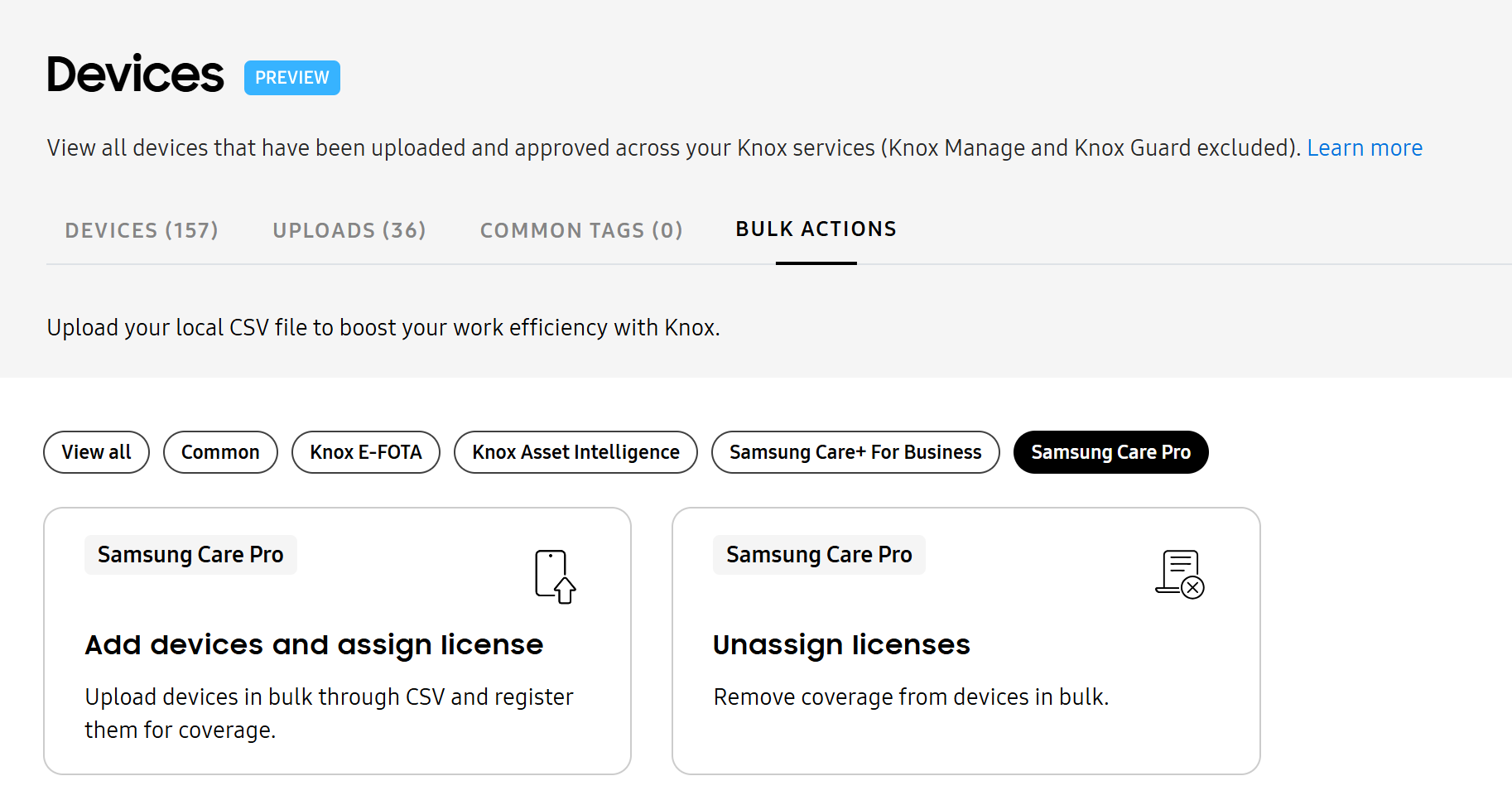
Navigate to the common Devices page of the Knox Admin Portal.
-
Click the BULK ACTIONS tab.
-
Click Add devices and assign license.
-
Click Browse file and upload a CSV file containing your devices.
-
Select a license to assign to your devices. Ensure your license supports the devices you’re uploading.
-
Click Add and assign.
If the devices you wish to register are already added to your account, you must still manually assign them a Samsung Care Pro license using the Add devices and assign license bulk action.
For more information on device eligibility requirements and how to register devices in bulk, see Register devices for coverage.
Step 4: Use Samsung Care Pro
Once your devices are registered for coverage, you can leverage Samsung Care Pro’s service offerings.
Submit a service request
If a device is damaged, you can submit a service request to have it repaired or exchanged. Coverage begins on the license’s start date.
On the Service requests page, click Create request, then follow the steps to provide your request details, select a license, and enter your shipping and contact information.
For more information, see Create a service request.
Create a support ticket
If you’re experiencing an issue that isn’t covered by our knowledge base articles (KBAs), FAQs, or documentation, you can reach out to us directly by submitting a support ticket. As a Samsung Care Pro customer, your support tickets are placed in a priority queue to help ensure your issues are seen as soon as possible.
For more information, see Create a priority support ticket.
On this page
Is this page helpful?