View and manage service requests
Last updated October 21st, 2026
If one of your devices is damaged or malfunctioning, you can send it for repair by submitting a service request. For more information on how to create a service request, see Create a service request.
View service requests
To view your service requests, click Service requests on the Samsung Care Pro navigation pane.
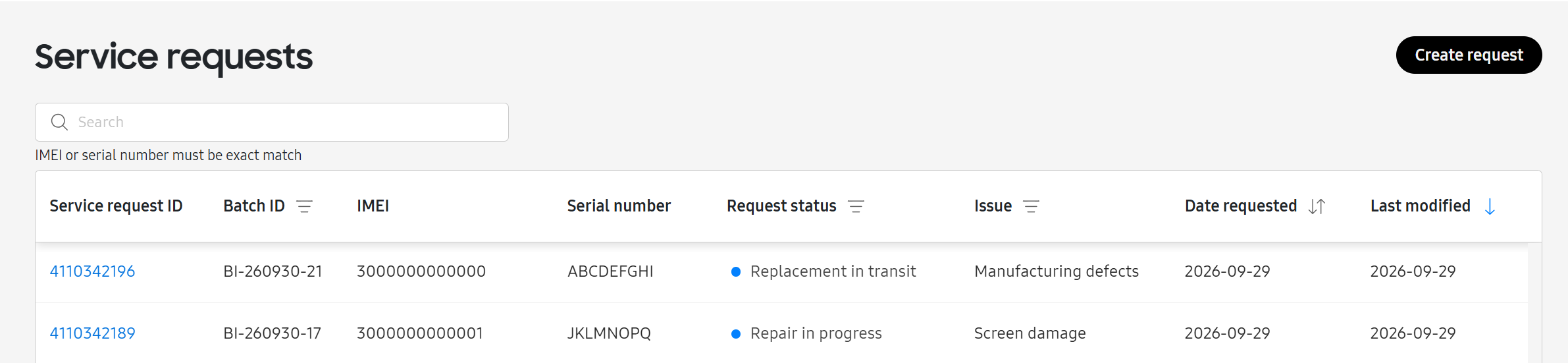
The service request table displays details for all the requests you’ve created:
| Column | Description |
|---|---|
| Service request ID | The ID number assigned to the specific service request. Click the link to view more details about the request in the service request details panel. |
| Batch ID | The ID number assigned to the batch of requests submitted. |
| IMEI | IMEI number of the device associated with the request. |
| Serial number | Serial number of the device associated with the request. |
| Request status | The current status of your service request. |
| Issue category |
Type of issue reported.
|
| Date requested | The date the service request was submitted. |
| Last modified | When the service request was last updated. |
View service request details
To view more information about a specific service request, click the link in the request ID to open the service request details panel.
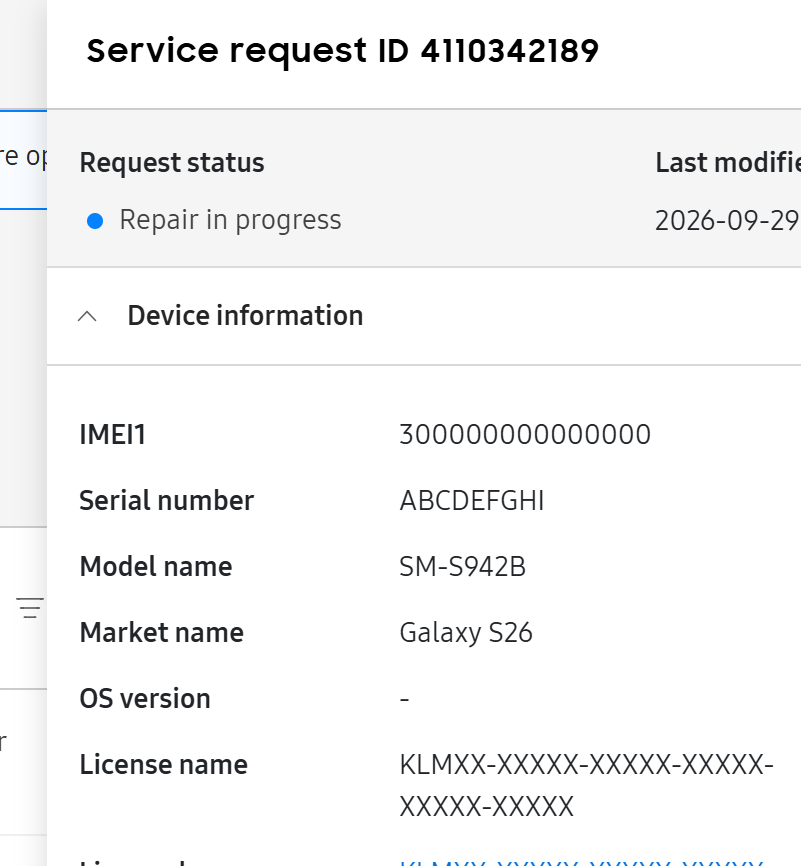
Here, you can view specific Device information, Service request information, and the Shipping and contact information entered when you created the request.
Device information
This section lists details about the device you submitted the service request for, including its IMEI, serial number, name, OS version, and assigned license.
If you selected Advanced exchange, the details of your original device are no longer shown after you’re assigned a replacement device. To view details about your replacement device, click View new device.
Service request information
This section lists out details about the service request.
| Column | Description |
|---|---|
| Service request ID | The ID number assigned to the specific service request. |
| Batch ID | The ID number assigned to the batch of requests submitted. You can submit multiple service requests in a single batch. |
| Date requested | The date the service request was submitted. |
| Requested by | The admin who submitted the service request. |
| Coverage | Whether the issue is covered under Samsung Care Pro’s Hardware service or is classified as Credit service. This field displays with the Pending tag until the service center verifies the coverage type when they receive your device. |
| Original device tracking | When your local carrier creates a shipping label for the package you’ve mailed, a tracking link is generated. Click the link to open the carrier’s tracking page and view the shipment details. |
| Repaired device tracking/ Replacement device tracking | When the service center ships your repaired or replacement device, a tracking link is generated. Click the link to open the carrier’s tracking page and view the shipment details. |
| Request status | The current status of your service request. |
Shipping and contact information
This section displays the Sender Address, Return address, and Contact information entered when submitting the request.
Shipping guide and label
When you’re ready to mail in your devices for service, click View shipping guide at the bottom of the panel for information on how to properly prepare your devices for shipment. You can also print these instructions if needed.
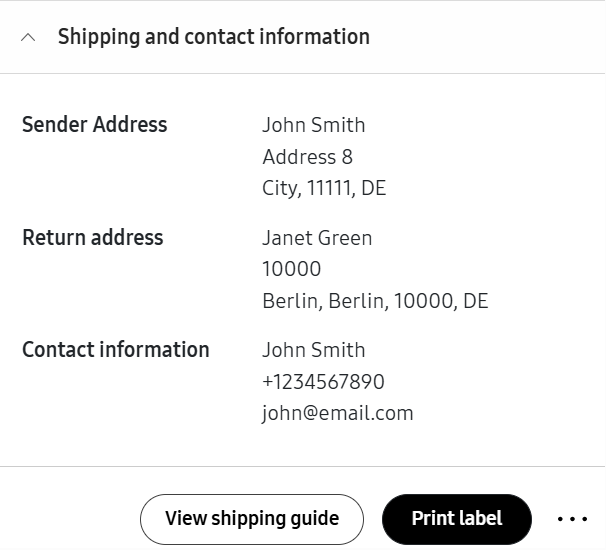
You’ll also need to print a shipping label for each device you’re shipping. It may take some time for this label to generate. When your shipping label is ready, click Print label. Your shipping label opens on a new page. Attach the label to each package you prepare.
Request status
You can view the status of your request in the Request status column, or in the Service request information section of the service request details panel.
Device repair
By default, any device you submit for service is repaired when possible.
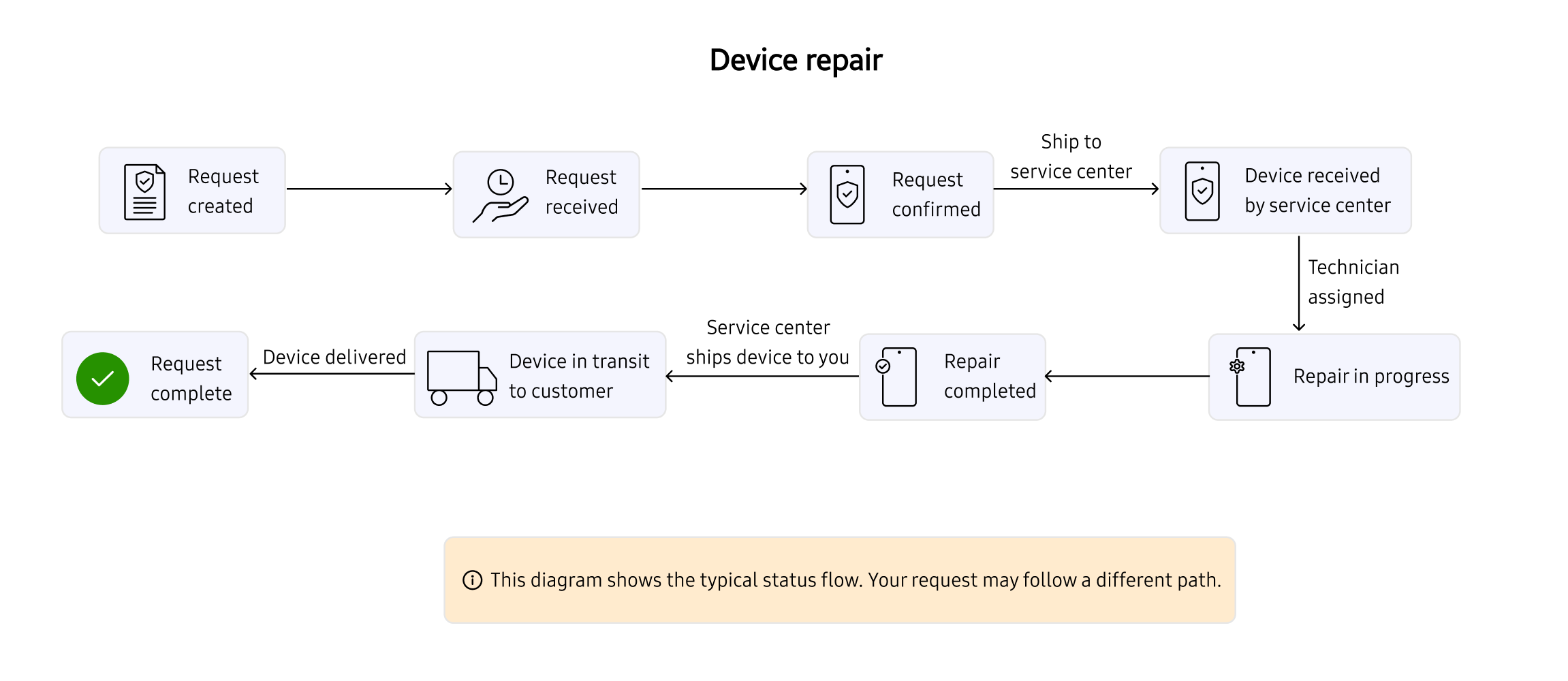
The statuses below cover the most common path a service request takes. Your request may follow a different path. To view its current status, check the request details.
If you’ve submitted a device repair claim, your service request typically goes through the following statuses:
- Request created: Your request is successfully created and is pending confirmation.
- Request received: The service center has received your request.
- Device received by service center: Your device has been delivered to the service center for repair.
- Repair in progress: A technician has been assigned to your case, and the repair is in progress.
- Repair completed: Your device has been repaired.
- Device in transit to customer: The service center has packaged and shipped the repaired device back to you.
- Request complete: The repaired device has been delivered to you, and the request is now completed.
Advanced exchange
For eligible devices, advanced exchange enables you to replace damaged or defective devices instead.
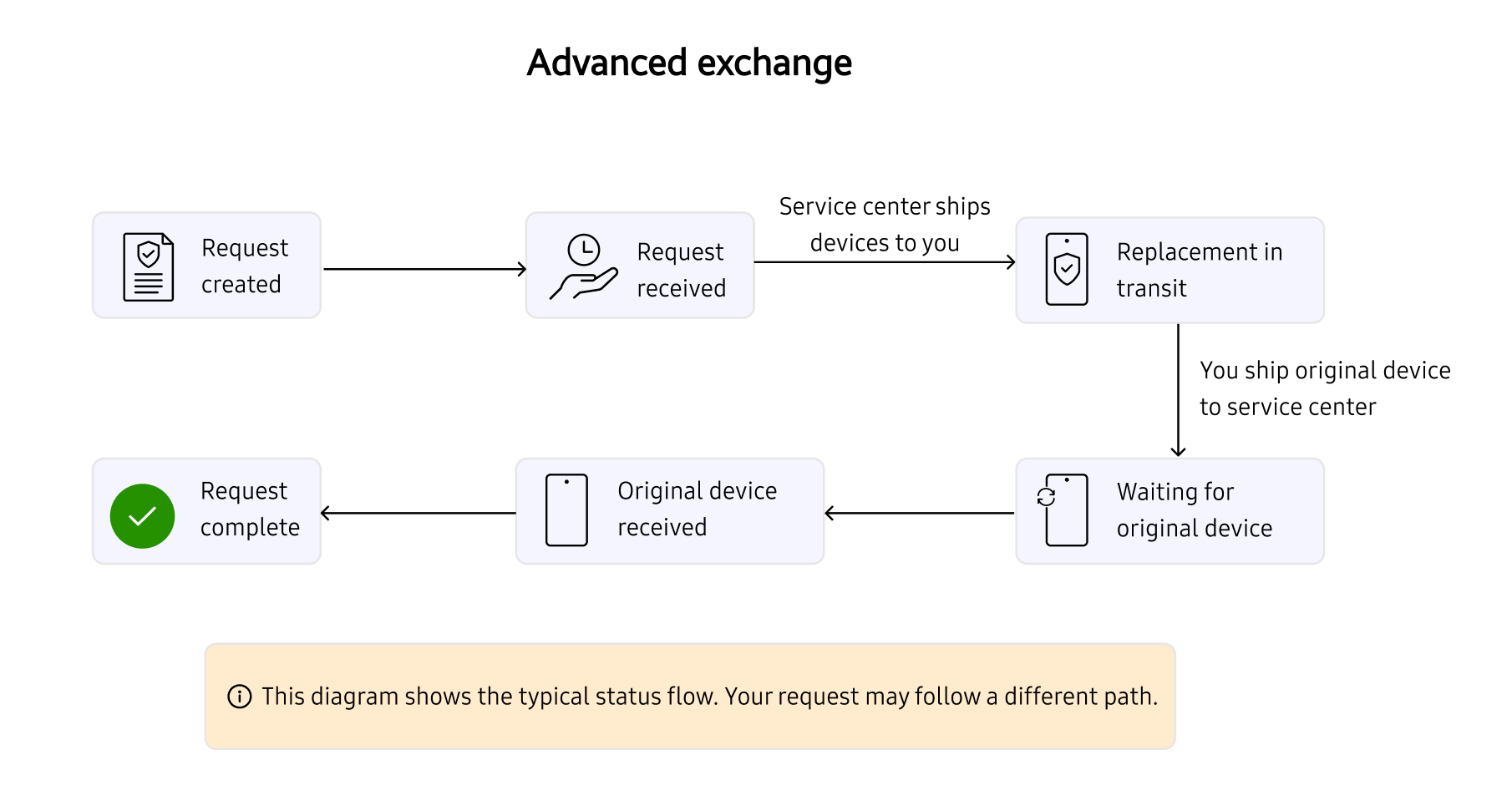
The statuses below cover the most common path a service request takes. Your request may follow a different path. To view its current status, check the request details.
If you selected advanced exchange when submitting your service request, your exchange request undergoes a different set of statuses:
- Request created: Your request is successfully created and is pending confirmation.
- Request received: The service center has received your request.
- Replacement in transit: Your replacement device has been shipped and is on the way.
- Waiting for original device: The service center is waiting for your original device.
- Original device received: The service center has received your original device.
- Request complete: The device exchange is now complete.
Other statuses
Pending
The following statuses may display if your request is delayed:
- Repair pending: Displays if your repair is delayed.
- Replacement pending: Displays if your device replacement is delayed.
Error
The following statuses may display if there is an issue when submitting your service request:
- Request canceled: The request has been canceled.
- Request canceled by service center: The request has been canceled by the service center.
- Request not received: The request was successfully created, but wasn’t received by the service center. If this status displays, we recommend you try submitting the request again.
- Failed to create request: The request couldn’t be created.
Cancel a service request
If you no longer wish to proceed with a service request, you can cancel it. You can only cancel a service request with the Request received or Request created status.
To cancel a service request:
- Click the link in the service request ID for the request you’d like to cancel. The service request details panel opens.
- On the bottom-right side of the panel, click (More actions icon).
- Click Cancel service request.
On this page
Is this page helpful?