Knox Mobile Enrollment 26.06 release notes
Last updated June 17th, 2026
New
New device enrollment method for select Knox services
The 26.06 release introduces an alternative way to enroll devices to Knox E-FOTA and Knox Asset Intelligence directly from the common device list. You can only enroll devices that’ve completed setup after the 26.06 release. This includes:
- Devices that complete setup for the first time after 26.06.
- Existing devices factory reset after 26.06.
To use this feature, you’ll need the common Enrollment > Enroll devices in services permission.
On the Devices page, select the device(s) you wish to enroll, then click Actions > Enroll devices in services. Select the Knox services to enroll the device to, then click Enroll.
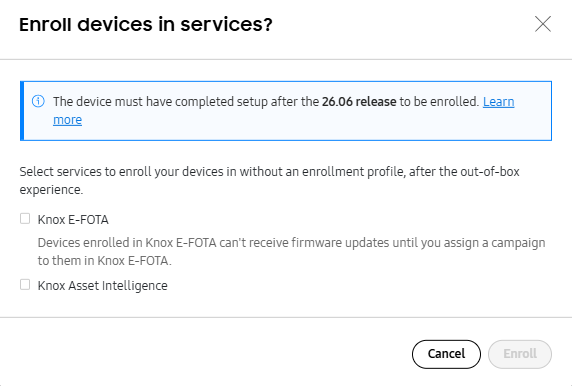
For more information, see Manage devices in the Knox Admin Portal documentation.
View automatic enrollment
The 26.06 release provides you with the ability to quickly view whether automatic enrollment is enabled for select Knox services.
New EMM auto-enrollment, E-FOTA auto-enrollment, and Knox Asset Intelligence auto-enrollment columns are shown in the console that indicate whether devices are automatically enrolled during setup.
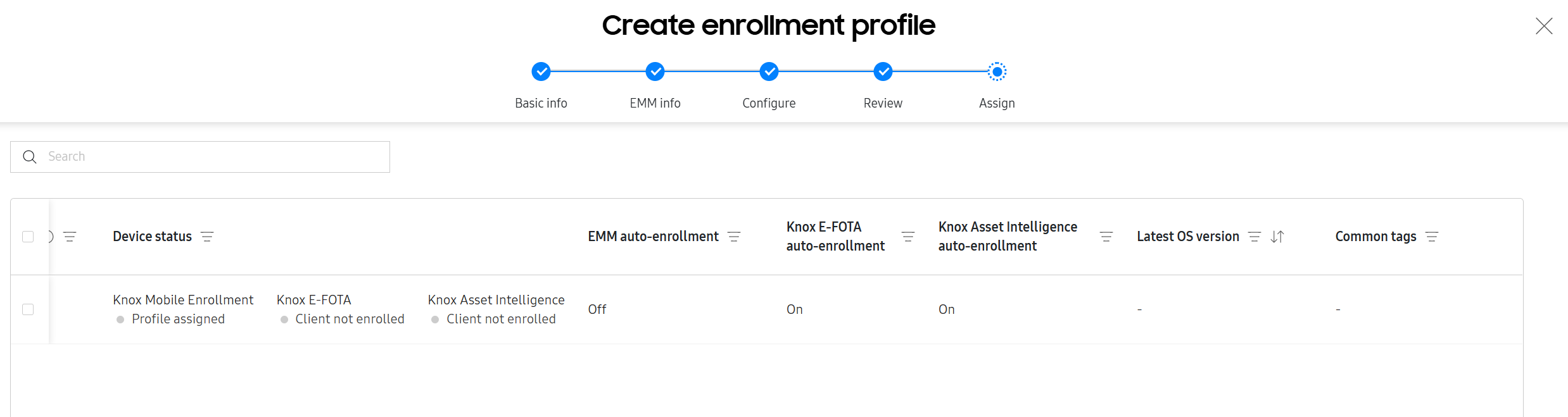
This information is shown on the common device list, Knox Mobile Enrollment device list, and the Assign section of the Create enrollment profile page.
Updates
Changes to the Devices users page and functionality
The Devices users page functionality is now consolidated under the new EMM CREDENTIALS tab of the common Enrollment menu. This includes changes to the following terms:
- User ID is renamed to EMM user ID.
- Password is renamed to EMM password.
You can manage EMM user ID and password information from the new EMM CREDENTIALS tab.
Additionally, the associated Device Users permission is also moved to common permissions under Enrollment > EMM credentials.
For more information, see Manage EMM credentials.
Add tags when assigning enrollment profiles in bulk
The 26.06 release reintroduces the ability to add Knox Mobile Enrollment tags to devices when assigning enrollment profiles in bulk.
When configuring your CSV file, enter tags separated by commas in the designated column. If the device has existing tags that you’d like to replace, you can check Overwrite EMM credentials and device tags when uploading your CSV file.
For more information on how to properly configure your bulk action CSV files, see Manage devices in bulk.
On this page
Is this page helpful?