Manage EMM credentials
Last updated June 17th, 2026
The EMM CREDENTIALS tab of the common ENROLLMENT page displays a table of EMM user ID and password information. You can add, edit, or delete EMM user IDs and passwords, and import new credentials using a CSV file.
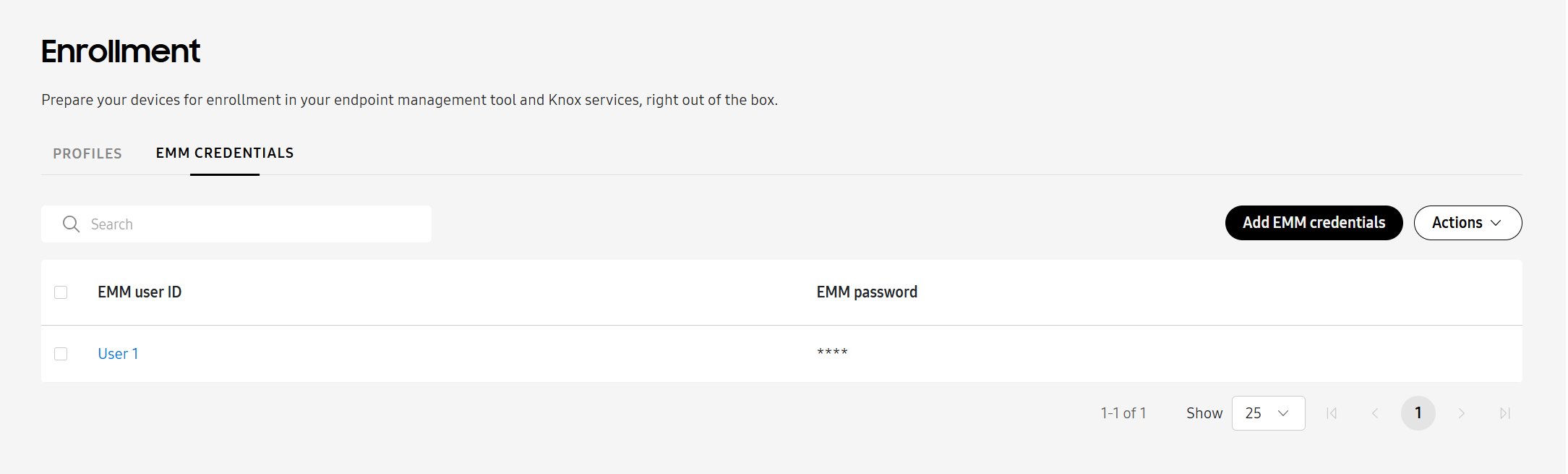
The EMM credentials table displays information such as:
- EMM user ID: The unique name or identifier of the user.
- EMM password: The user’s password.
You can also view this information when you select a device in the common or Knox Mobile Enrollment device list.
Add EMM credentials
You can add EMM credentials in three ways — on the common ENROLLMENT page, from the Knox Mobile Enrollment device list, and through bulk actions.
From the Enrollment page
To add EMM credentials:
- On the Knox Admin Portal navigation pane, click Enrollment. The common Enrollment page displays.
- Click the EMM CREDENTIALS tab.
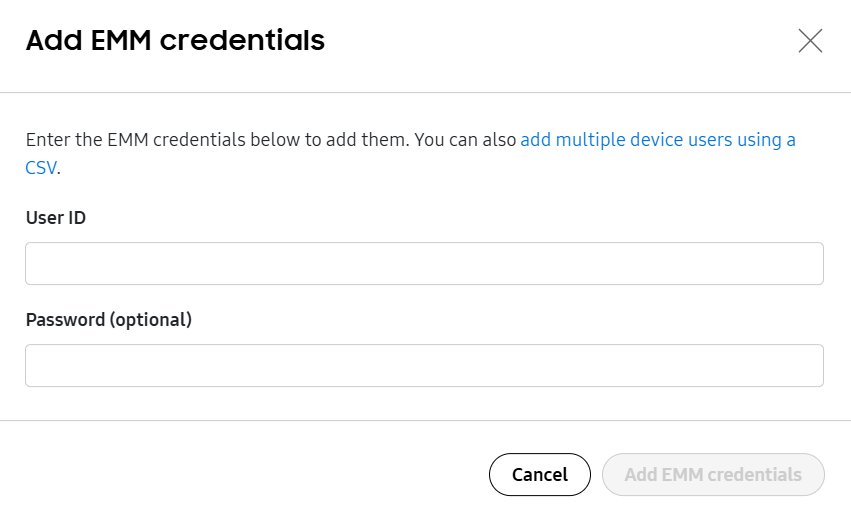
- Click Add EMM credentials. The Add EMM credentials dialog displays.
- Enter an EMM User ID.
- (Optional) Enter the corresponding EMM password.
- Click Add EMM credentials.
The EMM CREDENTIALS tab displays the added credentials.
From the Knox Mobile Enrollment device list
Alternatively, you can assign EMM credentials through the Knox Mobile Enrollment device list:
-
On the Knox Mobile Enrollment console, click Devices.
-
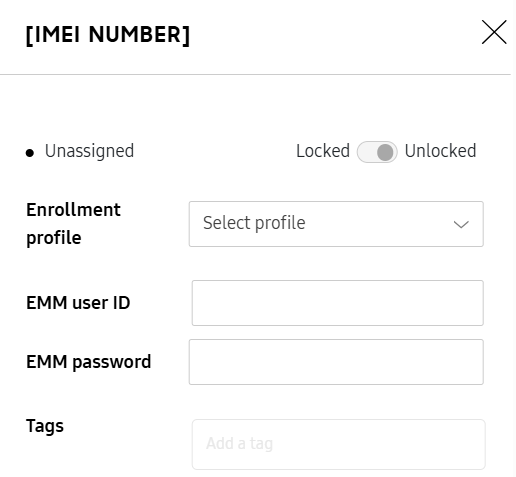
Open the device details panel for the device(s). To do so, you can either:
- Click a single device’s IMEI/MEID number.
- Select the devices you wish to assign credentials to, then click Actions > Configure devices.
-
Enter an EMM user ID and EMM password.
-
Click Save.
Using bulk actions
You can also assign EMM credentials using bulk actions. For more information, see Manage devices in bulk.
Edit EMM credentials
You can click an EMM user ID to edit a device user’s credentials. The user ID and password should both be the same as the credentials defined by your EMM.
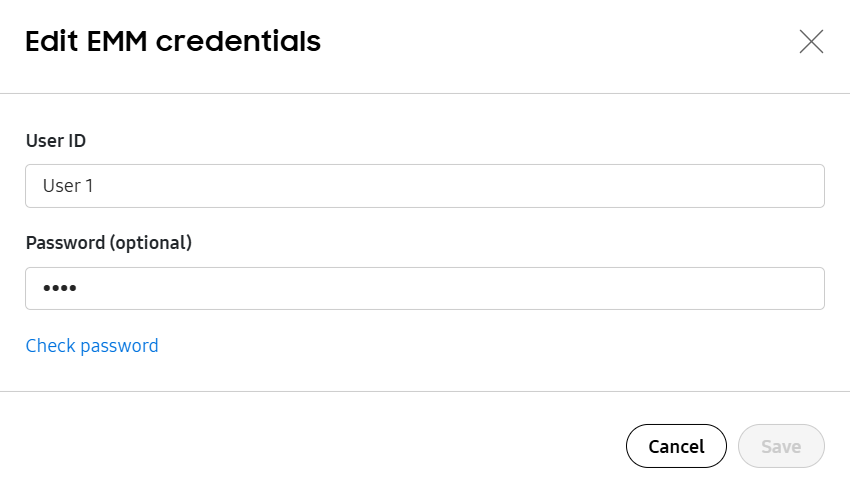
If there’s a conflict during the sign-in process, you can optionally click Check password to verify your credentials with the stored information. On the Check password dialog, enter a password to compare with the password recorded in the Knox Admin Portal, then click Compare.
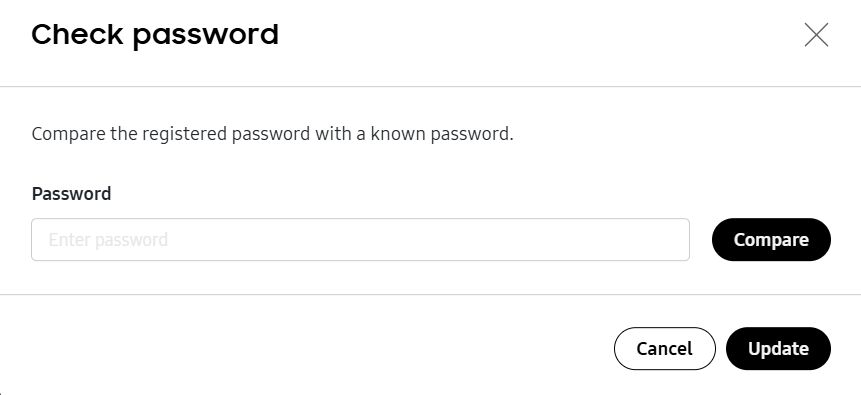
If the password matches, a Passwords match message displays.
If they don’t match, Passwords do not match displays. You can click Update to change the current password to one you’ve entered for comparison.
Delete EMM credentials
To permanently delete one or more EMM credentials:
- On the EMM CREDENTIALS tab, select the EMM credentials to be deleted.
- Click Actions > Delete EMM credentials. The Delete EMM credentials dialog displays.
- Click Delete.
The credentials are removed from the EMM CREDENTIALS tab.
Download EMM credentials as CSV
To download EMM credentials as a CSV:
- On the EMM CREDENTIALS tab, select the EMM credentials you’d like to download.
- Click Actions > Download EMM credentials as CSV.
On this page
Is this page helpful?