Step 2 — Access Knox Admin Portal and complete registration
Last updated September 21st, 2026
After creating your Knox account, sign in to the Knox Admin Portal and complete the initial setup for Knox Suite. You can choose the specific Knox cloud services you want to use.
-
Sign in to the Knox Admin Portal.
-
On the welcome screen that opens, click GET STARTED. The Set up your Knox Admin Portal page opens.
-
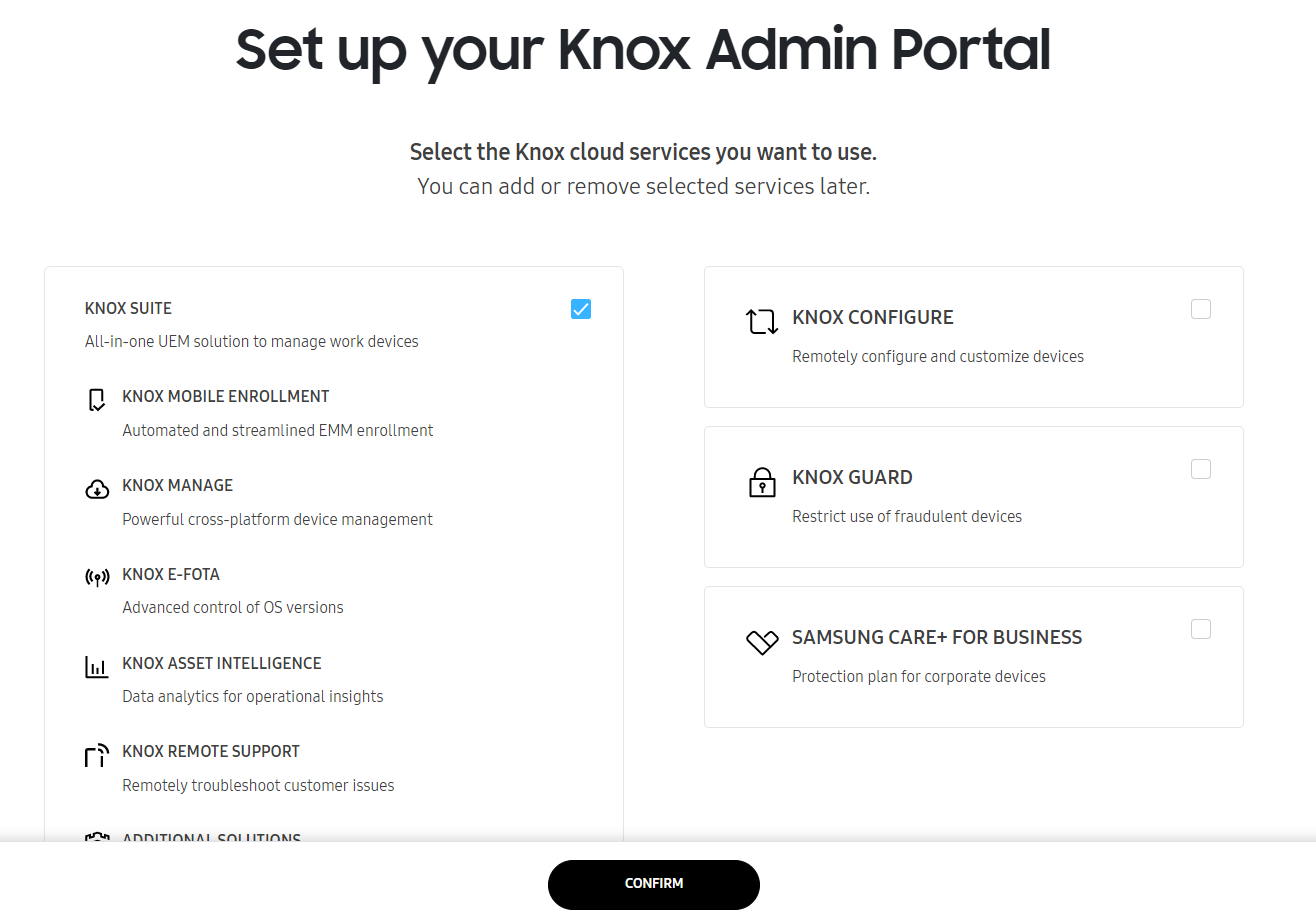
Select Knox Suite from the list of Knox cloud solutions and click CONFIRM. The Knox Admin Portal opens.
-
If you plan to use Knox Manage as your EMM, complete your Knox Manage registration. In the navigation pane of the Knox Admin Portal, click Knox Manage. Confirm or fill out your details for your tenant ID in the page that opens. Your tenant ID identifies your Knox Manage account and allows you to sign in to Knox Manage through a direct URL.
-
If your organization isn’t signed up for Knox Services, your organization’s domain makes up your unique tenant ID. Confirm that your organization’s domain automatically filled the Tenant ID field and click COMPLETE REGISTRATION.
-
If your organization is already signed up for Knox Services, you need to define a prefix to differentiate your tenant from other tenants in your organization. Confirm that your organization’s domain automatically filled the Organization Domain field and enter a prefix in the Prefix field. Your tenant ID should not exceed 50 characters.
-
Click COMPLETE REGISTRATION. In the pop-up that opens, click CONFIRM & COMPLETE.
-
You can now access your Knox cloud services from the Knox Admin Portal.
If you requested a Knox Suite - Enterprise Plan trial license during registration, the approved trial license is automatically generated and added to your account on the Licenses page of the Knox Admin Portal.
Tutorial progress
You’ve completed 2 of 6 steps!
On this page
Is this page helpful?