How to autofill credentials in Google Chrome using Knox Authentication Manager
Last updated June 17th, 2025
Environment
- Knox Authentication Manager v1.11
- Google Chrome 135
Overview
Following the Chrome 135 update, device users may have noticed an issue where they’re unable to use Knox Authentication Manager to automatically store and fill in their sign in credentials when using the Chrome browser app.
Cause
The Chrome 135 update added native support for third-party autofill services, which includes Knox Authentication Manager. However, by default, Chrome uses its built-in password manager. As such, to use Knox Authentication Manager’s autofill capabilities, device users must configure their Chrome settings to use third-party autofill services.
Resolution
To use Knox Authentication Manager to autofill credentials in Chrome, device users must enable third-party autofill services in their settings.
This can be done in two ways:
-
In the Knox Authentication Manager v1.11 app.
- On the device, open the Knox Authentication Manager app. If autofill settings aren’t configured, a banner displays.
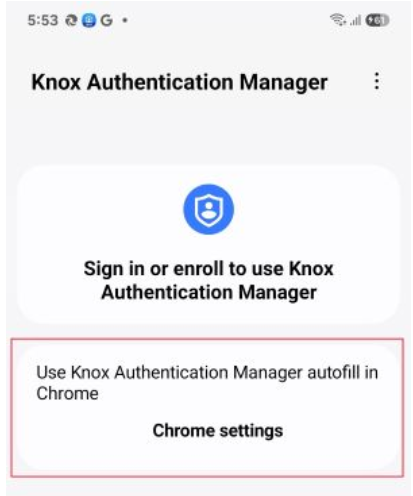
- Tap Chrome settings. The Autofill services page opens.
- Tap Autofill using another service. Once autofill settings are updated, the banner no longer displays in the app.
-
Manually, through the Settings menu.
- On the device, open the Settings app.
- Navigate to Apps > Chrome > Configure in Chrome.
- On the Autofill services page, tap Autofill using another service.
Once autofill settings are correctly configured, device users can use Knox Authentication Manager to save and fill credentials in Chrome with the appropriate pop-up message.
As all app data is cleared when a device user signs out, this setting must be manually adjusted each time the user signs in to the device.
On this page
Is this page helpful?