View devices
Last updated March 18th, 2026
After uploading devices to the Reseller Portal, you can view more detailed information about them, such as their upload date, device model, and device status.
Device details
To view device details:
-
On the Reseller Portal, go to the Customers page.
-
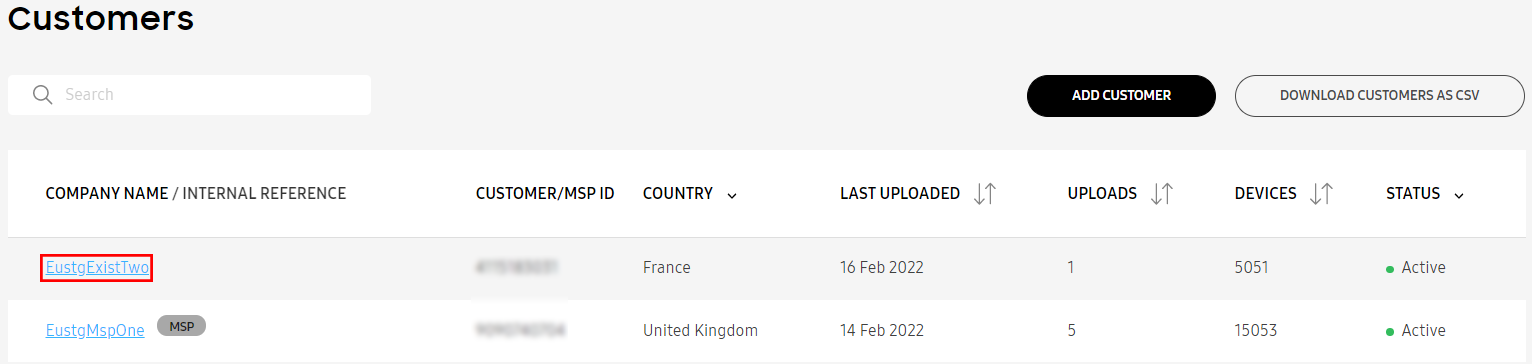
Under the COMPANY NAME/INTERNAL REFERENCE column, click a customer’s name. The customer details page opens.
-
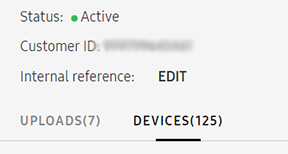
Click the DEVICES tab.
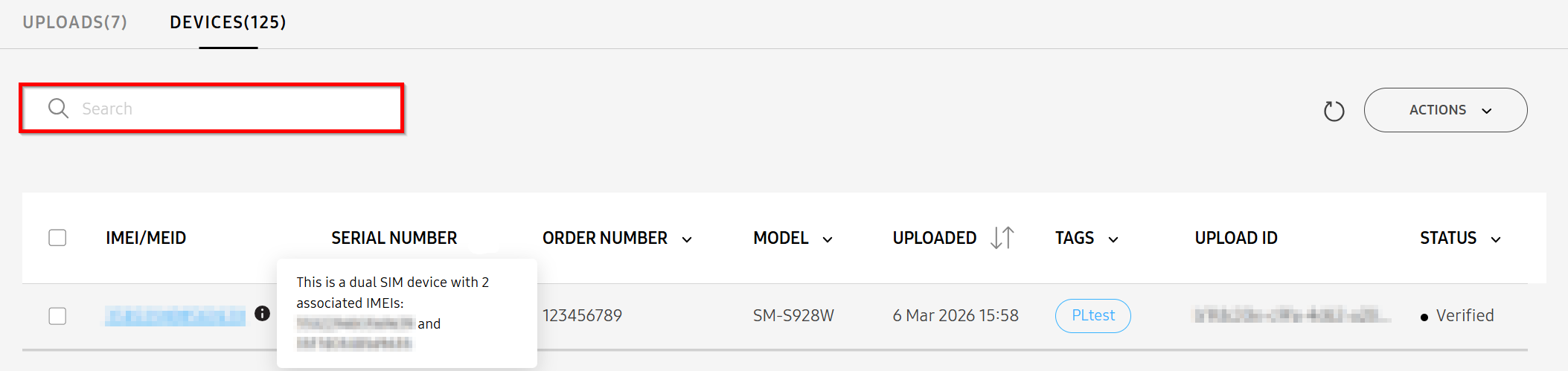
You can sort submitted devices by upload date, and filter them by order number, device model, tags, or device status.
Alternatively, you can search for devices by exact IMEI or serial number. If the device has dual-SIM capability, you can search for it by either of its IMEIs. The device list shows only the primary IMEI (IMEI1), but you can hover over a dual-SIM device to show a tooltip that displays both associated IMEIs.
-
On the DEVICES tab, click the device that you want to get additional details for.
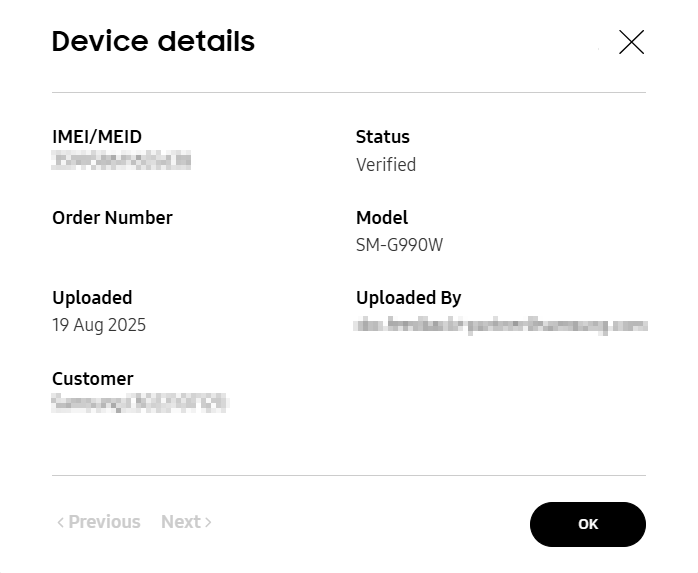
- IMEI/MEID: The device’s unique identifier. For dual-SIM devices, both IMEIs are shown under IMEI/MEID.
- Order Number: The order number that you entered during device upload.
- Uploaded: The date the device was uploaded.
- Customer: The customer’s name and Customer ID. The MSP’s name displays if the device is uploaded by a reseller to an MSP.
- Status: The status of the device. To learn more, see Device status.
- Model: The model number of the device.
- Uploaded By: The email of the account that uploaded the device.
Device status
Under the STATUS column of the DEVICES tab, the uploaded device shows one of four device states:
| Status | Description |
|---|---|
| Pending | The device is successfully uploaded to the customer account, but the customer hasn't approved it yet. |
| Verified | The device is successfully uploaded to the customer account, and the customer has approved it. |
| MPTS error | The device isn't recognized as a valid device from an authorized reseller. |
| Exchanging | The device's IMEI is in the process of exchanging. The device will automatically revert back to it's previous status after completion, regardless of success. |
Update Enterprise Edition devices
If you uploaded an Enterprise Edition (EE) device with a new SKU to a customer but the device doesn’t appear on their Enterprise Edition dashboard, you can try to resolve the issue by updating their device information from the Reseller Portal.
This action doesn’t affect how devices are shown on the Reseller Portal.
To do this:
-
On the Customers page, click the name of the customer whose device information you want to update. The customer details page opens.
-
On the UPLOADS tab, select an upload.
Alternatively, you can select a device from the DEVICES tab.
-
Click ACTIONS > Update device information. The selected EE devices’ information is updated, and the device should appear on the customer’s Enterprise Edition dashboard upon refresh.

If the problem persists, contact support.
On this page
Is this page helpful?